
Fugo

Display Power BI dashboards on TV screens

Fugo integrates directly with your Power BI environment and runs dashboards on managed TV screens the way they're meant to run - with secure authentication, controlled refresh, and centralized oversight.
No credit card required
14-day free trial
Secure authentication
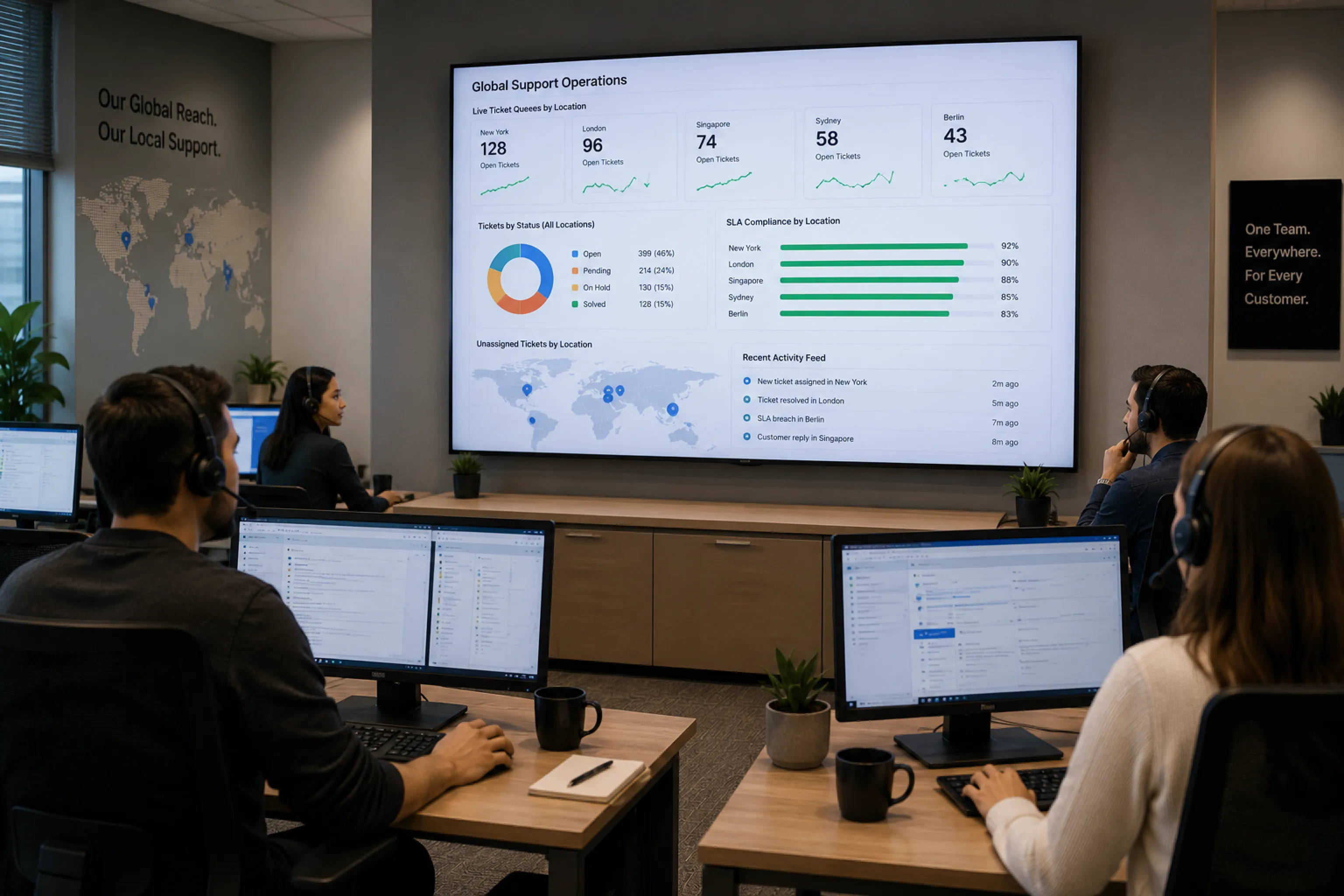
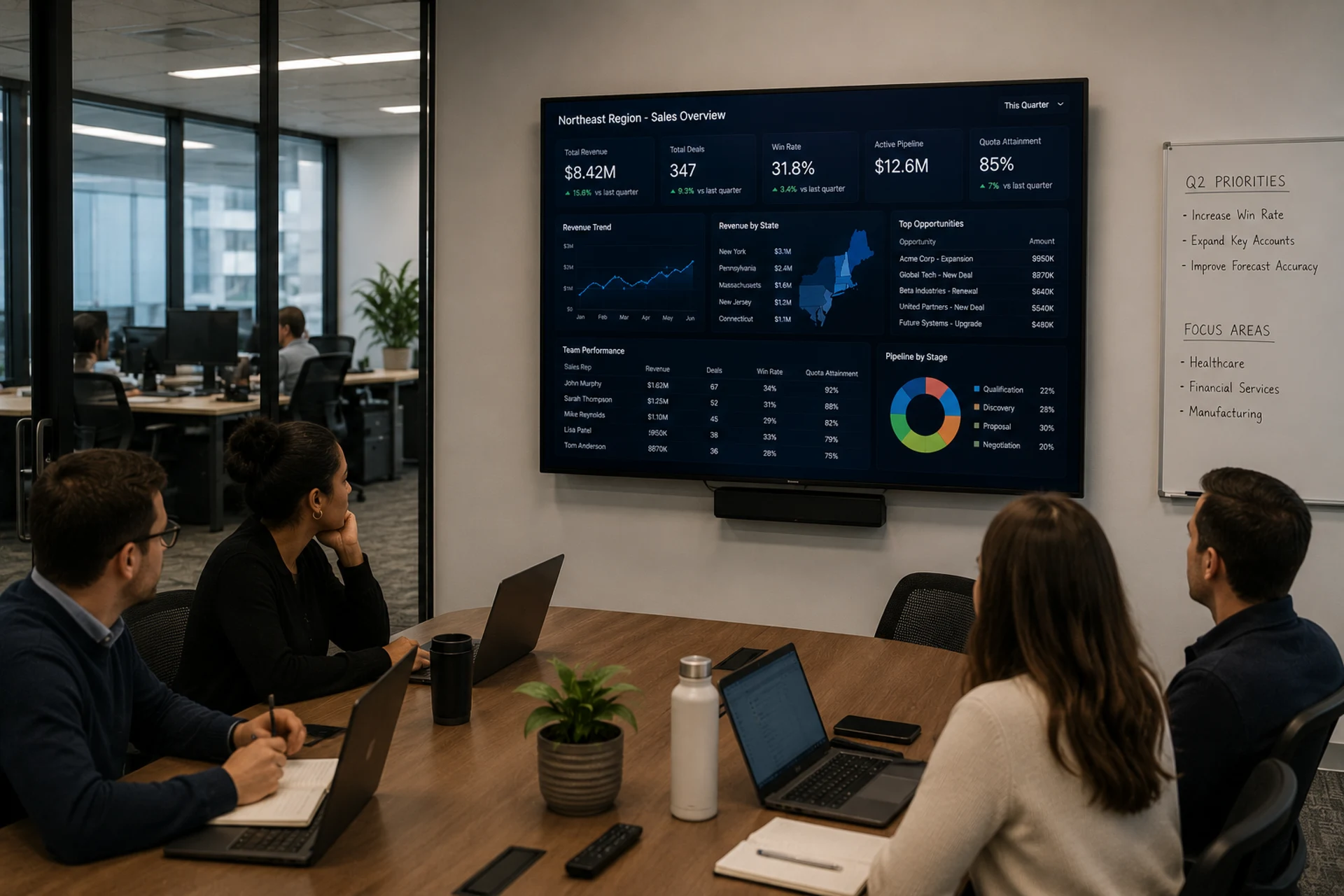
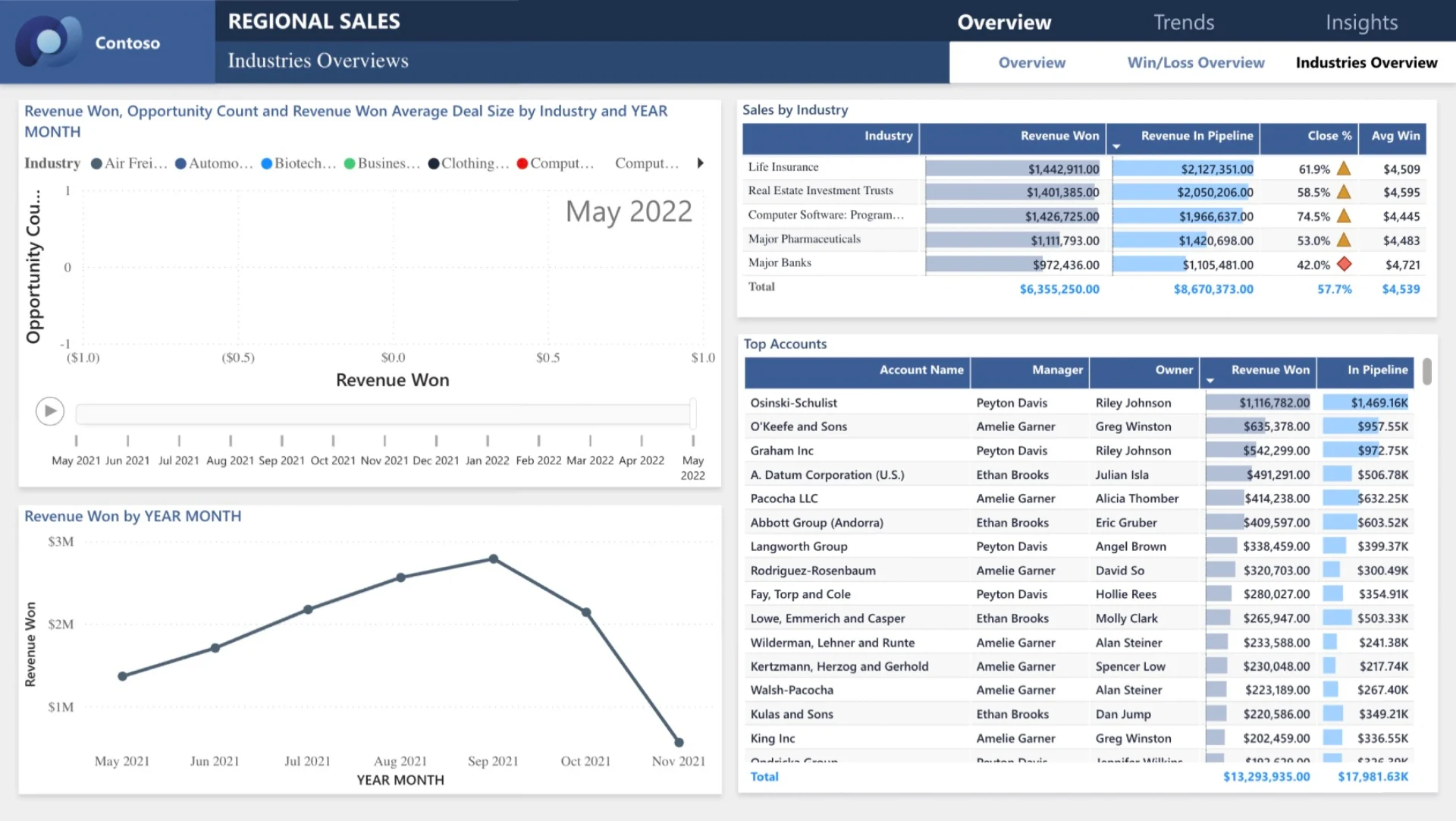
Power BI "Regional Sales" dashboard showing industries overview, revenue by year, opportunity counts, and average deal size displayed on a TV screen via Fugo digital signage
HOW IT WORKS

Go live in 3 easy steps

Pair your screen to Fugo
1

Pair your screen to Fugo

Install the Fugo app on your TV or media player to link it to your Fugo account. It just takes minutes & works with most smart TVs and media players.

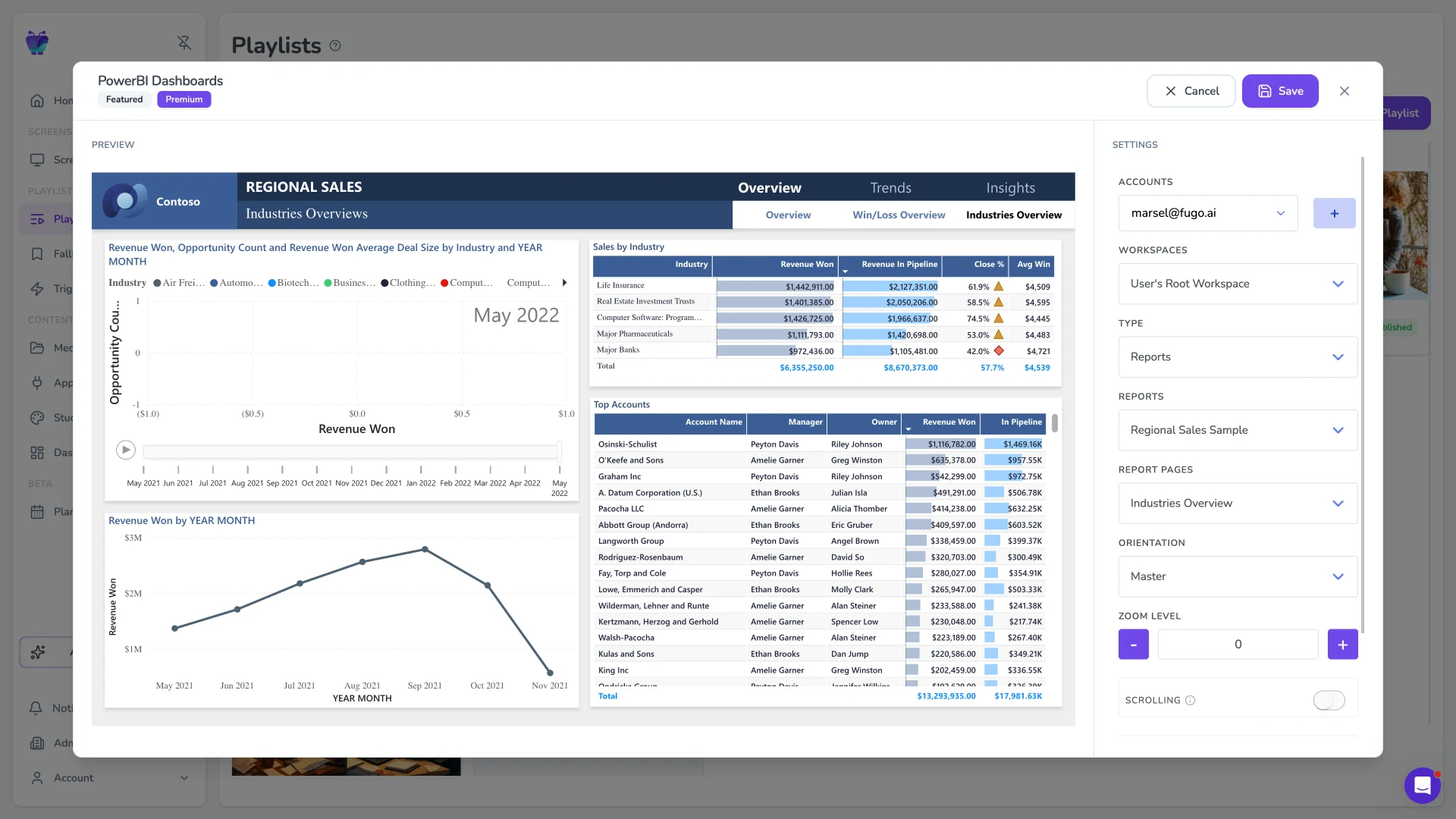
Fugo CMS Power BI app settings modal showing the Regional Sales report and Industries Overview page selected against the configured workspace, with Reports, Orientation, and Zoom controls in the side panel
2

Connect your Power BI account

Authenticate using your Microsoft login, then pick the Power BI workspace, report, and page you want on screen. Fugo supports SSO and multi-factor environments and respects existing workspace permissions.

Power BI Regional Sales dashboard playing live on a TV via Fugo
3

Publish to your screens

Assign dashboards to one or many TVs. Fugo manages authentication and refresh centrally so reports stay current without manual intervention.

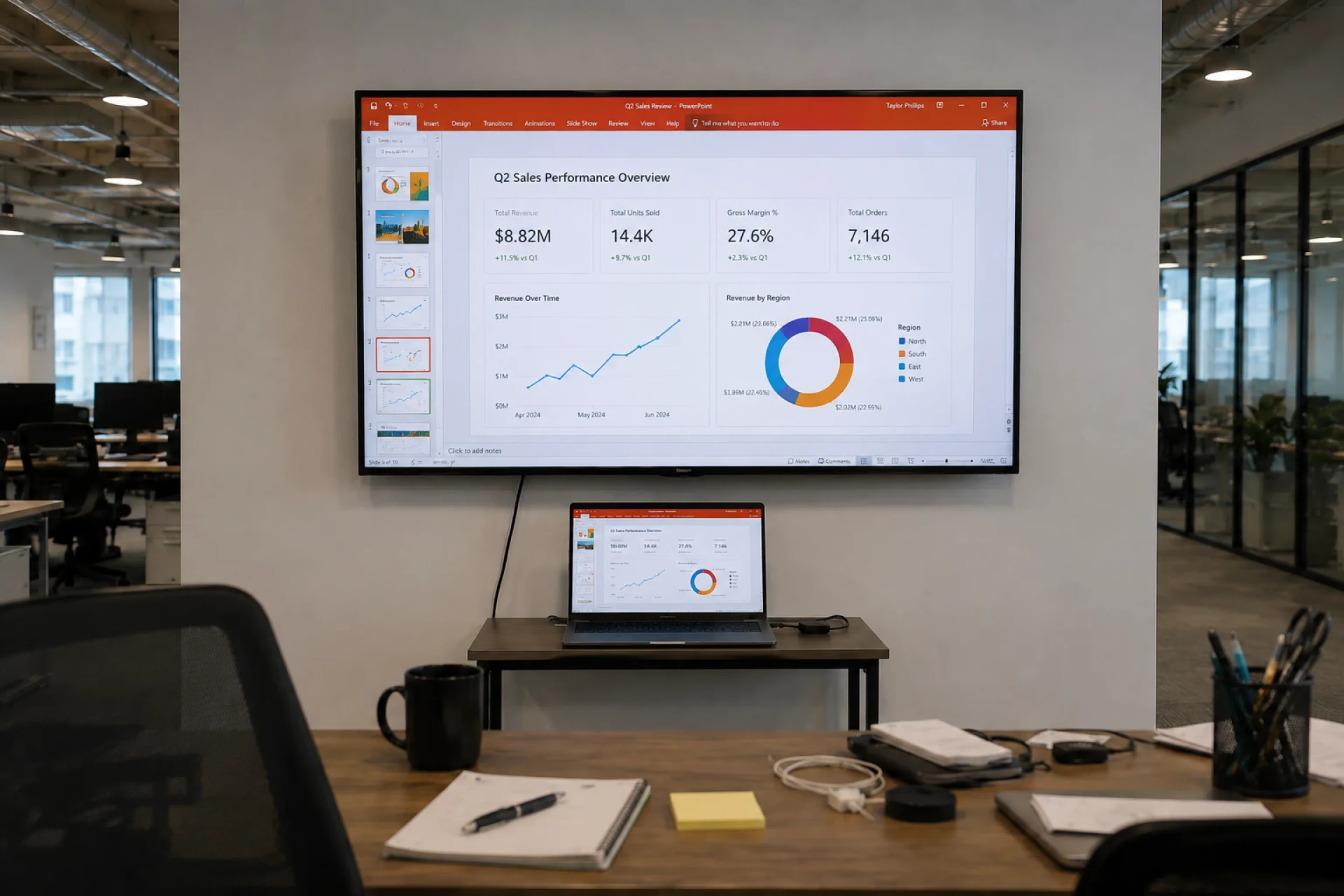
Wall-mounted TV running a Power BI dashboard via PowerPoint from a small laptop and monitor tethered on the desk below — the workaround that breaks the moment the Microsoft session expires
THE CHALLENGE

The problem with Power BI in powerPoint

Routing dashboards through PowerPoint or a connected laptop gets them on the wall, but it doesn't manage what happens next.

  • Microsoft sessions expire

  • Access policies interrupt playback

  • Screens fail to reload after dataset updates

  • Browser-based setups become unstable

  • Reports remain stuck in drill or filtered views

THE SOLUTION

A direct Power BI integration built for digital signage

Microsoft oAuth authentication

Sign in with your Microsoft account using OAuth, with support for Azure AD, SSO, and multi-factor policies, without storing credentials on devices.

Workspace-aware access

Display dashboards using existing Power BI workspace permissions, without shared logins or public links.

Direct or rendered display modes

Load Power BI dashboards directly on capable players, or publish rendered screenshots to screens that cannot reliably run full browser sessions.

Controlled screen refresh

Set how often the report view reloads so your screen stays aligned with dataset updates rather than relying on a one-time page load.

Screen-ready layout controls

Crop, scale, scroll, or adjust report pages to ensure dashboards remain readable and stable on large displays.

Centralized publishing & monitoring

Publish specific reports to one or many screens, restart devices remotely, and receive alerts if a dashboard stops loading.

DEMO

See IT in action

USE CASES

Runs wherever Power BI runs

Production floor performance

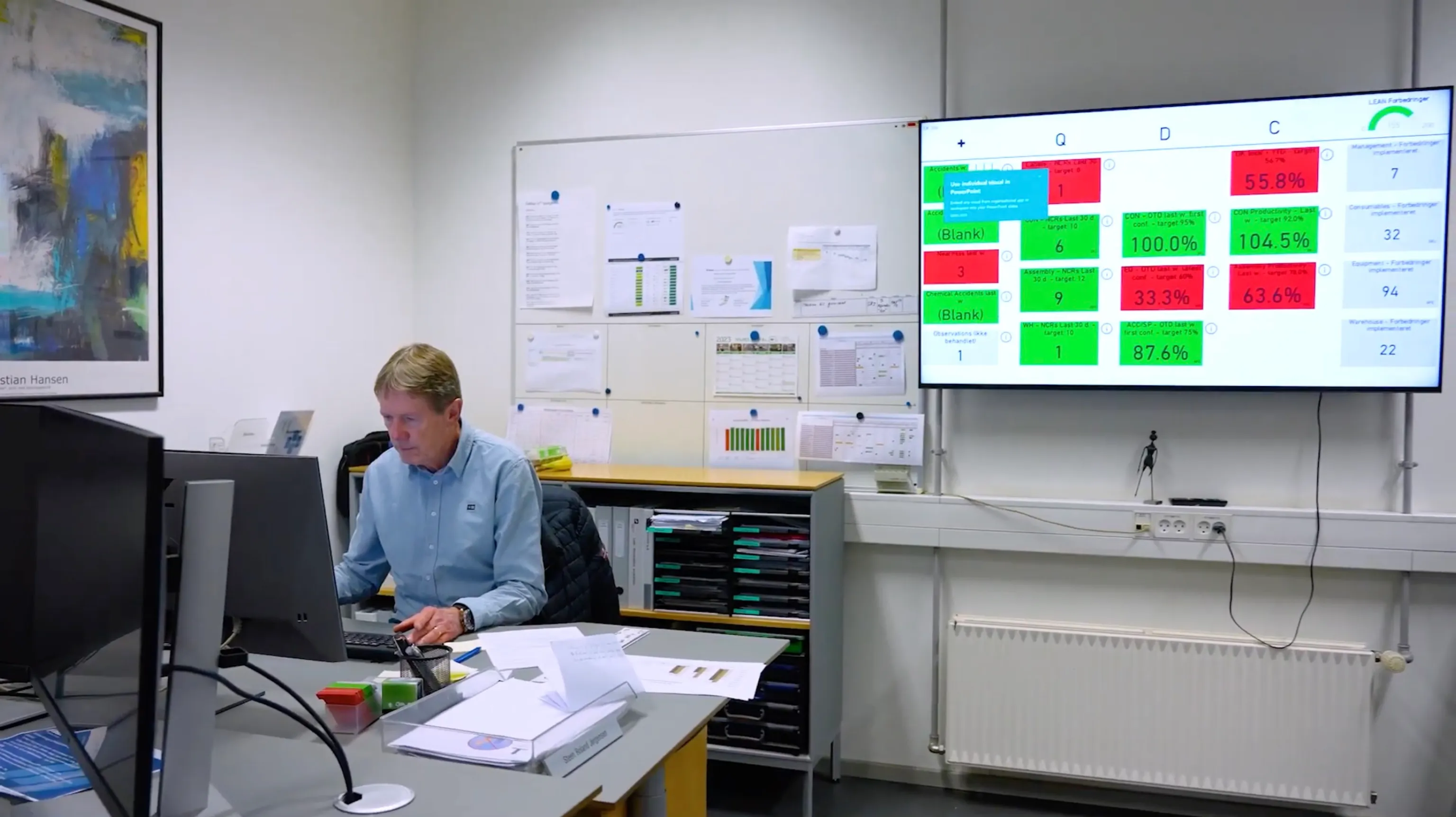
Track output, downtime, yield, and shift metrics on screens visible to operators and supervisors.

Production floor manager reviewing output, downtime, and yield metrics on a wall-mounted TV in a manufacturing environment
FUGO TRIGGERS

Make screens react to your data

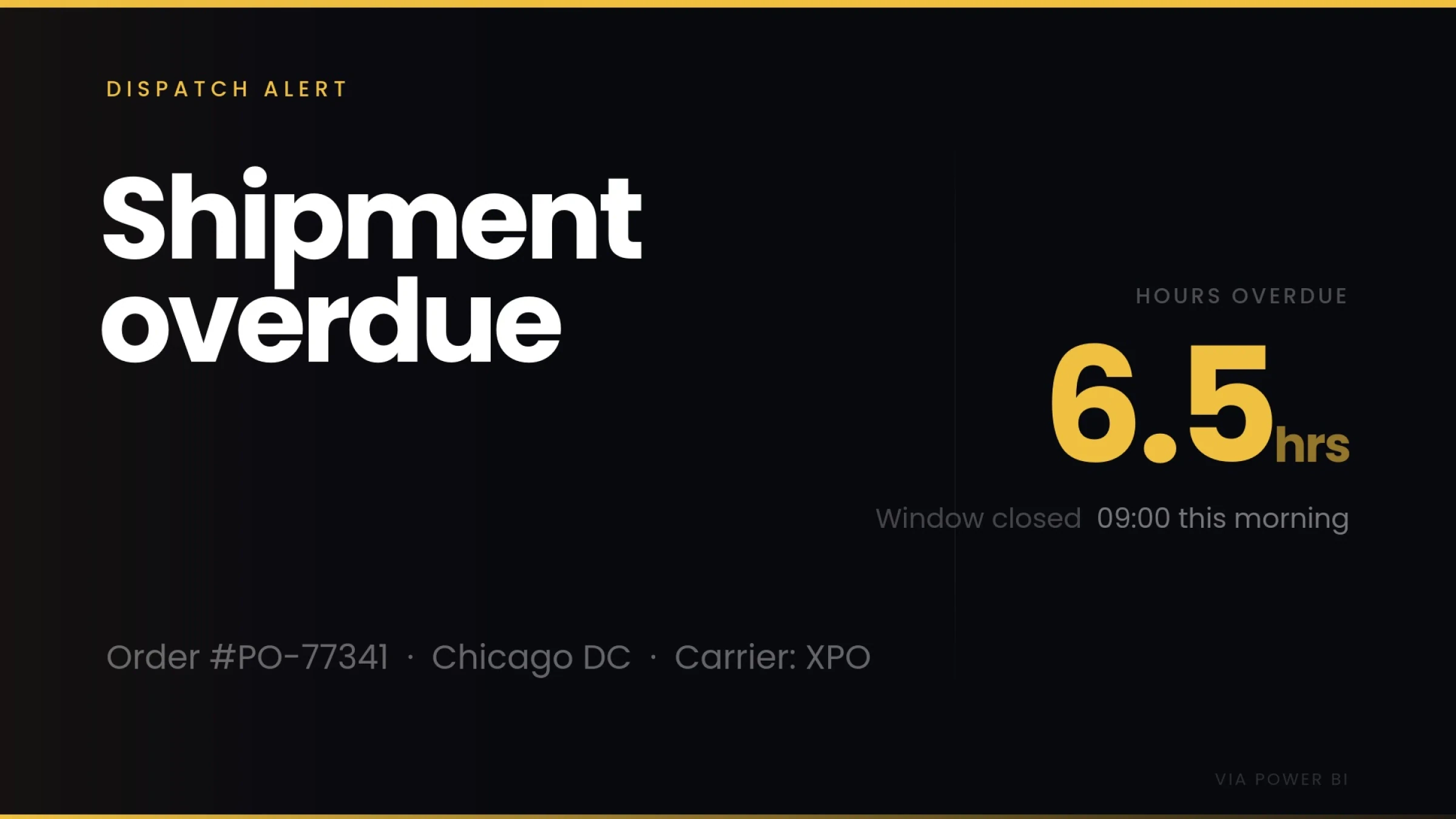
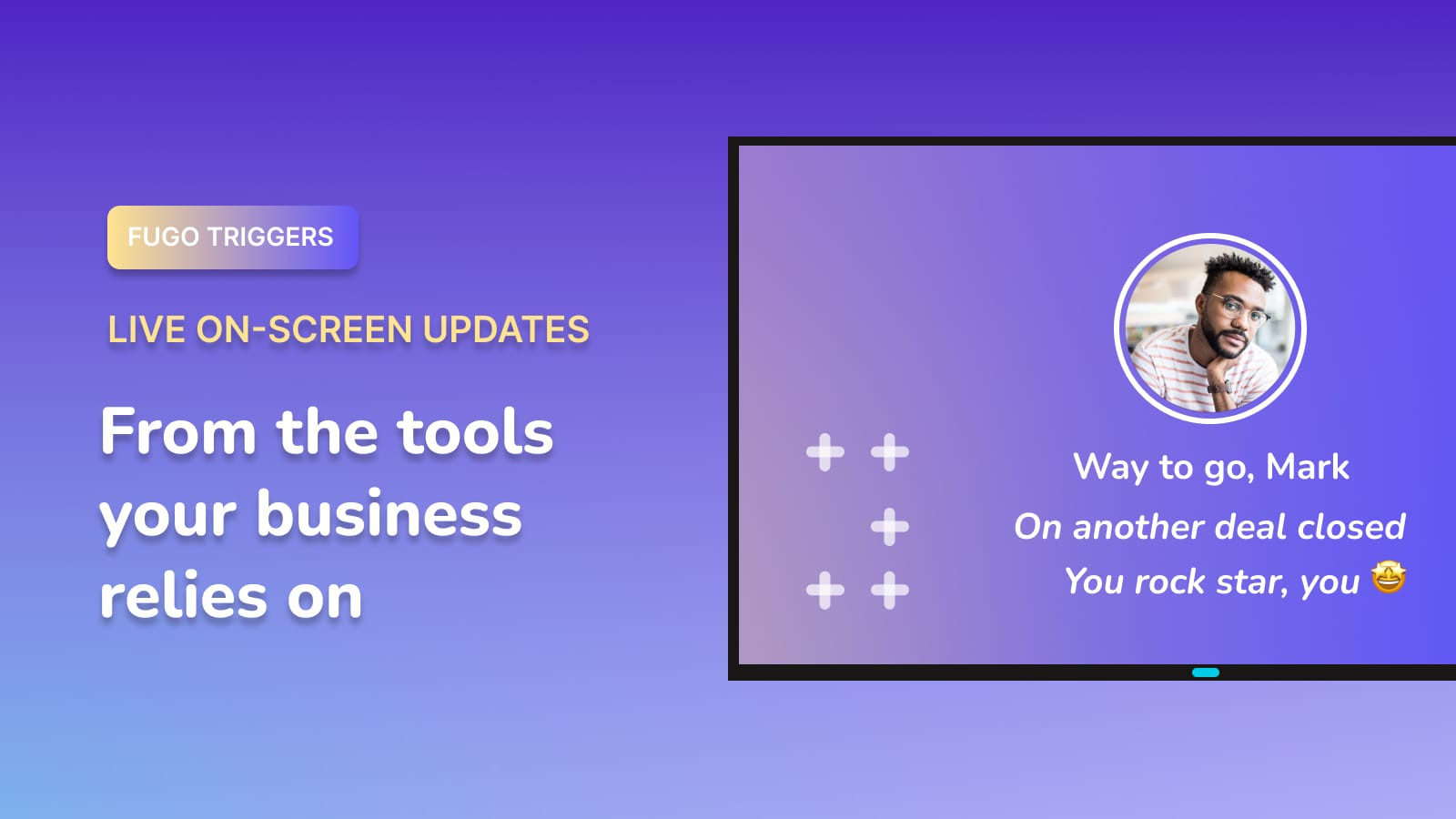
Your screens can show dashboards all day and change the moment something important happens. A deal closes. A target is hit. An incident is resolved.

Fugo trigger fullscreen "Shipment overdue" dispatch alert for Order #PO-77341 (Chicago DC, Carrier XPO) showing 6.5 hours overdue against a 09:00 morning window, sourced live from Power BI

React instantly

Switch what's on screen when defined conditions are met.

Surface key moments

Show wins, alerts, and milestones as they happen.

Connected to your systems

Trigger updates from the tools your team already uses.

Frequently asked questions

Can I just embed my Power BI report in powerPoint and put that presentation on a TV screen?

You can, and many teams try that first. It works for meetings or short presentations, but it is not designed for always-on display. Someone has to keep a laptop connected, restart the presentation if the session expires, and monitor whether the dashboard is still visible.

Fugo removes that manual layer and manages authentication, refresh, and screen control from one place.

If you're weighing the tradeoffs, check out this detailed comparison of embedding Power BI in PowerPoint versus using digital signage software.

What kind of Power BI account do I need to use this integration?

You'll need a Power BI license that supports report sharing, typically Power BI Pro or Premium Per User (PPU).

If your organization uses Premium or Fabric capacity (such as a P or F64 SKU), viewers may be able to access dashboards with a free license.

Fugo does not require additional Power BI licensing beyond what your Microsoft environment already requires. Once your report is published and accessible, you're ready to display it.

Licensing can vary depending on how your Microsoft 365 tenant is configured, so check with your Power BI admin if you're unsure.

Can I show different dashboards or reports on different screens?

Yes. You can create separate instances of reports or report pages and assign them to different screens. You can also apply different filters or slicers so each team or location sees a tailored view of the same underlying report.

Will I need special permissions to connect Power BI to Fugo?

Possibly. Some organizations require admin approval before third-party apps can access Power BI. In those cases, your Microsoft 365 or Azure admin may need to grant consent before you can connect your account.

How does licensing work if I want to show dashboards on multiple screens?

Fugo licensing is based on the number of screens you connect, not how many dashboards you show. You need one Fugo license per screen.

The Power BI integration is included with Fugo's Core & Enterprise plans, and there is no limit to how many dashboards or report instances you create.

Will Power BI work on any screen or player I connect to Fugo?

That depends on the device you're using.

By default, Fugo uses your device's browser to load and display Power BI dashboards directly. But Power BI is only supported on the two most recent versions of Google Chrome at any given time. Many common signage devices — like smart TVs, streaming sticks, or low-powered players — either can't run a current browser or don't have the processing power to load Power BI reliably.

That's why Fugo also offers a screenshot mode. Instead of loading the dashboard from the device, Fugo renders it in a secure cloud browser, takes a snapshot, and sends that image to your screen. This ensures your dashboards display correctly, even on devices that can't run Power BI natively.

Will my Power BI dashboard stay up on screen, or will the session time out?

Once connected through Fugo, authentication is managed in the background so dashboards remain visible without requiring manual logins. In rare cases where permissions change or access is revoked in Azure, the session may need to be reauthorized.

How often does my Power BI dashboard refresh on screen?

If your dashboard is part of a playlist, Fugo fetches the latest version each time it appears in the rotation. If it is the only content on screen, Fugo refreshes it automatically in the background at 5-minute intervals.

If you're using screenshot mode, you define how often the image is recaptured and updated.

Can I rotate multiple Power BI dashboards on the same screen?

Yes. You can add multiple reports or pages to a playlist and control how long each appears before rotating.

Can I display a single visual instead of the entire report page?

Yes. You can crop and adjust the view so only the relevant section of a report is shown on screen.

Does Fugo affect my existing Power BI licensing?

No. Fugo does not replace or modify your Microsoft licensing. You continue using your current Power BI plan, and Fugo licensing is separate and based on screens.

Is this suitable for manufacturing floors or fulfillment centers?

Yes. Fugo is built for long-running screen environments and supports stable rendering, controlled refresh, and centralized monitoring across operational spaces.

What happens if a screen goes offline?

You can see screen status in your Fugo dashboard and restart devices remotely. Once connectivity is restored, content resumes automatically.

Do I need a dedicated laptop connected to every TV?

No. Fugo works with supported signage players and devices without requiring a permanently connected laptop.

What makes Fugo worth considering if i'm already showing dashboards another way?

Most DIY methods for showing dashboards on TVs were never designed for long-term visibility — they were built for meetings, not always-on display.

Fugo exists because we've seen how messy it gets when teams try to scale data sharing using tools that weren't meant for TV screens. As a digital signage platform, we specialize in making business data reliably visible, not just technically possible.

That means we've already solved the hard parts: screen compatibility, token management, permissions, access control, refresh logic, and user experience across multiple locations. No patchwork setups, no daily troubleshooting — just dashboards that stay live where they're needed.

Can I test this before deploying IT widely?

Yes. You can start with a trial, connect a workspace, and test on a single screen before expanding across teams or locations.