
Fugo

Display Zendesk dashboards on TV screens

Run ticket queues and SLA dashboards on managed digital signage screens with encrypted authentication, centralized publishing, and device-level monitoring across locations.
No credit card required
14-day free trial
Secure authentication
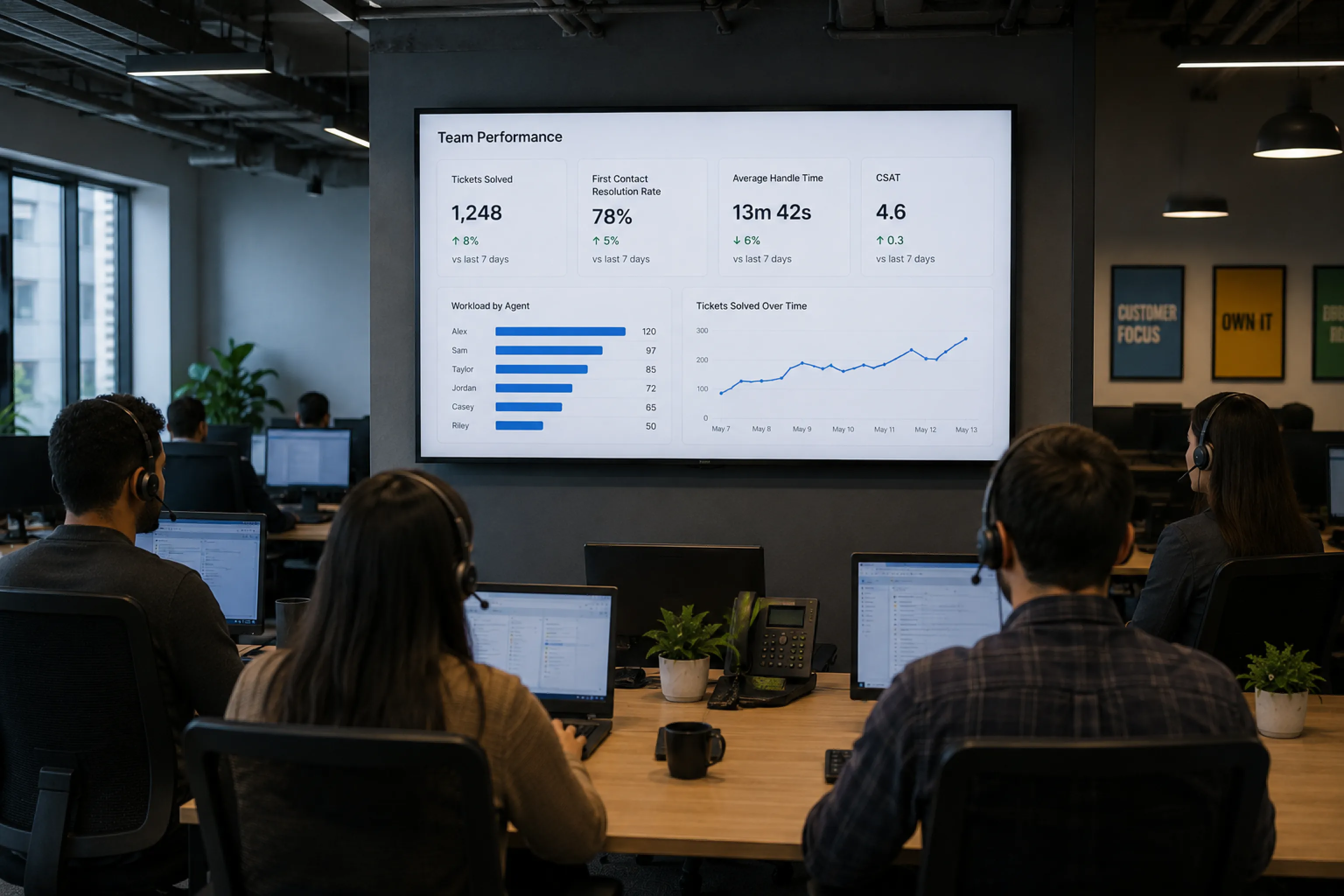
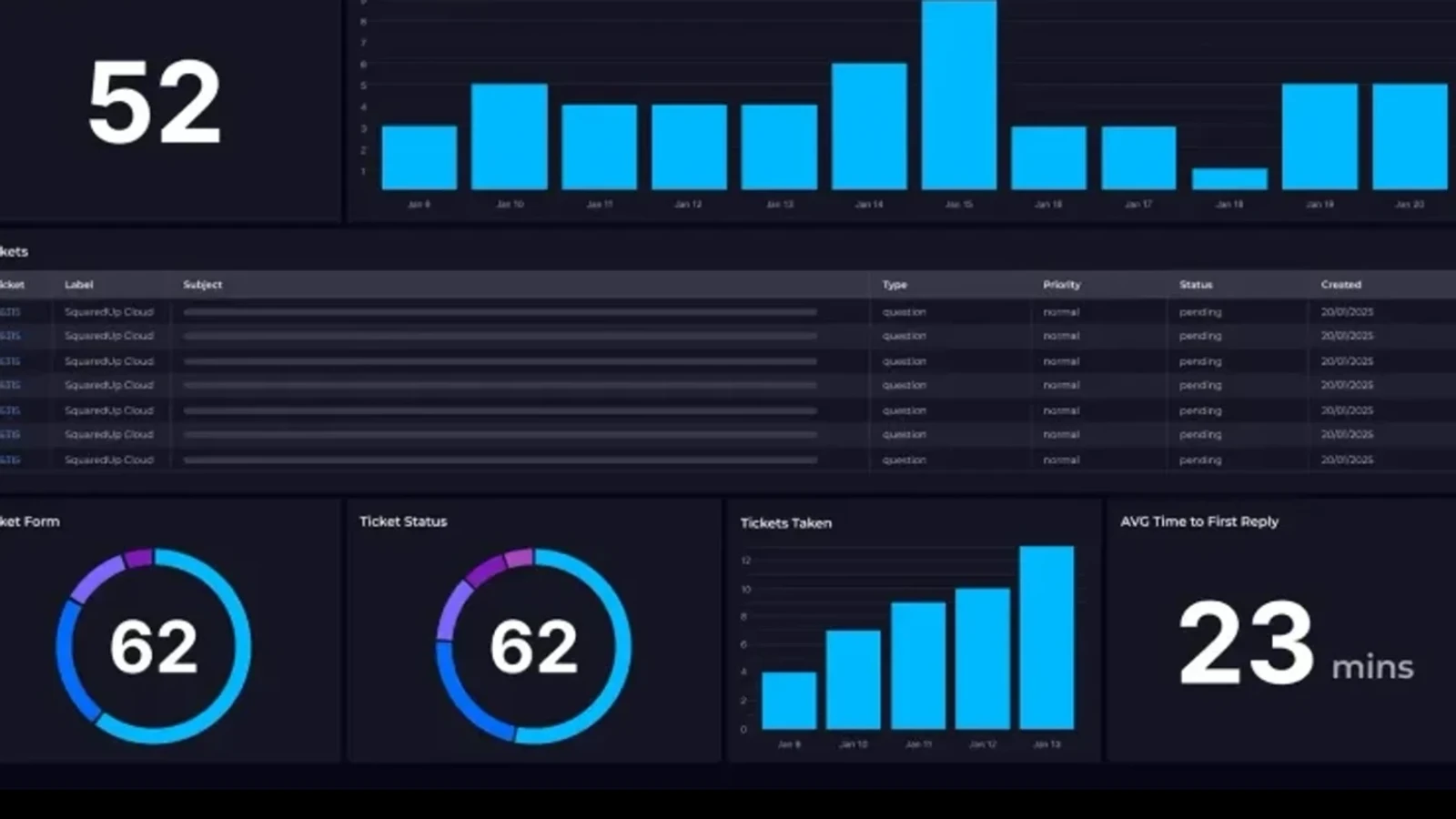
Zendesk dashboard displayed on a TV screen via Fugo digital signage
HOW IT WORKS

Go live in 3 steps

Pair your screen to Fugo
1

Pair your screen to Fugo

Install the Fugo app on your TV or media player to link it to your Fugo account. It just takes minutes & works with most smart TVs and media players.

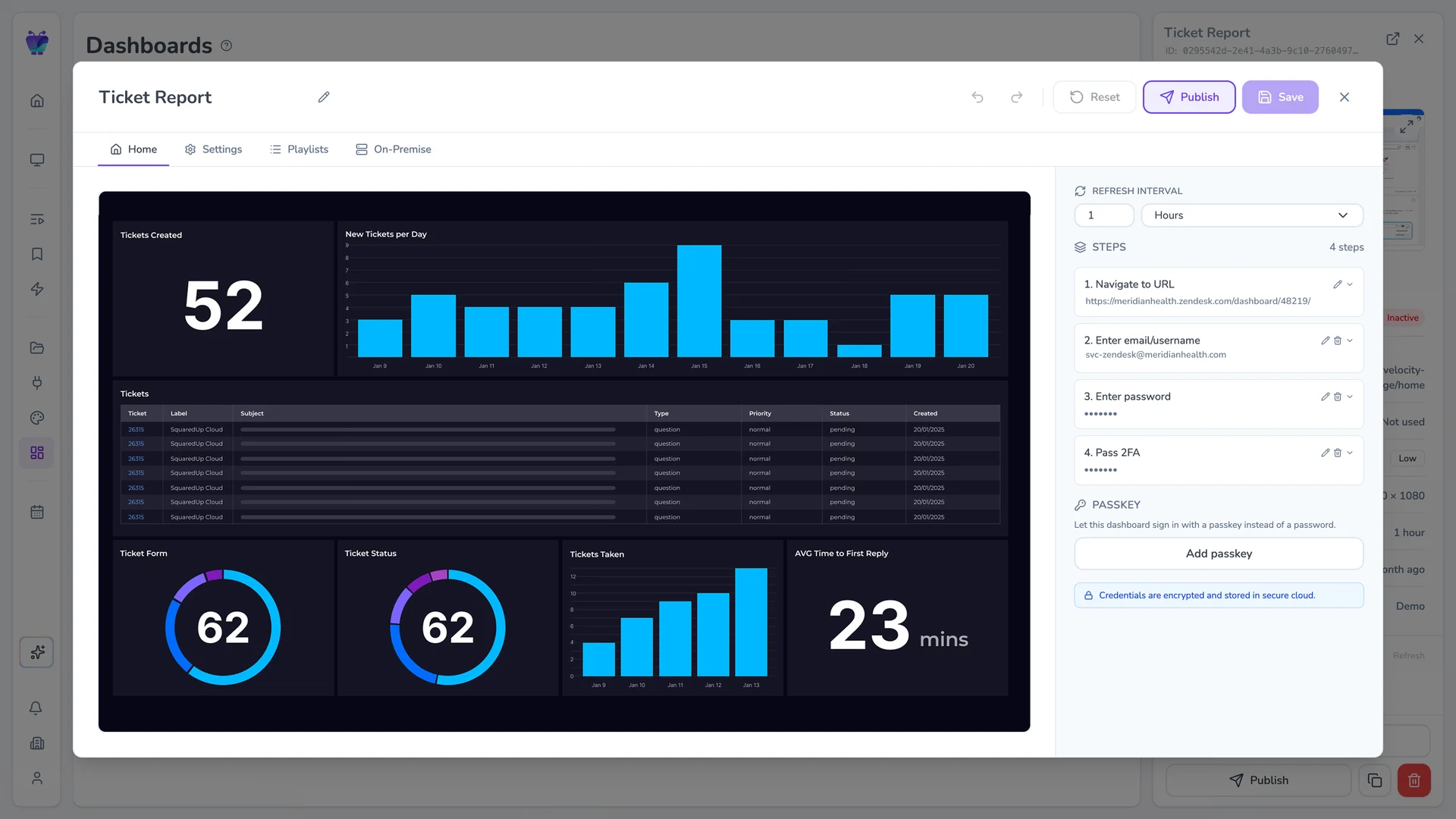
Fugo CMS dashboard-edit Settings tab showing the Zendesk Ticket Report dashboard with refresh, resolution, and proxy controls
2

Give Fugo access to your dashboard

Enter your dashboard URL and login details. Fugo securely handles authentication so your credentials never live on the screen.

Run your Zendesk dashboard on TV screens
3

Run your dashboard on your screens

Fugo loads your dashboard for display on TVs and keeps it updated automatically at the interval you choose across one or many screens.

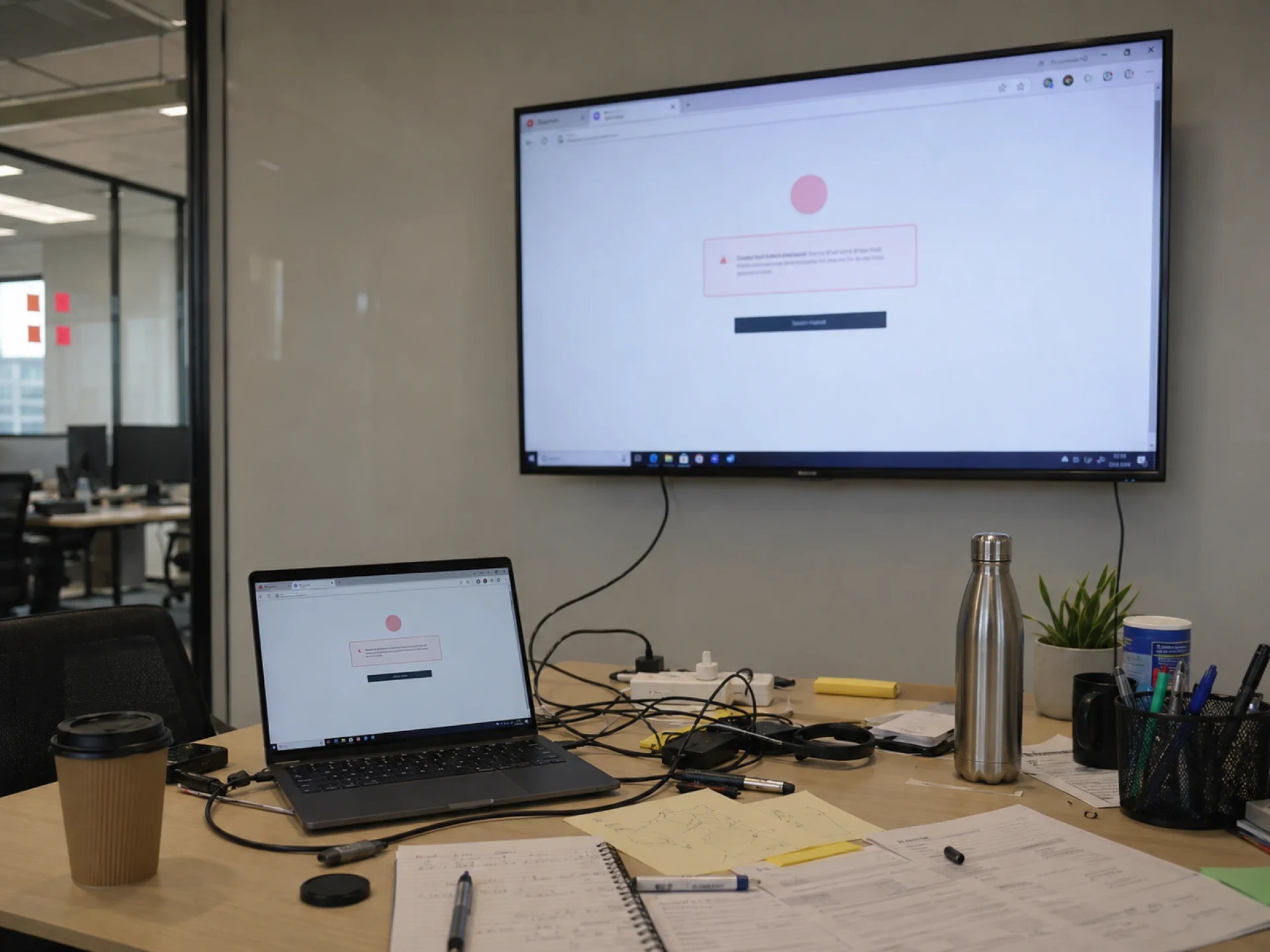
Laptop wired into a wall-mounted TV displaying a Zendesk authentication error — the messy reality of casting dashboards without dedicated signage
THE CHALLENGE

Zendesk wasn't built for wall-mounted TVs

Zendesk works well for agents actively working tickets in a browser. But when teams try to keep queues visible all day on shared TV screens, problems appear:

  • A laptop left plugged into a TV

  • Sessions expiring mid-sprint

  • Boards freezing after browser updates

  • SSO prompts interrupting display

  • No centralized way to manage multiple screens

THE SOLUTION

A secure display solution for Zendesk dashboards

Built for unattended playback

Dashboards are captured and refreshed in the cloud, so screens don't rely on an active browser session or logged-in device.

Encrypted authentication handling

Credentials are stored securely and encrypted, with support for SSO and multi-factor environments.

No public exposure

Dashboards are displayed without enabling public links, anonymous access, or exposed URLs.

Controlled refresh intervals

Set how often dashboards update so screens stay aligned with live Zendesk data.

Screen-ready formatting

Crop, scale, and adjust layouts so key metrics remain readable on large shared displays.

Centralized publishing & oversight

Assign dashboards to specific screens and manage updates across locations from one place.

USE CASES

Wherever support performance is tracked, IT belongs on screen

Live ticket queues

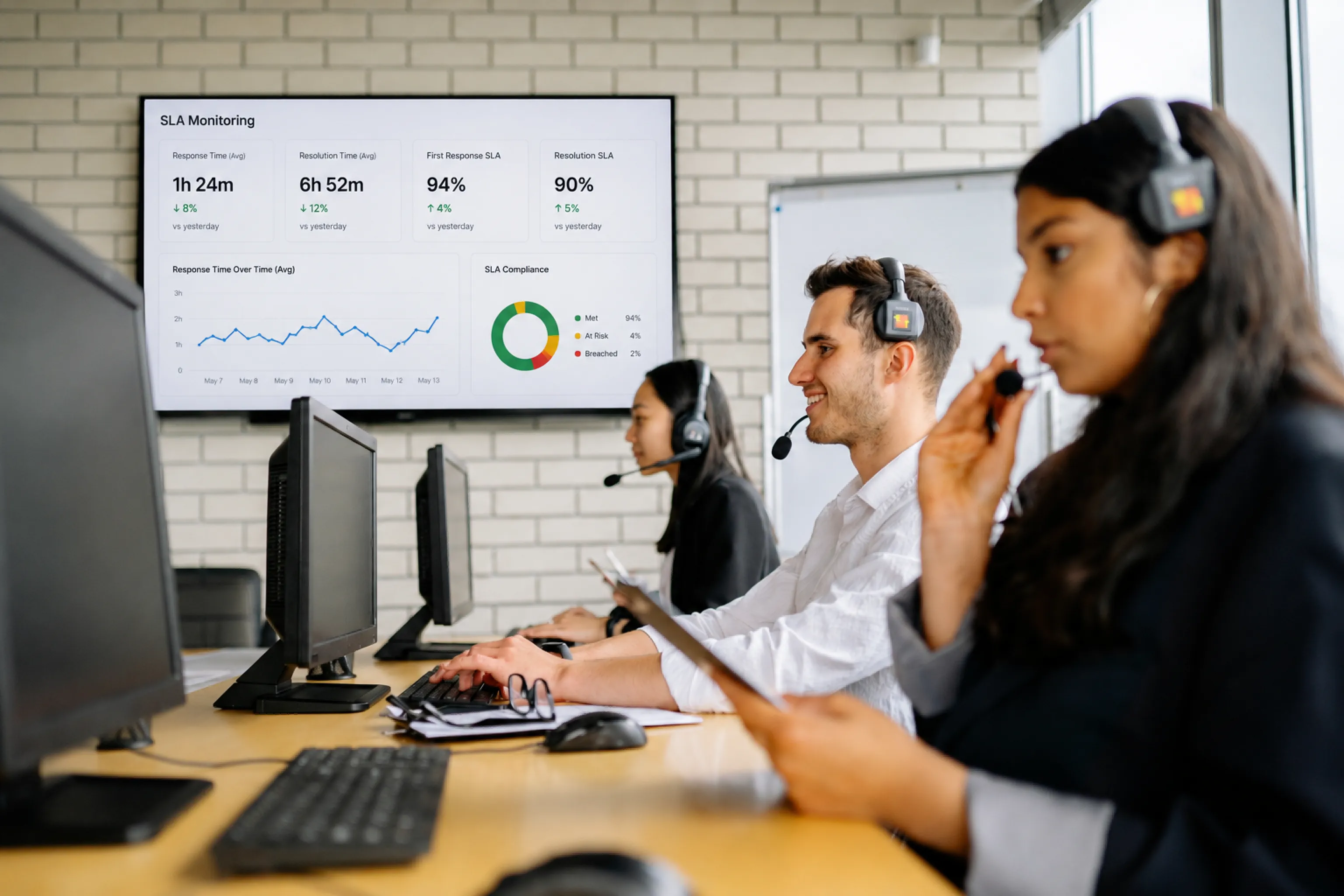
Keep open ticket counts and backlog status visible throughout the day.

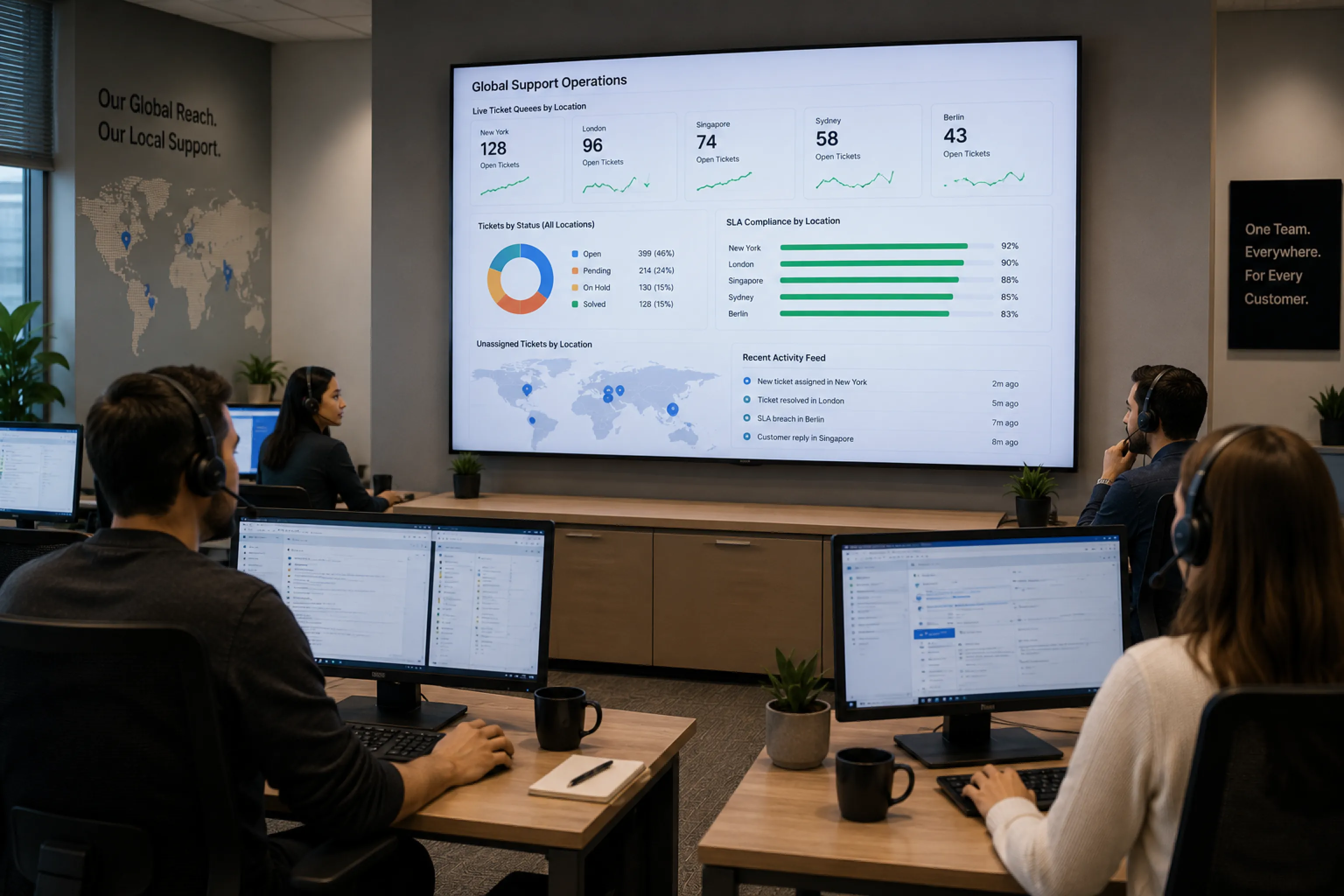
Support team reviewing a live ticket queue dashboard on a meeting-room TV
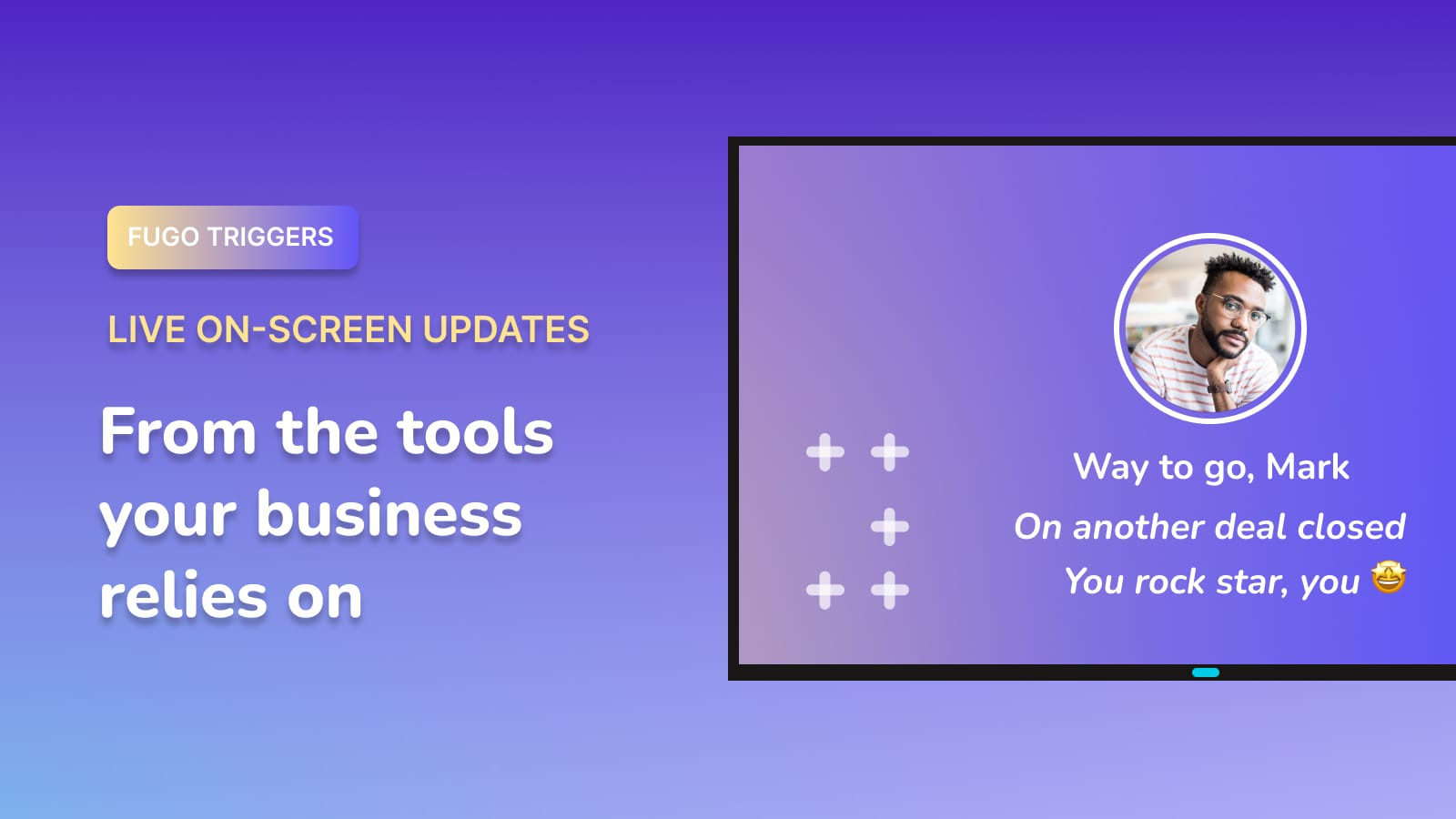
FUGO TRIGGERS

Make screens react to your data

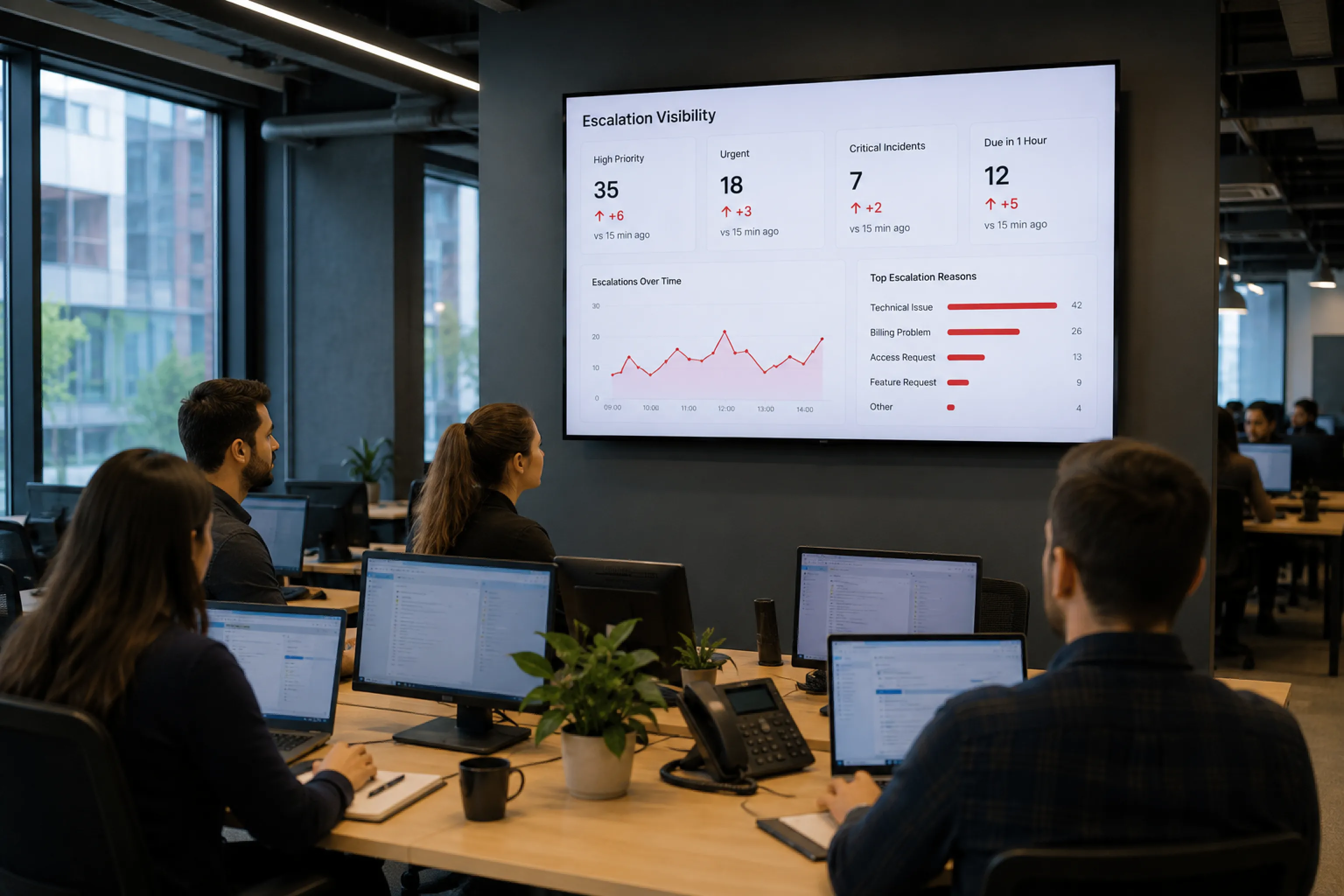
Your screens can show dashboards all day and change the moment something important happens. A deal closes. A target is hit. An incident is resolved.

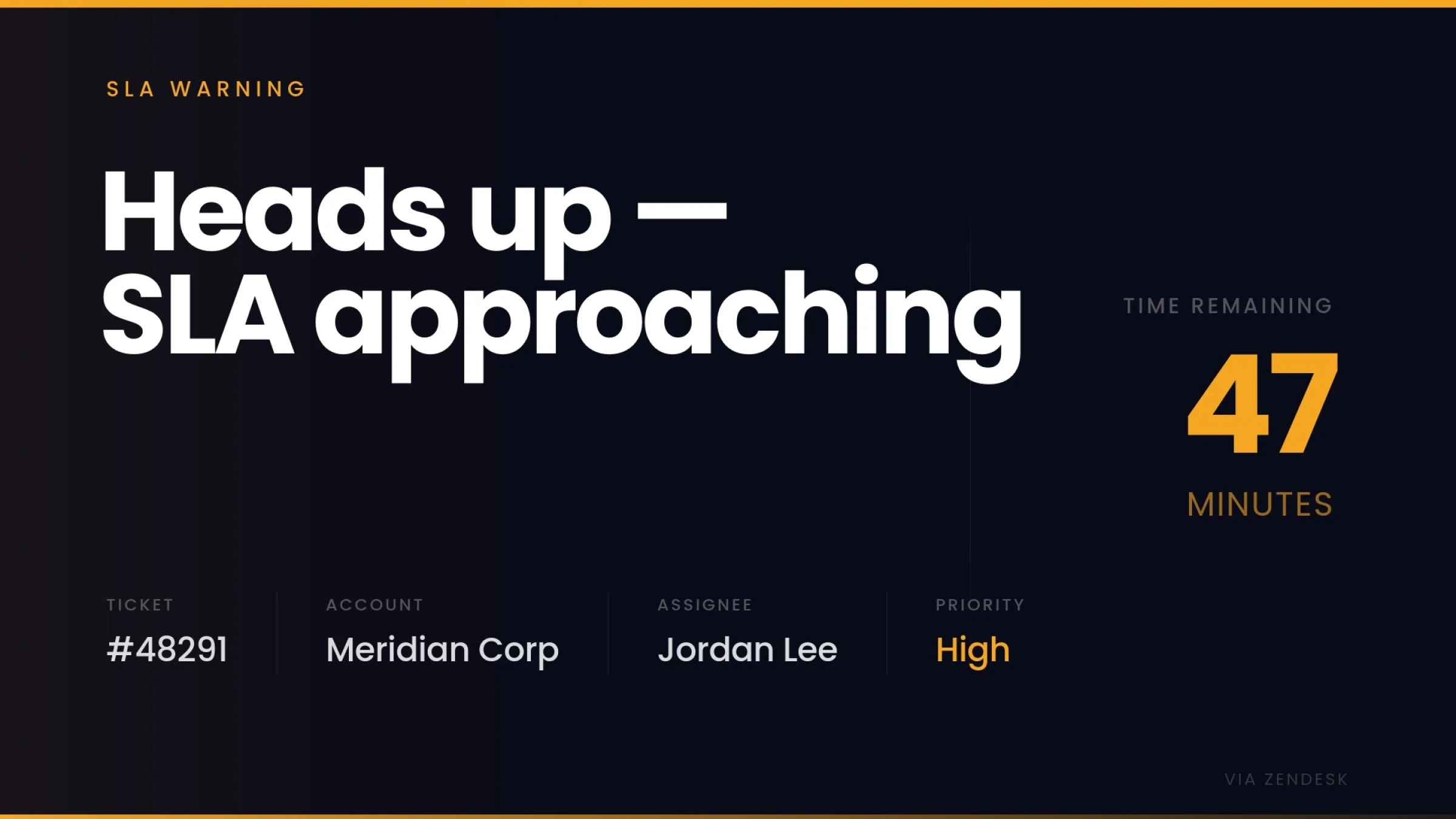
SLA-warning alert screen surfaced by a Fugo Trigger when a Zendesk ticket nears its SLA deadline

React instantly

Switch what's on screen when defined conditions are met.

Surface key moments

Show wins, alerts, and milestones as they happen.

Connected to your systems

Trigger updates from the tools your team already uses.

Frequently asked questions

Can I display Zendesk dashboards on a TV screen?

Yes. Zendesk dashboards and Explore reports can be displayed on TV screens using digital signage software that connects securely to your Zendesk account and publishes them to managed displays.

Can I just open Zendesk in a browser and connect a laptop to a TV?

You can, and many teams begin that way.

But that setup depends on an active browser session staying logged in and connected. Sessions can expire, laptops can sleep, and someone has to maintain the device. It also becomes difficult to manage across multiple screens or locations.

What's the difference between casting Zendesk to a TV and using digital signage software?

Casting mirrors a live device session. If the laptop disconnects, locks, or loses connectivity, the screen goes blank.

Digital signage software handles authentication and refresh centrally, so dashboards continue updating without relying on a specific device or browser session.

Do I need special hardware to display Zendesk dashboards on TV screens?

You'll need a compatible smart TV or a supported signage player connected to your display. Once paired with a signage platform, the screen can receive and run dashboards without a permanently attached computer. View supported & recommended hardware.

Do I need to make my Zendesk dashboard public to show IT on a TV?

No. You do not need to enable public or anonymous access. Zendesk dashboards can be displayed securely without exposing internal URLs.

How does authentication work when displaying Zendesk on TV screens?

Authentication is managed through a secure cloud login layer. Credentials are encrypted and stored in Fugo's cloud environment rather than on the TV or signage device. This allows dashboards to load and refresh without requiring someone to log in directly on the screen.

If credentials change or access is revoked, reauthorization can be handled centrally.

Will this work in an SSO or multi-factor authentication environment?

Yes. Managed TV dashboard setups are designed to operate within secure authentication policies, including SSO and multi-factor environments, without requiring repeated login prompts on the screen.

Is any Zendesk data stored on the TV or signage device?

No. Only the rendered visual output is displayed on screen. Credentials and live data access remain securely handled in the cloud.

How often can a Zendesk dashboard refresh on screen?

You control the refresh interval. Dashboards are recaptured at defined intervals so screens reflect current ticket volume, SLA status, and performance metrics.

What happens if the screen or device restarts?

Because playback is centrally managed, dashboards resume automatically after device restarts without requiring manual login.

Can I customize how my Zendesk dashboard looks on a TV screen?

Yes. Dashboards can be cropped, scaled, and formatted in the visual editor so queue counts, SLA metrics, and performance indicators remain readable from across the room.

Can I show different Zendesk dashboards on different screens?

Yes. Dashboards can be assigned to specific screens, teams, or locations and managed from a central portal.

Is this suitable for support teams operating across multiple offices?

Yes. Zendesk dashboards can be deployed across distributed support teams while maintaining centralized authentication control and visibility into screen status.

Can I test this before rolling IT out across the team?

Yes. You can start with a trial, connect a single dashboard, and validate the setup on one screen before expanding further.