
Fugo

Wireless screen mirroring for digital signage

Mirror your laptop to any Fugo-connected screen - no cables, no input switching, no friction. Cast instantly, then return to scheduled content automatically.
Hero image
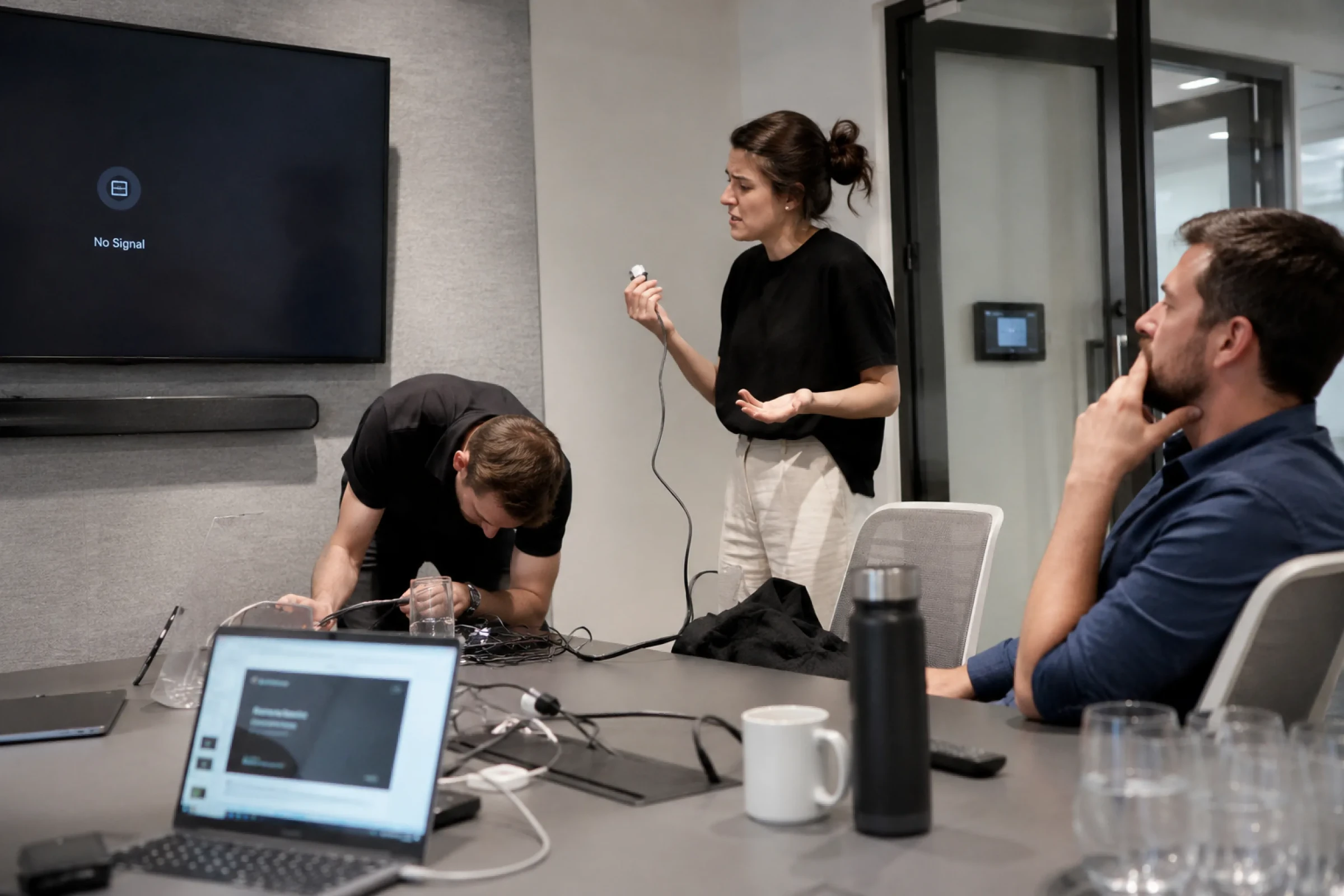
Frustrated meeting attendees fiddling with cables under a "No Signal" meeting room TV
THE CHALLENGE

Meeting room screens shouldn't require an IT degree

Too many shared displays still rely on HDMI cables, proprietary hardware, or input switching that slows everything down. In practice:

  • Someone can't find the right cable

  • The adapter doesn't fit their laptop

  • The screen is on the wrong input

  • The presentation starts late

  • The playlist never resumes afterward

THE SOLUTION

Browser-based screen mirroring, built into your signage

Fugo lets anyone securely mirror their laptop to a connected display using a simple casting link.
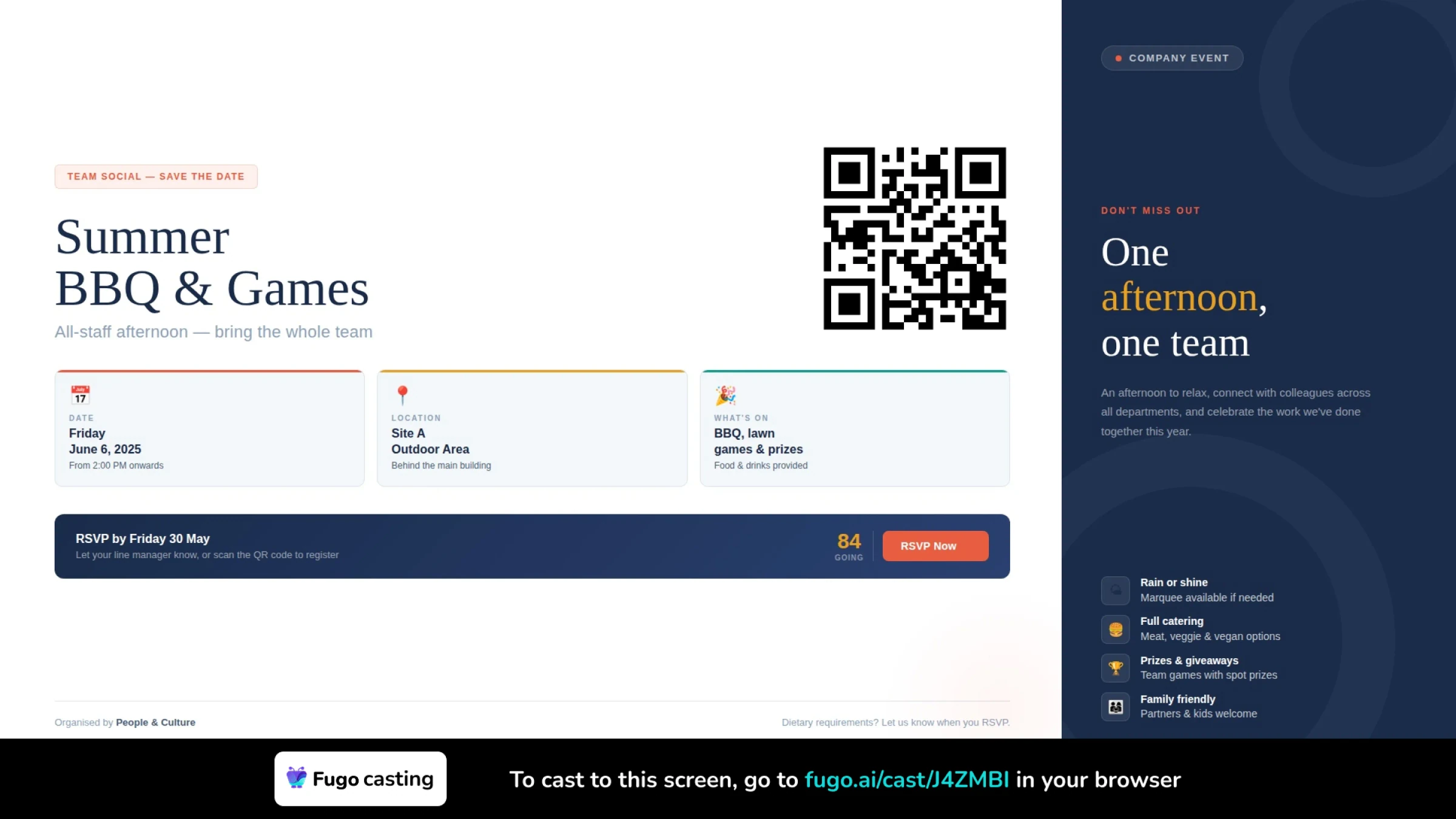
Summer BBQ company event slide with a bottom Fugo casting bar showing the casting link for anyone in the room to share

Cast instantly

Share a tab, window, or full screen in seconds.

No proprietary players

Works with any screen already connected to Fugo.

Automatic handoff

When you stop sharing, scheduled content resumes.

FEATURES

What can you do with screen mirroring?

Move seamlessly between scheduled signage and live collaboration.
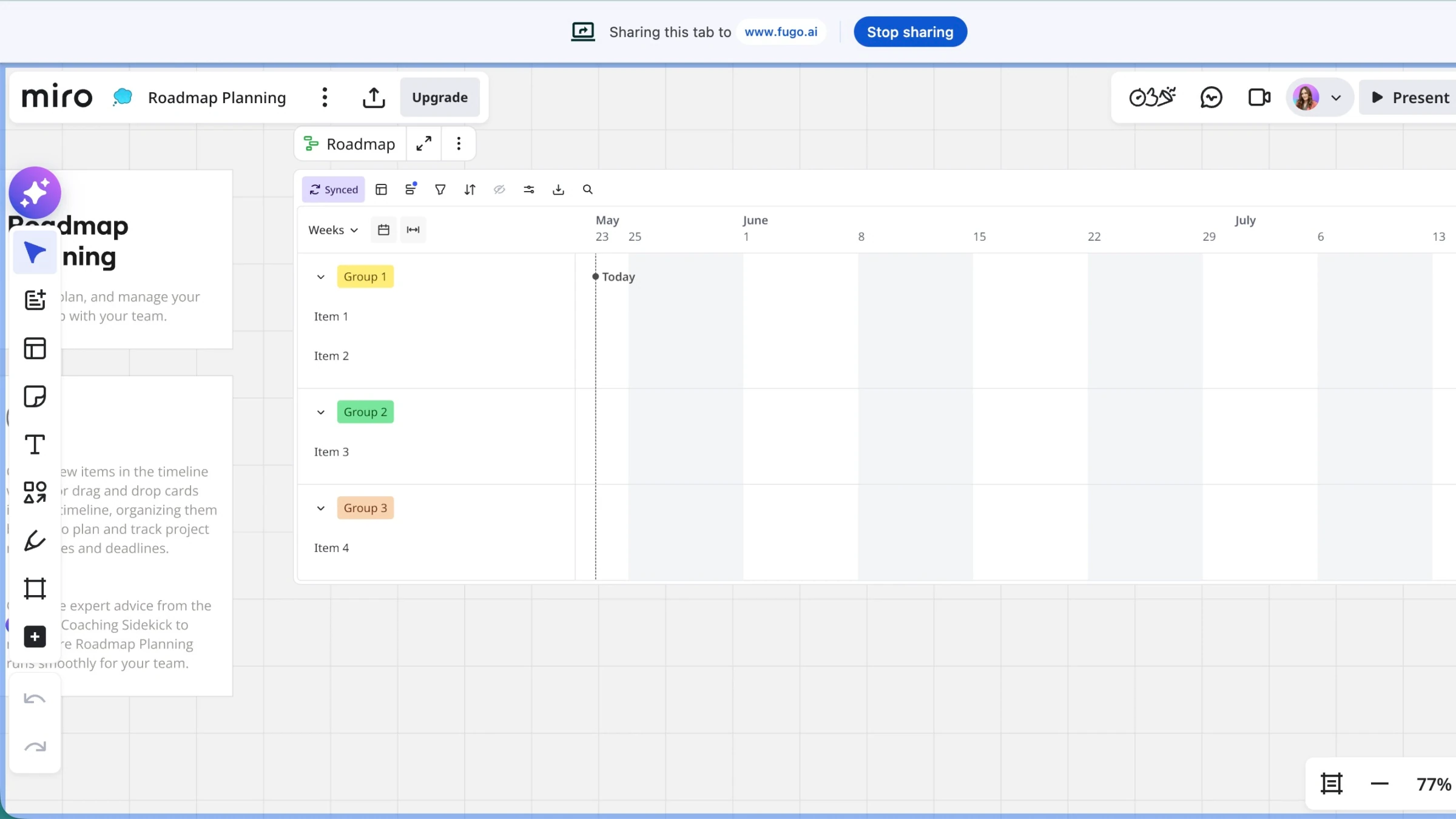
Chrome share bar showing a Miro Roadmap Planning tab being cast live to fugo.ai
SIMPLE ACCESS

Share from your browser

Enable casting on any screen and display a unique link with instructions. Viewers open the link in Chrome, choose what to share, and start presenting.

  • Share tab, window, or entire screen
  • No app install required
  • Works on Mac and Windows
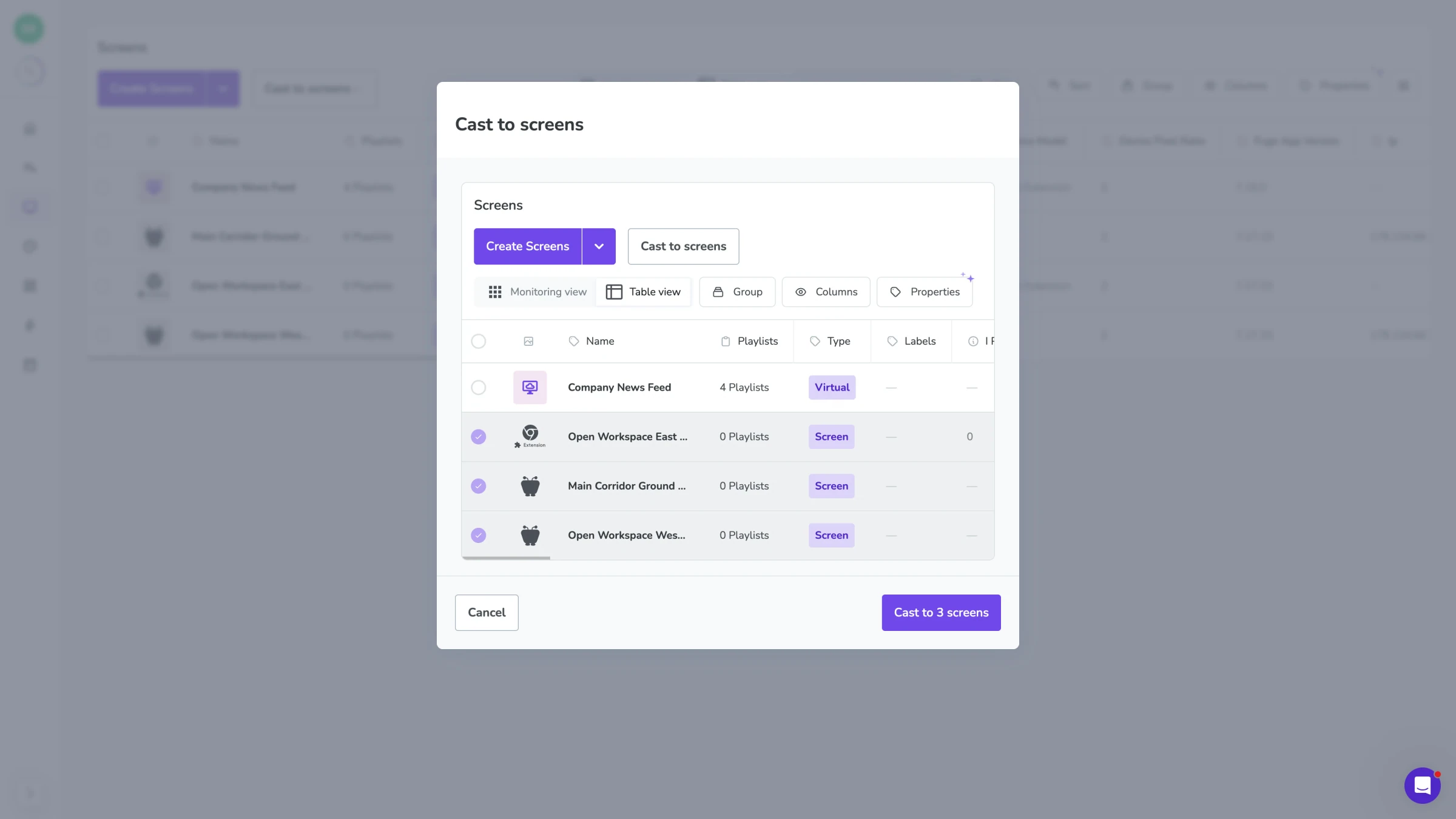
Fugo CMS "Cast to screens" modal with three screens selected across an Open Workspace and Main Corridor for a single broadcast
MULTI-SCREEN CONTROL

Go beyond the meeting room

Screen mirroring isn't limited to a single TV. Share to one display for a focused session or push live content across multiple spaces when the moment calls for it.

  • Single-room presentations
  • Cross-office broadcasts
  • Department-wide updates
  • Pop-up live announcements
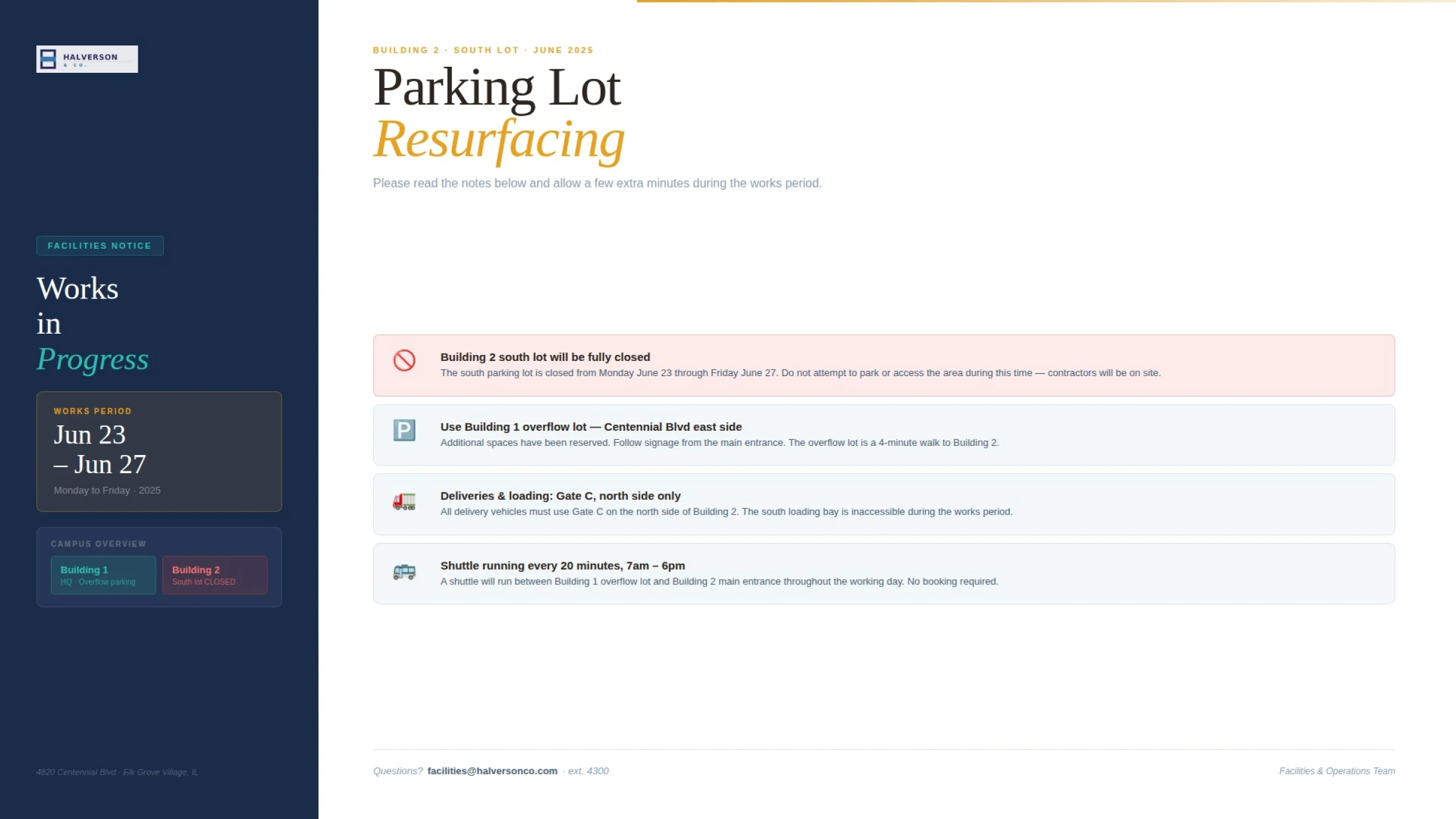
Facilities notice slide showing parking lot resurfacing details with a Fugo casting link bar at the bottom inviting anyone in the room to cast
VIEWER-FRIENDLY SETUP

Display casting instructions

Show a customizable casting link overlay so anyone in the room can connect without logging into Fugo.

  • Pop-up or bottom bar styles
  • Adjustable size and position
  • Optional Wi-Fi credentials displayed
USE CASES

For the moments you didn't plan - but still need to share.

When a discussion turns into a decision, you can bring the source material onto the screen without rearranging your setup.

Meeting rooms

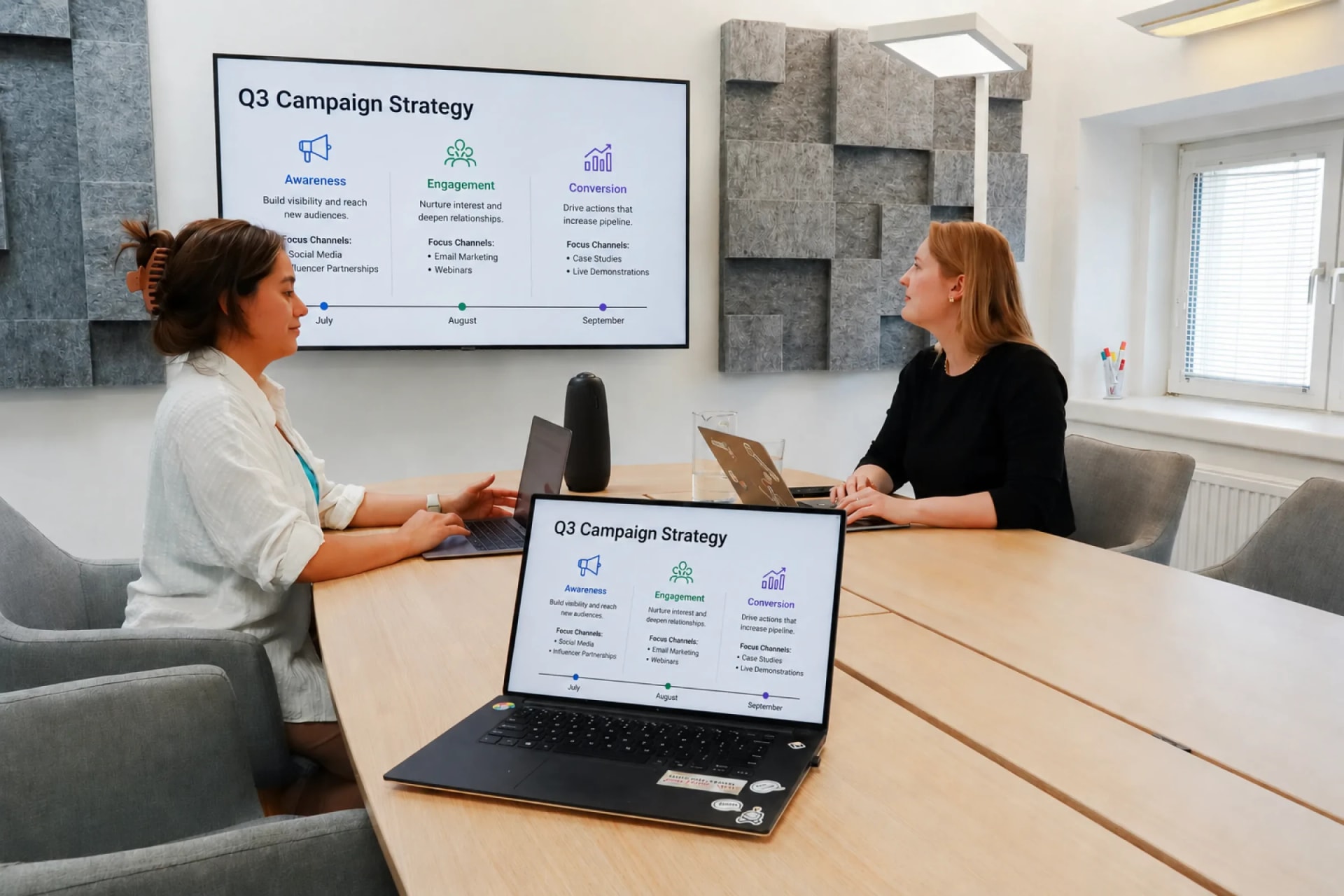
Present slides, documents, dashboards, or live demos without plugging in cables or switching HDMI inputs.
Sales decksQuarterly reviewsProject walkthroughsClient presentations
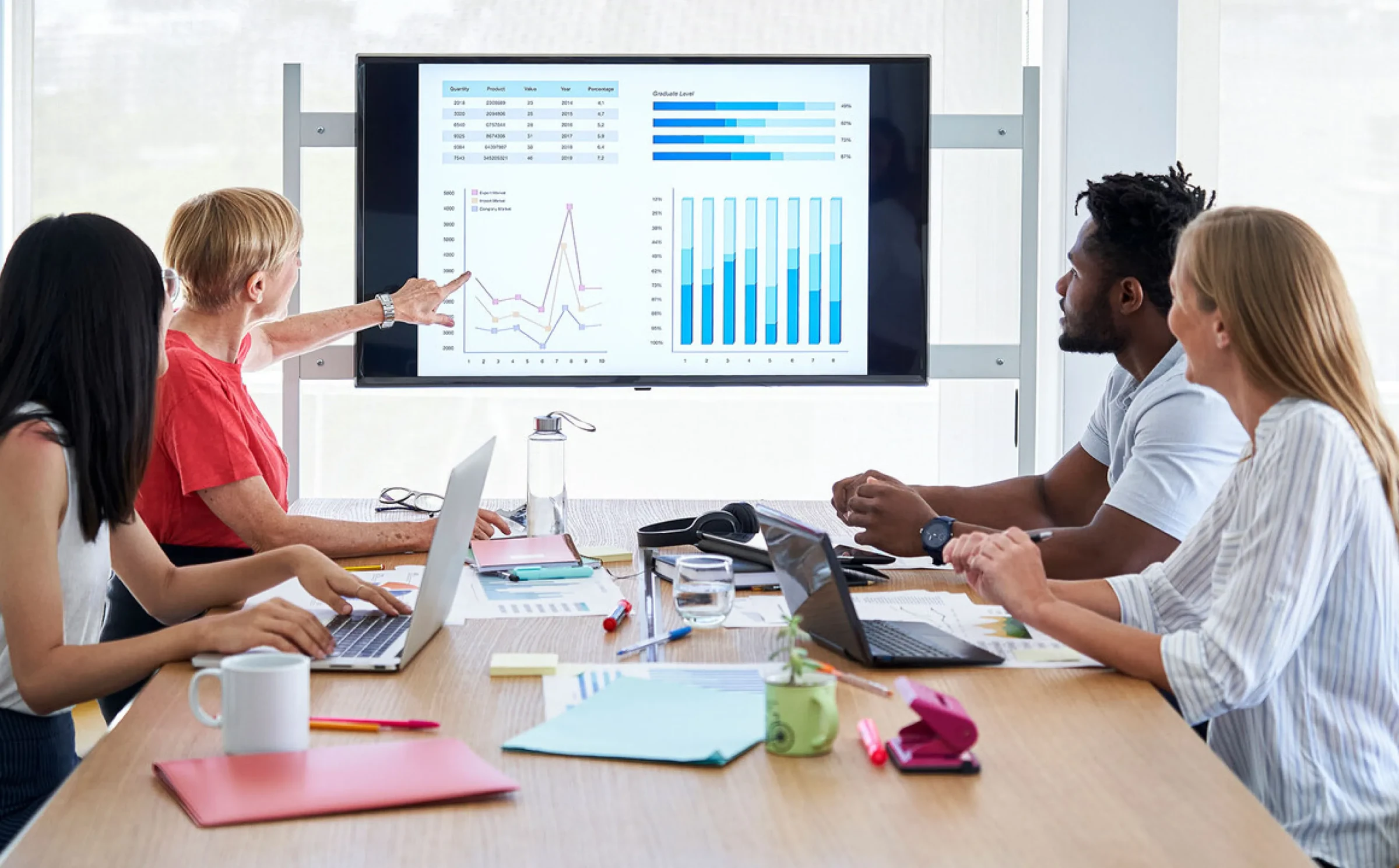
Team gathered around a conference table reviewing a live dashboard cast wirelessly to the meeting-room TV

Frequently asked questions

Does digital signage software make IT harder to mirror to a screen?

It shouldn't.

With Fugo, screen mirroring is built into the same system that runs your signage. You don't need to switch inputs, unplug hardware, or override your setup. When someone casts, the screen temporarily displays their session - and when they stop, your regular content resumes automatically.

Digital signage and screen mirroring can work together, not against each other.

How do I mirror my laptop to a TV screen wirelessly?

On a standard TV, you can usually mirror your laptop using built-in options like AirPlay, Chromecast, or an HDMI adapter.

If the screen is running digital signage software, the process can be different. Some systems require switching inputs or disconnecting the signage player.

With Fugo, screen mirroring is built in. You enable casting on the screen, open the casting link shown on the display in your browser, choose what you want to share, and start presenting. When you stop sharing, the screen automatically returns to its scheduled content.

You don't need to unplug anything or override your setup.

Do I lose HDMI access if I use Fugo?

No.

Fugo runs on the device connected to your screen, but it does not remove your ability to switch inputs if your hardware supports it. Screen mirroring simply gives you a wireless option without relying on physical cables.

Can I cast to multiple screens at once?

Yes.

You can cast to a single screen or select multiple screens and screen groups. Core plans support casting to up to 10 screens simultaneously, and Enterprise plans allow for larger deployments.

What happens to my scheduled playlists when someone casts?

Casting temporarily overrides the current content. When the session ends, the previous playlist resumes automatically.

There's no need to manually restart your schedule.

Can anyone in the room cast to the screen?

Yes - if you enable the casting link.

You can display a visible casting link on the screen so viewers can connect from their browser without logging into Fugo. You can control the style, size, and placement of the instructions.

You can also disable the link at any time.

How does screen mirroring work on secure or enterprise networks?

Screen casting relies on specific network connections. If you're operating behind a firewall or strict NAT configuration, your IT team may need to whitelist certain domains and ports to allow casting traffic.

This is common in enterprise environments and typically straightforward to configure.

Is screen mirroring secure?

Casting sessions occur within your network environment and must be initiated intentionally. You control whether casting instructions are displayed and which screens are enabled.

For enterprise setups, IT teams can manage network policies and access controls as needed.

Is screen mirroring included in all Fugo plans?

Screen casting is available on Core and Enterprise plans. Casting to multiple screens simultaneously may require a Core or Enterprise subscription depending on scale.

Is Fugo supported on my casting device?

It depends on how the device works.

If you're using a casting device like an AirServer that allows you to set a web URL as its default or fallback display content, you can run Fugo on it by pointing the device to your Fugo signage URL. When no one is casting, the device shows your Fugo content. When someone begins mirroring, the casting session takes over. When casting ends, it returns to Fugo automatically.

If your device does not support displaying a persistent web URL as fallback content, it may not support this type of setup.

Separately, if your screen is already running Fugo on a supported signage player, you can use Fugo's built-in browser-based casting feature without relying on external casting hardware.

If you're unsure about a specific device, the key question is whether it can load and continuously display a web-based URL when not actively casting.