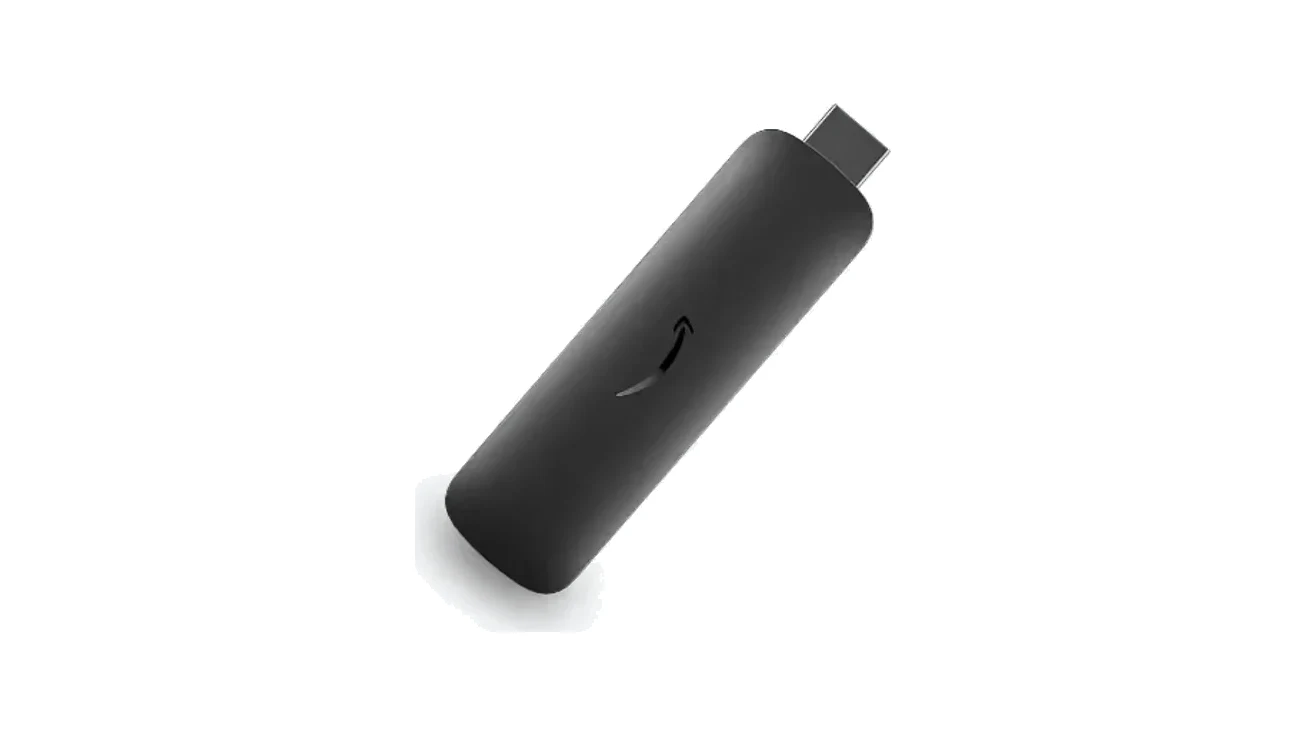
Entry levelAndroidRecommended
Amazon Signage Stick
$99
Purpose-built for signage: kiosk mode, signage-only updates, remote provisioning.


Search the full list of platforms Fugo runs on, sorted by most popular.
21 platforms

Android TVs, tablets, and signage players for flexible digital signage.
Run Fugo on Amazon's dedicated signage hardware, with setup and device management handled through Amazon's Signage Manager.

LG webOS smart displays and commercial signage.

Professional BrightSign media players via BSN.cloud.

Samsung Tizen-powered smart TVs and SSSP commercial displays.

Affordable Raspberry Pi for digital signage projects.

Chromeboxes and Chrome OS devices in kiosk mode.

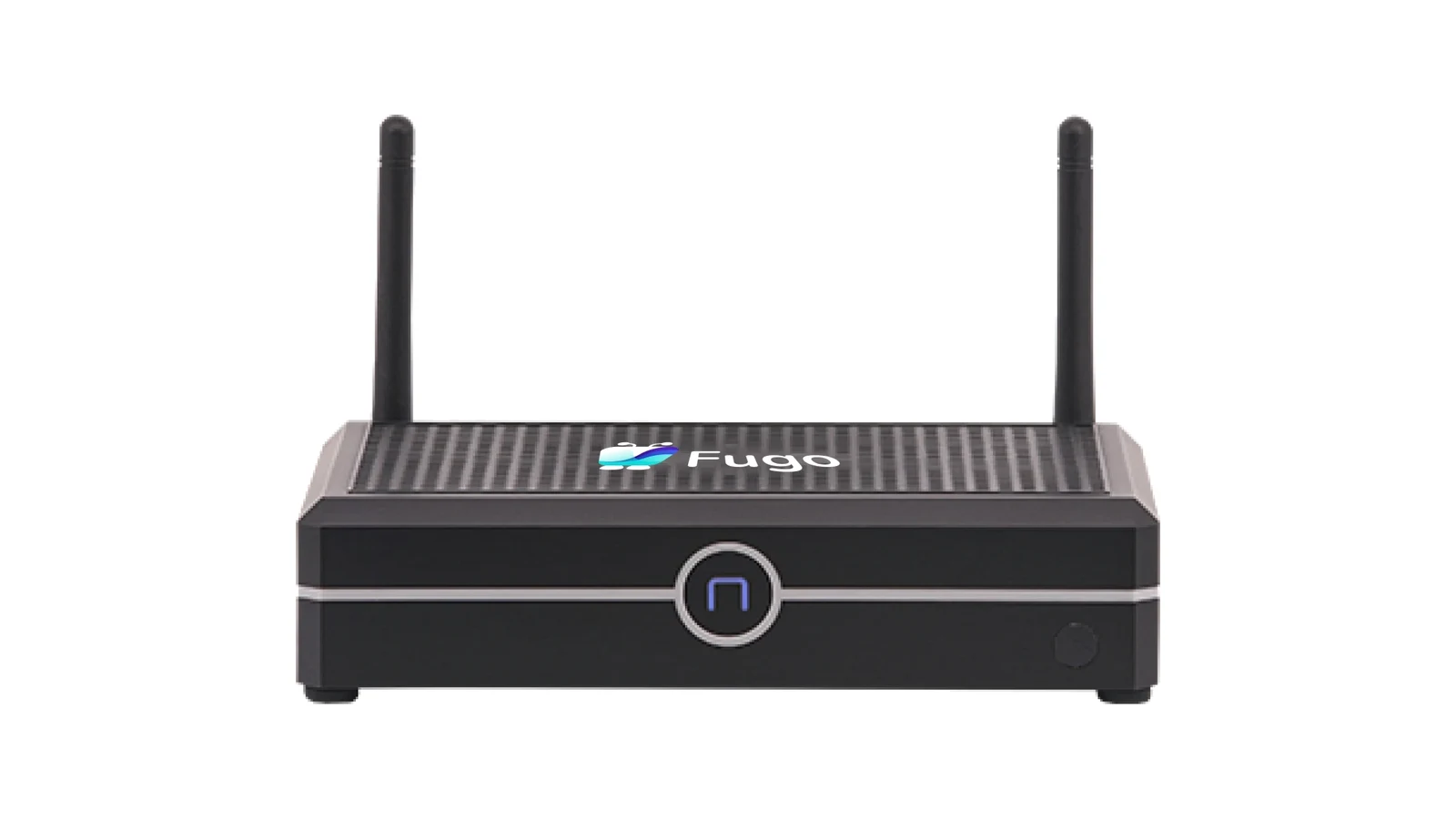
For teams working with Microsoft & Windows-based peripherals, the Fugo NUC arrives pre-installed with Fugo for quick setup & slots easily into your IT infrastructure.

Premium Sony BRAVIA and BZ professional Android TV displays.

Philips professional displays with PPDS Wave technology.

Windows PCs, mini-PCs, and all-in-one displays.

Linux-based systems and single-board computers.

Mac Mini and iMac for high-performance signage.

Show Fugo content on Zoom Rooms screens by adding https://player.fugo.ai as a digital signage URL, displayed when the room is not in a meeting.

Run Fugo on an AirServer device by setting https://player.fugo.ai as the default content when the screen is idle or not in use.
Professional grade IAdea media players.

Show Fugo content on Google Meet room screens by setting https://player.fugo.ai as a screensaver URL, displayed when the device is idle.

Use your browser as a screen. Just open player.fugo.ai and you're ready to start displaying content, with no install or dedicated hardware required.

Show Fugo content on Microsoft Teams Rooms screens by setting https://player.fugo.ai as the digital signage source when the room is not in use.

We now recommend the purpose-built Amazon Signage Stick for new purchases. Fire OS devices are supported with limited functionality. Devices running Amazon's Vega OS are not compatible.
Turn any Chrome browser into a Fugo screen by installing the extension from the Chrome Web Store and launching the player in a new window.
Search and filter the full catalog. The finder above is optional if you already know what you need.
75 devices
$99
Purpose-built for signage: kiosk mode, signage-only updates, remote provisioning.
Get quote
Ships with Fugo pre-installed and auto-launching; drives up to three displays. Windows 10 IoT Enterprise LTSC 2021 supported to 2032.
Get quote
Android-based; quote-only pricing and no Dynascan-specific setup guide.
Get quote
Android-based; quote-only pricing and no Dynascan-specific setup guide.
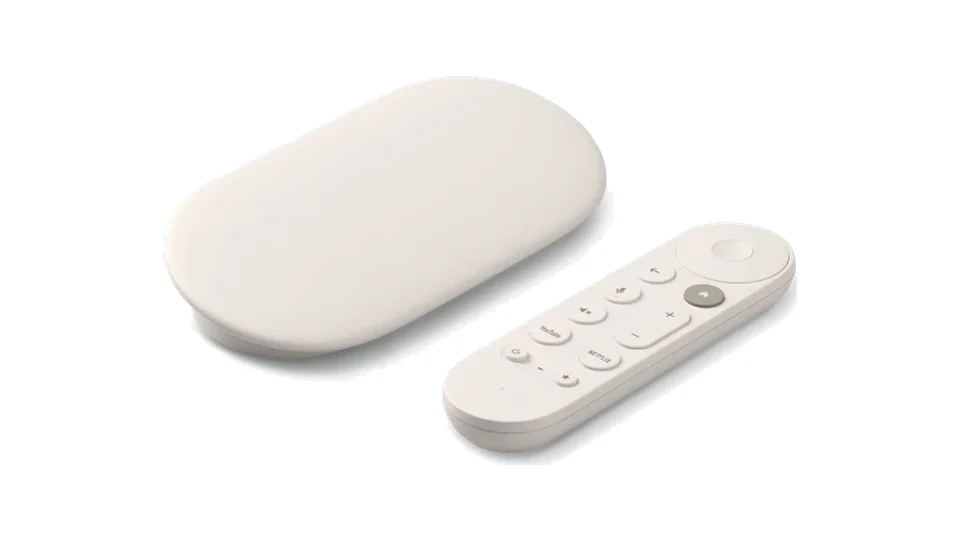
$99.99
Consumer Android 14 with the Play Store, so there is no fleet management.
$790+
Not rated for always-on use; consumer warranties generally exclude commercial use.
$690+
Not rated for always-on use; consumer warranties generally exclude commercial use.
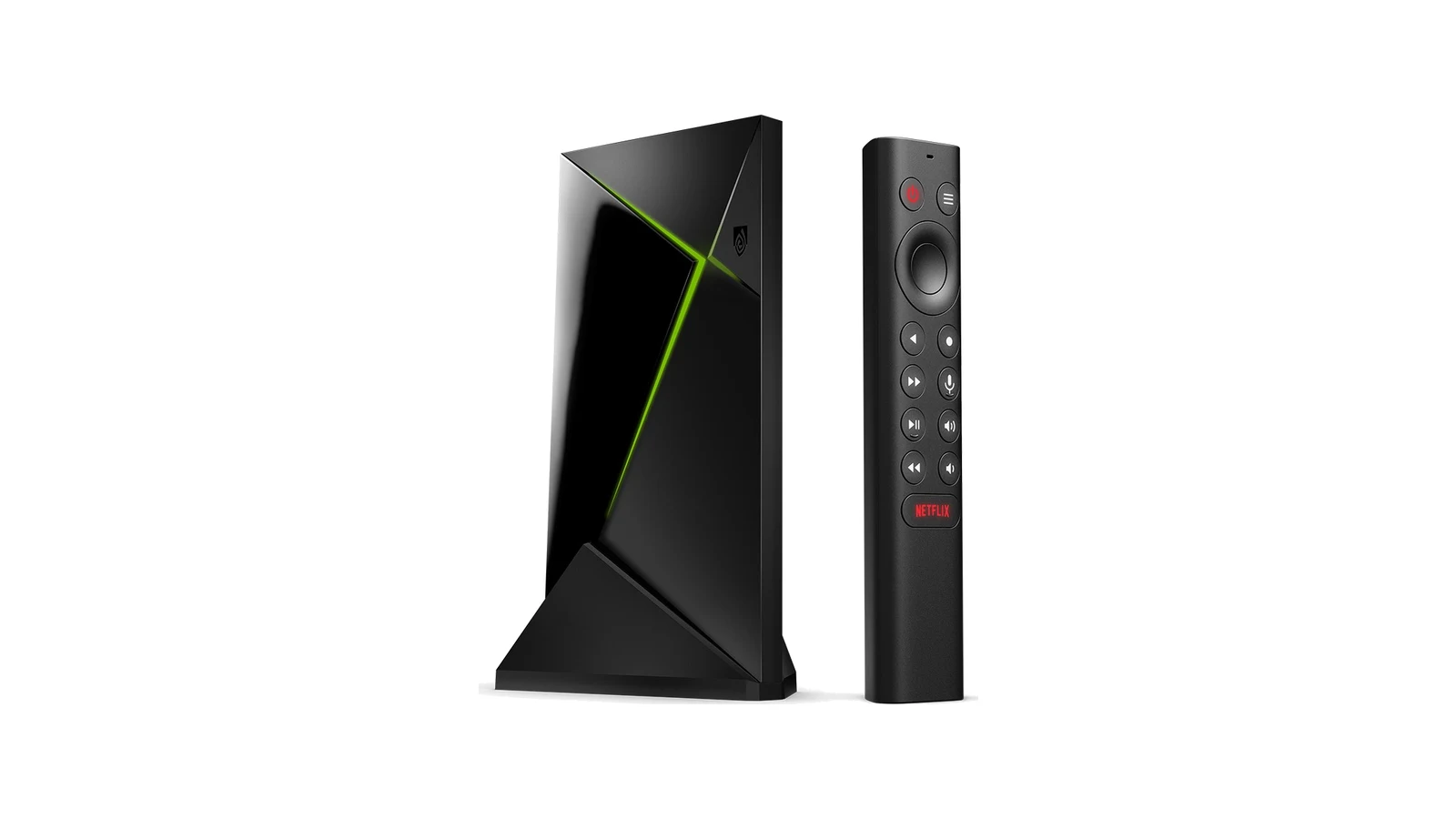
$199
Can run two concurrent video zones. Consumer product; base Shield TV is discontinued.
$450+
Not rated for always-on use; consumer warranties generally exclude commercial use.
$600+
Not rated for always-on use; consumer warranties generally exclude commercial use.
$1,000+
Not rated for always-on use; consumer warranties generally exclude commercial use. At this price the commercial EZ20L (~$630) is the better signage buy.
$650+
Needs webOS Signage (look for SCAP on the spec sheet), not webOS TV. Set the display clock correctly: a wrong clock fails the install silently. Engine is Chrome 87. Test live web/dashboard content against it before rollout.
$1,040+
Needs webOS Signage (look for SCAP on the spec sheet), not webOS TV. Set the display clock correctly: a wrong clock fails the install silently. Engine is Chrome 87. Test live web/dashboard content against it before rollout.
$800
Needs webOS Signage (look for SCAP on the spec sheet), not webOS TV. Set the display clock correctly: a wrong clock fails the install silently. Engine is Chrome 87. Test live web/dashboard content against it before rollout.
$360
PNG images are not supported on BrightSign players. Series 5 entry tier.
$465
PNG images are not supported on BrightSign players. Series 5 entry tier.
$1,335+
PNG images are not supported on BrightSign players. Premium tier, justified by multi-output video walls or synchronised playback.
$1,865+
PNG images are not supported on BrightSign players. Premium tier, justified by multi-output video walls or synchronised playback.