
Fugo

Windows digital signage software

Run Fugo on Windows 10/11 PCs, mini-PCs, and all-in-ones for the most robust playback of demanding content. Best for teams already standardised on Windows, with Microsoft Intune fleet deployment built in.

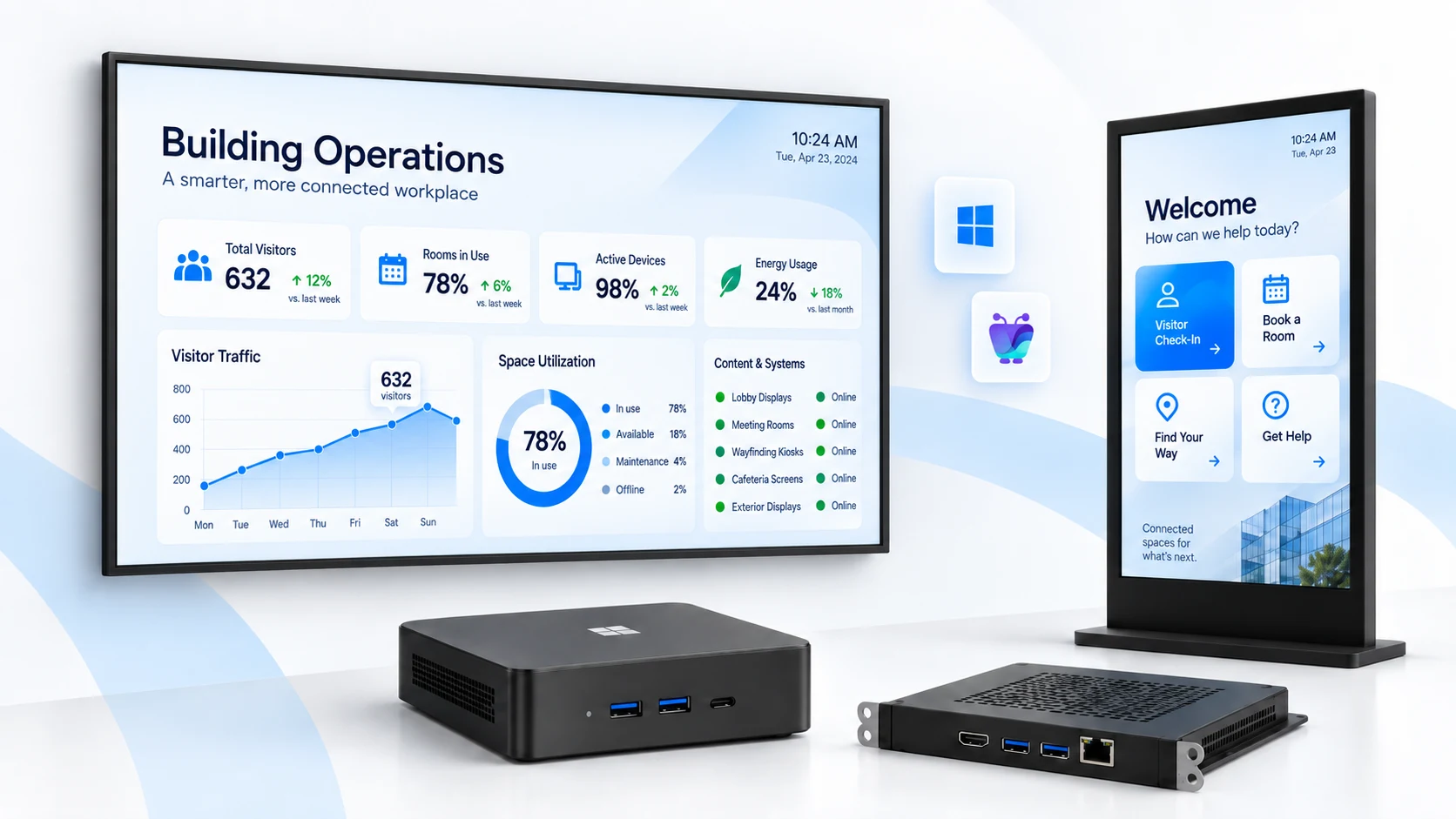
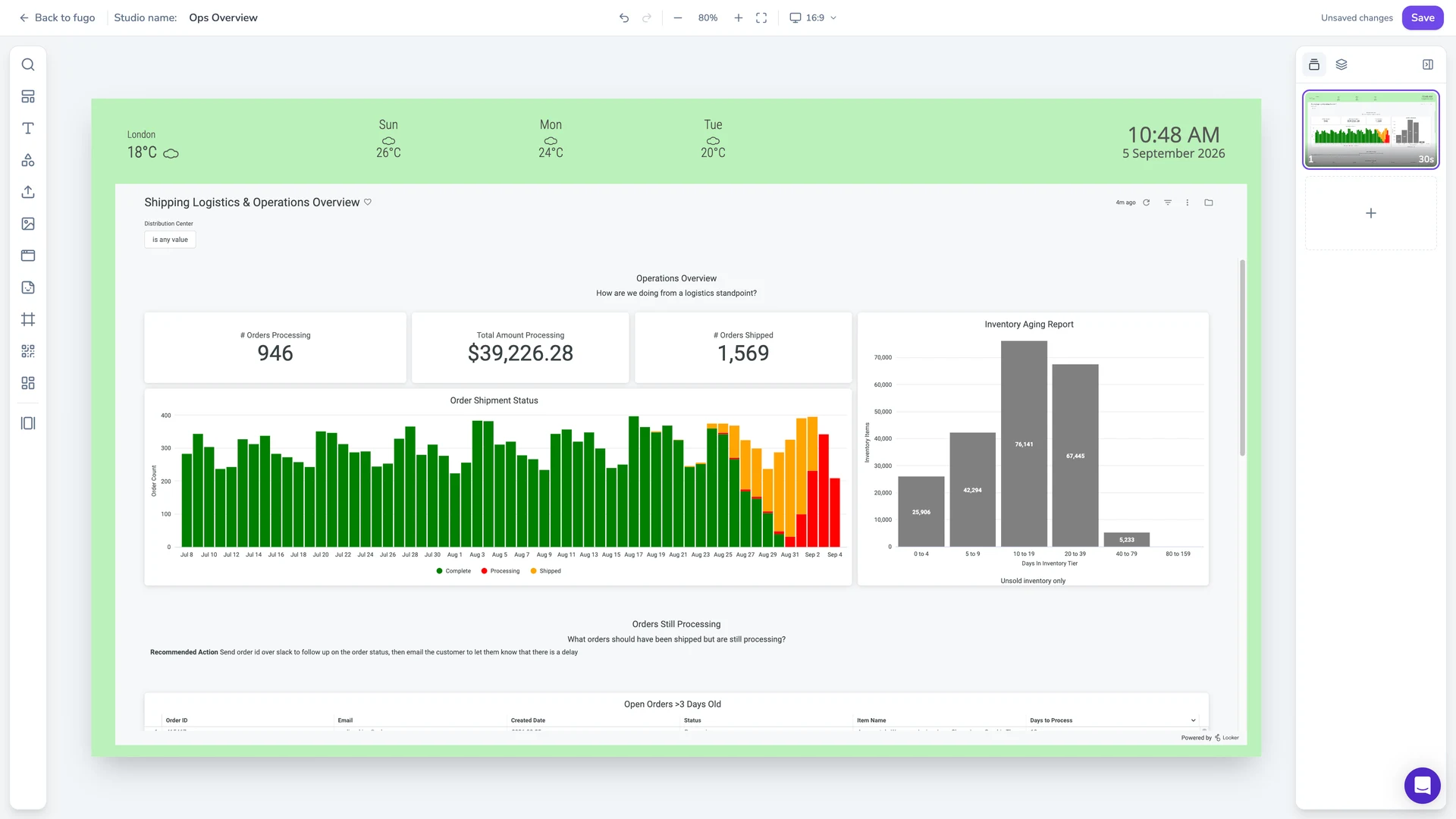
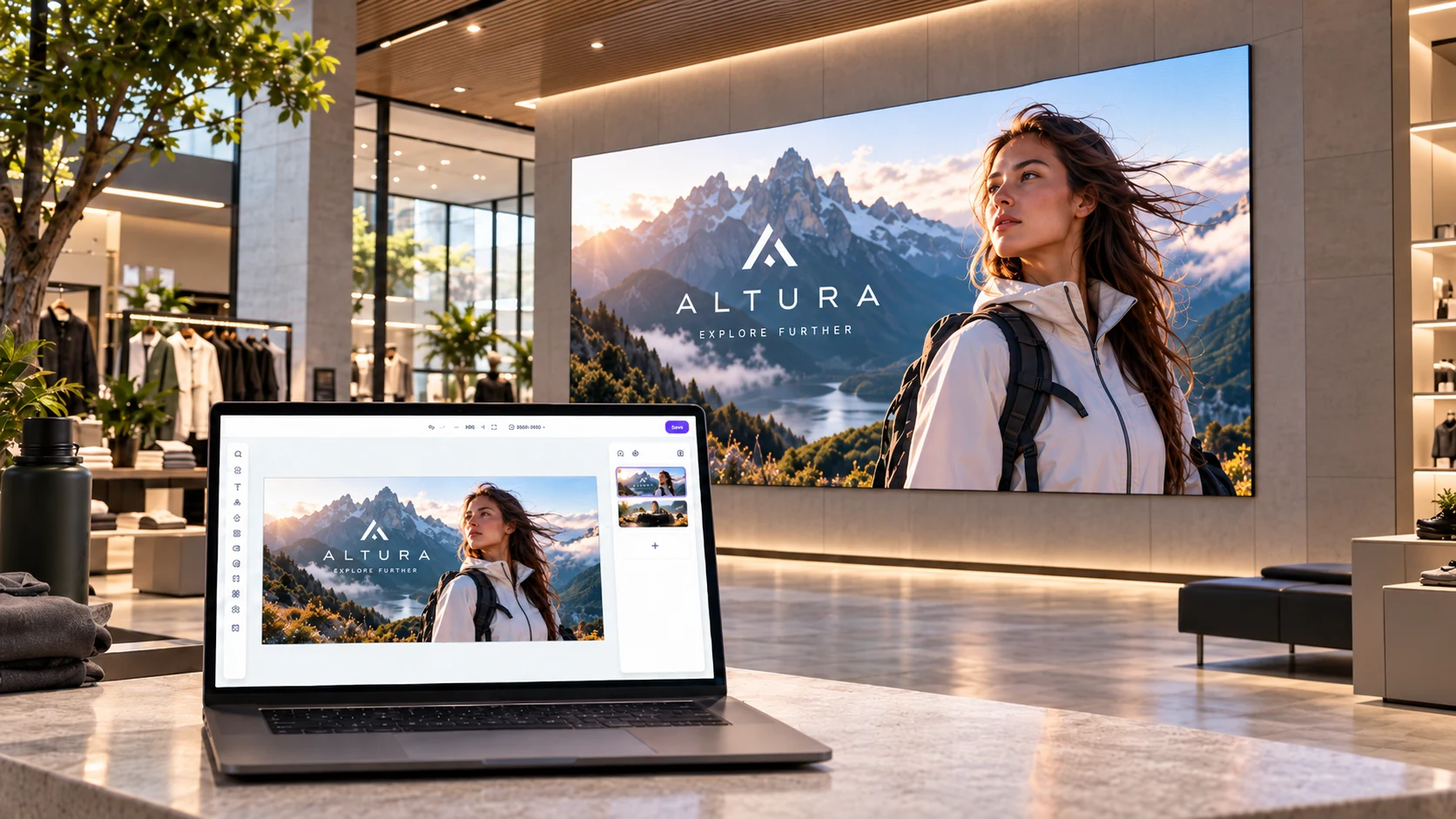
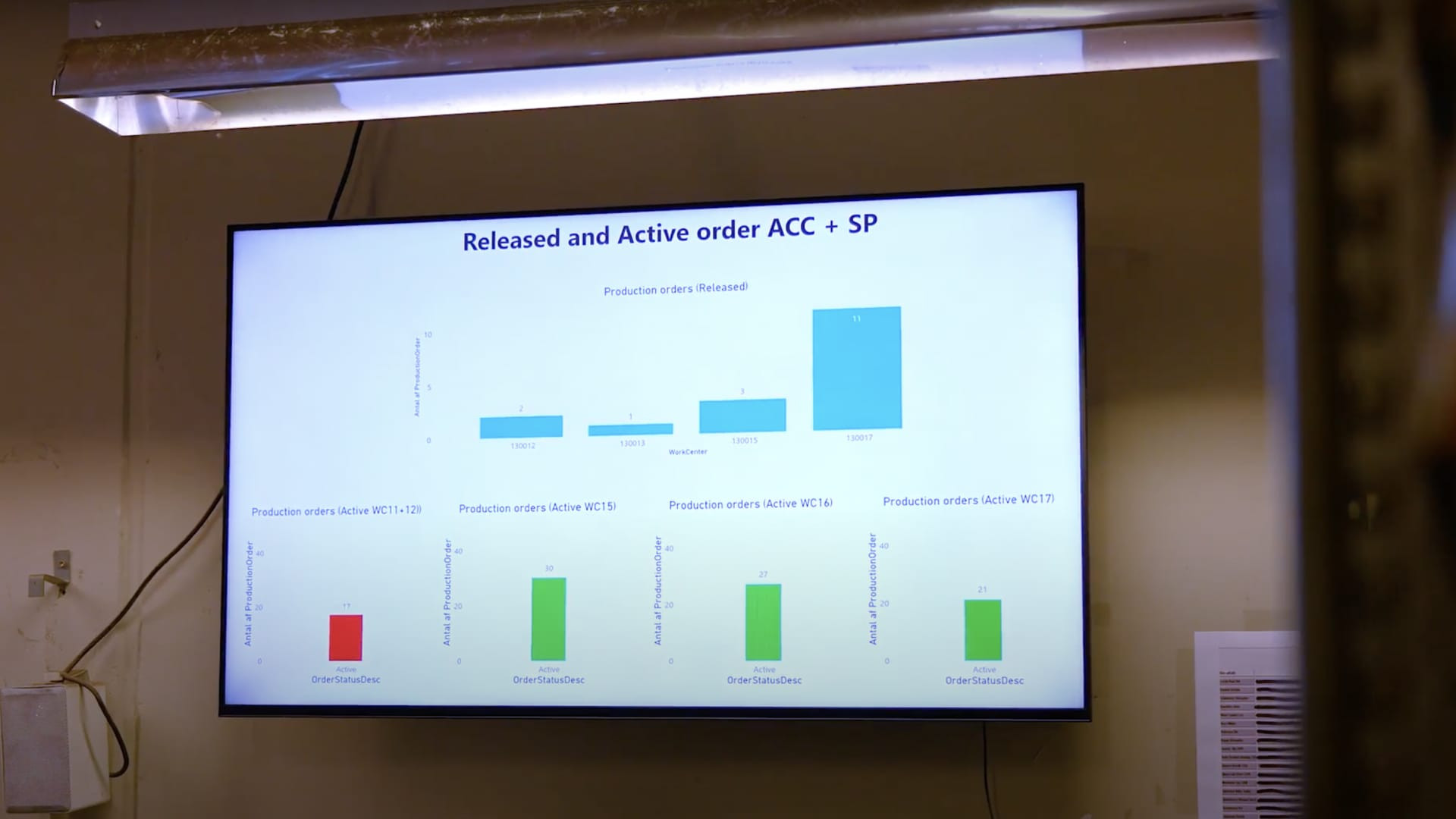
A Windows-powered screen showing a live KPI dashboard on a corporate mezzanine wall
Why Windows for signage

The most robust player for demanding content

For businesses already standardised on Windows, it delivers the smoothest media and web performance, enterprise security, and fleet deployment through Microsoft Intune.

Most robust playback

The strongest media and web performance of any platform — smooth video and fewer crashes, even with heavy, demanding content.

Enterprise security

Backed by the security tooling your IT team already runs on Windows, so signage fits your existing endpoint policies.

Intune fleet deployment

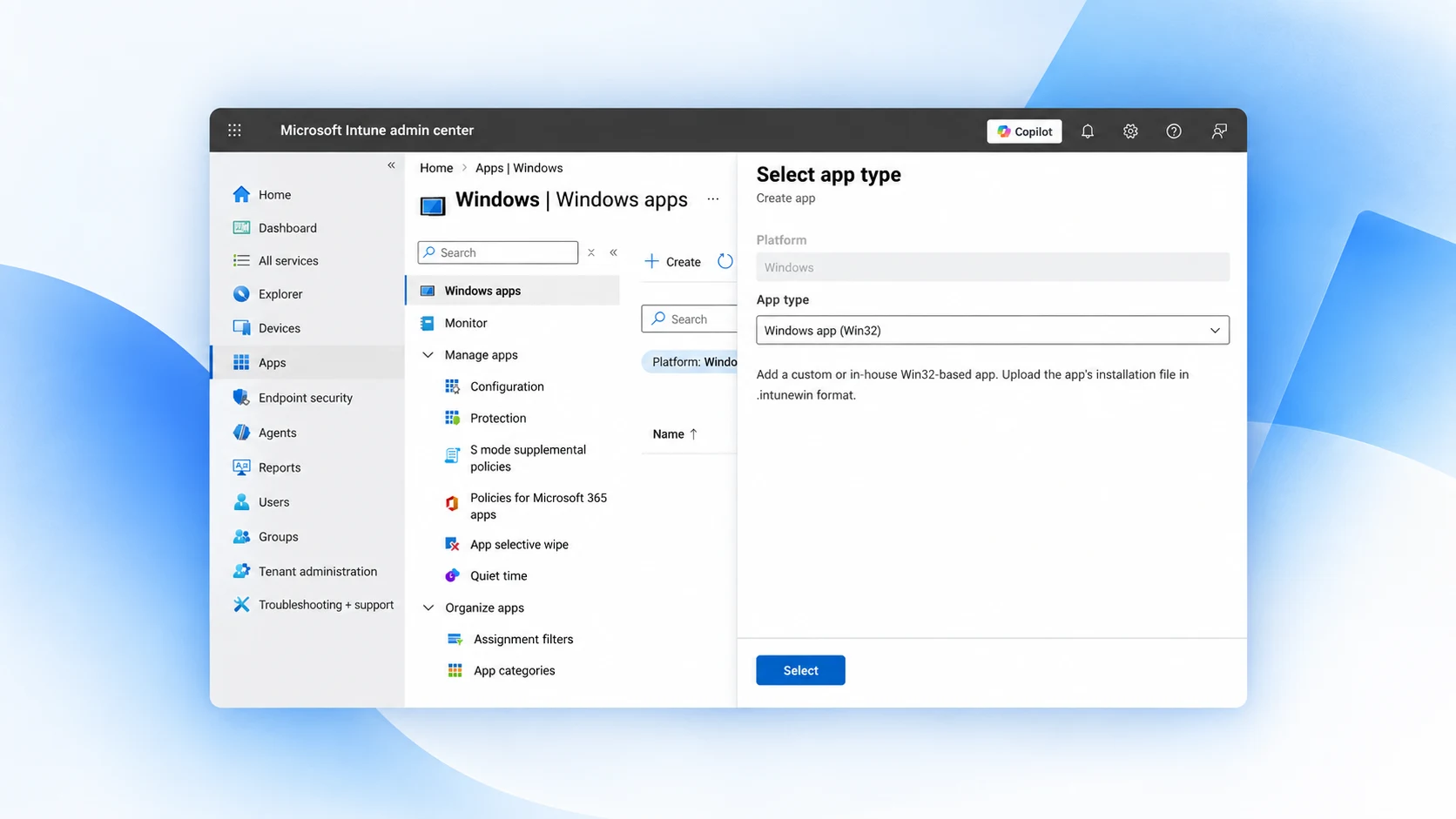
Roll out and manage screens at scale with Microsoft Intune — silent install, group assignment, and update management.

Fits your Windows IT

No new stack to learn. Windows signage slots into the imaging, patching, and management workflows you already own.

Supported devices

Recommended Windows devices for Fugo

Fugo runs on Windows 10 Home/Pro (32/64-bit) and newer, with a dual-core CPU (quad-core preferred), 2 GB RAM (8 GB preferred), and 32 GB storage (64 GB preferred).

PCs & mini-PCs

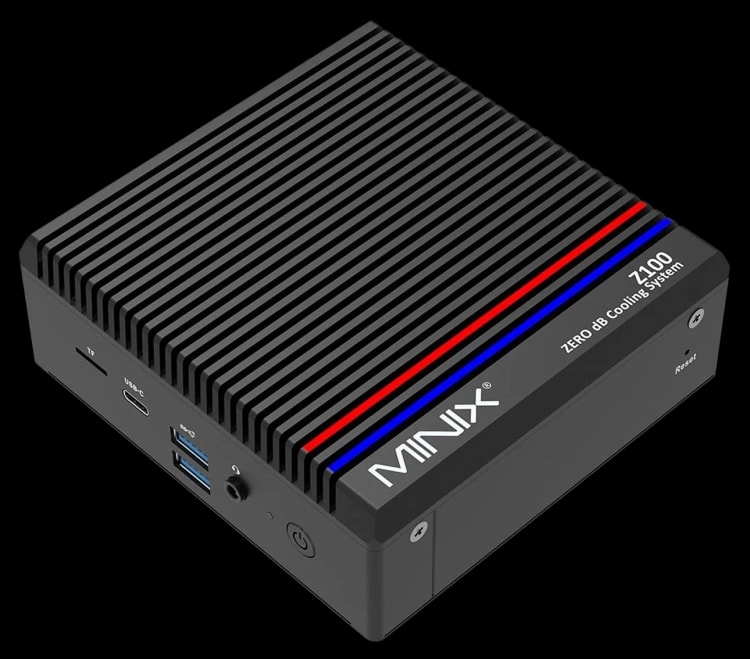
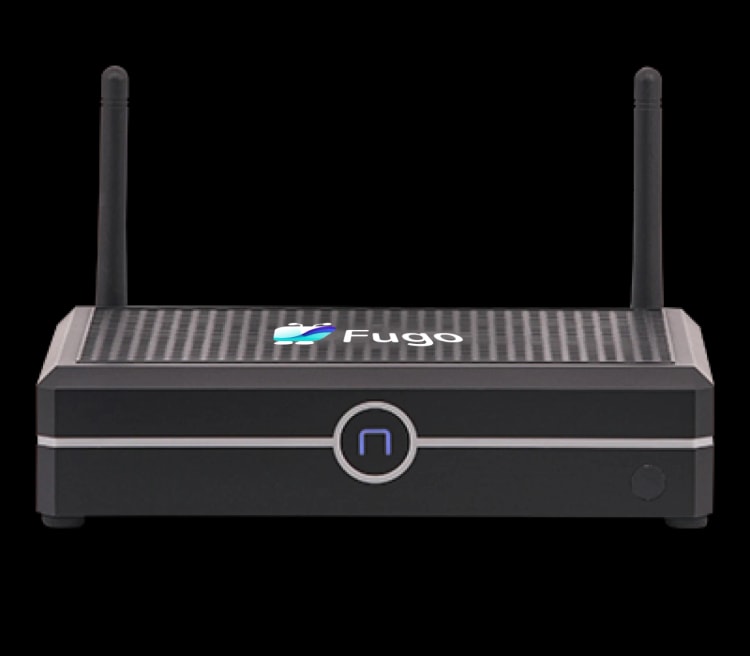
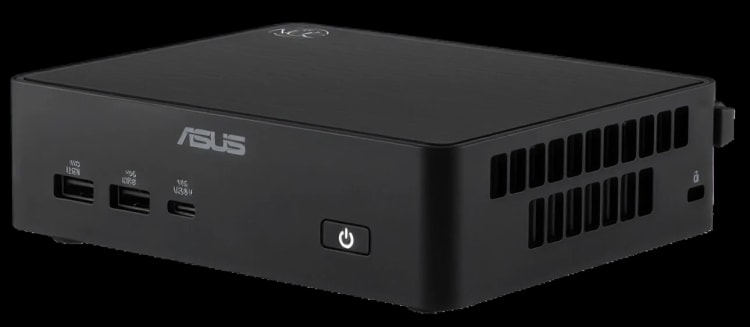
  • Fugo Player & Intel NUC PCs
  • Beelink Mini PCs
  • Azulle Byte & Inspire PCs
  • Arrow Seneca XK-Quad & iBase PCs

Tablets & touchscreens

  • Microsoft Surface Go 3
  • Elo I-Series for Windows
  • Arrow Seneca BlueFin

OPS & pro displays

  • Elo Interactive Displays with Windows Computer Modules
  • Commercial OPS-slot displays running Windows 10/11
Setup

Get a Windows screen live in minutes

Four steps from a blank PC to managed digital signage.

Fugo CMS sign-up page where you create your account to run Fugo on Windows
1

Download the installer

Grab the Fugo Player installer (.exe) for Windows and run it on the device you want to turn into a screen. The installer is a lightweight Electron app that works on any Windows 10 or 11 PC, mini-PC, or all-in-one that meets the minimum requirements.

Download Fugo Player for Windows
Screen settings basic tab for configuring a Windows screen in Fugo
2

Install and run as a dedicated screen

Complete the setup, then launch Fugo Player so the PC boots straight into signage as an always-on display. Set the player to auto-start and Windows runs your screen unattended, recovering after reboots and power cuts without anyone on site.

Fugo CMS screen pairing modal ready to receive the pairing PIN from a Windows player
3

Pair your screen

The player shows a pairing PIN — enter it in Fugo CMS to connect the screen to your account. Pairing is instant, and once the screen is linked you never have to touch the device again to change what it plays.

Fugo screens page in grid view showing managed Windows screens across locations
4

Publish and manage remotely

Build playlists, schedule content, and monitor every Windows screen from a single cloud dashboard. Group screens by location, push updates instantly, and check status with remote screenshots — from one screen to a global fleet.

Software

A full-featured signage suite on top of Windows

Windows gives you the most robust playback; Fugo CMS gives you everything you need to design, schedule, and manage content across every screen.

Fugo Design Studio with a corporate slide on the canvas

Design content in Fugo studio

Build slides from scratch or start from industry templates in the drag-and-drop Studio. Windows renders the results smoothly — rich media, multi-zone layouts, and video walls all play back without stutter.

Fugo screens grouped by property for central network management

Central screen management

Group, tag, and filter every Windows screen to run a large network from one cloud platform. See what is online, which build each device is on, and where every screen lives at a glance.

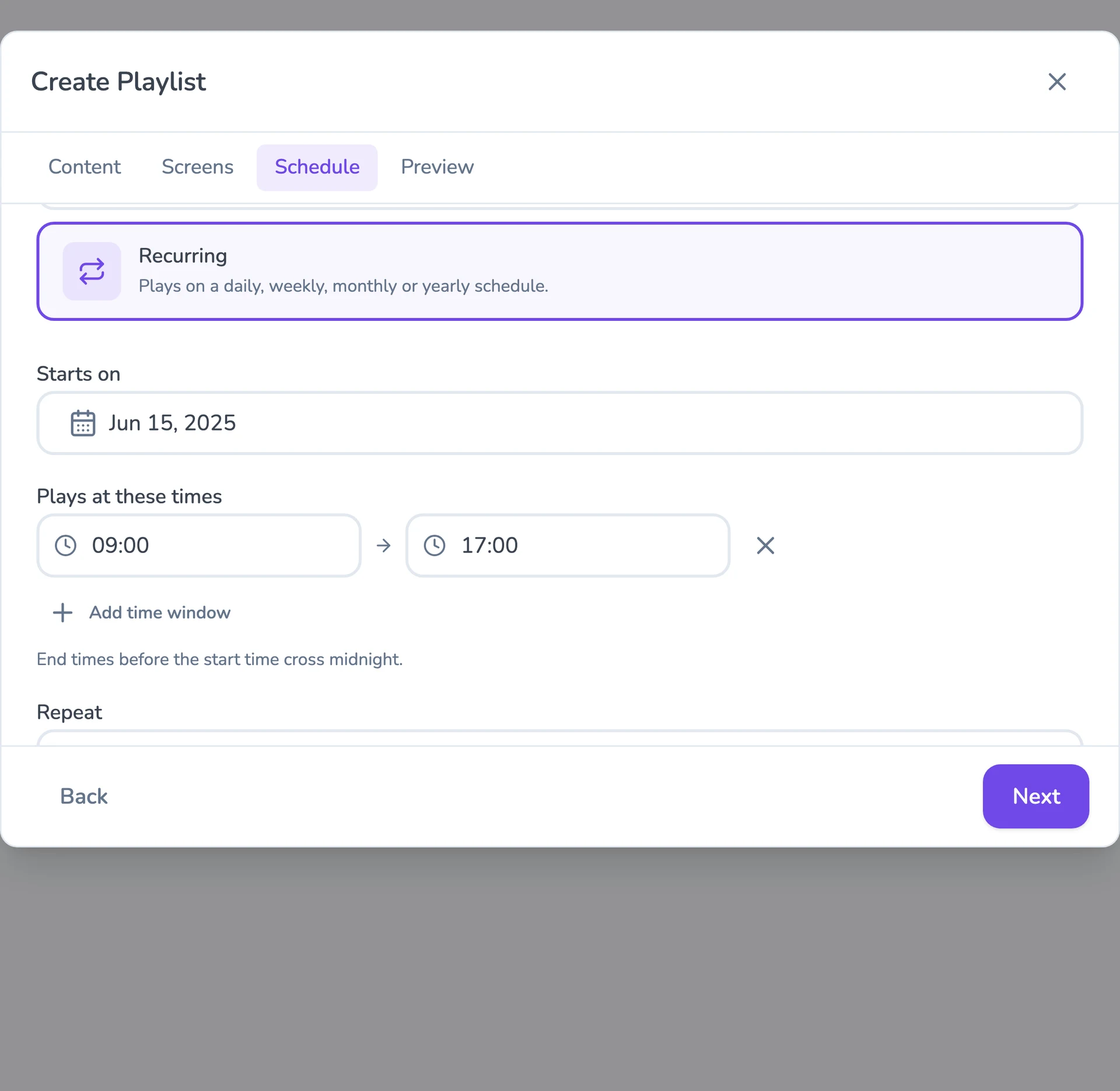
Fugo playlist scheduling with start and end dates

Flexible scheduling

Set start and end dates, dayparting, and recurring schedules so the right content plays at the right time. Push priority takeovers across the fleet in seconds when something urgent needs to go up.

Fugo dashboards page in grid view showing connected BI dashboards

Live data on screen

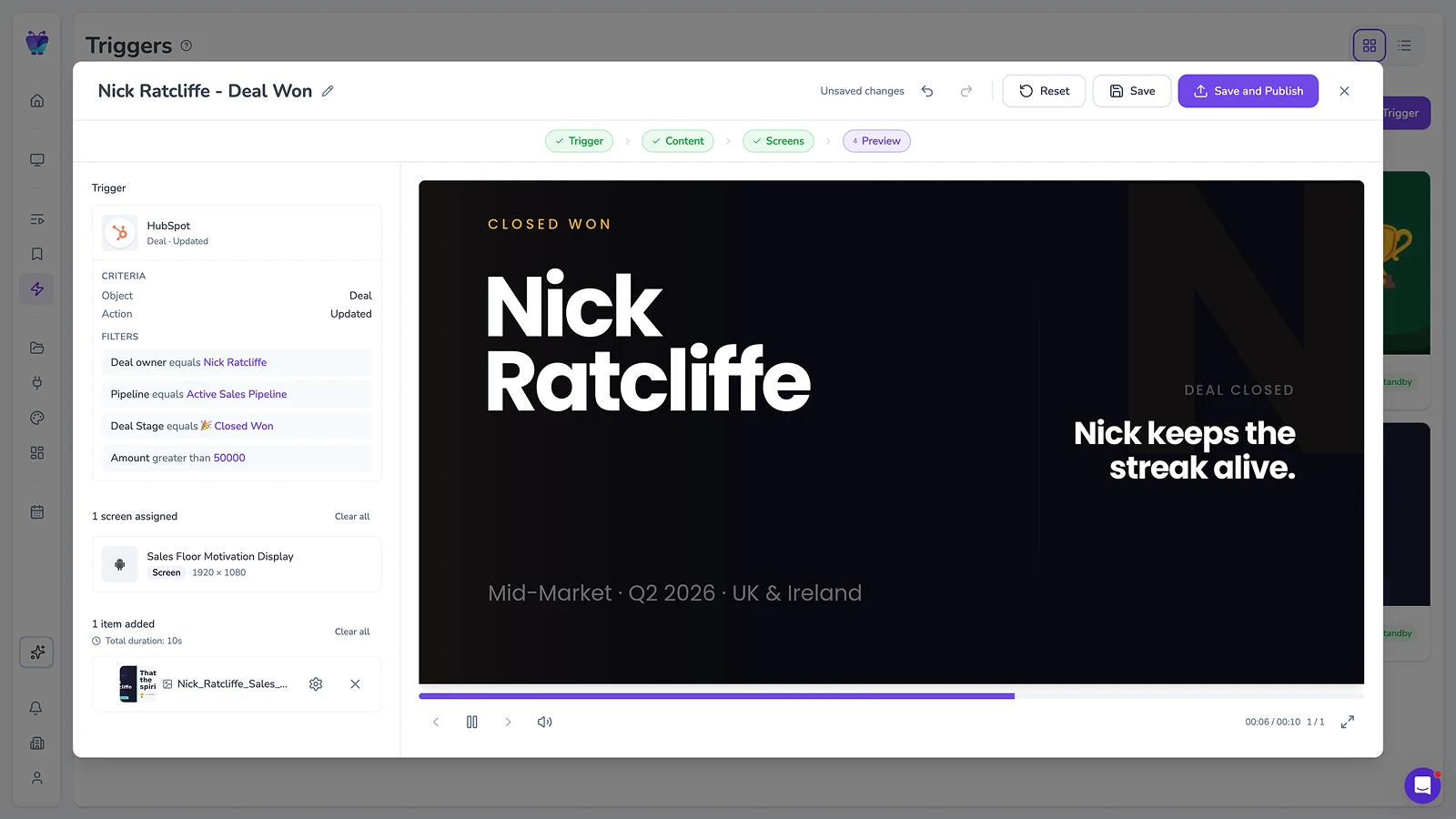
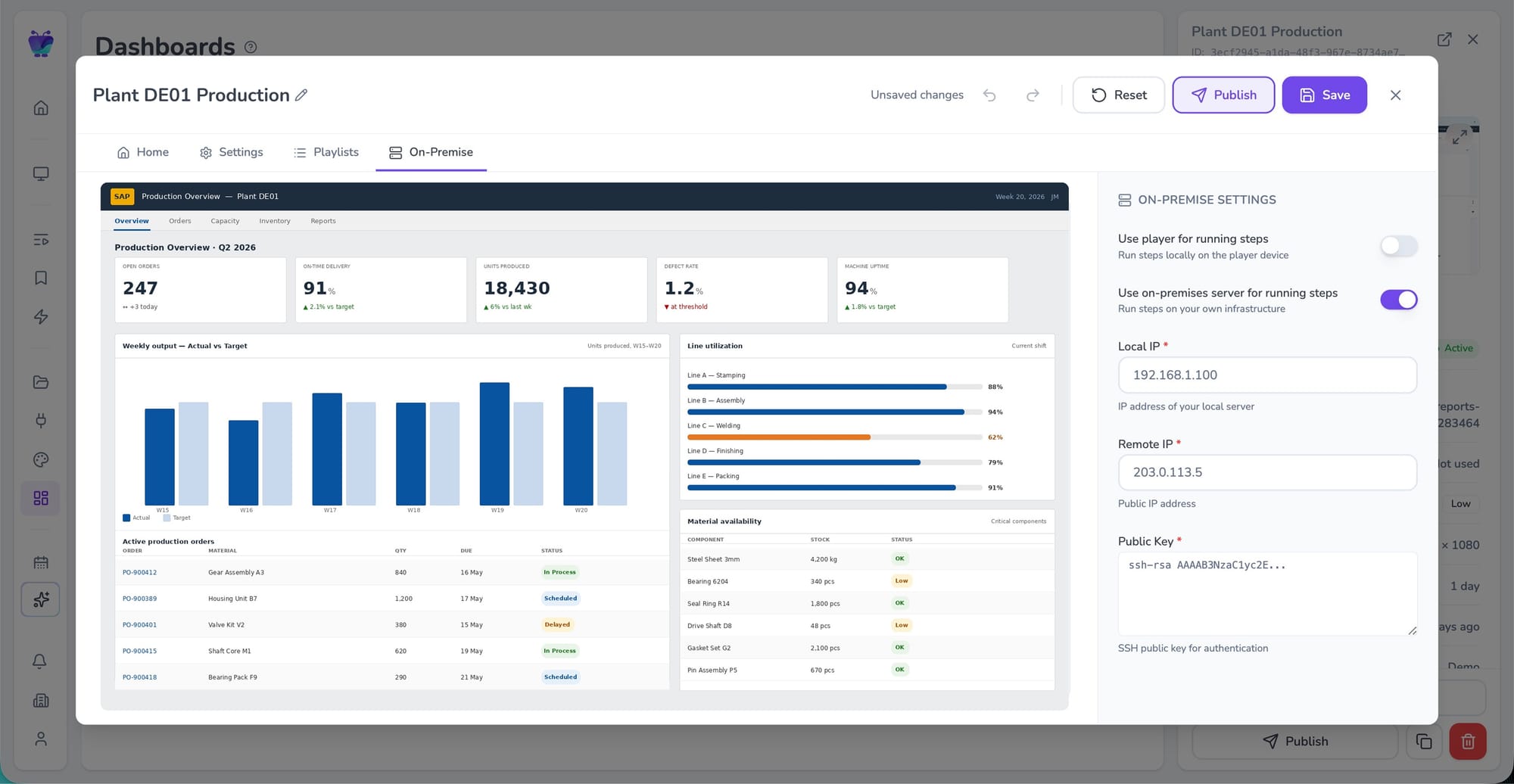
Windows handles demanding, always-on web content well, so it is a strong fit for live BI dashboards. Connect Power BI, Tableau, Grafana, and more to keep KPIs on the wall current without manual updates.

Supported content & features

Everything Fugo can play on Windows

Windows supports the complete Fugo feature set — standard media, apps, webpages, and offline playback, with the headroom to run all of it smoothly.

Standard media & documents

Play images (JPEG, JPEG 2000, PNG, WebP, SVG, GIF), video (MP4, MPG, MPEG, MOV, AVI), MP3 audio, and PDF documents. Rich, high-bitrate media plays back smoothly thanks to Windows Intel performance.

Multi-zone & orientation

Split the screen into multiple zones — including up to two concurrent video or streaming zones — in either landscape or portrait. Windows has the horsepower to drive complex, layered layouts without dropping frames.

Apps, webpages & scripting

Add live content from the Fugo App Store, embed any webpage, and run website scripting for interactive or data-driven screens. Ideal for demanding web content that lighter platforms struggle with.

Offline playback

Media is cached locally, so screens keep playing through Wi-Fi drops and network outages. When the connection returns, the player syncs the latest content and resumes normal scheduling automatically.

Remote monitoring

Capture remote screenshots from Fugo CMS to confirm exactly what each Windows screen is showing right now — no site visits, no guesswork about whether a display is live and on-brand.

Remote application updates

Push Fugo application updates over the air to keep every Windows player on a consistent, current version. Combined with Intune, that gives IT a single, hands-off update path across the fleet.

Enterprise deployment
Fugo CMS account connections tab, where enterprise and SSO integrations are managed for Windows fleets

Deploy Windows signage at scale with Microsoft intune

For managed estates, push Fugo Player to every device from Microsoft Intune — no manual installs, screen by screen. IT teams install the player silently across managed Windows devices, assign deployments to device groups, and manage application updates using the endpoint management workflows they already run. It is the fastest way to roll signage out across dozens or thousands of screens while keeping every device consistent, secure, and current.

How intune deployment works

Fugo Player fits straight into Microsoft Intune, so your existing MDM does the heavy lifting.

Silent install

Package the Fugo Player installer and deploy it silently to Windows devices, with no on-site interaction. New screens provision themselves the moment they enrol.

Group assignment

Target devices by Intune group so the right screens get the right build, from one location to a global fleet. Reassign a device to a new group and its signage config follows.

Update management

Roll out player updates centrally through Intune, keeping every Windows screen on a consistent, current version without ever touching the hardware in person.

Windows digital signage FAQs

What Windows version does Fugo need?

Fugo runs on Windows 10 Home/Pro (32-bit or 64-bit) and newer — it has been tested back to Windows 7, but we recommend running the latest Windows for the best performance and security. You will need a dual-core CPU (quad-core preferred), 2 GB of RAM (8 GB preferred), and 32 GB of storage (64 GB preferred).

Can I deploy Fugo to a Windows fleet with Microsoft intune?

Yes. For managed fleets you can deploy Fugo Player through Microsoft Intune with a silent install, group assignment, and centralised update management. See the Windows hardware directory for the full setup and Intune deployment guides.

Which Windows device should I buy?

For new purchases we recommend Windows mini-PCs such as the Fugo Player, Beelink, Intel NUC, or Azulle Byte; Microsoft Surface Go 3 or Elo I-Series for touchscreens; and Elo Interactive Displays with Windows Computer Modules for OPS-slot pro displays. For a Windows player already integrated into a mini-PC, see our Fugo NUC page. Contact support@fugo.ai for the preferred configuration for your setup.

Does Windows support the full Fugo feature set?

Yes. Windows supports the complete feature set — standard media, landscape and portrait orientation, multi-zone layouts (up to two concurrent streams), App Store apps, webpages, website scripting, offline media, remote screenshots, and remote updates.

What media formats and file types can Windows play?

Windows plays images (JPEG, JPEG 2000, PNG, WebP, SVG, GIF), video (MP4, MPG, MPEG, MOV, AVI), MP3 audio, and PDF documents. Because Windows Intel devices are so performant, high-bitrate video and rich, layered content play back smoothly with fewer dropped frames than lighter platforms.

Why choose Windows over a cheaper signage platform?

Windows delivers the strongest media and web performance of any Fugo platform — smooth video, robust playback of demanding web content, and fewer crashes at scale. It also plugs into the security tooling and endpoint-management workflows your IT team already runs. The trade-off is cost: Windows devices are pricier up front, but the reliability and manageability pay off across a larger estate.

Do Windows screens keep playing if the internet drops?

Yes. Fugo caches media locally on the device, so Windows screens keep playing through Wi-Fi drops and network outages. When the connection returns, the player syncs the latest content and resumes its normal schedule automatically — no manual intervention needed.

Can I run interactive touchscreens on Windows?

Yes. Windows is a great fit for interactive signage. Recommended touchscreen options include the Microsoft Surface Go 3, the Elo I-Series for Windows, and the Arrow Seneca BlueFin. Contact support@fugo.ai for help choosing the right touch device for your deployment.