
Fugo NUC digital signage player
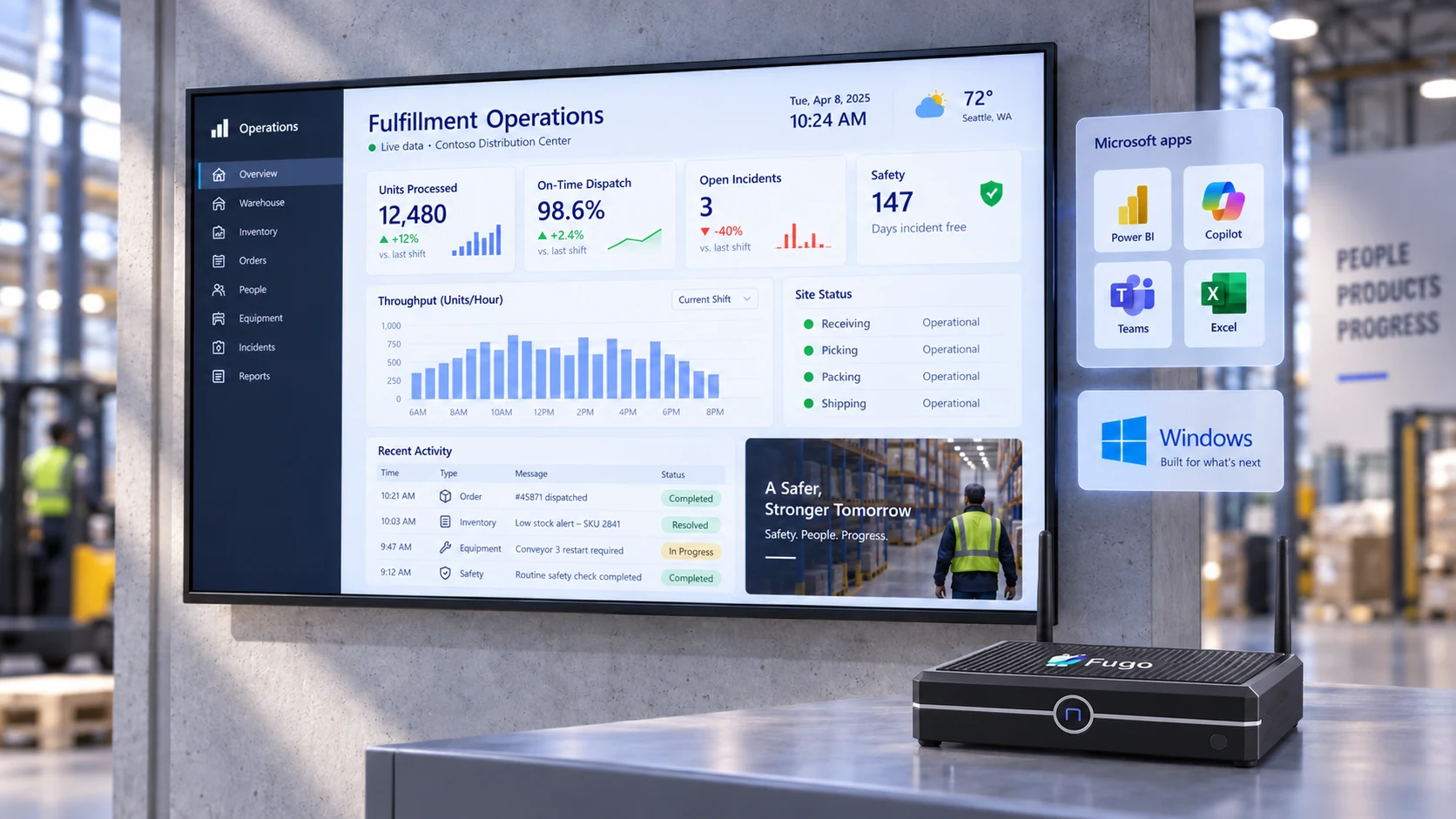
Bring desktop-class rendering power to your screens with a purpose-built Fugo NUC that arrives pre-configured and ready to run your playlists, dashboards, and video walls.
Plug-and-play hardware built for enterprise duty
Deploy enterprise-ready Windows media players pre-loaded with our app for zero-touch setup and 24/7 performance.
Fugo pre-installed out of the box
Ships imaged with the Fugo Player set to launch automatically on boot. No sideloading, app store installs, or manual OS preparation required.
Windows 10 IoT Enterprise LTSC
Long-term servicing OS build supported by Microsoft through 2032, providing a stable, lockable environment with no disruptive consumer update reboots.
Desktop-class web rendering
Powered by a heavy-duty browser engine to run complex HTML5 content, multi-zone layouts, and live web dashboards without dropping frames or lagging.
Drive up to three displays
Equipped with 2x HDMI and USB-C/DisplayPort outputs to run up to three extended 4K screens from a single box - making it our recommended pick for video walls.
Remotely managed kiosk mode
Ships with open networking for initial setup, then locks securely into dedicated signage mode directly from your Fugo CMS dashboard.
One contact for hardware & CMS
Eliminate vendor ping-pong when issues arise. Both the media player and the signage software are supported directly by the same Fugo engineering team.
Plug in, power on, and pair in seconds
The Fugo NUC arrives fully pre-configured to launch our player app on first boot, getting your screens live as soon as you enter the pairing PIN into your Fugo account.
Read the Fugo NUC setup guide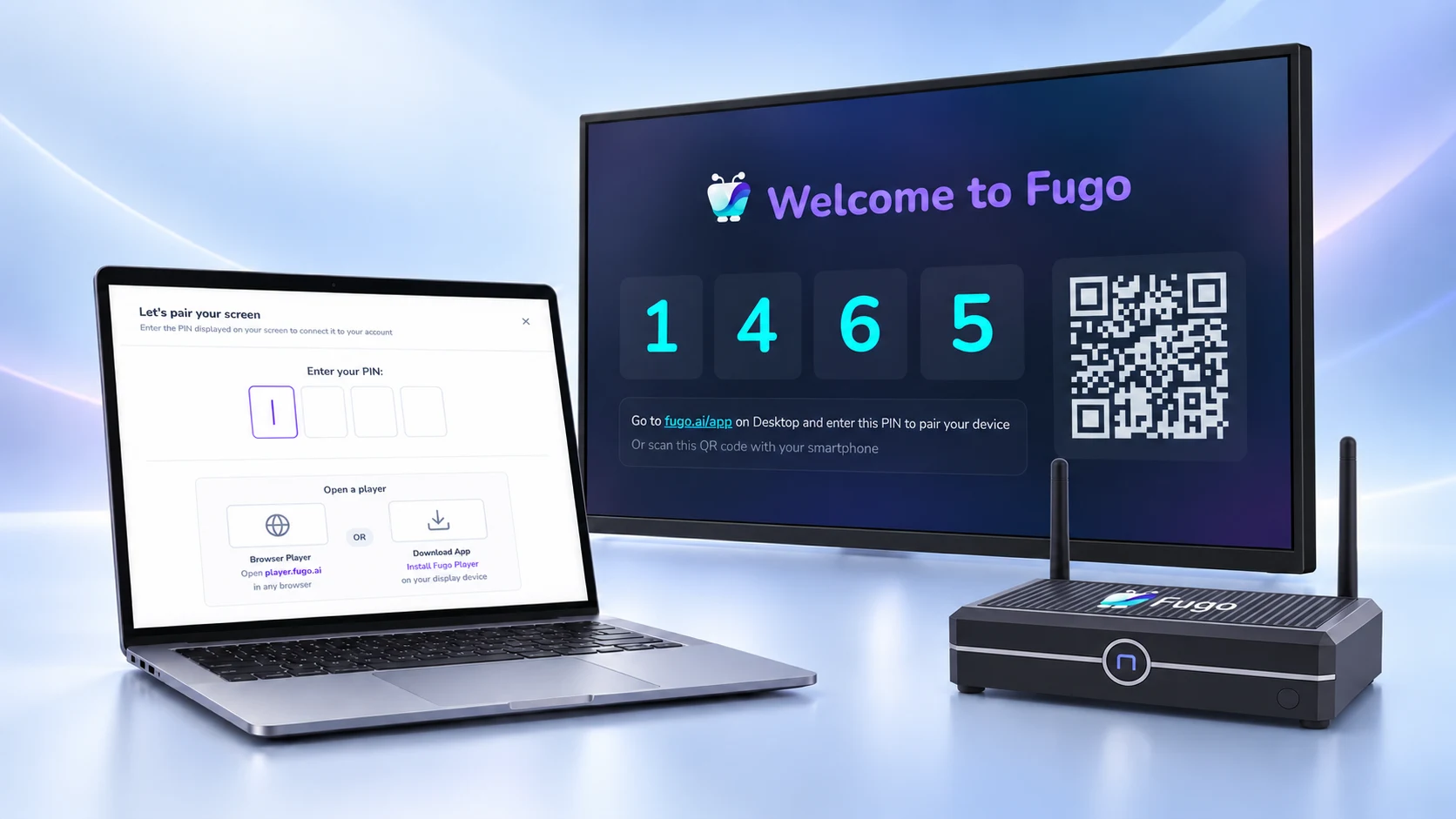
Uncompromising CMS control for every display
Fugo provides the intelligent management backend your displays need, giving you total cloud command over content publishing & screen control.
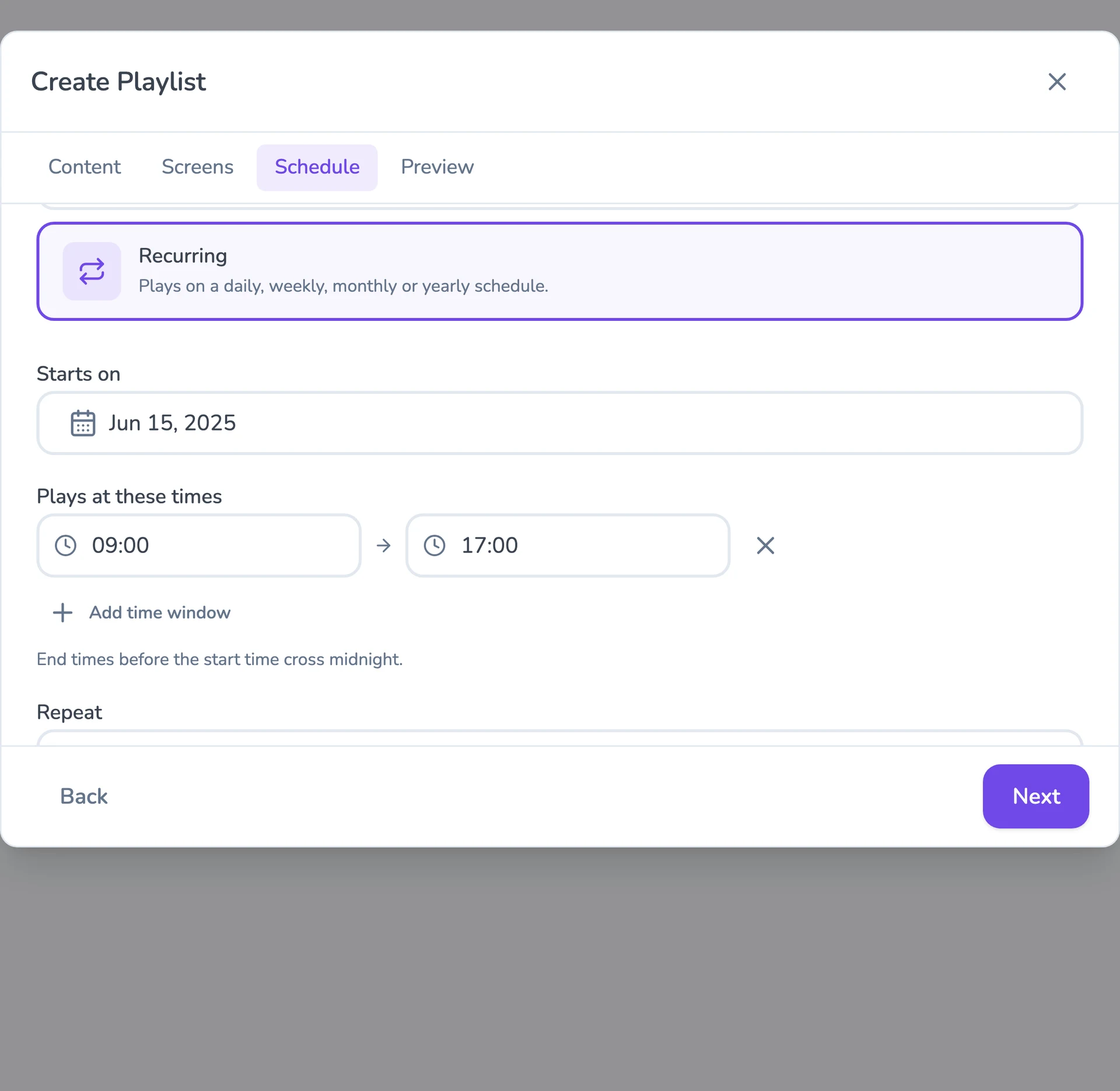
Flexible content scheduling
Keep even complex content calendars easy to manage. Schedule & target content to the right screens with flexible timing and automatic expiry.
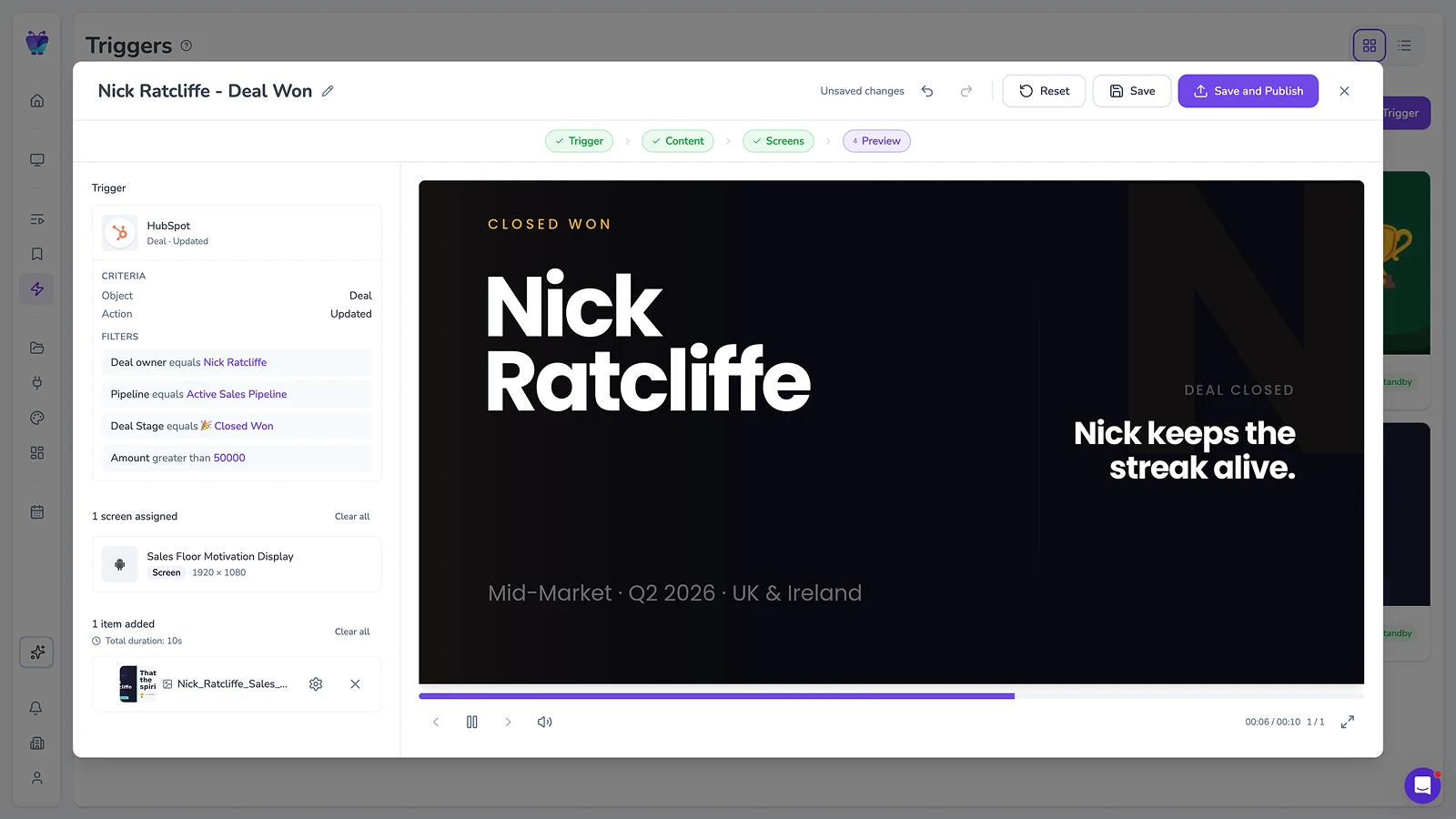
Event-driven content triggering
Let events in your connected systems decide when screens should update. Surface timely takeovers for alerts, milestones, or moments that need attention.
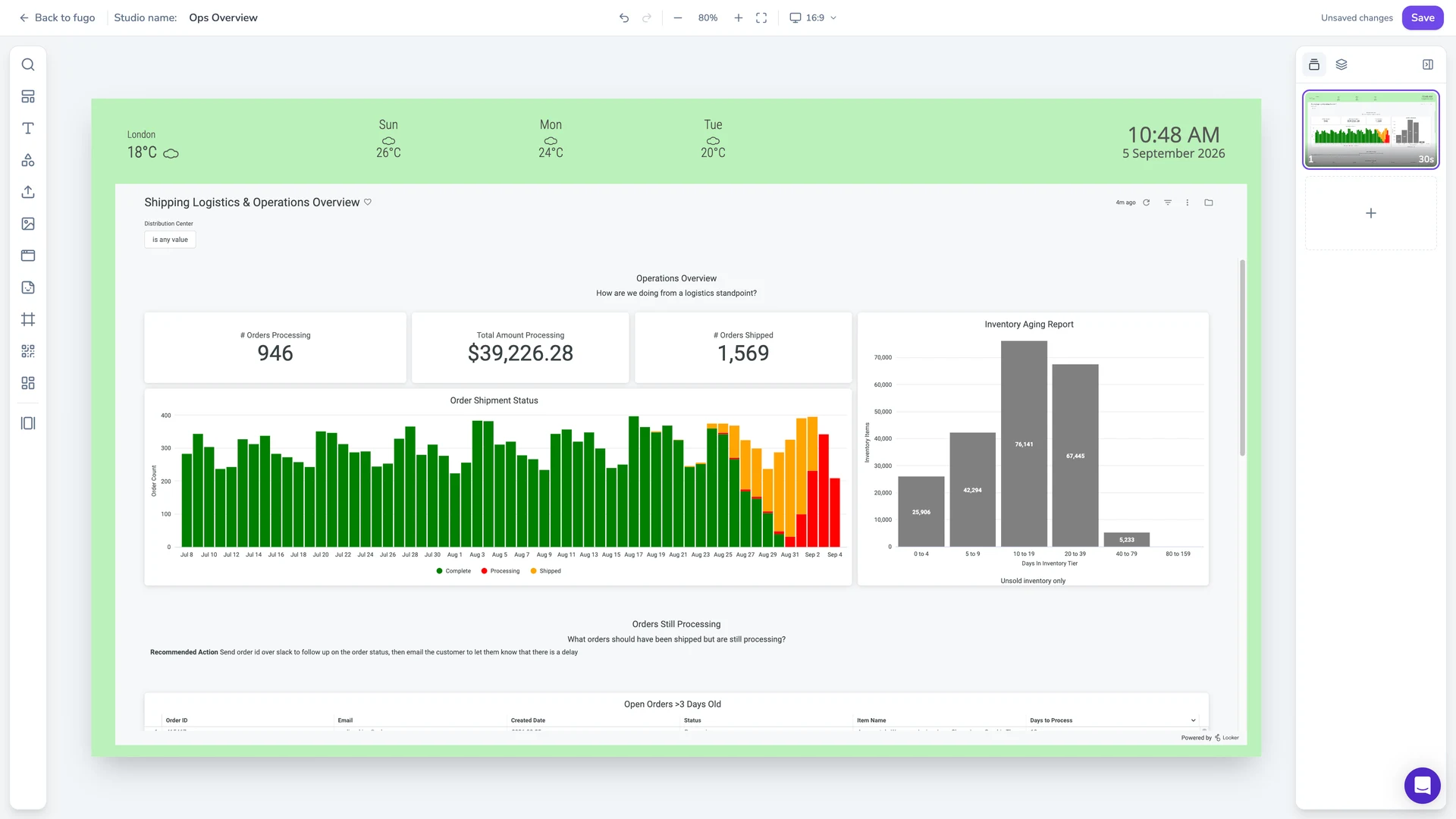
Full-featured content design
Combine your own media, live data, and connected apps into polished multi-zone layouts using an editor that feels as easy as Canva.
Centralized screen management
Group, tag, and filter every player from one place — by site, property, or whatever matches how you run the network.
Live data on screen
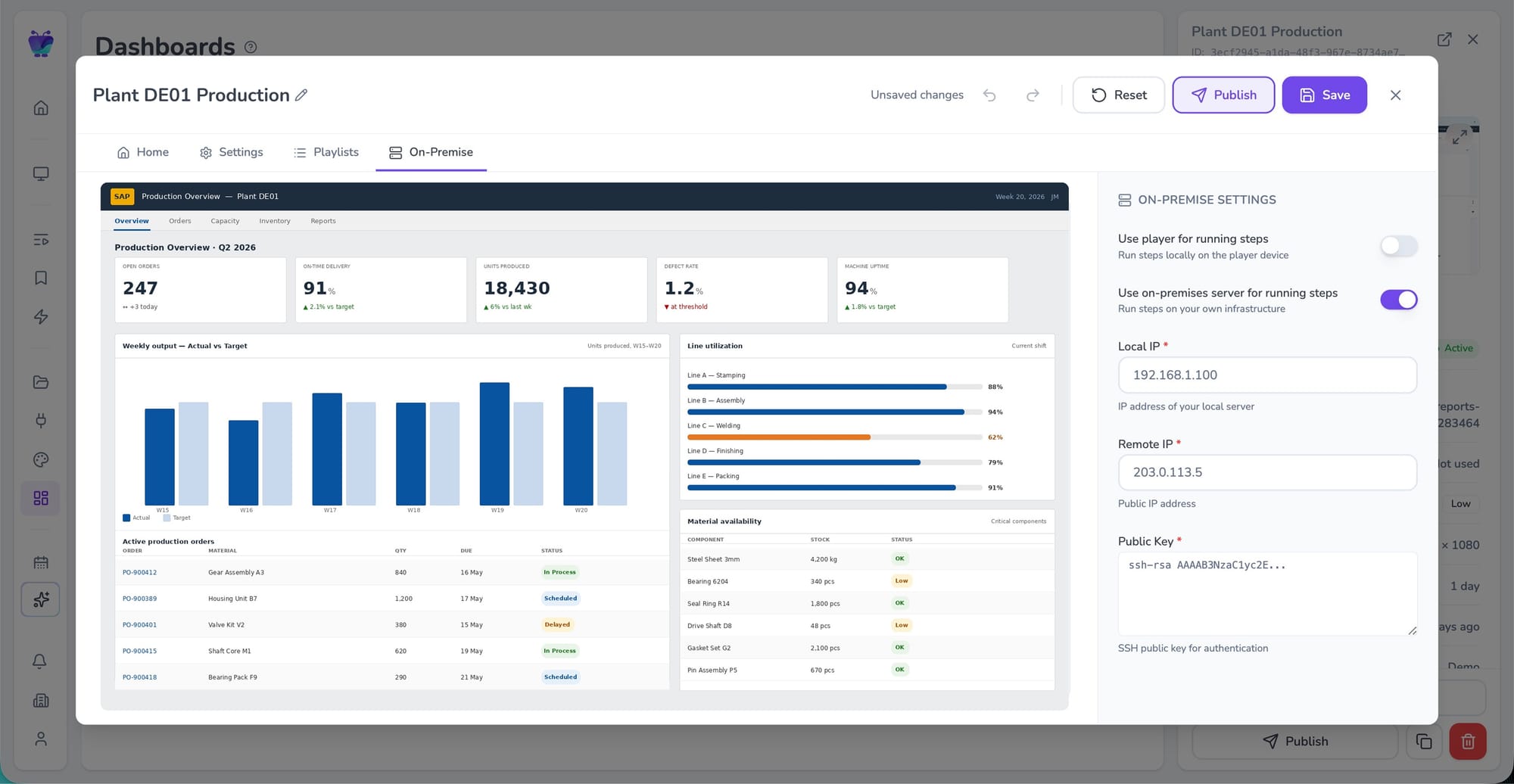
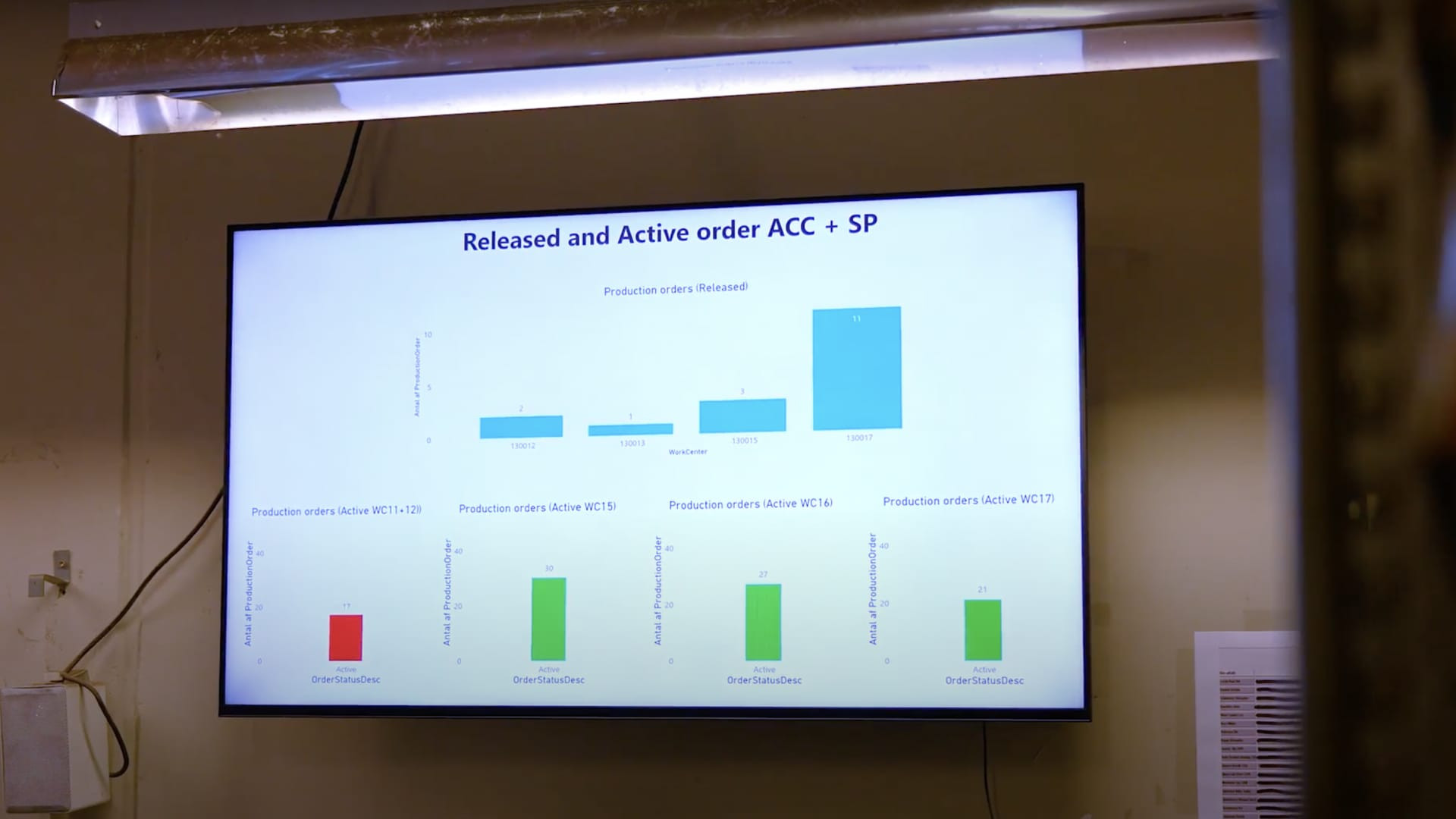
Put BI dashboards and KPIs on the display through Fugo’s integrations, without anyone signing in on site.
Built-in remote monitoring
See what’s happening on remote screens from Fugo. Catch an offline player before someone walks past it.
Granular user management
Give a site, team, or agency control of the screens they own without opening the rest of the network.
From ten to a hundred screens
Standardize on one solution across the enterprise, and give every site more ways to put its screens to work.
Explore Fugo for enterpriseStandardize every rollout
Set one Fugo configuration model for the business, then repeat it across sites without rebuilding the stack with each rollout.
Room for evolving use cases
The same player class that handles a lobby greeting screen can absorb operational displays, alerts, and interactive kiosk use cases.
Local freedom with central control
Give teams ownership of their screens while company-wide branding and messaging standards stay intact.
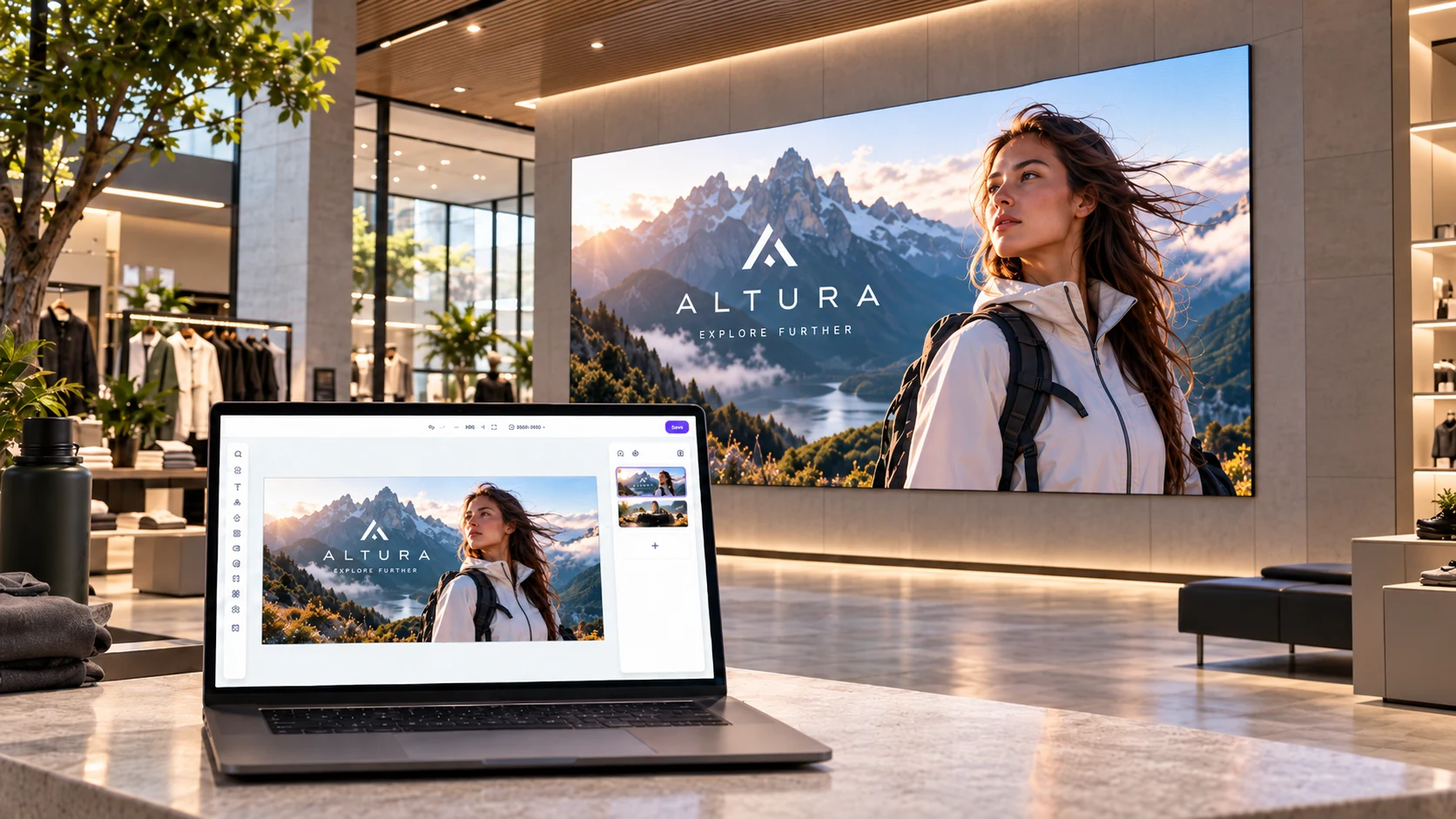
Drive LED arrays & multi-display video walls
Design multi-panel layouts on a single canvas and let the Fugo NUC deliver smooth, frame-accurate playback across every screen.
Dive deeper on Windows & data-driven signage
Practical guidance on Windows-based signage and smarter screen content.