
Fugo

Digital signage for Zoom Rooms

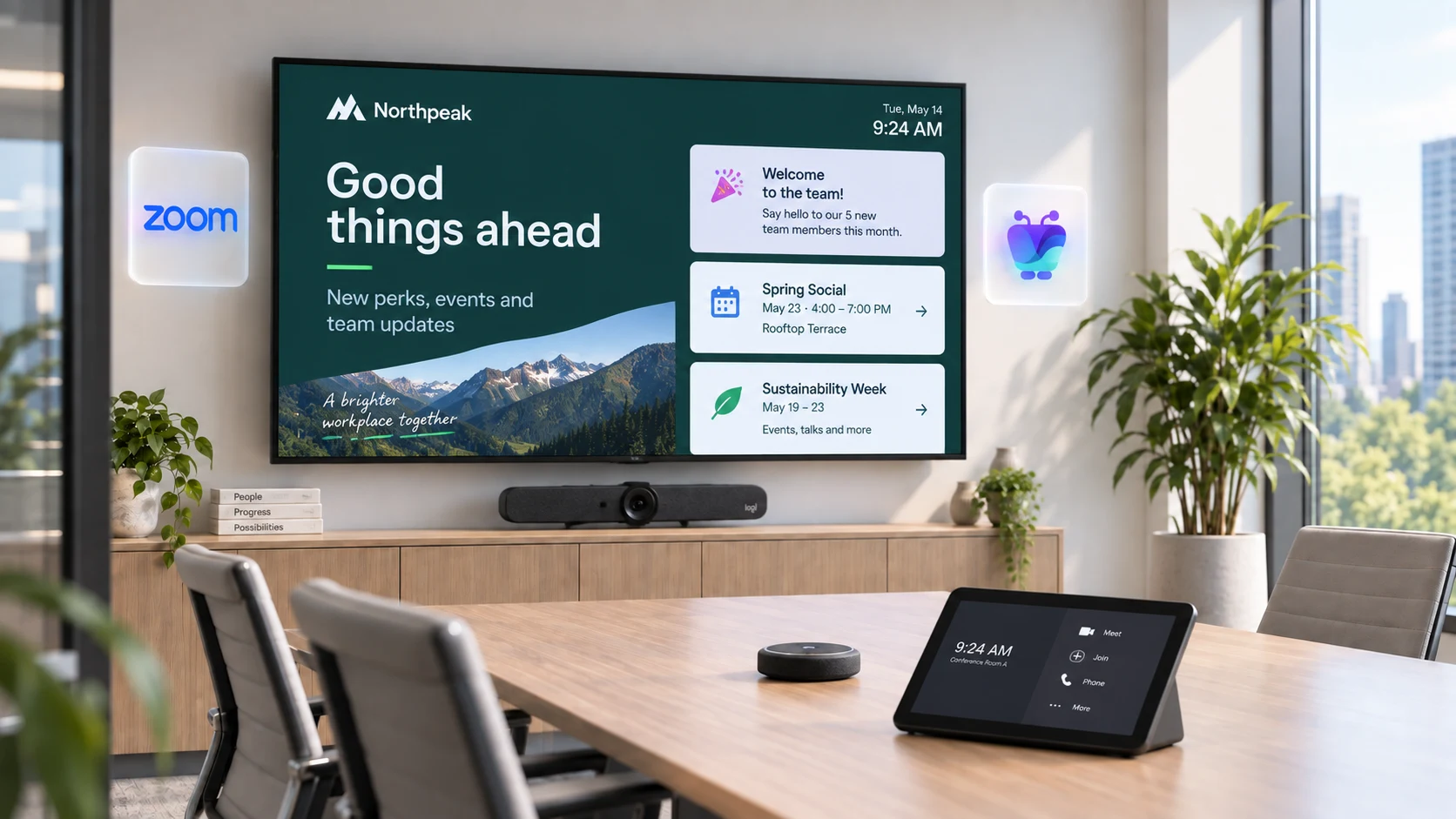
Turn idle Zoom Rooms screens into rich information hubs between meetings. Add player.fugo.ai in the Zoom Digital Signage tab and pair your screen — then show dashboards, BI, social walls, and Design Studio content that goes far beyond native Zoom signage.

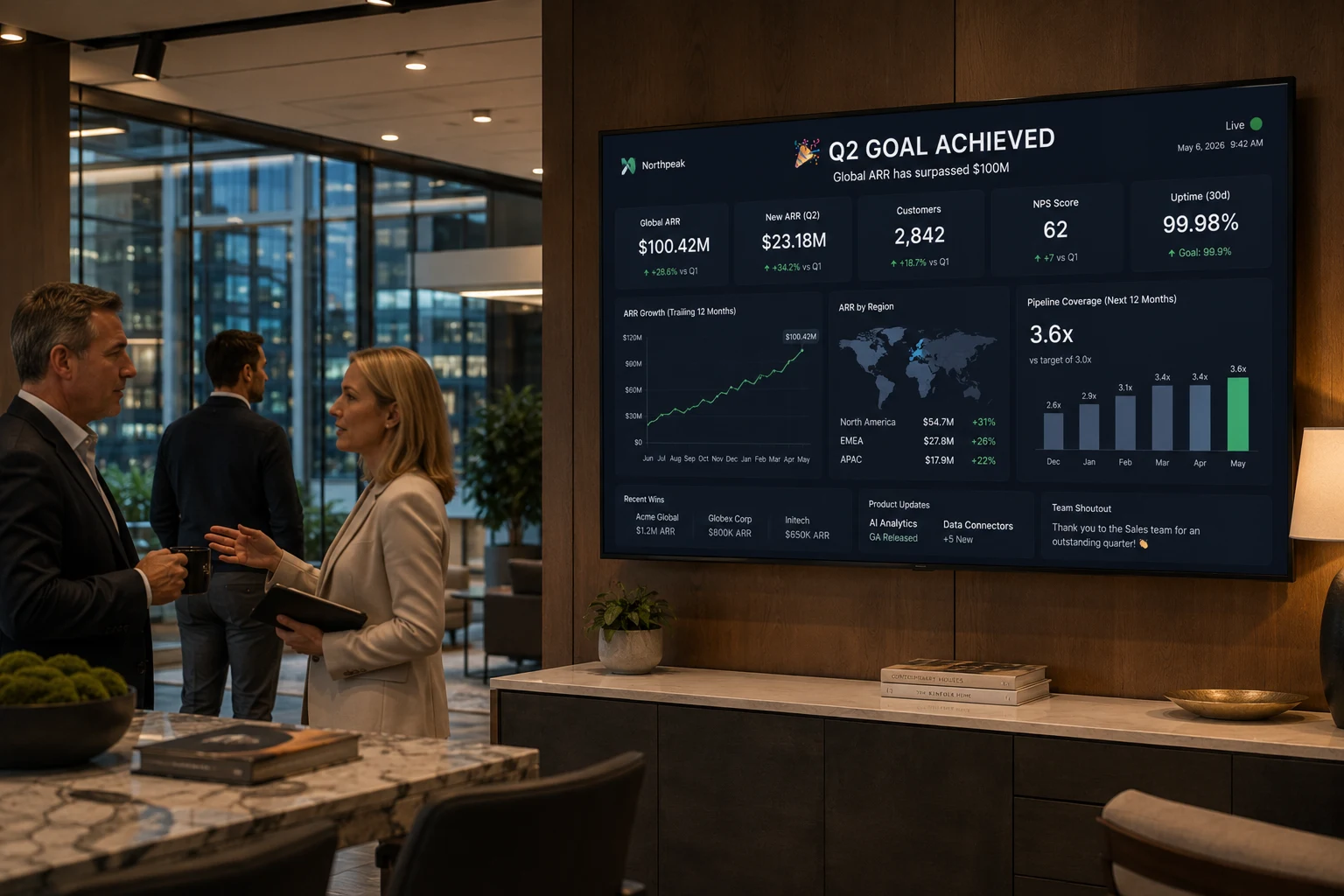
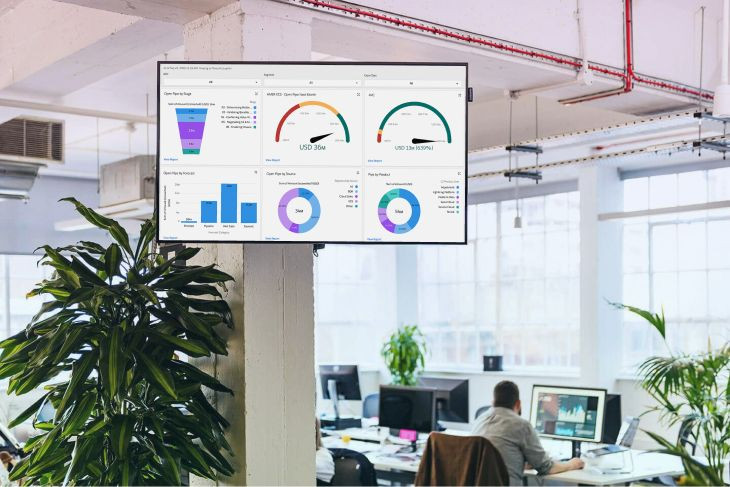
Boardroom screen showing quarterly revenue, gross margin and NPS figures with a rising trend line between Zoom meetings
Why Fugo for Zoom Rooms

Go beyond native Zoom Rooms signage

Zoom's own signage plays basic media or a single video-stream URL. Fugo loads as a full web player on the same screen, so every idle Zoom Room becomes a managed digital sign.

Live dashboards and BI

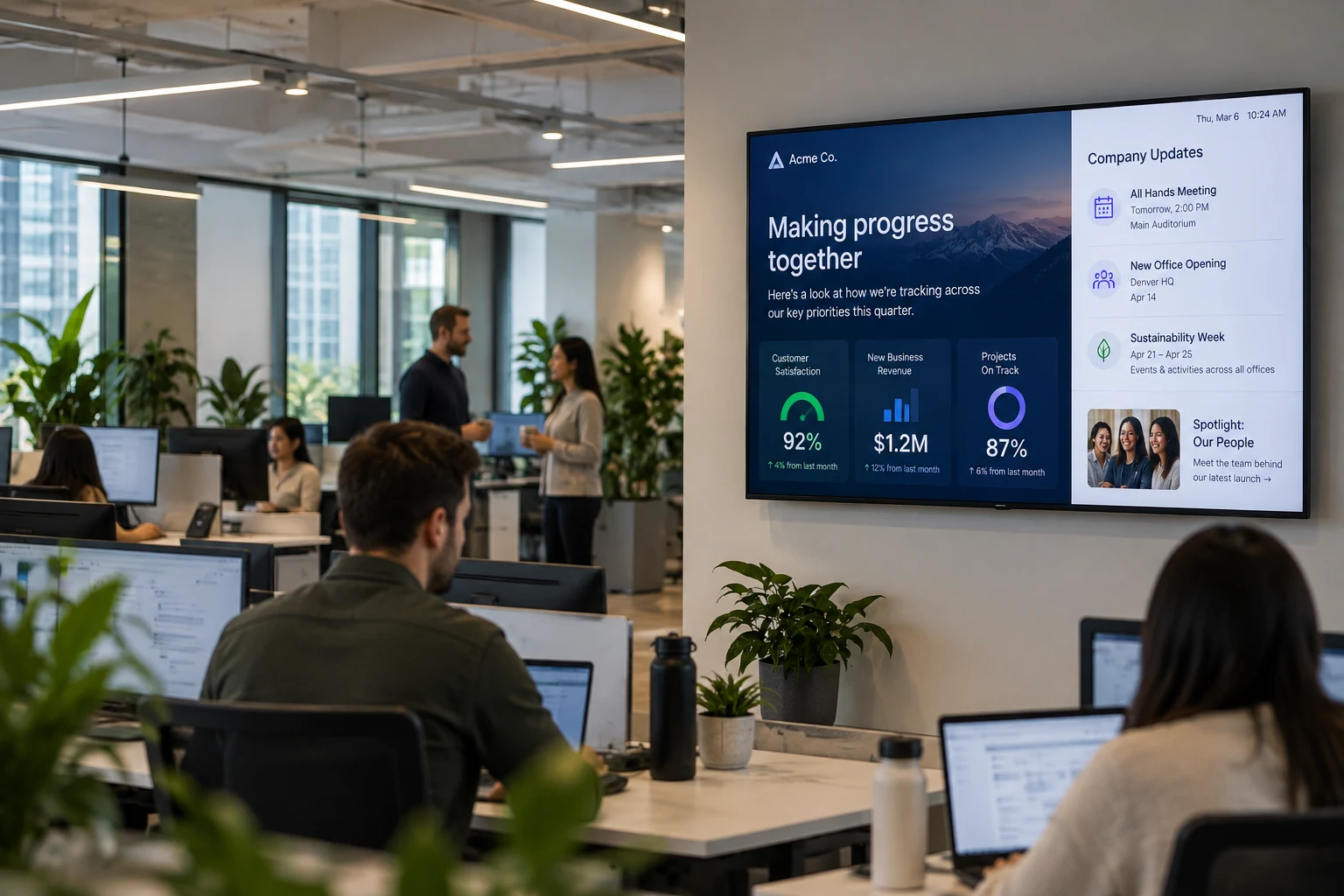
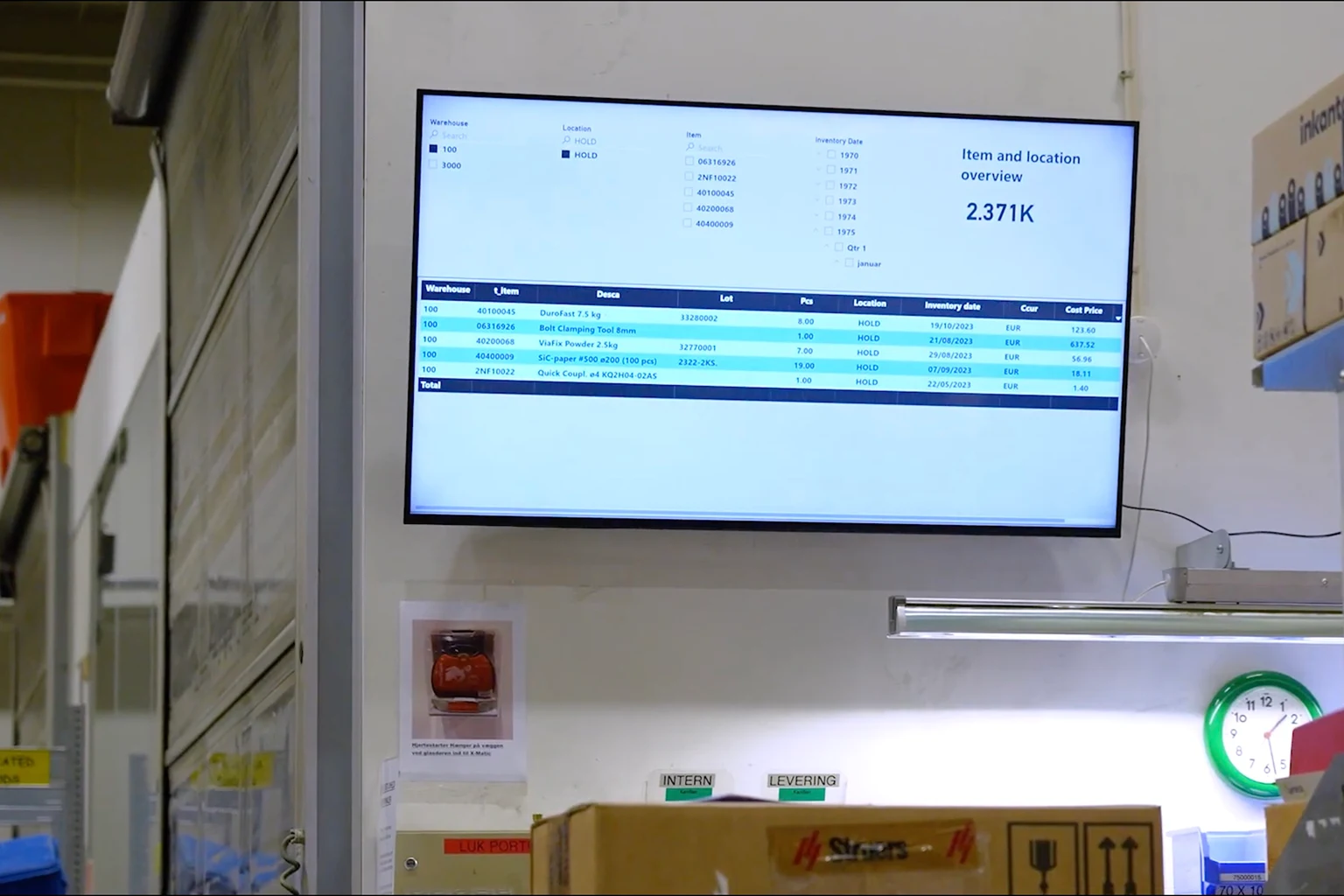
Put Power BI, Looker, Grafana, and other BI dashboards on the meeting-room screen so teams see live numbers between calls. Native Zoom signage can only point at a single media file or video-stream URL — Fugo renders your real dashboards, refreshed automatically. See TV dashboards for how the live-data feeds work.

Design Studio content

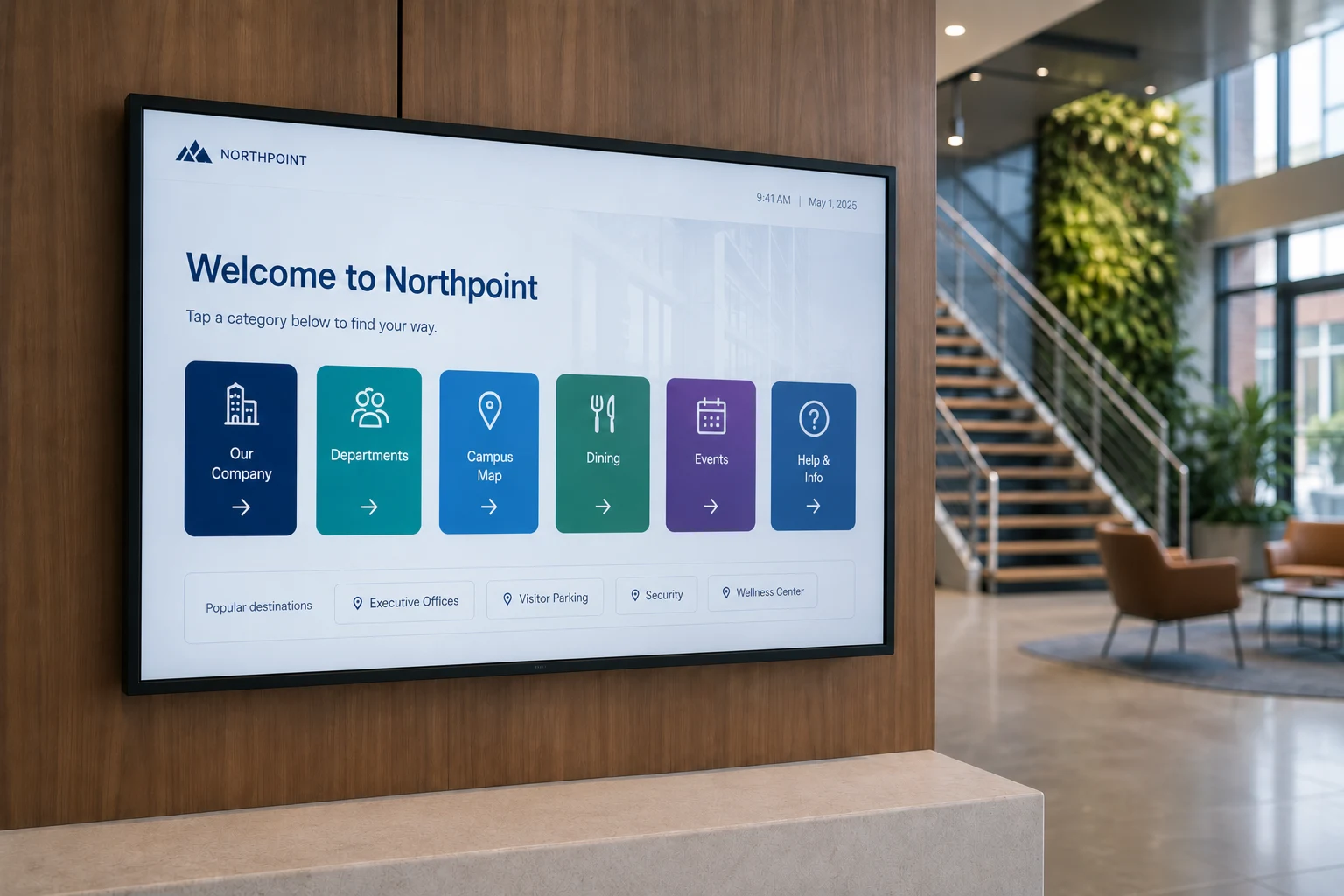
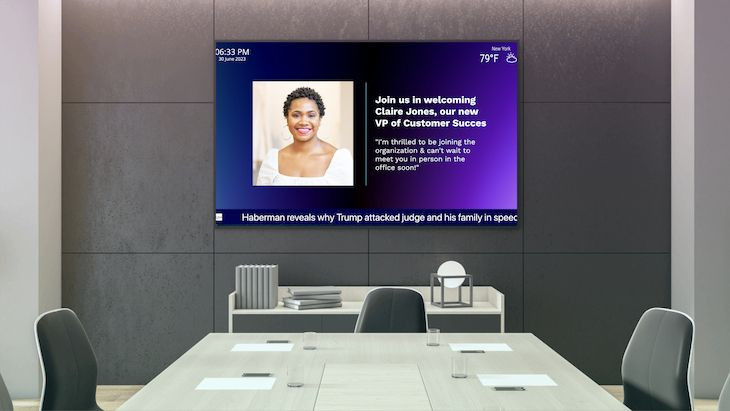
Build branded welcome screens, team announcements, and wayfinding in Fugo Design Studio — no design team required. Start from an industry template, drop in your logo and colours, and the same layouts play across every Zoom Room in your account.

Social walls and live feeds

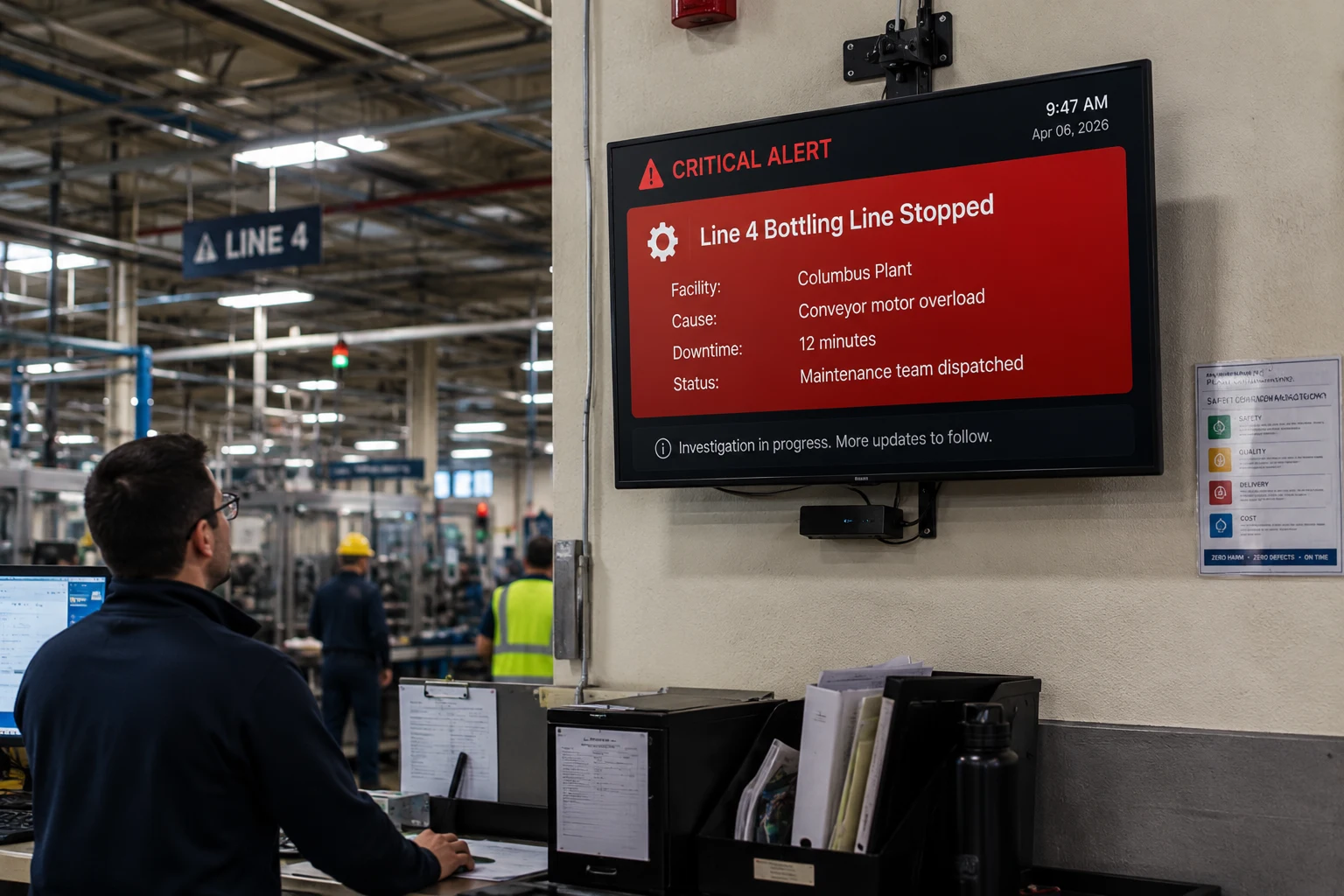
Pull in social walls, news, weather, and other live feeds to keep meeting-room screens fresh and useful. Content updates on its own, so a screen that would otherwise sit blank between meetings earns its place on the wall.

Central scheduling and control

Publish and schedule content across every Zoom Room from one cloud dashboard, using playlists and screen groups. Update one office or every room at once, and reuse playlists you have already built for other Fugo screens instead of duplicating work.

Setup

Add Fugo in the zoom digital signage tab

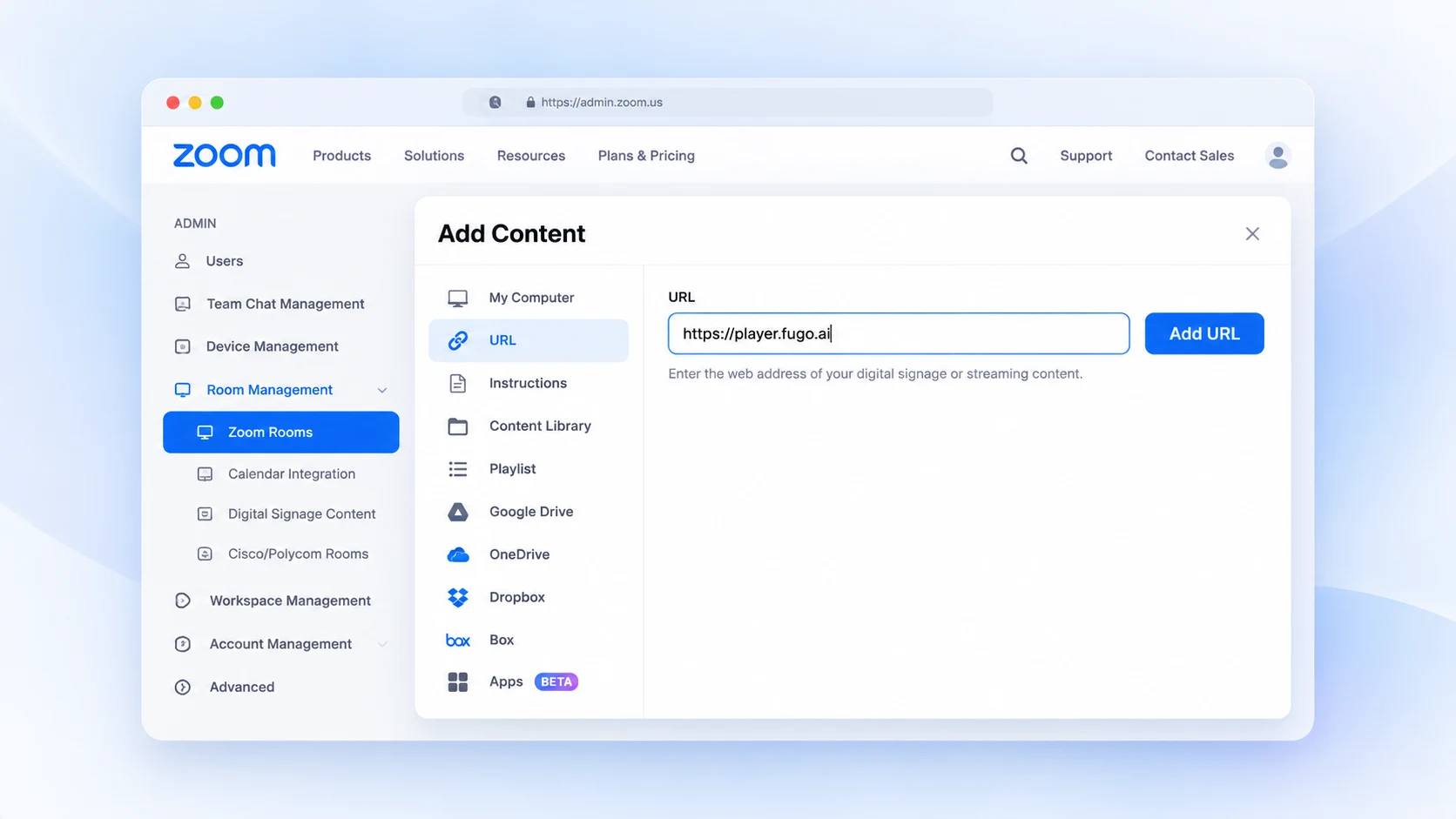
Add player.fugo.ai as a URL content item in the Zoom web portal, then pair the screen in Fugo — no extra hardware needed.

Fugo Screens page with the add-a-screen dropdown open, ready to register a new Zoom Room
1

Open the room in the zoom portal

Sign in to zoom.us as an admin, then go to Admin → Room Management → Zoom Rooms and edit the room you want to use. You will need a valid Zoom Rooms license and an admin role to reach the room settings.

Fugo browser player loaded on a screen showing a four-character pairing PIN and a QR code
2

Add player.fugo.ai as a URL

On the Digital Signage tab, choose Add Content → URL and enter https://player.fugo.ai. Set the URL duration to 23:59:59 so it runs as the always-on default, add a 5–10 minute buffer after meetings end, then save. Within 30–60 seconds the browser player loads and shows a 4-character pairing PIN.

Fugo Create Screen pairing modal ready to receive a four-character PIN
3

Pair your screen in Fugo

In Fugo, go to Screens → Create Screen, enter the PIN shown on the Zoom Room display, and give the screen a name. Once it is paired you can publish and schedule playlists to it like any other Fugo screen.

Fugo software

A full digital signage suite on your Zoom Rooms screens

The Zoom Room provides the display; Fugo CMS provides everything you need to manage what plays on it — from live BI to branded slides, all scheduled centrally from the cloud.

Fugo TV Dashboards page listing connected BI dashboards

Live dashboards and BI

Connect Power BI, Looker, Grafana, Tableau, and more to show real, refreshing numbers on the screen. Your TV dashboards run securely as web content inside the Fugo player, so teams glance up to live KPIs instead of a static image.

Fugo social wall aggregating branded corporate posts for a meeting-room screen

Social walls and live feeds

Aggregate posts, hashtags, and mentions into a moderated social wall, or add news and weather feeds. Fugo keeps the content refreshing on its own, so meeting-room screens stay lively between calls without anyone touching them.

Corporate welcome slide being edited on the Fugo Design Studio canvas

Design Studio slides

Build welcome screens, announcements, and wayfinding in Design Studio without a design team. Pick an industry template, add your branding, and the layouts you create play across every paired Zoom Room in your account.

Fugo Screens page with displays grouped by property for central management

Central scheduling and control

Group screens by office or floor, schedule content by day or time, and push priority takeovers when something matters. One cloud dashboard controls every Zoom Room, so you can update a single room or your whole estate at once.

Zoom Rooms vs Fugo

Why choose Fugo over native Zoom Rooms signage

Zoom Rooms already includes a Digital Signage tab, so why add Fugo? Native signage is designed for a quick media loop; Fugo turns the same screen into a properly managed sign — richer content, one place to control every room, and playlists you can reuse.

Richer content than media loops

Native Zoom signage is limited to basic media files or a single video-stream URL. Because Fugo loads as a full web player, you can show live dashboards, Power BI and Looker, social walls, and hundreds of apps on the same screen.

One place to manage every room

Zoom signage is configured per room in the Zoom portal. Fugo manages every paired Zoom Room from one cloud dashboard, with screen groups, scheduling, and priority takeovers so you update one office or your whole estate at once.

Reuse the playlists you already have

If your team has built playlists in Fugo for other screens, you can publish the same content to Zoom Rooms with no rework. That keeps every display in sync and avoids maintaining a separate media set just for meeting rooms.

Meeting-first by design

Signage only shows when the room is idle, and buffer settings keep it out of the way of meetings. Set content to start a few minutes after a meeting ends and stop before the next one begins so the room is always ready for a call.

Content built for screens

Design Studio, TV dashboards, and app integrations are purpose-built for playing on a wall — not repurposed slides. Fugo formats content for the screen and refreshes live data automatically, so rooms never show a stale loop.

Works beyond Zoom Rooms

The same Fugo account and playlists run on media players, smart TVs, and other meeting-room platforms. Standardise on one CMS across your whole screen estate instead of managing signage room platform by room platform.

Zoom Rooms digital signage FAQs

Do I need a Zoom Rooms license to use Fugo?

Yes. Fugo runs on any active Zoom Room with a valid Zoom Rooms license and an admin role to edit the room. Zoom no longer offers Zoom Rooms free trials, so you’ll need a licensed room to add the Digital Signage URL. No extra Zoom add-on is required beyond the Zoom Rooms license itself.

How do I set Fugo up on a zoom room?

In the Zoom web portal, go to Admin → Room Management → Zoom Rooms and edit the room. On the Digital Signage tab, choose Add Content → URL, enter https://player.fugo.ai, set the URL duration to 23:59:59, add a 5–10 minute buffer after meetings, and save. The player loads within 30–60 seconds and shows a 4-character PIN — enter that in Fugo under Screens → Create Screen to pair it. Full walkthrough in the Zoom Rooms setup guide.

Does each zoom room count as an extra Fugo screen?

Yes. Each Zoom Room device you connect counts as a screen in your Fugo subscription, the same as any other paired display — so it adds to your screen count and cost. If you’ve used up your pre-purchased licenses, you’ll be prompted to add one when you pair the room.

Will Fugo interrupt a meeting that runs over?

The signage only shows when the room is idle, but it can appear if a meeting runs past its scheduled end. Use the “start displaying X minutes after a meeting ends” buffer (we recommend 5–10 minutes) and set “stop displaying X minutes before the next meeting” to 0 so the display stays out of the way.

How is this different from native Zoom Rooms signage?

Zoom’s built-in signage is limited to basic media or a single video-stream URL. Because Fugo loads as a full web player, you can show live dashboards, Power BI and Looker, social walls, and hundreds of Fugo apps — all scheduled and managed centrally. See TV dashboards for more on displaying BI on screens.

What content can I show on a Zoom Rooms screen?

Anything you can build or connect in Fugo: uploaded media and PDFs, slides built in Design Studio, live TV dashboards and BI reports from Power BI and Looker, social walls, news and weather, and hundreds of app integrations. You can reuse playlists you’ve already built for other screens, so nothing has to be recreated for Zoom Rooms.

Can I use Fugo for other meeting-room screens too?

Yes. Fugo works on any meeting-room display, not just Zoom Rooms — see conference room digital signage for the broader picture.