
Fugo

Sony BRAVIA digital signage software

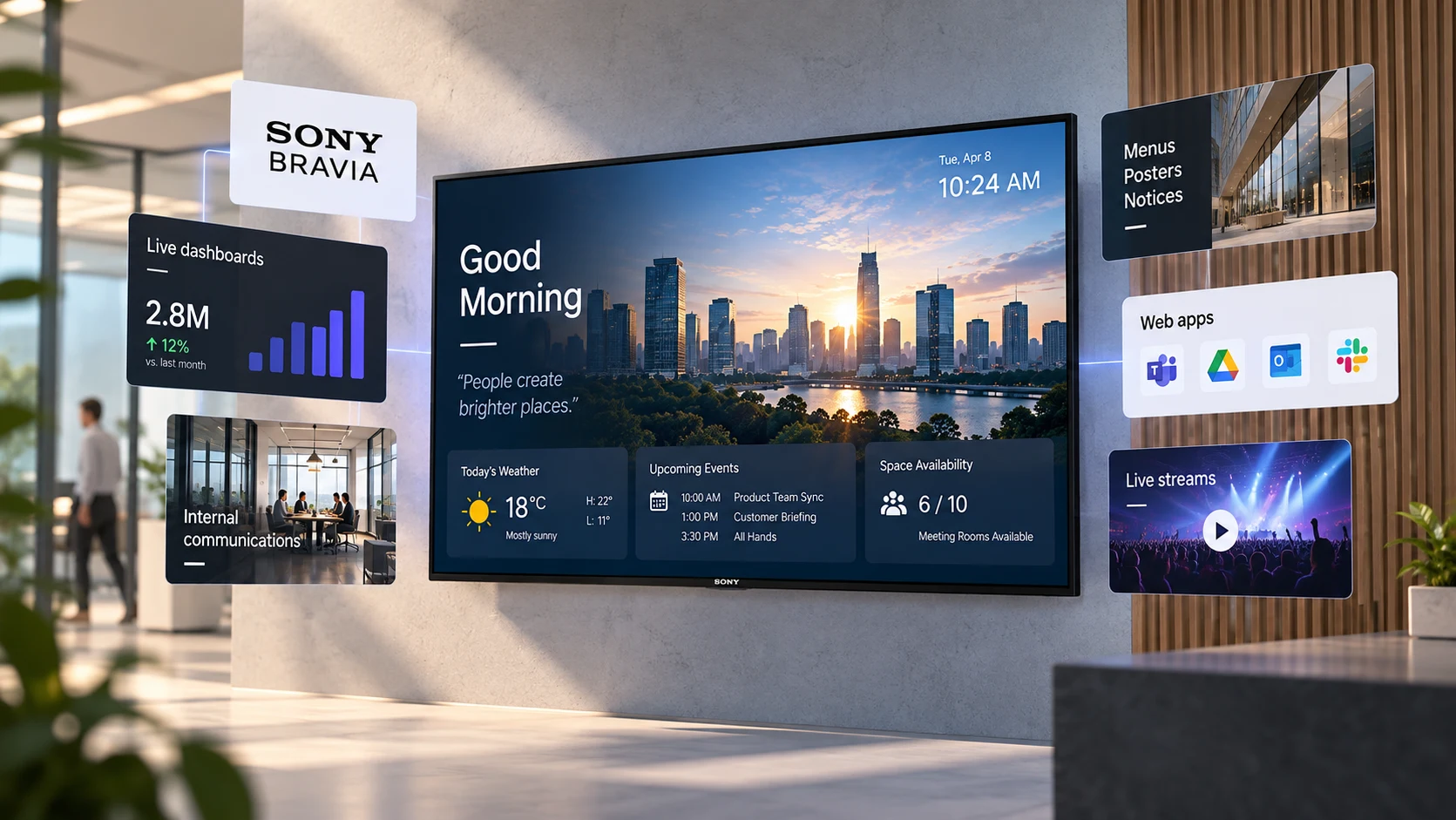
Run Fugo on Sony BRAVIA and BZ professional displays for premium Android TV picture quality with cloud-managed digital signage. Install the Fugo Player app from Google Play, then schedule, publish, and monitor content from anywhere.

Large Sony-style professional display running a scenic feature video wall in a museum gallery
Why Sony for signage

Premium picture quality on a proven platform

Sony BRAVIA and BZ displays run Android TV, so they run the Fugo Player app natively — no external media box required. That makes Sony one of the cleanest ways to turn a professional-grade screen into a cloud-managed signage endpoint.

Premium picture quality

Sony BRAVIA picture processing delivers bright, colour-accurate visuals with wide viewing angles. Menu boards, wayfinding, and video walls all look sharper on a display engineered for professional viewing, which matters when your screen is the storefront.

Android TV + play store

Sony BRAVIA and BZ displays run Android TV with the Google Play Store built in. You install the Fugo Player app straight onto the screen — no side-loading, no external stick or box, and over-the-air updates keep the player current.

BZ commercial series for 16/7

The Sony BZ commercial line is purpose-built for professional signage, with pro-grade components and extended operating hours rated for always-on deployments. Higher-performing BZ models also support multi-zone playback of two concurrent videos or streams.

Cloud-managed content

Schedule, publish, and monitor every Sony screen remotely from a single Fugo dashboard. Group screens by location, push updates instantly, and check status without ever visiting the display — ideal for multi-site networks.

Supported devices

Recommended Sony displays for Fugo

Sony BZ and BRAVIA models require Android 10 or newer with the Google Play Store. See the Android hardware directory for the full, continually updated list.

BZ professional displays (recommended)

  • Sony BZ30J series
  • Sony BZ40H series
  • Sony BZ40J series
  • Purpose-built for professional signage

BRAVIA TVs (recommended)

  • Sony BRAVIA X77L series
  • Sony BRAVIA X85K series
  • Ideal for lighter, non-24/7 deployments

Minimum requirements

  • Android 10 or newer recommended
  • Google Play Store available
  • Native Fugo Player app — no external box
Setup

Get a Sony screen live in minutes

Three steps from a blank display to managed digital signage — no external hardware and no on-site engineer required.

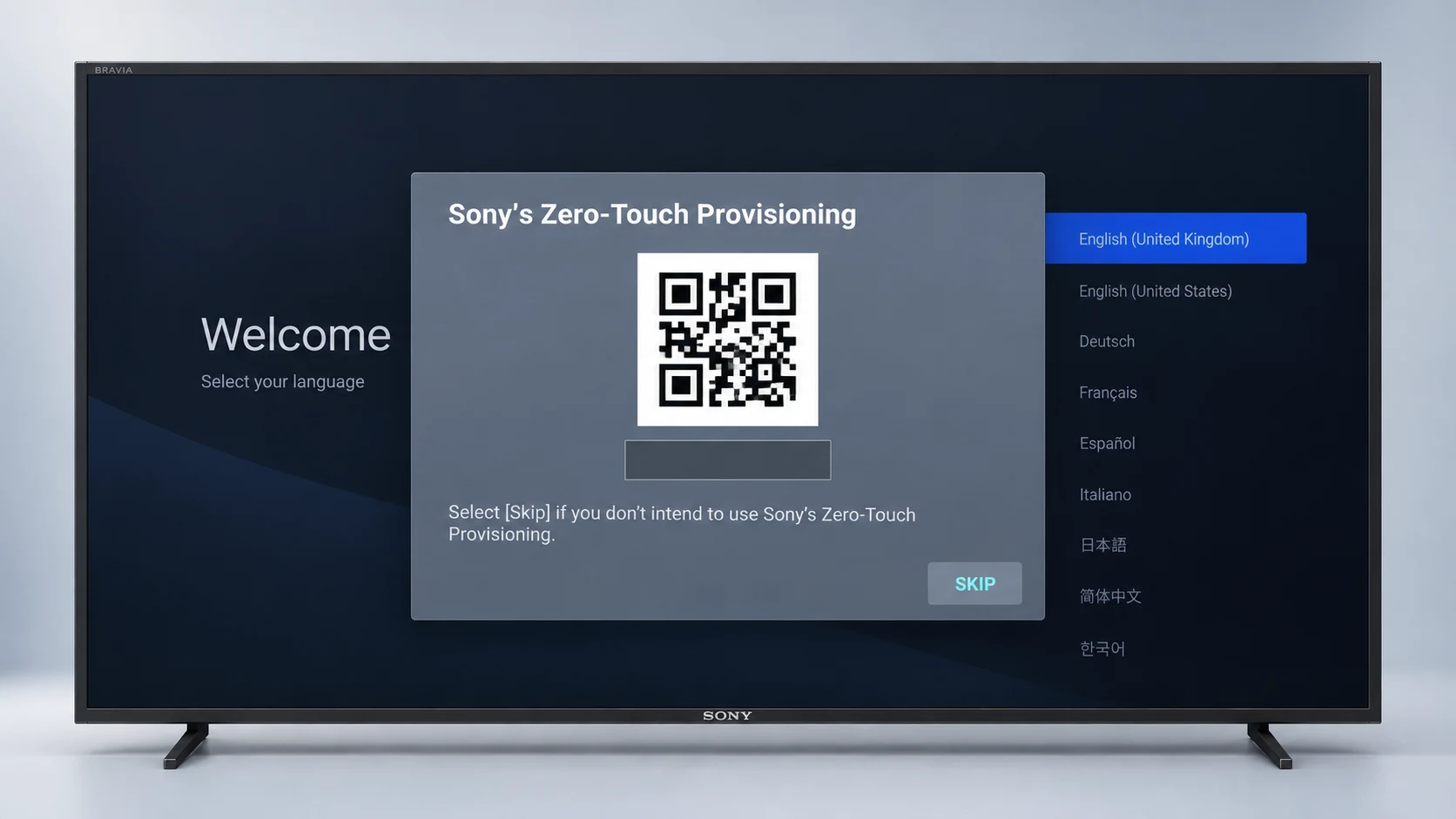
Fugo Player app on a Sony display showing a pairing PIN and QR code
1

Install the Fugo player app

Open the Google Play Store on your Sony BRAVIA or BZ display and install the Fugo Player app. Launch it and the screen shows a unique pairing PIN.

Fugo CMS screen pairing modal ready to receive a pairing PIN
2

Pair your screen

From any browser, log in to Fugo CMS and enter the PIN shown on the display to connect the screen to your account. Pairing takes seconds and needs no cables.

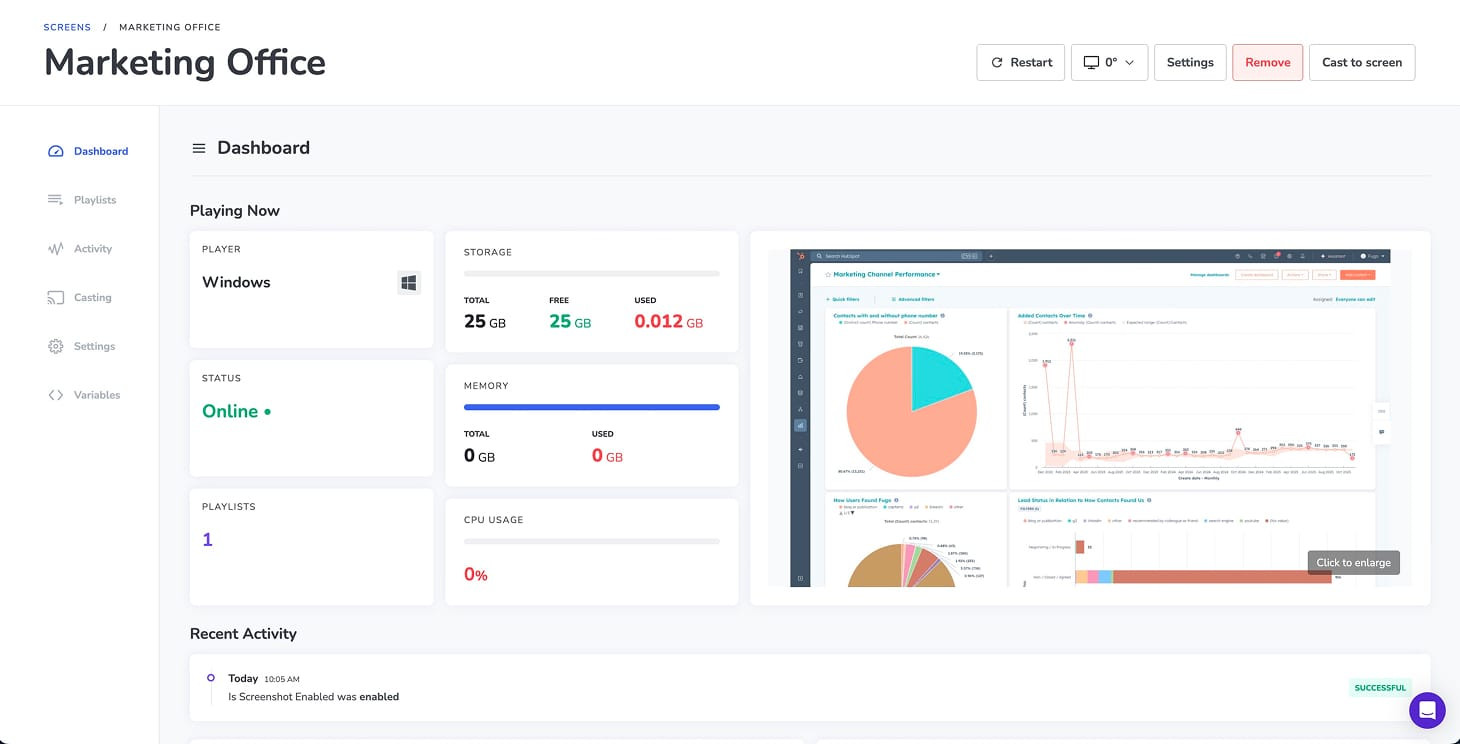
Fugo screens page in table view showing managed Sony displays and their status
3

Publish and manage remotely

Build playlists, schedule content, and monitor every Sony screen from a single cloud dashboard. Group displays by site and push changes over the air to any location.

Software

A full digital signage suite behind every Sony screen

The Sony display runs the Fugo Player app reliably on-screen, while Fugo CMS gives you everything you need to design, schedule, and manage content across your network from the cloud.

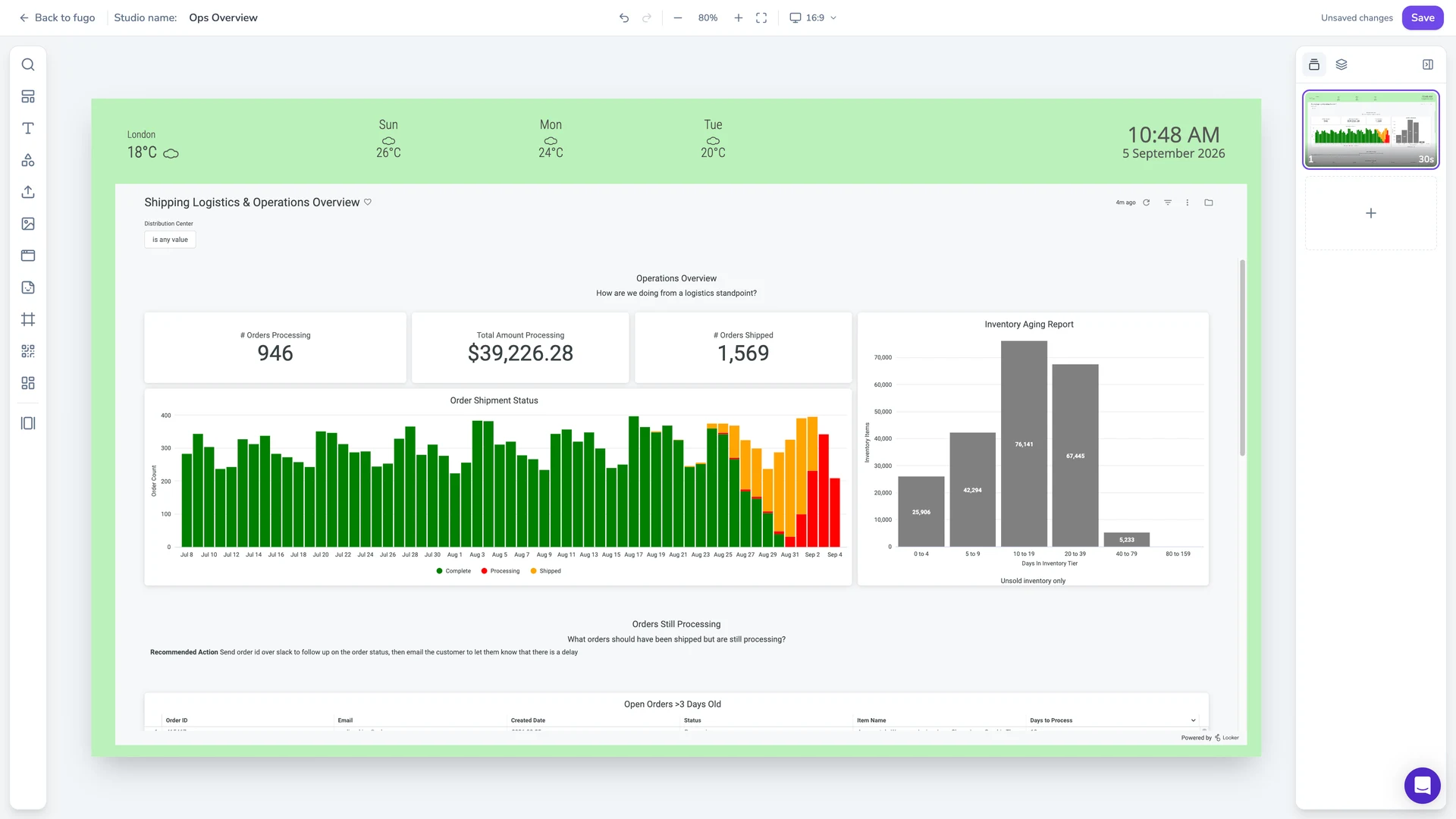
Fugo Design Studio canvas with a corporate slide being edited

Design studio and templates

Build on-brand slides directly in Fugo Design Studio, or start from an industry template for retail, hospitality, healthcare, and more. No design tools or agencies required to get polished content onto a Sony screen.

Fugo screens grouped by property for central network management

Central screen management

Group, tag, and monitor every Sony BRAVIA and BZ display from one cloud dashboard. See what is playing where, filter by location or status, and manage a large screen network without touching a single display.

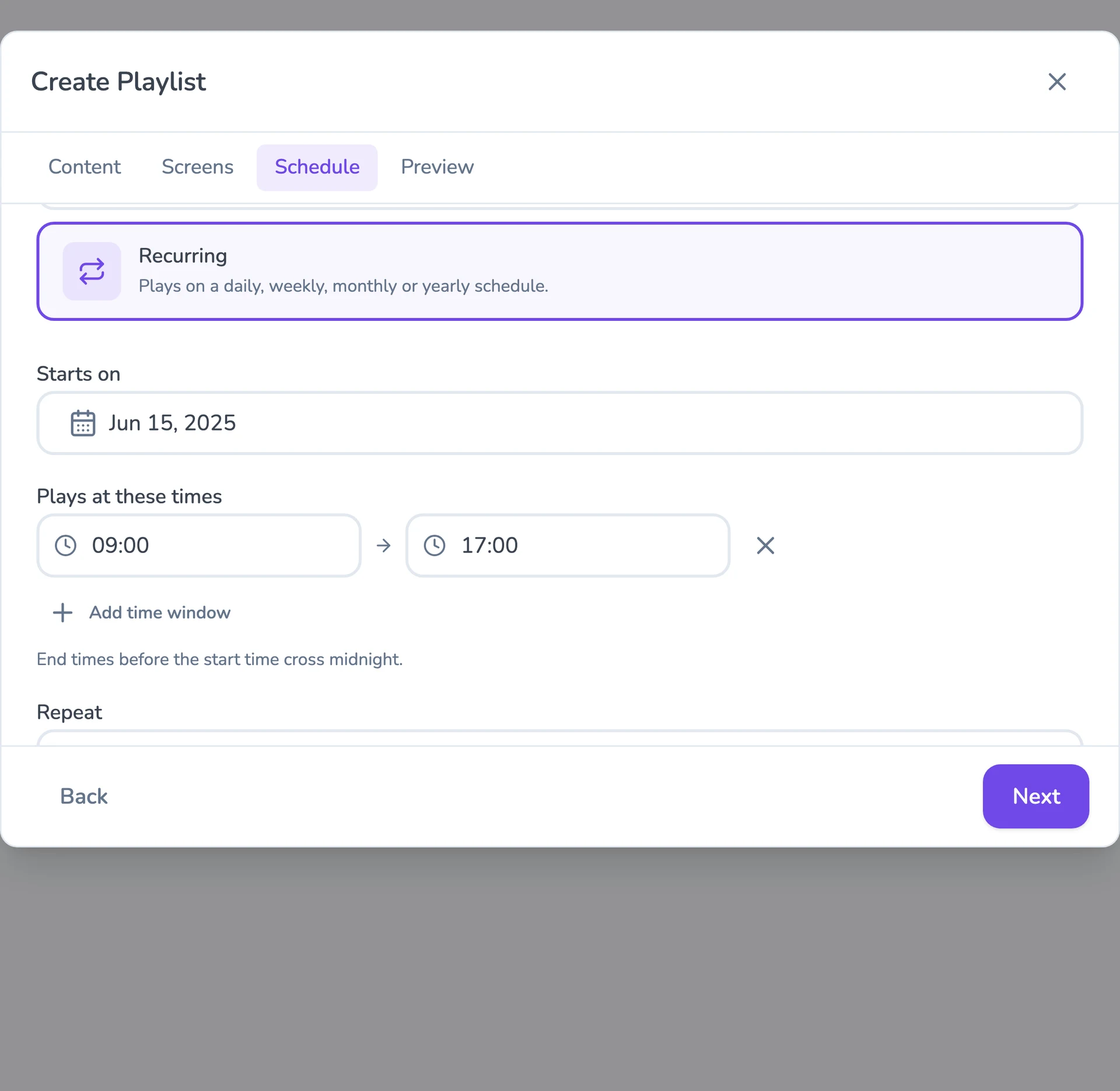
Fugo playlist scheduling interface with a content schedule

Flexible scheduling

Set recurring content schedules, plan seasonal campaigns with start and end dates, or push priority takeovers across your network in seconds. Content updates land on every Sony screen over the air.

Fugo media library page showing uploaded content and folders

Apps and content sources

Pull content from the tools you already use — social feeds, dashboards, calendars, menus, and weather — through the Fugo App Store, or upload and organise your own media in one central library.

Consumer vs commercial

BRAVIA TVs vs the BZ pro series

Both run Fugo — pick the line that matches how hard your screens work. Sony signage is a branded subset of our wider Android hardware support, so the same Fugo Player app and CMS run across both.

Consumer BRAVIA TVs

BRAVIA X77L and X85K TVs are a cost-effective choice for lighter deployments — reception areas, meeting rooms, and screens that are not on around the clock. They run Android TV with the Play Store, so the Fugo Player app installs natively just like on the pro line.

BZ professional series

The Sony BZ commercial line adds pro-grade components and extended operating hours rated for 16/7 always-on signage, plus multi-zone concurrent playback on higher-performing models. Choose BZ for storefronts, transport hubs, and any display that runs long shifts every day.

What Fugo supports

Features and file types on Sony displays

Everything the Fugo Player app supports on Android runs on Sony BRAVIA and BZ displays — with extra capabilities unlocked on higher-performing professional models.

Landscape and portrait

Run screens in either orientation, so Sony displays fit menu boards, wayfinding pillars, and lobby video walls alike.

Multi-zone layouts

Split the screen into zones for media, live apps, and tickers. Higher-performing BZ displays add two concurrent video or stream zones.

Broad file support

Play JPEG, PNG, WebP, SVG, and GIF images; MP4, MOV, AVI, and MPEG video; MP3 audio; and PDF documents straight from your library.

Apps and webpages

Add apps from the Fugo App Store, embed live webpages, and use website scripting to bring dynamic content onto every Sony screen.

Offline playback

Media caches locally, so a Sony display keeps playing scheduled content even if its network connection drops temporarily.

Remote monitoring and updates

Capture remote screenshots to confirm what is on screen, and push Fugo application updates to every Sony display over the air.

Sony BRAVIA digital signage FAQs

Which Sony displays does Fugo support?

Fugo runs on Sony BZ professional displays (BZ30J, BZ40H, and BZ40J series) and BRAVIA X77L and X85K TVs. All are listed in the Android hardware directory, since Sony displays are Android TV devices. As a general rule, any Sony Android TV running Android 10 or later with the Google Play Store should work with Fugo.

Do I need an external player for a Sony screen?

No. Sony BRAVIA and BZ displays run Android TV, so the Fugo Player app installs natively from the Google Play Store — there is no need for a separate media box, stick, or PC. This keeps your setup tidy and reduces the number of devices you have to power, mount, and maintain per screen.

What is the difference between consumer BRAVIA and the BZ commercial series?

Consumer BRAVIA TVs (X77L, X85K) are a cost-effective option for lighter deployments such as reception areas and meeting rooms. The BZ commercial series is purpose-built for professional signage, with pro-grade components and extended operating hours rated for 16/7 always-on use, plus multi-zone concurrent playback on higher-performing models. Both run the same Fugo Player app and are managed from the same Fugo CMS.

What android version do Sony displays need for Fugo?

Sony BZ and BRAVIA models should run Android 10 or newer with the Google Play Store available, in line with Fugo’s Android minimum requirements. Sony signage is a branded subset of our wider Android hardware support, so the same requirements and features apply.

How do I install Fugo on a Sony BRAVIA or BZ display?

Open the Google Play Store on the Sony display, search for and install the Fugo Player app, then launch it to reveal a pairing PIN. Log in to Fugo CMS from any browser, enter the PIN to connect the screen, and start publishing playlists and schedules from the cloud. The full walkthrough lives in the Android hardware directory.

Can Sony displays play two videos or streams at once?

Yes, on higher-performing hardware. Multi-zone media playback — running two concurrent videos or streams — is supported on high-performing devices such as Sony BRAVIA professional displays. Lighter consumer TVs still support multi-zone layouts, but the two-concurrent-video capability is reserved for the more powerful professional models.

What file types and content can Sony screens play with Fugo?

Fugo supports JPEG, JPEG 2000, PNG, WebP, SVG, and GIF images; MP4, MPG, MPEG, MOV, and AVI video; MP3 audio; and PDF documents. On top of media, you can run apps from the Fugo App Store, embed live webpages with website scripting, and keep content playing during brief network drops thanks to offline playback.