
IAdea digital signage software
IAdea makes enterprise-ready media players for professional signage. Pair them with Fugo for a more capable, flexible way to run your screen network.
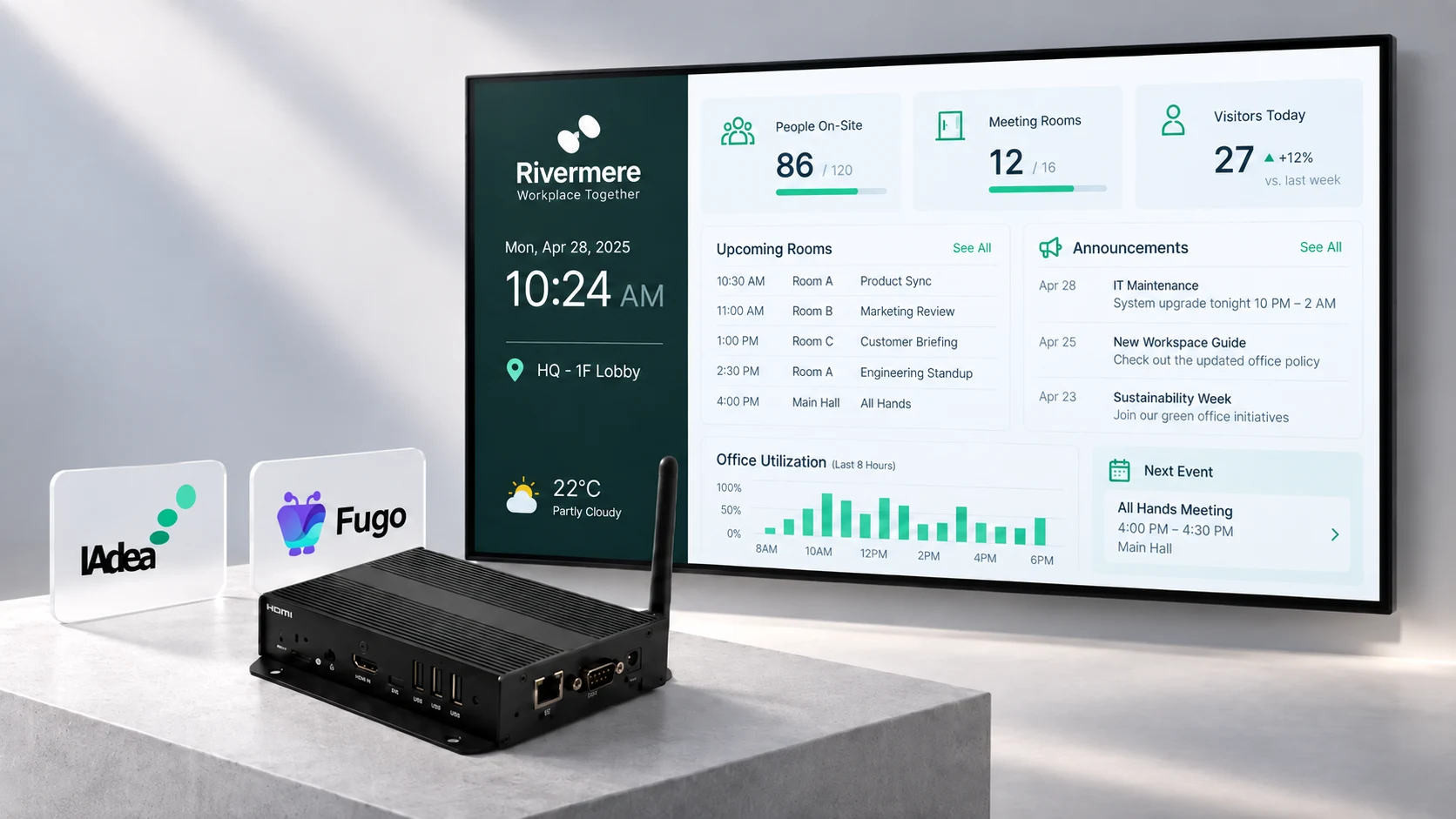
Fugo is an IAdea Silver Partner
If IAdea is the hardware you want to build on, Fugo gives you a stronger software layer to run on top of it, with the reassurance of an established IAdea partnership.
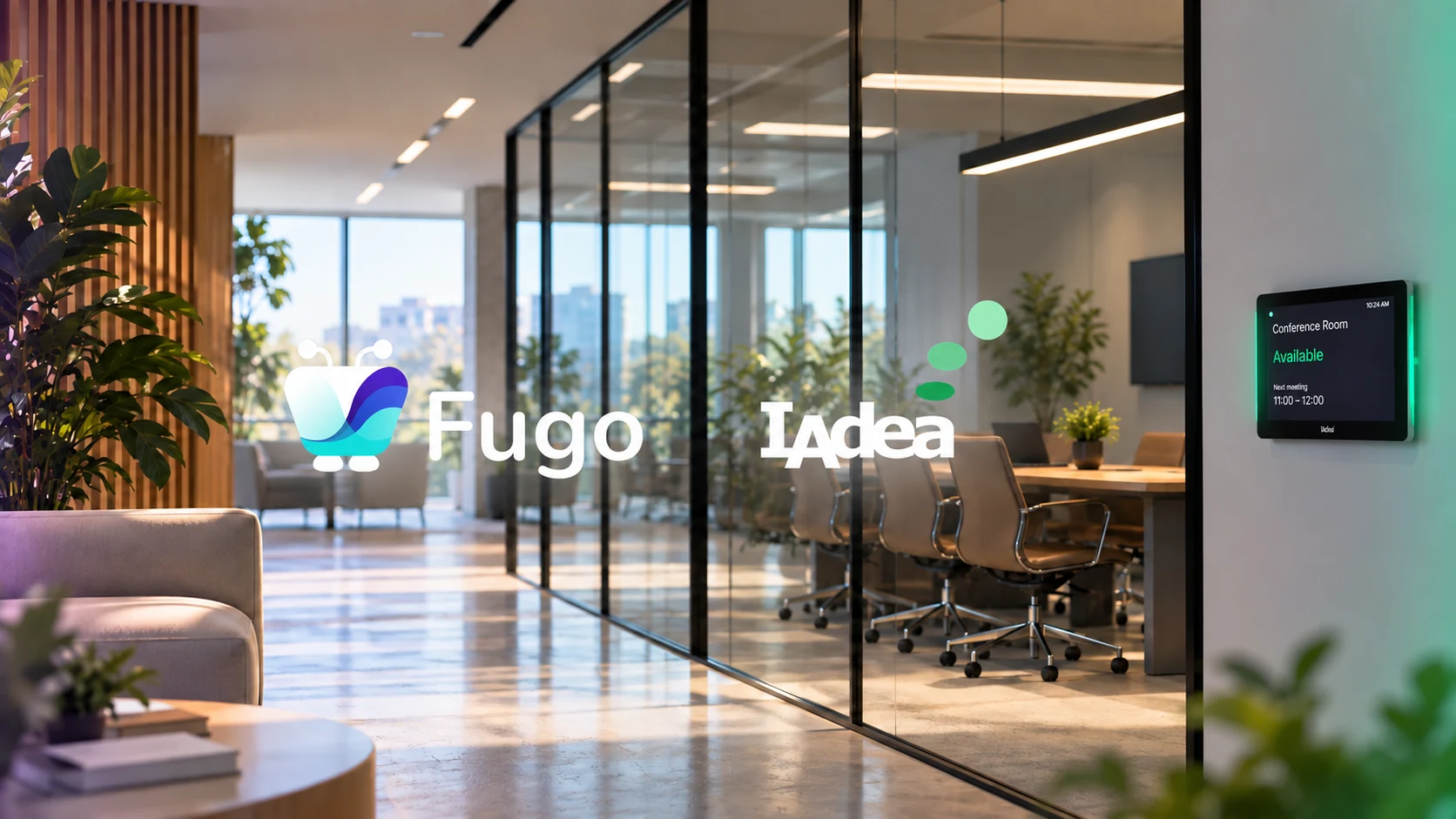
IAdea is built for professional signage
Commercial-grade Android players give you dedicated hardware for reliable playback and day-to-day device management of your screen network.
Purpose-built for signage
A dedicated player avoids the baggage of a general-purpose PC. IAdea hardware is made to sit behind a display and do one job reliably.
Made for continuous playback
Long runtimes come with the territory. Watchdog monitoring helps players recover automatically if playback stalls or runs into trouble.
Manage devices remotely
IAdeaCare gives IT visibility below Fugo’s CMS, with tools for checking device health, pushing firmware, adjusting settings, and more.
Lock down the player
AppLock & centralized device policies help keep players in their signage role and limit unwanted changes at the device.
Ready for rich content
4K video, HTML5, JavaScript, and touch support cover a broad range of signage, from straightforward media playback to web content & interactive flows.
Keep the fleet consistent
Standardize on the same player family across locations instead of introducing a different hardware setup every time the network grows.
Easy setup on IAdea
Fugo installs directly on supported IAdea players and pairs to your account with an on-screen PIN, making it easy to bring new screens online.
Set up Fugo on IAdea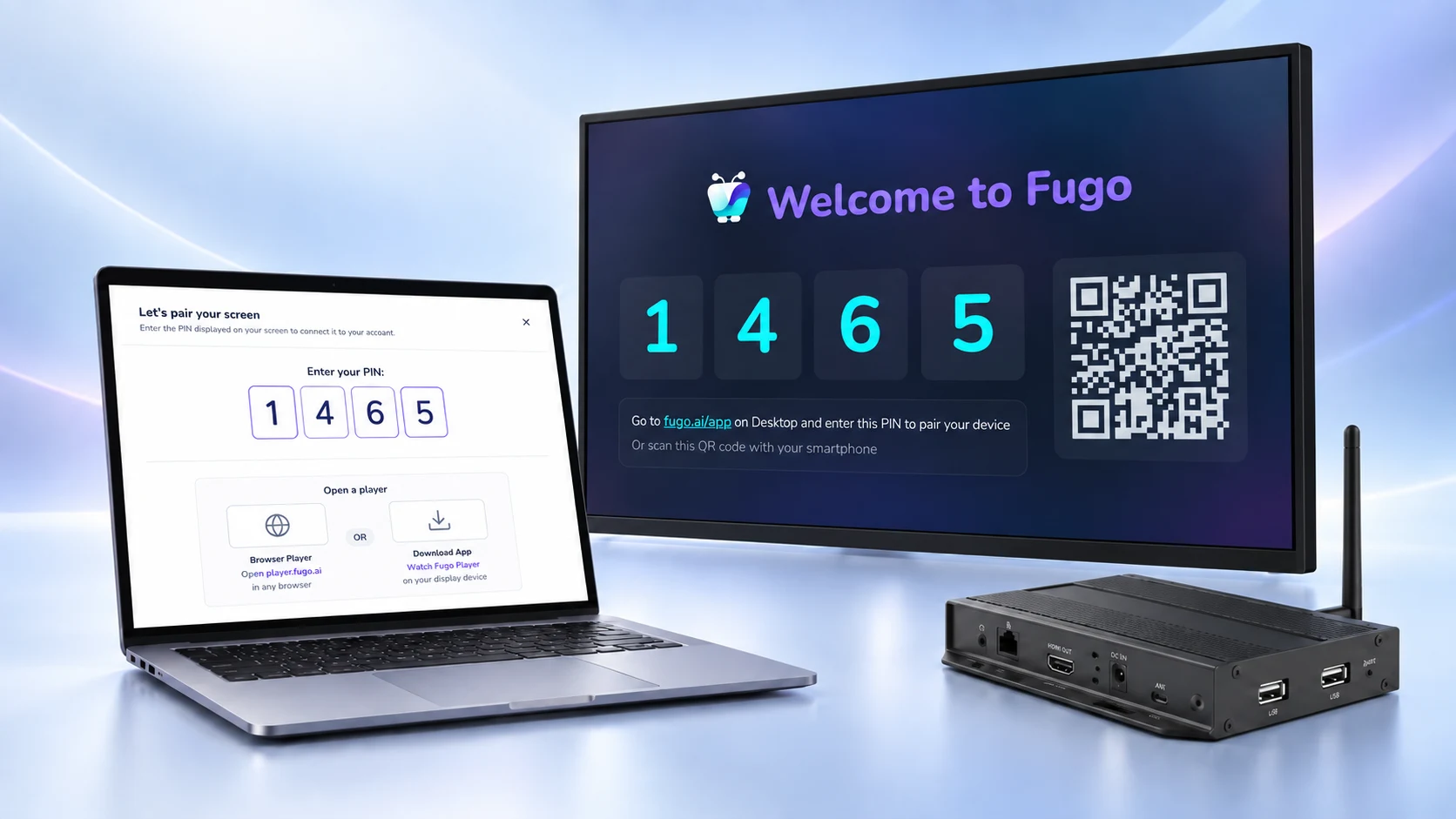
The CMS behind every screen
Fugo gives you one place to design content, schedule what plays, automate updates, and keep eyes on every screen in the network.
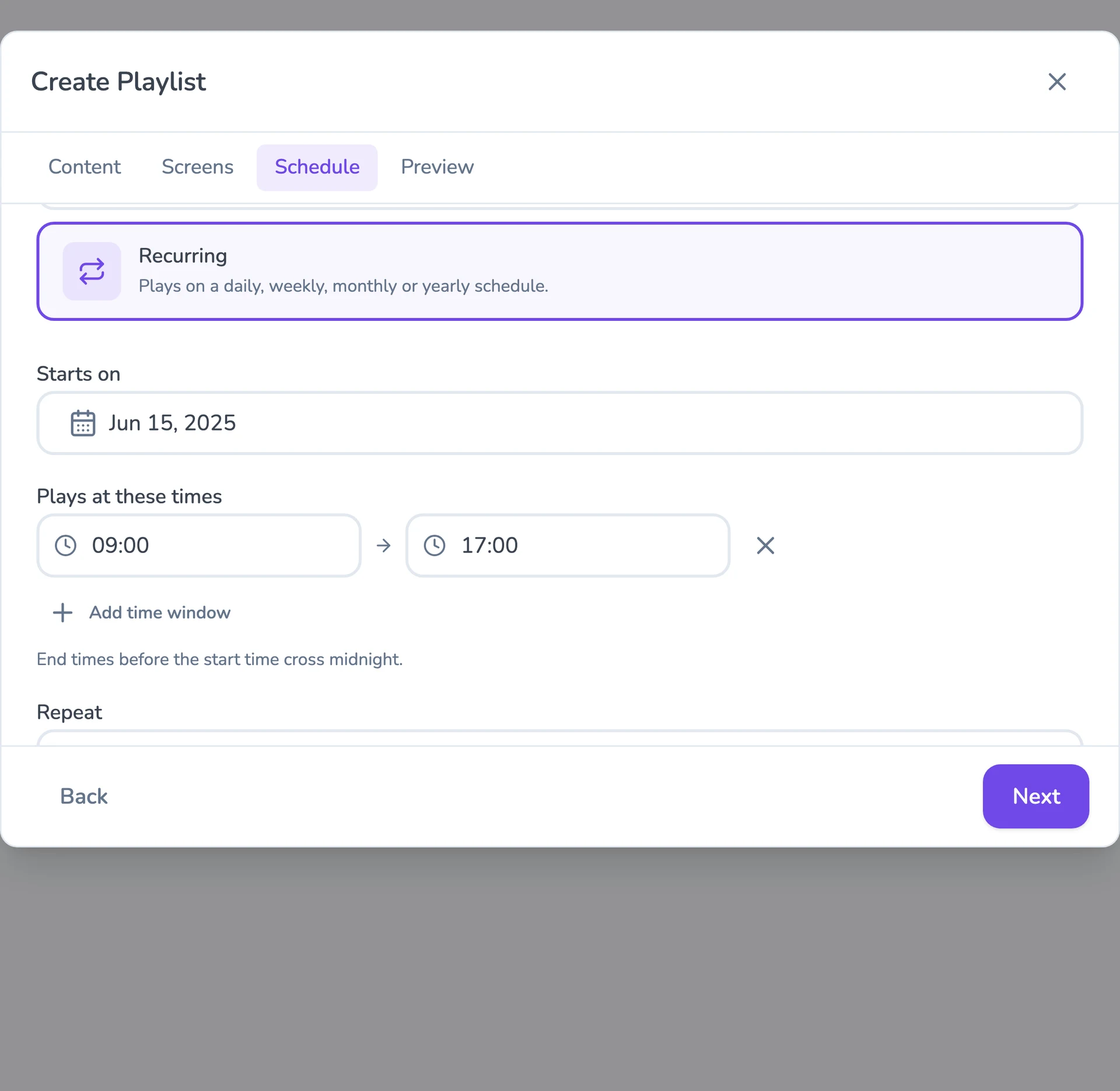
Flexible content scheduling
Keep even complex content calendars easy to manage. Schedule & target content to the right screens with flexible timing and automatic expiry.
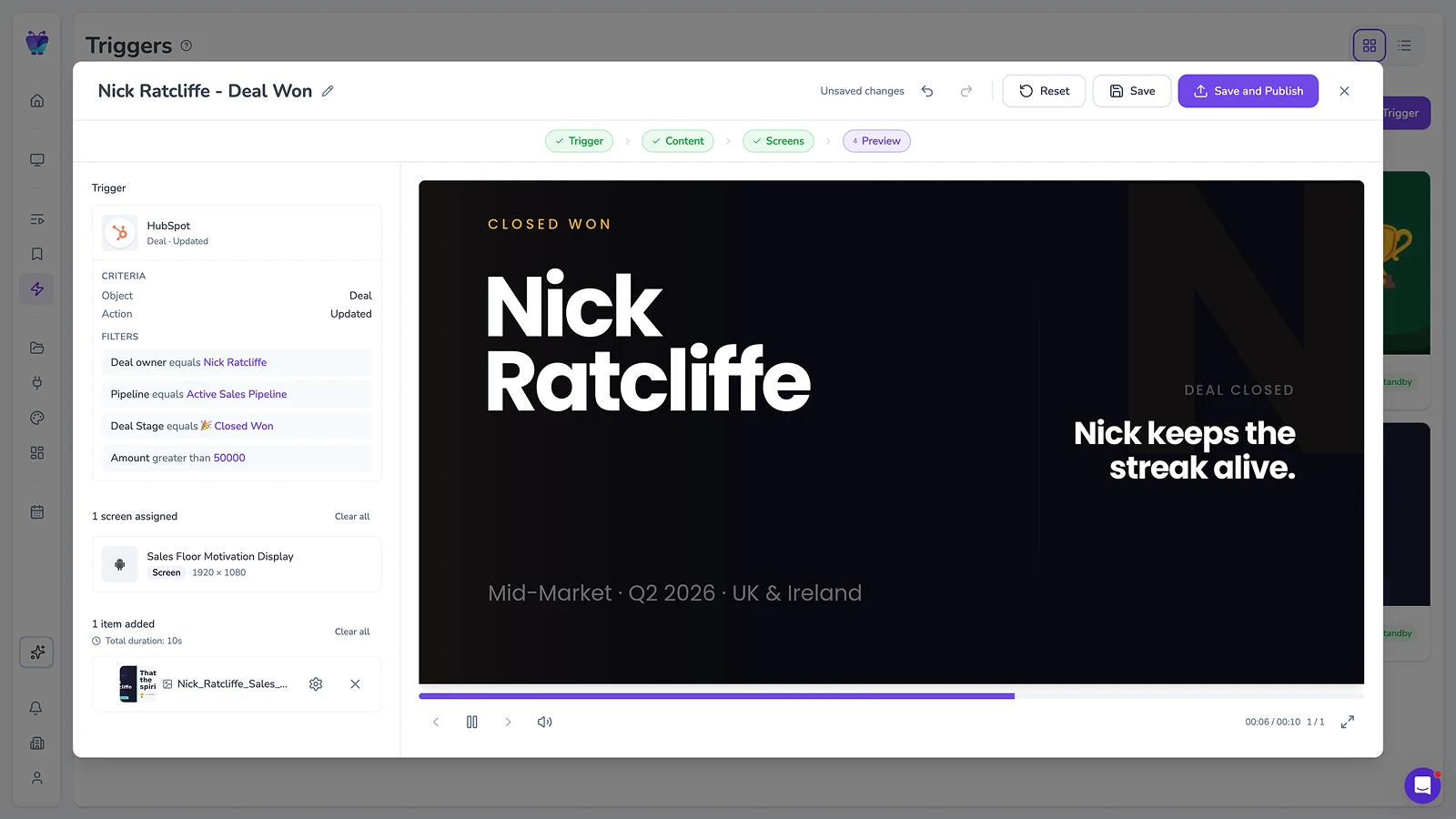
Event-driven content triggering
Let events in your connected systems decide when screens should update. Surface timely takeovers for alerts, milestones, or moments that need attention.
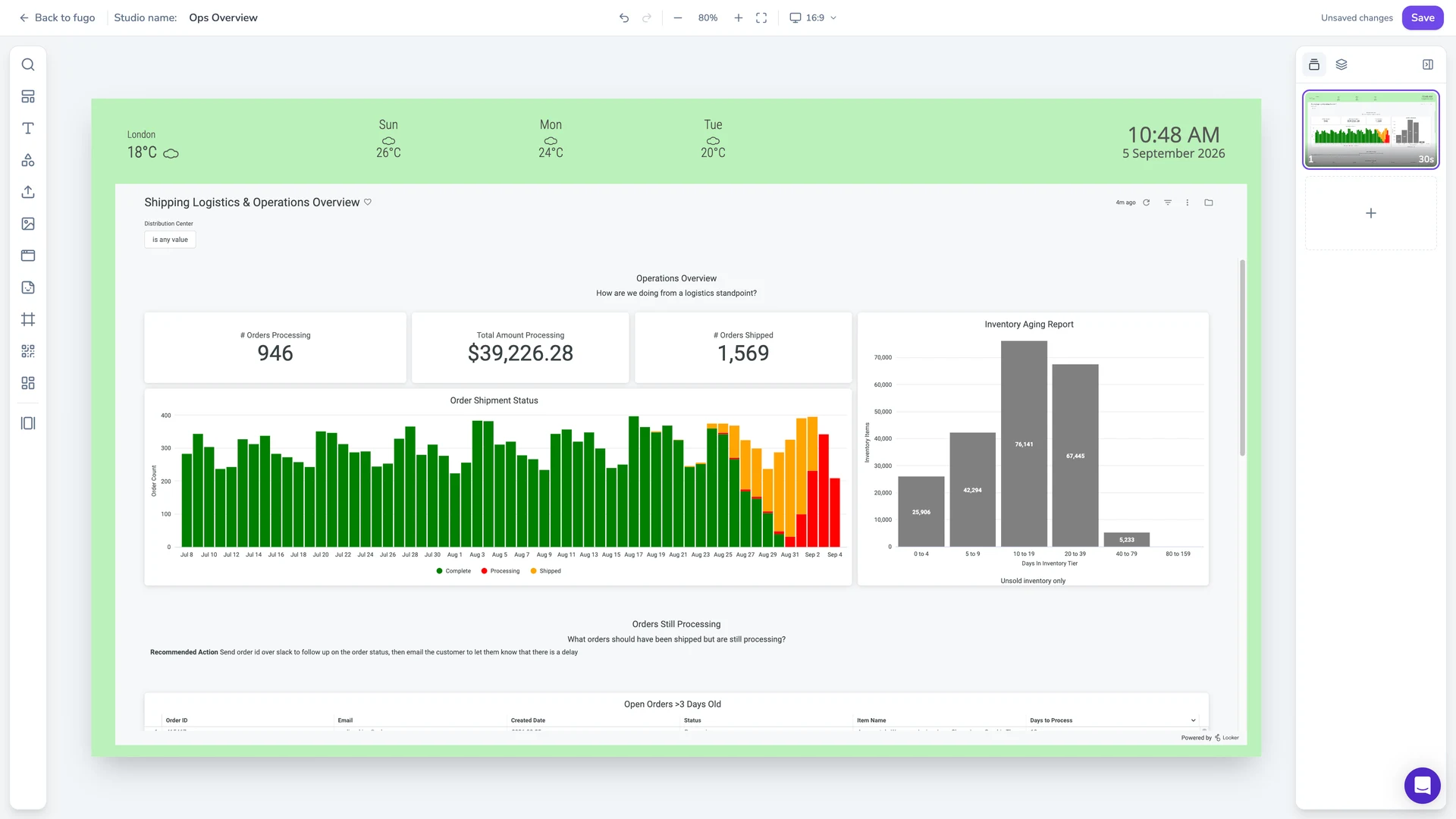
Full-featured content design
Combine your own media, live data, and connected apps into polished multi-zone layouts using an editor that feels as easy as Canva.
Centralized screen management
Organize and control your entire screen network from one place, without losing the flexibility to manage each screen according to its setup.
Mixed hardware, one account
IAdea players sit alongside every other screen you run — one network while you keep or phase out the fleet.
Built-in remote monitoring
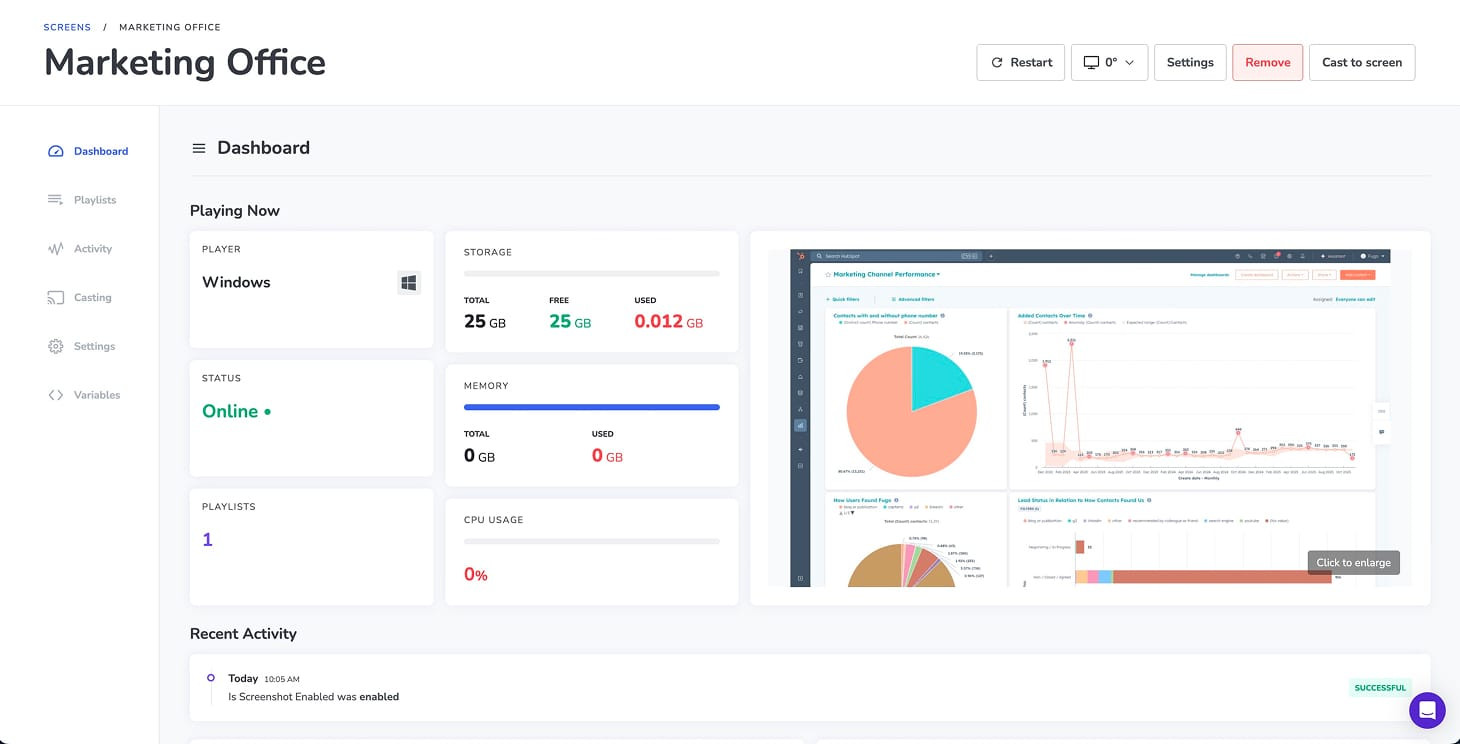
See what’s happening on remote screens from Fugo. Verify playback and investigate problems without sending someone on site.
Granular user management
Give teams access to the screens and content they own without opening the rest of the network.
Supported IAdea players
Fugo supports several IAdea players, including the XMP-8550 & XMP-8552 models we recommend for new deployments.
View all supported IAdea hardware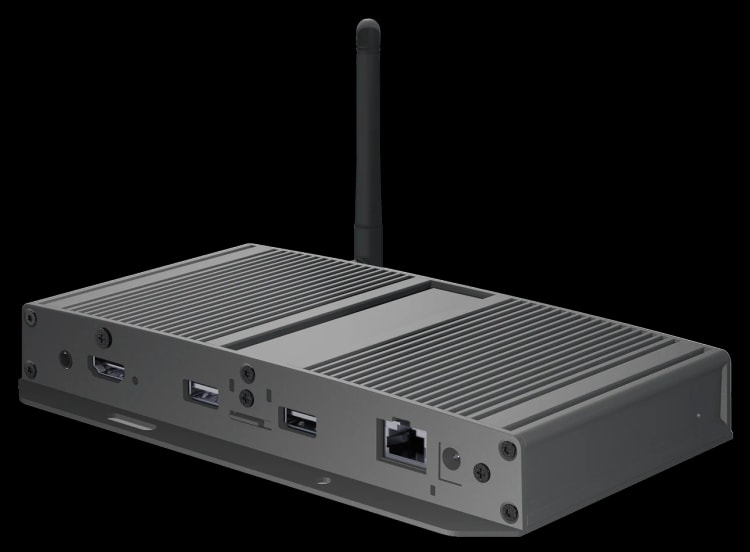
IAdea XMP-8552
A compact Android 12 player with built-in Wi-Fi and PoE, making it easier to install where power or cabling options are limited.
4K60 video
Android 12
Dual-band Wi-Fi
PoE
Touch support
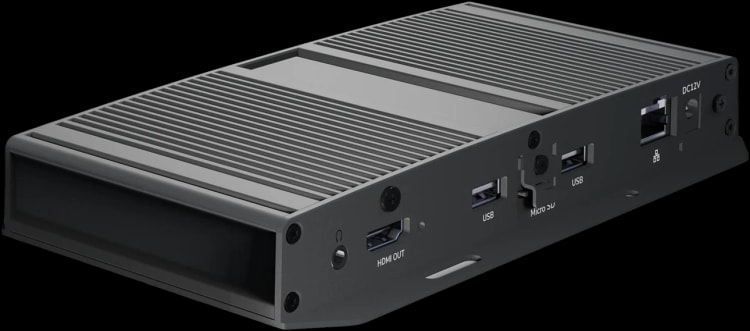
IAdea XMP-8550
The same core 4K platform as the XMP-8552, with Gigabit Ethernet for straightforward wired deployments.
4K60 video
Android 12
Gigabit Ethernet
16 GB built-in storage
Touch support
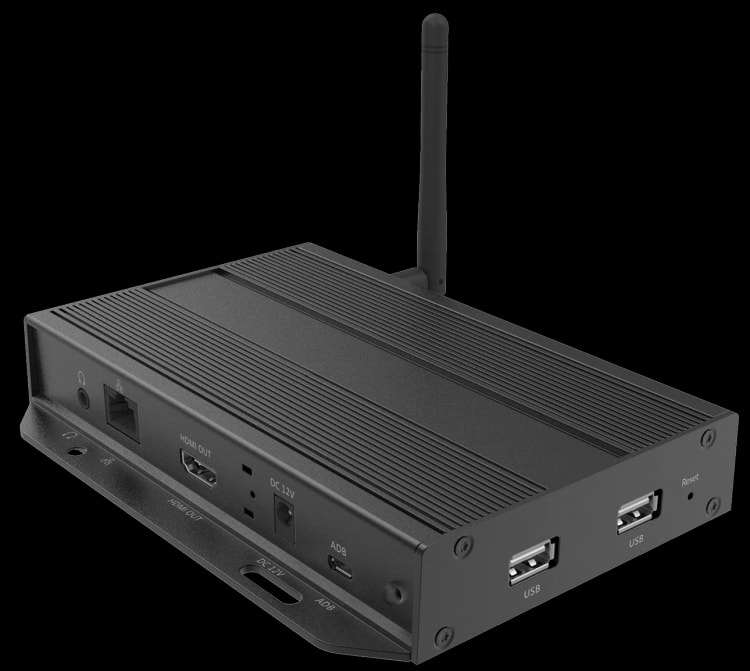
IAdea XMP-7500
A proven 4K player for existing IAdea networks, with wired and wireless connectivity plus support for interactive and peripheral-driven signage.
4K60 video
Gigabit Ethernet
Wi-Fi
USB connectivity
AppLock & StrongCache
Dive deeper on digital signage players & software
What to weigh up when you’re choosing the components powering your screens.