


Someone in facilities buys a TV for reception. A year later there are dozens of screens across several sites, three kinds of player, and a shared login nobody remembers creating. Then a screen goes blank at a branch two hours away, and the ticket lands with IT.
IT infrastructure management for screens means treating them like any other device estate. You know what you have, you control who can change it, and you can fix most problems without a site visit. This guide covers where the costs sit and how to keep them small as the network grows.
What IT infrastructure management for screens costs
The purchase order covers the screen and maybe a mount. Most of the cost arrives later, spread across budgets IT doesn't always see.
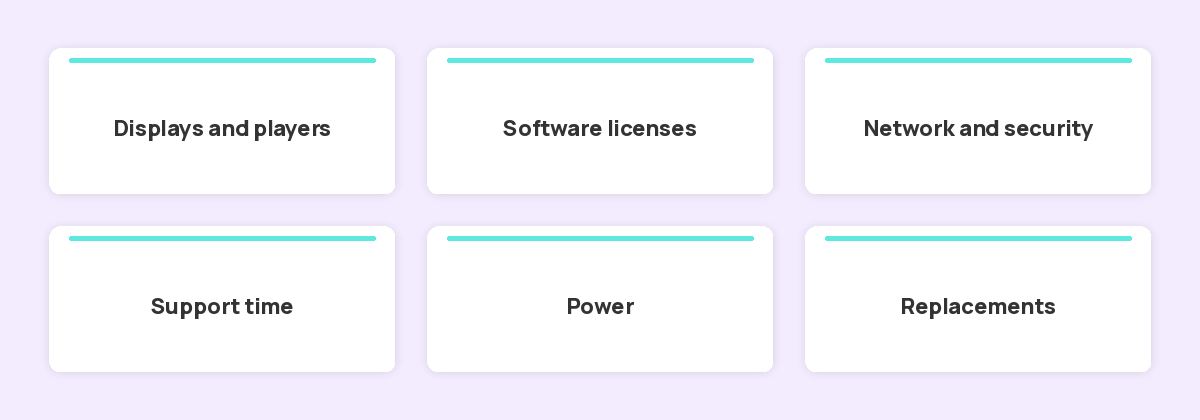
| Cost line | What drives it up | What keeps it down |
|---|---|---|
| Displays and players | Mixed models, and consumer TVs running all day | One or two approved player types, with commercial displays where screens never switch off |
| Software licenses | Paid screens that sit unused | A screen register you review each quarter |
| Network and security | Devices on the corporate network with no clear owner | A separate network segment and an allowlist of the domains the player needs |
| Support time | Site visits for restarts, updates, and content changes | Remote status, restarts, and screenshots |
| Power | Screens left on overnight | A daily power-off schedule |
| Replacements | Rebuilding settings on every new device | Re-pairing that keeps the existing screen record |
For the purchase side, our guide to digital signage prices lists the line items. The rest of this post covers the running costs, which are the ones IT can shrink.
Standardize the hardware before you scale
Every extra device type adds a setup guide, a troubleshooting path, and a spare on the shelf. Pick one or two player types for the whole estate and write them into your purchasing rules. Our guide to setting up a multi-screen digital signage network compares the main ways to connect screens to players.
Two questions settle most of it. Will the screen run all day? Does the player keep playing if the network drops?
Our comparison of consumer and commercial displays covers duty cycles and warranties, including when a consumer TV is good enough.
For offline behavior, check the player before you buy. Fugo's BrightSign hardware directory lists offline playback of media among its features. The Fugo Player app on Android TV caches content on the device so screens keep playing through a brief connection drop, according to its troubleshooting guide.
Plan for failure too. When a device breaks, Fugo's Repair option pairs a replacement to the existing screen record, and its settings, playlists, and history carry over, as the Screens overview explains. A replacement becomes a swap and a new PIN.
Treat every screen as a network endpoint
A screen player is a small computer on your network, with an operating system, a browser, and firmware. It needs the same basics as a laptop, starting with an inventory.
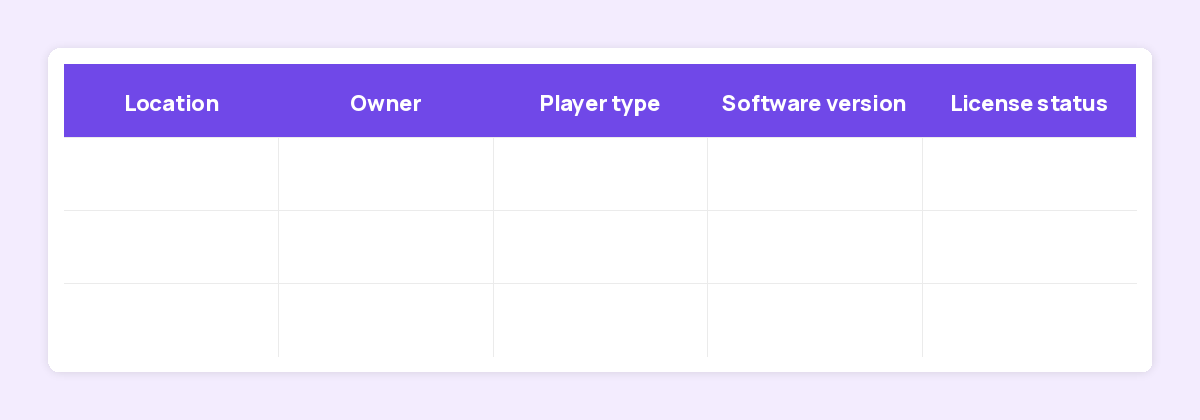
The asset management guidance from the NCSC, the UK government's cyber security agency, says you should record who is responsible for each asset and what it is used for. It also warns that "assets that are no longer required become liabilities." For screens, keep a register with location, owner, player type, software version, and license status.
Keep players up to date. The NCSC's vulnerability management guidance recommends that you "monitor the update status of your devices and understand when updates may fail." Our post on player firmware and the XCPE botnet explains why firmware belongs in that plan.
Then give players only the network access they need. Fugo's domain allowlist guide lists the domains and outbound ports its service uses, including TCP 443 for HTTPS and WebSockets, and suggests handing the list to your network administrator.
Separating screens from other systems limits what a compromised player can reach. The NCSC's asset guidance names network separation as a control to consider where full asset data is hard to collect.
Cut support time with remote management
Support time grows with every site you add. A blank screen two hours away used to mean a drive.
A central console replaces most of those trips. In Fugo, the Screens page shows each screen's online or offline status and when it was last seen. Grid view shows a live screenshot of what each screen is playing.
From the same page, someone with the right permission can:
- Restart the player app on one screen, or on many at once with the bulk Restart action.
- Filter for offline screens, outdated or faulty app versions, and screens with no playlist.
- Group screens by app or firmware version to spot the ones that have fallen behind on updates.
- Open a screen's Activity log, which records each command sent to it as Successful, Pending, or Failed.
- Check CPU, memory, and storage on supported devices.
- See screens on a map or a floor plan, marked green when online and red when offline.
Players also restart themselves on a schedule you can change. By default the player reloads about every 6 hours and restarts once a day during the 5 AM hour, in the screen's local time. You can turn off the daytime reloads, or move the daily restart to just before the power saving schedule turns the display back on.
Site visits then become the exception, kept for cables and hardware faults.
Control who can change what
A shared login keeps no record of who changed what, and it keeps working after someone leaves. Give each person their own account and the smallest role that covers their job.
Fugo roles are sets of permissions, and screens have two that you grant separately. View screens lets someone see the Screens page without changing anything. Edit screens covers pairing, configuring, restarting, and deleting.
For multi-location businesses and agencies, spaces keep each group's screens, playlists, and media fully isolated, according to the Users, Roles & Spaces overview. One site's team can't see another's.
Single sign-on is available on Fugo's Enterprise plan, through SAML 2.0 or OpenID Connect, per the SSO overview. With SCIM provisioning from Okta or Entra ID, deactivating someone in your identity provider switches off their Fugo account, and open sessions stop working within about five minutes.
Our menu board security check walks through the same controls for restaurant screen networks.
Keep running costs down after rollout
Once the screens are up, most of the savings come from habits.
- A power saving schedule blanks a screen at set times each day, outside business hours, without unpairing it.
- Publishing by property sends a playlist to every screen with a shared value, such as Location set to London. Screens you pair later with that value start receiving it automatically, says the publish by property guide.
- Test screens don't count toward your licensed screen total, so you can trial a new player model before paying for it. They carry a small watermark.
- Check the No playlist filter each quarter, and give each idle screen a playlist or retire it.
- Cloud publishing removes the trip with a USB stick. Our post on why to stop using USB sticks covers that switch and its security side.
FAQs
What is IT infrastructure management?
It is the work of keeping an organization's hardware, software, networks, and devices inventoried, secured, updated, and supported. Screens belong in that scope once they connect to your network.
How much does a digital signage network cost to run?
It depends on the number of screens, the player hardware, the software plan, and how much support time each site needs. Our digital signage prices guide lists the line items, and Fugo's pricing page shows current plans.
Should screens go on a separate network?
Separating screens from other systems limits what a compromised player can reach. Allow the domains and ports your signage software documents, and review that list when the vendor updates it.
Can IT restart a screen without visiting the site?
Yes, with a cloud-managed player. In Fugo, anyone with the Edit screens permission can restart the player app on one screen, or on several selected screens at once, from the Screens page.
How do we keep screen players updated?
Track app and firmware versions in your screen register and look for devices that have fallen behind. Fugo lets you filter for outdated or faulty versions and group screens by app or firmware version.
Who should own the screen network, IT or the business?
A practical split gives IT the hardware standard, the network, access, and updates. Facilities, marketing, or site managers own the content. Roles with separate permissions make that split easy to keep.
Where to start
Start with a register. List every screen you have today with its location, owner, player type, and software version, and flag the ones nobody claims.
That list shows what to standardize, what to retire, and where remote management saves the most trips. Every other step of IT infrastructure management for screens depends on it. When you are ready to try central management, start a free 14-day trial of Fugo.


