


In many buildings, USB digital signage updates follow a routine like this. Someone exports a new slide or video, copies it onto a USB stick, walks to the screen, plugs the stick in, finds the right file in the TV's media menu and sets it to loop. Then they walk to the next screen and do it again. If there are screens at other sites, the stick goes in a bag or the files go out by email for a colleague to copy over.
The routine works for one screen that rarely changes. It gets harder with every screen, every site and every update. Below is the full routine, the three problems it creates, and eight steps to move screens to cloud management one at a time.
Give each screen a player app and publish from a browser, and updates reach every screen without anyone carrying a file.
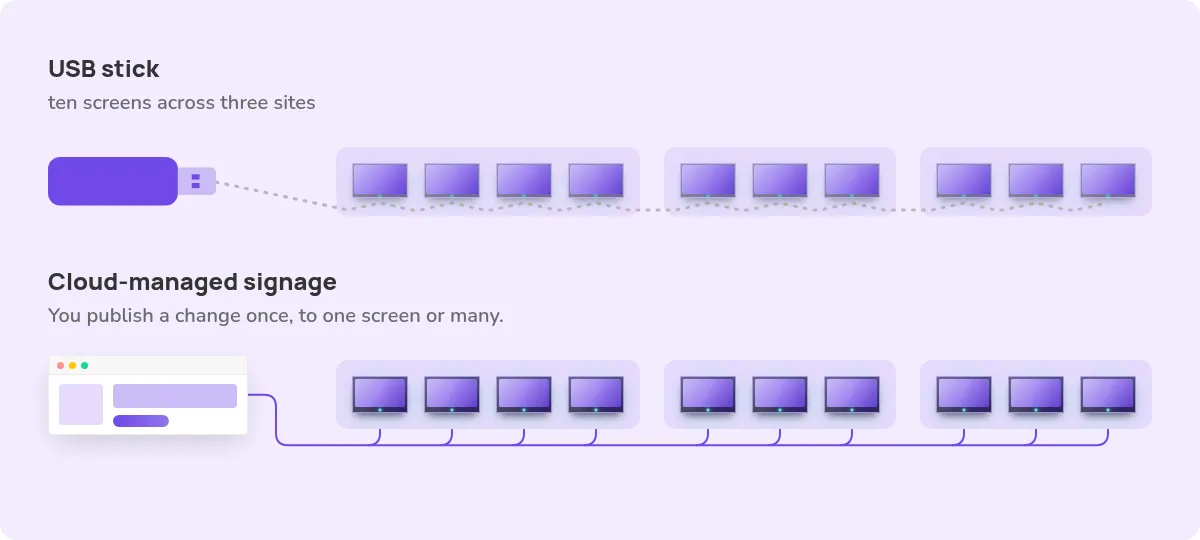
What a USB stick update involves
A single content change on a USB-run screen takes several manual steps:
- Export the file in a format and resolution the TV will play.
- Copy it to a stick, and check you have the latest version.
- Travel to the screen, or ask someone on site to do it.
- Plug in the stick, open the TV's media player and start the file.
- Remember to take the old file down when it expires.
Every step repeats for every screen, and each one depends on a person being free at the right time. A team with ten screens across three sites repeats the routine ten times for a single change.
Three problems the USB routine can't solve
1. Content goes stale
Because each update needs a visit, updates get batched or skipped. The lunch special stays up after it ends, and the price on the screen no longer matches the price at the register.
2. There's no record of what played
Once a stick is in a TV, nobody away from that screen can see what it is showing. If a screen freezes, loses power or falls back to the TV's home menu, you find out when someone walks past and reports it. If a manager, landlord or advertiser asks whether a campaign ran on every screen, the only evidence is someone's memory of plugging in the stick.
3. USB sticks are a security risk
The US Cybersecurity and Infrastructure Security Agency (CISA) warns that the portability that makes USB drives convenient also makes them "appealing to attackers." Its guidance describes malware that spreads as drives move between computers, and points out that the most obvious risk is that drives "are easily lost or stolen." A stick that travels between an office PC and screens in public spaces carries both risks. It also invites anyone with access to a TV's USB port to play their own files.
What changes with cloud-managed signage
A signage setup is a screen, a player attached to it (or built into it) and the software that decides what plays. With USB, the "software" is a person carrying files. With cloud-managed signage, that third part runs online. You log in from a browser, build or upload content and publish it, and each player connects over the internet to pull down what it's been told to show.
That shift changes the daily work:
- Updates happen from your desk. You publish a change once, to one screen or many.
- Schedules replace reminders. Content can be set to start and stop at fixed times, so a promotion ends when it's meant to.
- Screens report back. You can see which screens are online and what each one is showing without visiting it.
A common worry is what happens when the internet drops. In Fugo, content is cached locally on each device, so playback continues during an outage, according to Fugo's plan comparison. New changes reach the screen once it reconnects.
How to move from USB sticks to cloud-managed screens
You can move one screen at a time, so there's no need for a big-bang switchover. These steps use Fugo as the example.
1. List your screens and what they show
Walk the building once with a spreadsheet. For each screen, note its location, the TV make and model, whether a device is already plugged into it, how it connects to the internet (Wi-Fi or Ethernet), the content it plays and who usually updates it. This list becomes your rollout plan and, later, your screen names and properties.
2. Check what each screen needs to run a player
A cloud-managed screen needs a player app. Some smart displays can run it directly. Others need a small digital signage player plugged into an HDMI port. Fugo's hardware page lists supported platforms, including Android, Samsung Tizen and LG webOS smart displays, Windows, ChromeOS and Raspberry Pi, plus the Amazon Signage Stick. Check each TV on your list against it before buying anything. Each screen also needs a reliable network connection. Fugo's help center has a guide to network and connection troubleshooting.
3. Gather your content in one place
Collect the files that currently live on sticks, desktops and email threads. Delete anything expired, keep one current version of each file, and upload them to your signage account's media library. This is also the moment to decide who owns each type of content, such as menus, safety notices or sales figures.
4. Install the player and pair each screen
Install the Fugo Player app on the screen or its media player, then pair it with your account using the code shown on screen, or by scanning a QR code with Fugo's Instant Scan setup. Name each screen the way it appears on your list, such as "Reception left" or "Warehouse cafeteria," so anyone on the team can find it later.
5. Tag screens and set who can change them
Give screens properties such as site, floor or purpose, then publish a playlist to every screen that shares a property. Next, decide who can publish to which screens. Fugo uses roles with separate permissions to view and edit screens, and spaces that keep one team's or location's screens, playlists and media separate from another's. The Screens overview explains screen properties, permissions and spaces.
6. Build playlists with start and end dates
Rebuild what each screen used to play as a playlist, then give time-limited content a schedule. Fugo's digital signage scheduling lets you choose the days and hours a playlist plays, and its help center explains how to schedule content to start and expire in advance. Set a fallback playlist too. It plays on any screen with nothing else scheduled, so the screen shows your branding or general information instead of going blank. An account admin sets it, and it applies to every screen in a space.
7. Check screens remotely
Once screens are paired, the Screens page shows each one's online or offline status, when it was last seen and a recent screenshot of what it is playing. Screenshots are captured at an interval you set in each screen's settings. You can also select several screens on the Screens page and restart the player app on them without a site visit. Fugo's page on remote digital signage management covers these tools. On some Fugo plans, event email notifications can tell you when a player goes offline or comes back online. Teams that need a formal record can use proof-of-play reports and audit logs, which are included in some Fugo plans.
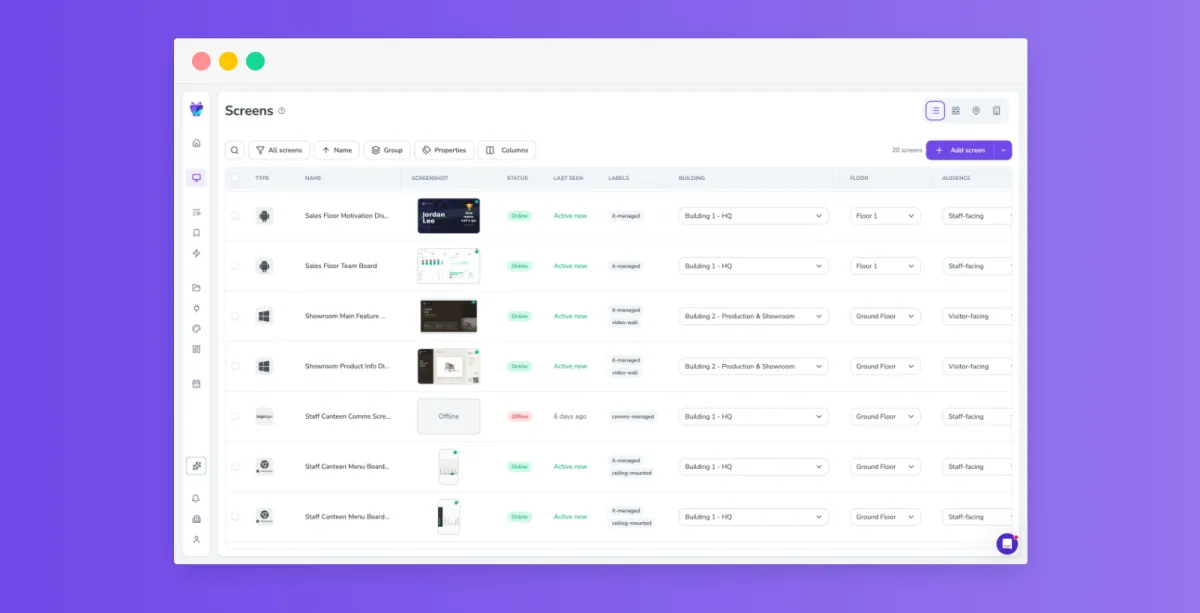
8. Retire the stick
When a screen has run from its playlist for a week or two without problems, remove the USB stick and turn on Autostart in the screen's settings, which launches the player when the device boots up. Unplug the device once and check that the player comes back on its own. Tell the people who used to do the USB runs where updates now happen and who to ask for access. If your organization restricts USB devices, add the screens' USB ports to that policy.
A quick migration checklist
- Every screen is on the list, with its location, model, connection and owner.
- Every screen has a supported player and a stable network connection.
- Current content is uploaded, and expired files are deleted.
- Every screen is paired and named the way it appears on the list.
- Screens have properties, and publishing permissions are set.
- Time-limited content has start and end dates, and a fallback playlist is active.
- Someone checks screen status, or receives offline alerts.
- USB sticks are removed from screens and returned or wiped.
When a USB stick still makes sense
A USB stick is still a reasonable choice for a single screen with no internet connection that shows the same loop for months, such as a short-term display at a trade show with no network. If a screen has an internet connection, even an unreliable one, local caching keeps it playing between connections. The trade-offs are a player for any TV that can't run the app, a connection for pairing and updates, and a per-screen subscription after the 14-day free trial, as listed on Fugo's pricing page. If you're weighing hosting options, see this comparison of cloud and on-premise signage.
Frequently asked questions
How do I update digital signage without a USB stick?
Install a player app on each screen, pair it with a cloud signage account and publish content from a browser. Changes reach one screen or many over the internet, with no site visit.
Can I keep my existing TVs when I stop using USB sticks?
Often, yes. Samsung Tizen and LG webOS displays can run the player directly, and other TVs can use a small media player plugged into HDMI. Check each model against the supported hardware list.
What happens to cloud-managed screens if the internet goes down?
In Fugo, content is cached on the device, so screens keep playing what they last received during an outage. New changes arrive once the connection returns.
How do I know a cloud-managed screen is working?
The Screens page shows each screen's online or offline status and a screenshot of what it's playing. On some Fugo plans, event email notifications can tell you when a player goes offline or comes back online.
Are USB sticks a security risk for digital signage?
They can be. CISA warns that USB drives can carry malware between devices and are easily lost or stolen. A stick that moves between office computers and public screens carries both risks.
Can I schedule content to expire automatically?
Yes. In Fugo you can set a playlist to start and stop at specific dates and times, so time-limited content comes down on its own.
Do I have to switch every screen at once?
No. You can pair one screen, run it from a playlist alongside your USB screens and move the rest when you're confident in the setup.
How do I get proof that content played?
A USB-run screen keeps no record. Proof-of-play reports and audit logs are included in some Fugo plans. The Screens page also shows a recent screenshot of what each screen is playing.
Your next step
Start with the screen that sees the most USB runs. Moving that one screen to a playlist shows within a week or two whether cloud management fits your team. Fugo offers a 14-day free trial with no credit card required. See how Fugo runs screens from the cloud, or compare plans on the pricing page.


