






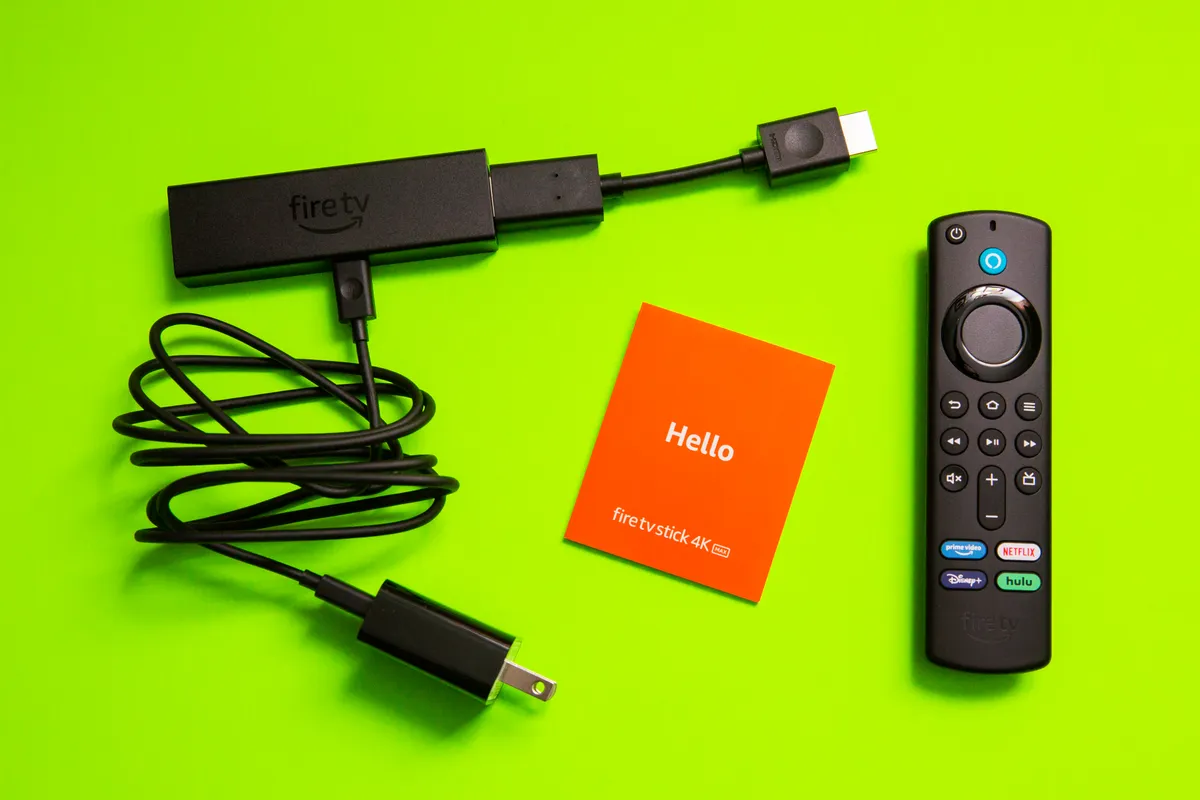
There’s a good chance you’re familiar with Amazon’s Fire TV Stick — it’s only one of the most low-cost signage workarounds on the market. This little prosumer tool was familiar, cheap, and easy, and worked relatively well for simple, single-screen signage options.
At least, it did.
Amazon has announced that the Fire TV Stick is moving from the Android-based Fire OS to its newer Vega OS. Not only will this phase out the vast majority of existing Fire Stick models, but it will also eliminate their ability to be used for digital signage.
But no worries: you don’t have to make the switch alone. This article explains what’s happening with the Amazon Fire TV Stick, including how long you have, alternatives to consider, and how to migrate as pain-free as possible.
What’s happening to the Fire TV Stick?
The Amazon Fire TV Stick will no longer support most of its existing Android OS devices as of December 31, 2030. This includes:
- Fire TV Stick 4K Select
- Fire TV Stick 4K Plus
- Fire TV Stick 4K Max (both generations)
- Fire TV Stick 4K (2nd Generation)
- Fire TV Stick HD (both generations)
- Fire TV Stick Lite
- Fire TV Stick (3rd Generation)
- Fire TV Cube (3rd Generation)
Keep in mind that the original 2018 Fire TV Stick 4K, however, will only receive updates through December 31, 2029.
So while you’re not necessarily
So, what will happen after your Fire TV Stick gets sunsetted?
- Any third-party apps you’re connected with, including your digital sigange CMS, may stop updating or break entirely. There will be no guarantees on compatibility with other signage integrations.
- You’ll likely deal with increased downtime. You may need to manually fix things that break on your own, since Amazon won’t be offering maintenance anymore.
- You may be leaving yourself vulnerable to more security risks. Amazon won’t be maintaining any security patches or installing app updates, so you must continue running signage on your device at your own risk.
But wait, why is Amazon not supporting Fire TV Sticks anymore?
Amazon has recently come under legal fire (pun intended) regarding how many updates it provides to older devices. Plus, the company is heavily pushing its proprietary OS, Vega, since it allows for more control over how people use and engage with the Fire Stick.
Truthfully, it’s not that Amazon is abandoning the Fire TV Stick; it’s that the company is moving toward its new OS. This, however, will come with a number of drawbacks — like not supporting sideloading for apps. This means you can only install apps available in Amazon’s Appstore. If you want to run digital signage software or other apps outside of Amazon’s ecosystem, including Fugo, you’ll need to use an entirely different player device.
This is why you won’t be able to use most Fire TV Sticks for digital signage after December 2029 and December 2030. For this reason, it likely makes more sense to migrate now than ride out the next few years and wait for Amazon to force your hand.
The silver lining here? You have lots of different player options to choose from.
Let’s take a look at some Fire TV Stick alternatives that can support your digital signage setup.
So, what are your options?
With just a few years left until the Fire Stick is no longer usable for digital signage, it’s helpful to consider all possible next steps for your team.
There are three ways to proceed:
Option 1: Do nothing (and accept the risk)
Your first (and perhaps least efficient) option is to hold onto the Fire Stick as a signage option. After 2030, it will no longer be supported. But doesn’t mean you can’t limp it along for a while.
Just because Amazon isn’t offering support and security doesn’t mean you can’t still use it for a while. There will, eventually, be security vulnerabilities. Plus, it may no longer be compatible with newer versions of apps.
So proceed with caution, if this is what you want to do.
Option 2: Patch together a workaround
You could also try extending the life of your Fire Stick setup by switching between digital signage apps as they depreciate. For example, if Google Slides no longer works on your Fire Stick app, you can try manually sideloading software like Fugo.
But while this might save you $50 to $100 per device, these kinds of workarounds are typically time-consuming and unstable. A patched Fire Stick is still a Fire Stick: and you may end up spending more time managing the workaround than your actual content.
Option 3: Move to a different line of signage hardware
Your third and most efficient option is moving away from Fire TV entirely. And while we’re biased, we genuinely believe it’s a much better option, accounting for time, money, and effort.
For one thing, dedicated media players and SoC displays are specifically built for the demands of digital signage. The best ones offer continuous playback, remote management, and long-term vendor support with third-party apps. Plus, you can more easily connect with a centralized CMS like Fugo, whether you’re running three screens or 30.
But you can always move on to other ‘prosumer’ devices, which we’ll cover in the sections below.
5 Fire TV Stick alternatives for your digital signage setup
Ready to switch to a Fire TV Stick alternative for digital signage? We’ve collected a few alternatives that make better sense for your setup.
This includes:
1. Chromecast
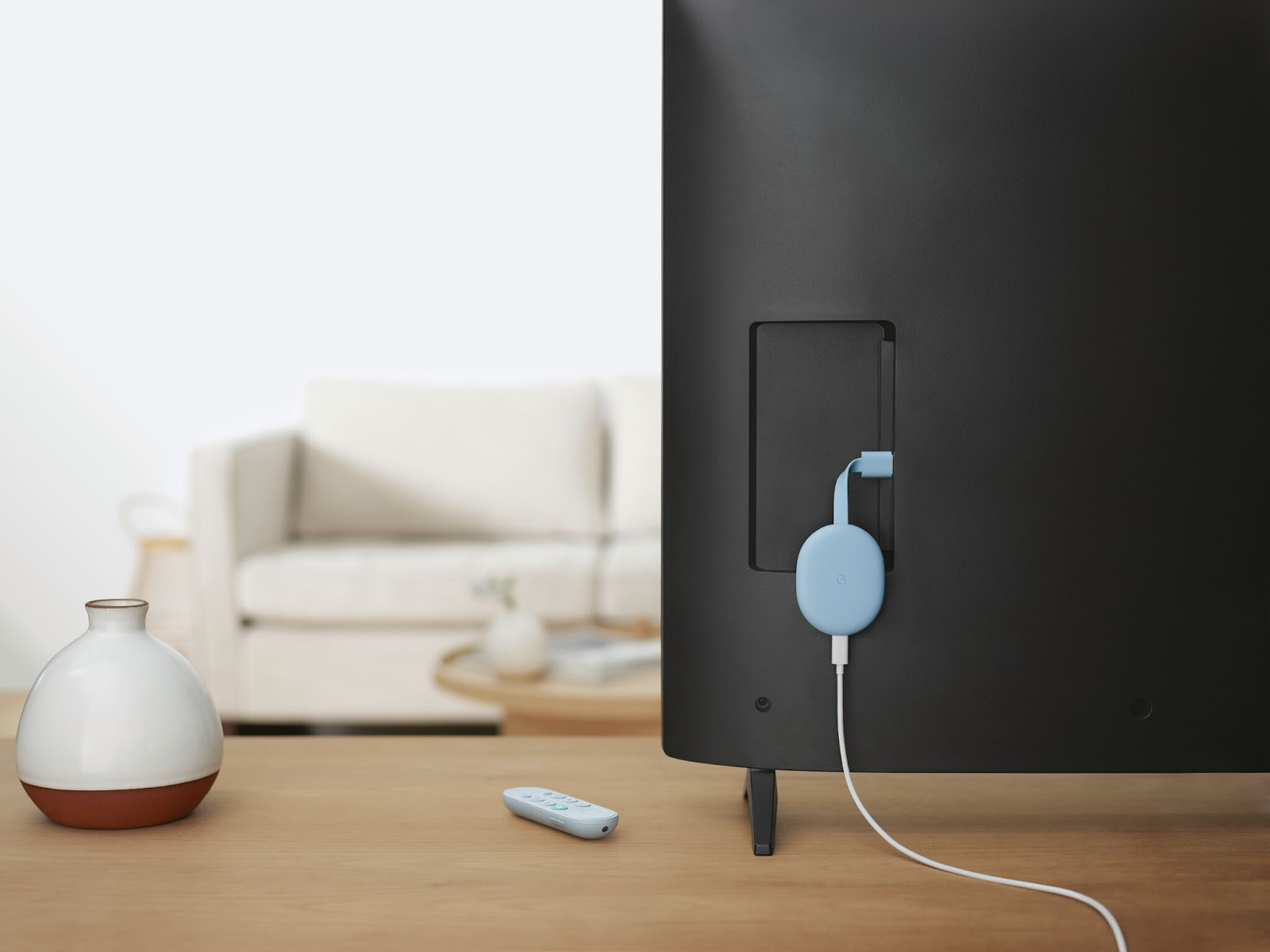
- Starting price: $76.99 to $149.99
- Operating system: Android
- Compatible with Fugo: Yes
Chromecast with Google TV has already entered its twilight years: direct sales were discontinued on February 21, 2025. So while it won't be receiving regular OS updates, it’s still a perfectly usable option if you already own a set.
You can use the Chromecast to easily manage and display content on your screens using a technology you’re likely already familiar with. Plus, if you're looking to launch a proof of concept or pilot digital signage project on affordable hardware, all you need is a Google account to get started.
Just don't expect the Chromecast to be up for the task of long-term, multi-screen deployments. It also may not be compatible with newer signage software. You can still find it secondhand, but it may not be worth building your entire digital signage network around.
Learn more in our full guide to using Chromecast for digital signage.
2. Google TV Streamer
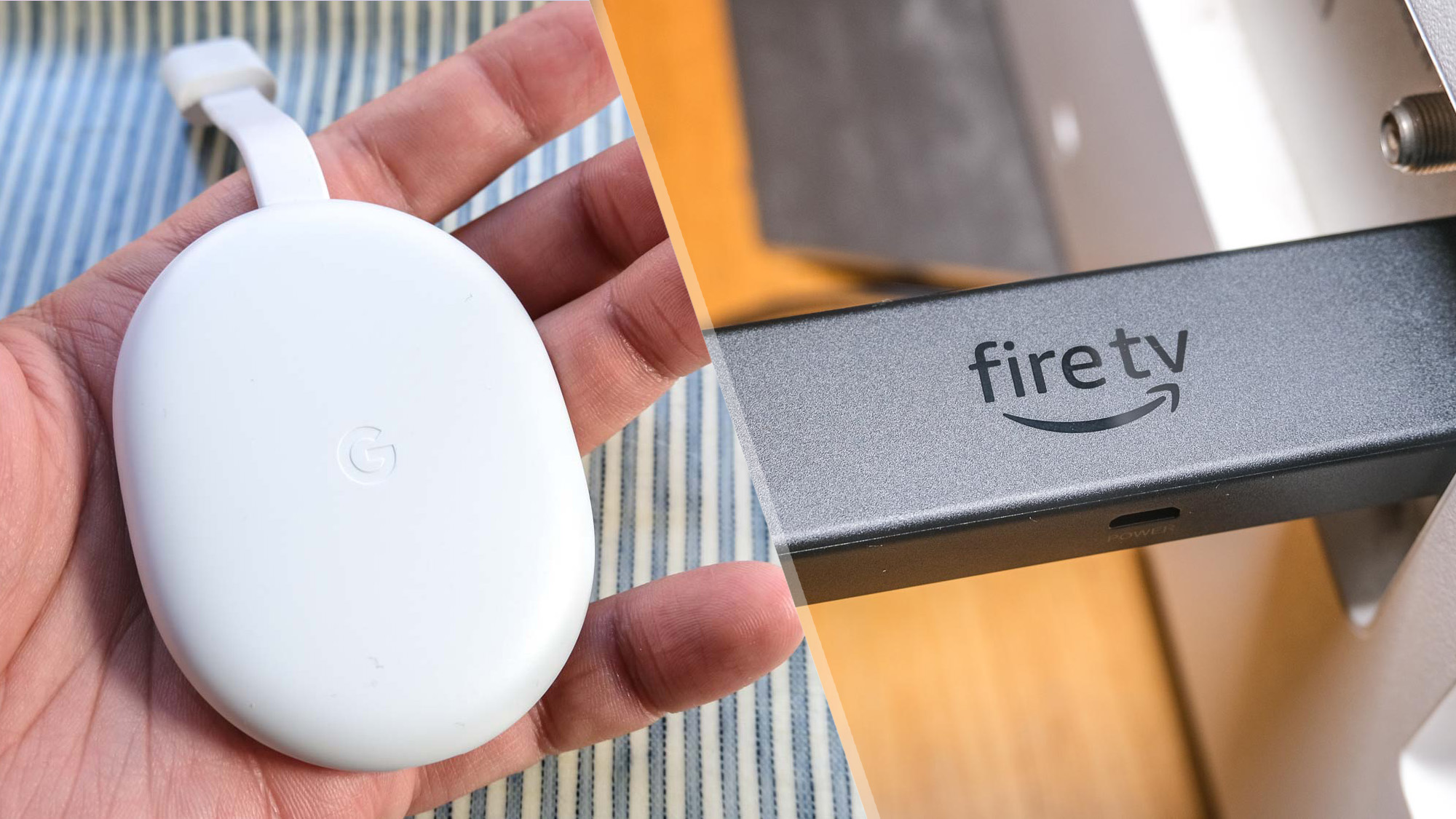
- Starting price: $35 to $69
- Operating system: Android
- Compatible with Fugo: Yes
The Google TV Streamer was designed to replace Google’s aging Chromecast lineup. It's also proven to be a surprisingly capable player for small and simple digital signage setups.
That said, it's still a consumer device at heart. It doesn’t offer any offline playback capabilities, which means if your internet goes down, so will your signage. Plus, past reviewers say it may struggle with 24/7 uptime in demanding environments.
Keep in mind the Google TV Streamer isn't designed for enterprise screen management. You can't use it to magically power on and off dozens of devices, for example. It’s also not designed to scale up as much as professional systems.
But for basic signage across a handful of screens, the TV Streamer is a solid and affordable choice.
Learn more in our article covering the Google TV Streamer for digital signage.
3. Raspberry Pi
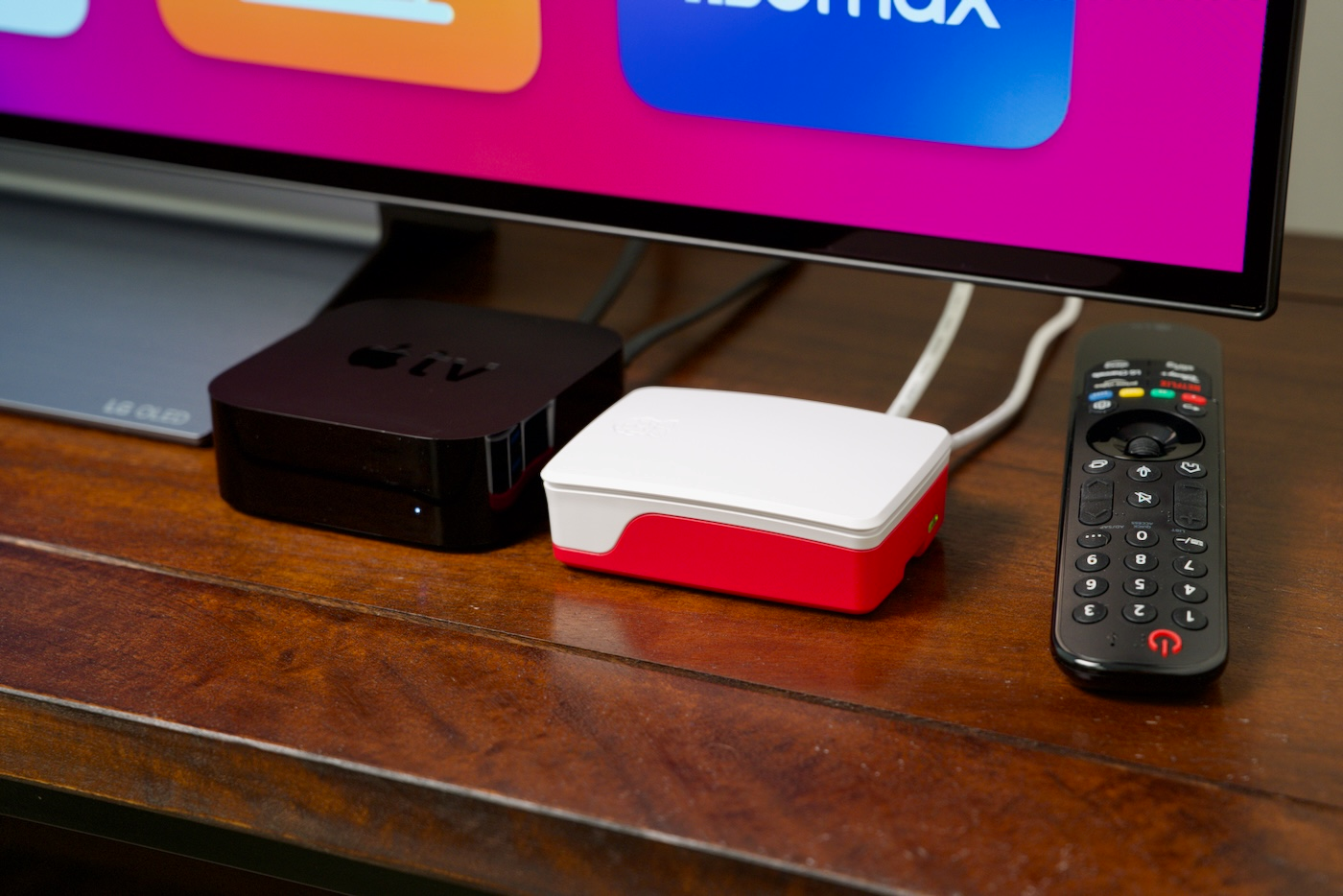
- Starting price: $60 to $305
- Operating system: Depends on what you install
- Compatible with Fugo: Yes
The Raspberry Pi is the go-to option for the technically inclined digital signage operator. Unlike the Fire TV Stick, it can:
- Power up two screens at once
- Supports USB 3.0 and PCIe 2.0
- Offers dual 4K video output
Fugo was the first digital signage software to fully support the Raspberry Pi 5. It can also offer offline playback support, which is useful if you need to run signage in outdoor, WiFi-less, and/or tight or awkward spaces.
The catch? The Raspberry Pi 5 is a DIY player, so you'll need to manage your own OS install, device enclosure, and power setup. There's no plug-and-play experience here. But if you have the technical proficiency, the Pi 5 is hard to beat in terms of customization.
Learn more in our full guide to the Raspberry Pi 5 for digital signage.
4. Amazon Signage Stick
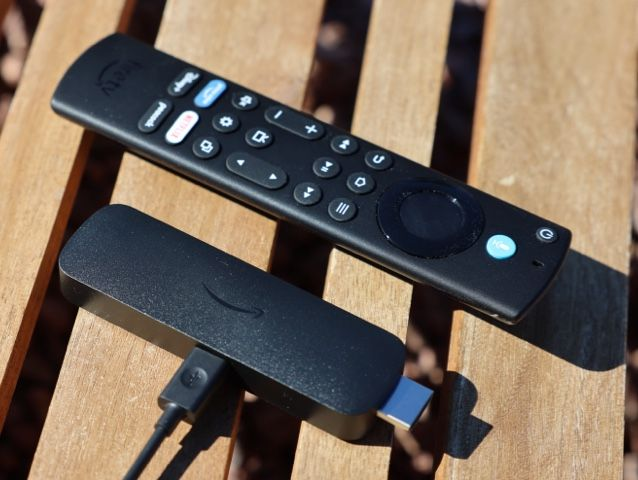
- Starting price: $99
- Operating system: Fire OS 8
- Compatible with Fugo: Yes
The Amazon Signage Stick is — you guessed it — Amazon’s alternative for professional digital signage. It’s somewhat more expensive than consumer devices (i.e., the Fire TV Stick) at around $100 per device. But unlike the Fire Stick, it will still run Fire OS for the foreseeable future. That means it’s compatible with third-party CMS platforms like Fugo.
One of the best features of the Signage Stick is that it comes with its own mobile app. This lets you manage all of your screens in one place, which many consumer tools (i.e., the traditional Fire TV Stick) can’t help with. But remember: the mobile app isn’t a replacement for a dedicated CMS. And the Amazon Signage Stick is picky about what you can connect with. Fugo, for example, isn’t on the list.
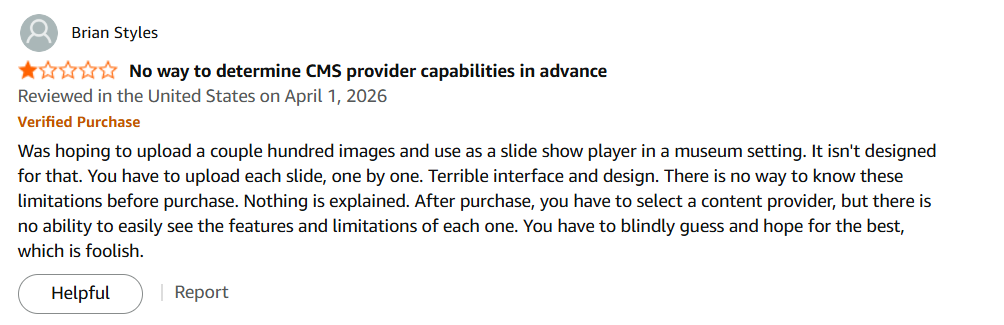
In fact, there’s no way to determine CMS provider capabilities in advance, as this reviewer writes:
One last thing you should know is that the Amazon Signage Stick isn’t well-regarded for ‘top quality’ reliability. Many past users say it freezes up or breaks down when exposed to TV heat for long periods of time. Plus, there’s no dedicated customer support, so good luck if you run into other issues or errors.
5. Fugo Devices
- Starting price: $99 to $730
- Operating system: Android
- Compatible with Fugo: Yes
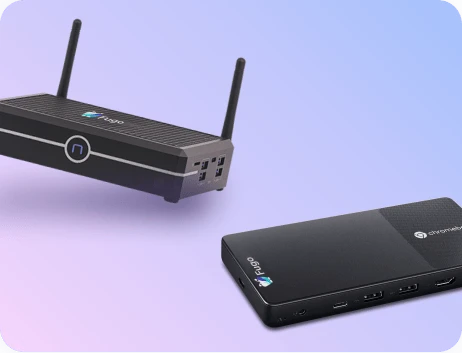
Fugo’s media player hardware was exclusively designed for digital signage — unlike most of the other options on this list. The price tag is higher than what you’d see on consumer devices, sure, but the features you get in return are worth the extra cost.
With the Fugo Nuc, Chromebox, or Flash, you can:
Work across multiple TV and screen types
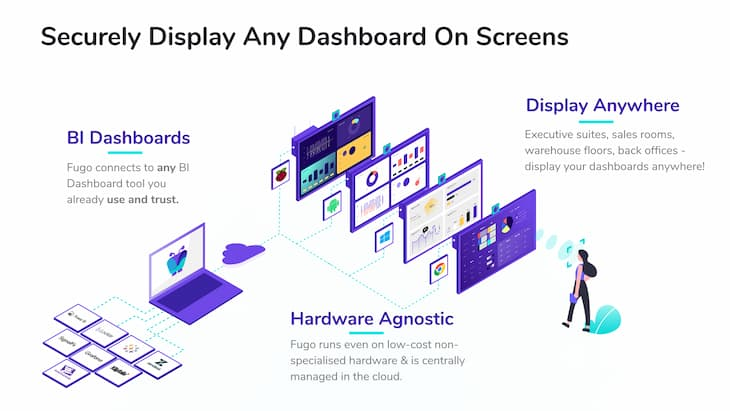
Unlike the Fire TV Stick, which is locked into Amazon's ecosystem and has a single HDMI output, Fugo players work straight out of the box. You don’t need any USB-C, USB-A, or HDMI ports to get started. Plus, a single Fugo NUC also offers multiple 4K video channel outputs through HDMI or USB-C, so you can manage more than one screen from a single device.
Centralize screen management
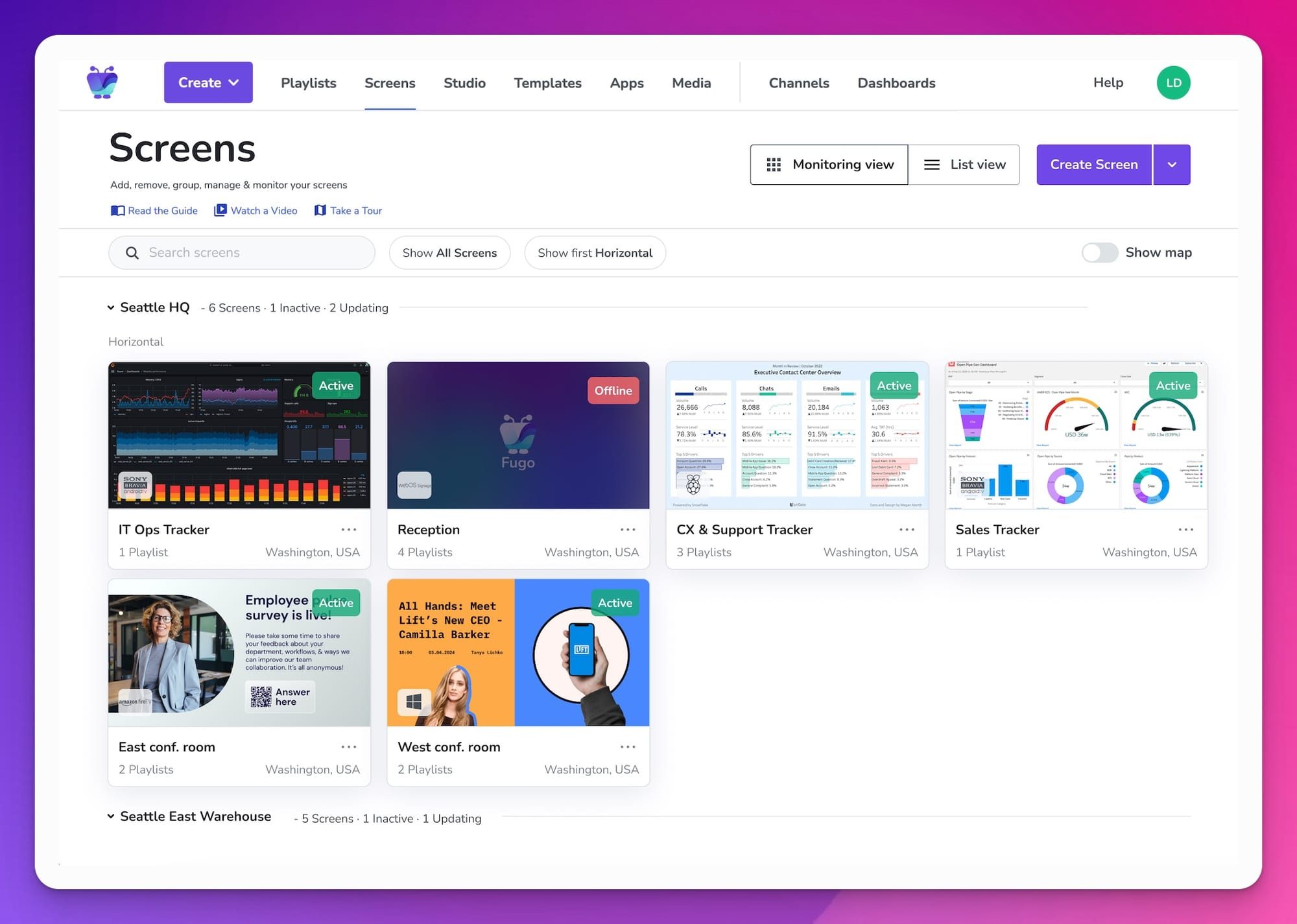
Both the Fugo NUC and Chromebox come pre-installed with Fugo's CMS app, which lets you group, tag, and view screens in the cloud.
In contrast, most consumer devices (including the Fire TV Stick) require a separate setup per device. They also don’t offer native screen management, since you have to couple your screens with another CMS.
Ensure reliable content delivery
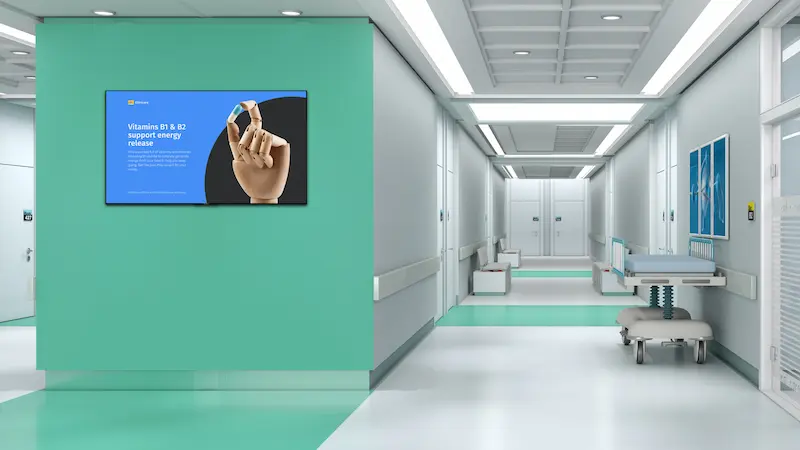
All Fugo digital signage players were designed for business use, and not necessary for personal streaming. So where a Fire Stick might lag, stutter, or shut down unexpectedly, Fugo players remain stable for round-the-clock operation, even in 24/7 environments like hospitals and manufacturing floors.
For example, we offer more 4x more storage and RAM than an Amazon Fire TV Stick with Intel Jasper Lake Celeron® N5105 processors. Plus, our secure network configurations, proxies, and encryption protocols can help keep your content protected from unauthorized access.
Integrations and automations
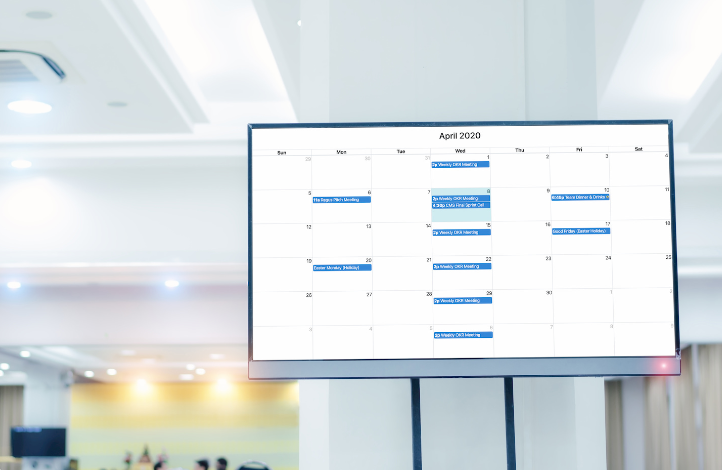
You can connect Fugo's CMS to dozens of the tools you’re already using for digital signage, then use your players to broadcast results on your screens.
For example, you might sync with your team’s Google calendar to display schedules, updates, and digital notices. Or, you might connect with internal BI dashboards to show real-time data and metrics directly from password-protected URLs.
You don’t need to worry about manual updates, or unnecessary limitations imposed by a consumer operating system like Fire OS.
The Hidden Limitations of Consumer Devices for Signage
It’s tempting to simply swap a Fire TV Stick for another consumer streaming device. After all, they come at a similar price point, and you’re likely already familiar with how they work. But remember that consumer streaming devices weren’t designed for more complex setups. This means they don’t always scale well as your business grows.
Consumer streaming devices are not:
- Designed for 24/7 commercial use
- Typically able to offer remote management
- Known for their consistent app performance
- Able to provide centralized control
- Granular in their ability to control security and compliance concerns
How to pick the best Fire TV Stick alternative
Before settling on any Fire TV stick alternative, be sure your hardware can meet the following requirements:
- Commercial-grade reliability. Can the tool guarantee 24/7 uptime? How many reviews say it’s lacking or goes down fairly frequently?
- Remote device management. This includes centralized content control for members on your team with the right access, plus real-time monitoring so you can address issues as soon as they arise.
- Strong app or CMS ecosystem. The best digital signage players pair directly with cloud-based CMS platforms. That way, you can easily automate your content flow without needing to manually publish new playlists.
- API and integration support. Can you connect with the tools you already use for signage, like PosterMyWall and Walls.io?
- Security and compliance readiness. Will you be able to set up access controls for your team? How secure is the tool — and does it meet standardized security guidelines, like for SOC type 2?
Frequently asked questions about Fire TV Stick sunsetting
Q: Is the Amazon Fire TV Stick going away?
No, Amazon Fire TV Sticks aren’t going away. But older models will no longer be supported after December 2030. All remaining models will run on Vega OS, which does not support sideloading, and therefore, are not an option for digital signage setups. You will need to migrate to a different digital signage player instead.
Q: Is the Amazon Fire Stick useful for digital signage?
Since support for the Fire TV Stick is ending in 2030, it’s no longer a good option for supporting digital signage. In fact, this is a system of a much larger trend, where traditional consumer devices fail to keep up with the demands of digital signage networks.
Q: How do I migrate from Fire TV Sticks to another digital signage platform?
To move from Fire TV Sticks to another digital signage tool, you will need to:
- Audit your current screens and setup
- Choose compatible hardware
- Test with a pilot group
- Roll out in phases
- Train teams on new workflows

