
Samsung SSP digital signage software
Run Fugo on Samsung Smart Signage (SSSP) displays for a reliable, centrally managed signage setup that’s built to scale.
Samsung SSSP is built for the demands of professional signage
Power your network using displays with the onboard computing & service life you want from the hardware tackling demanding workloads.
Onboard SoC compute
A built-in Tizen system-on-chip gives Fugo its own onboard compute, turning the display into a complete signage endpoint without an external player.
Built for long hours
Samsung’s commercial ranges include 16/7 and 24/7-rated models, so the hardware can match the operating demands of the deployment.
Modern web runtime
Tizen’s upgradeable web engine gives demanding web-based Fugo content a capable runtime directly on the display.
Zero-touch provisioning
Tizen Business Manager can deploy Fugo remotely to supported displays, avoiding hands-on app setup at every screen.
Backed for the long haul
Three-year warranty coverage across much of the commercial range helps support a longer, more predictable hardware lifecycle.
Commercial display range
Samsung offers purpose-built options for standard indoor signage, high-brightness spaces, interactive installs, and more demanding environments.
Provision Fugo remotely
Provision supported Samsung displays through Tizen Business Manager, or use the screen’s built-in URL Launcher for Fugo setup on site at single rollouts.
Learn how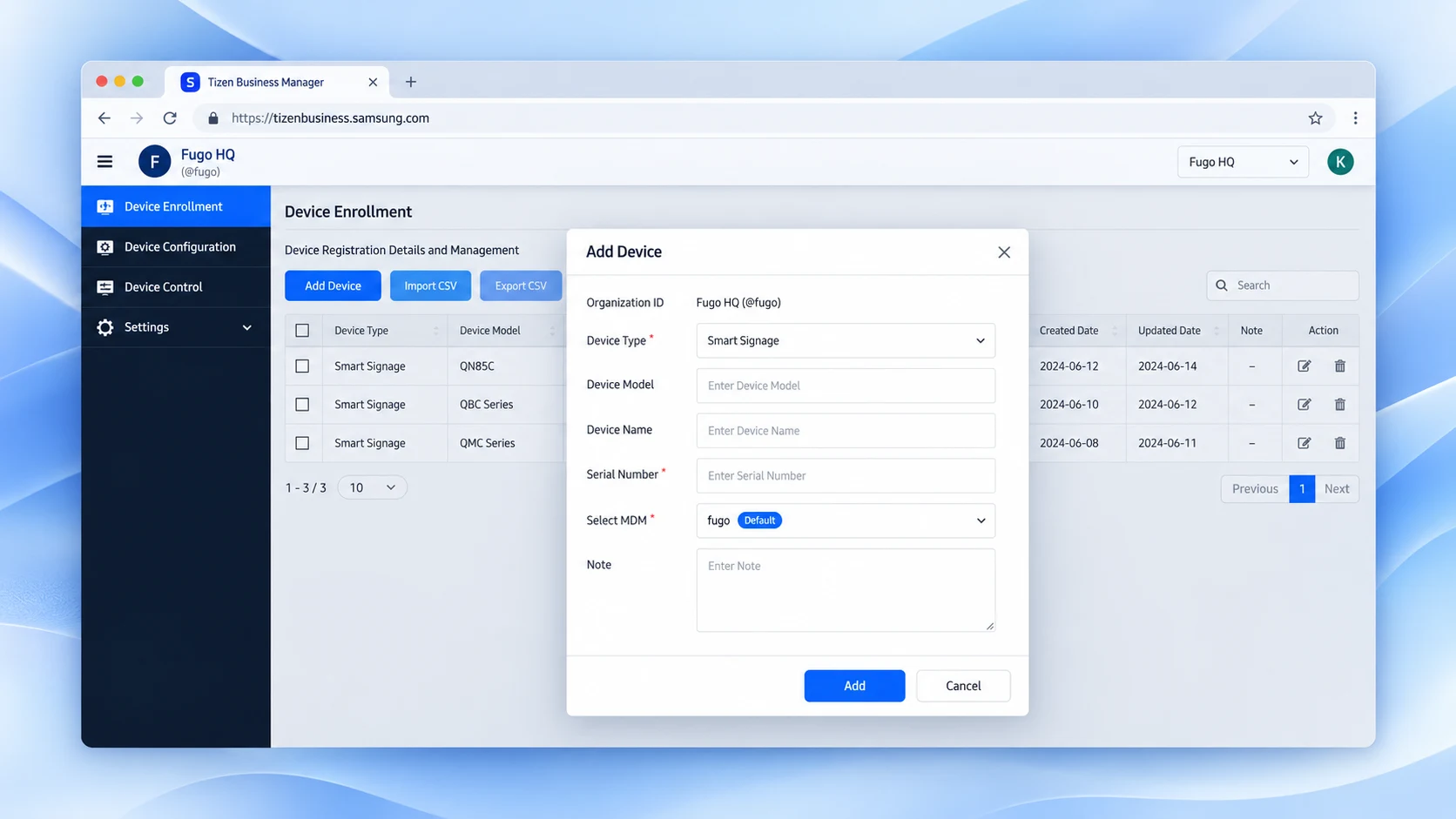
The CMS behind your Samsung screens
Great signage hardware needs an equally capable content management system behind it. Fugo brings the whole screen operation under control.
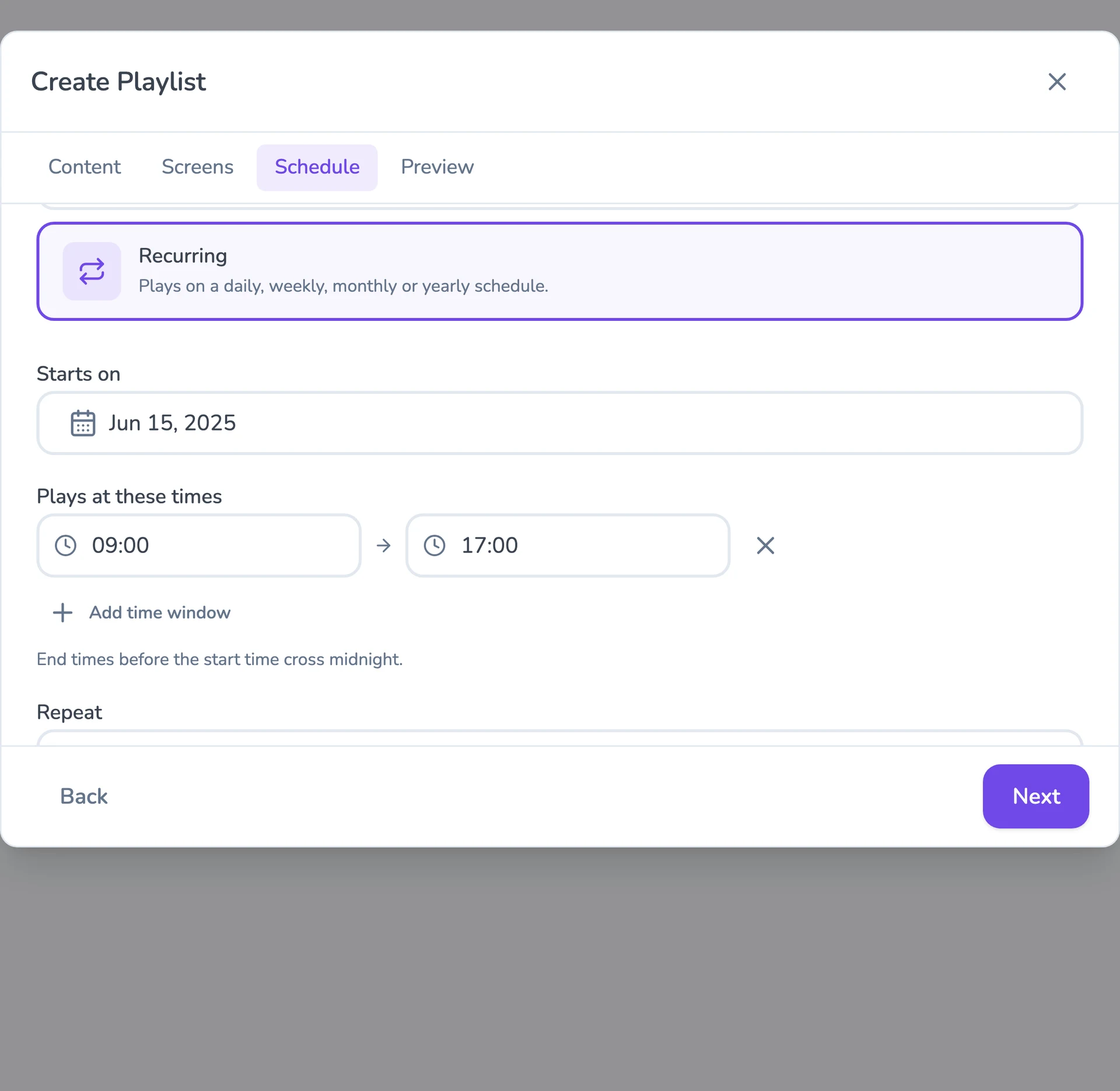
Flexible content scheduling
Keep even complex content calendars easy to manage. Schedule & target content to the right screens with flexible timing and automatic expiry.
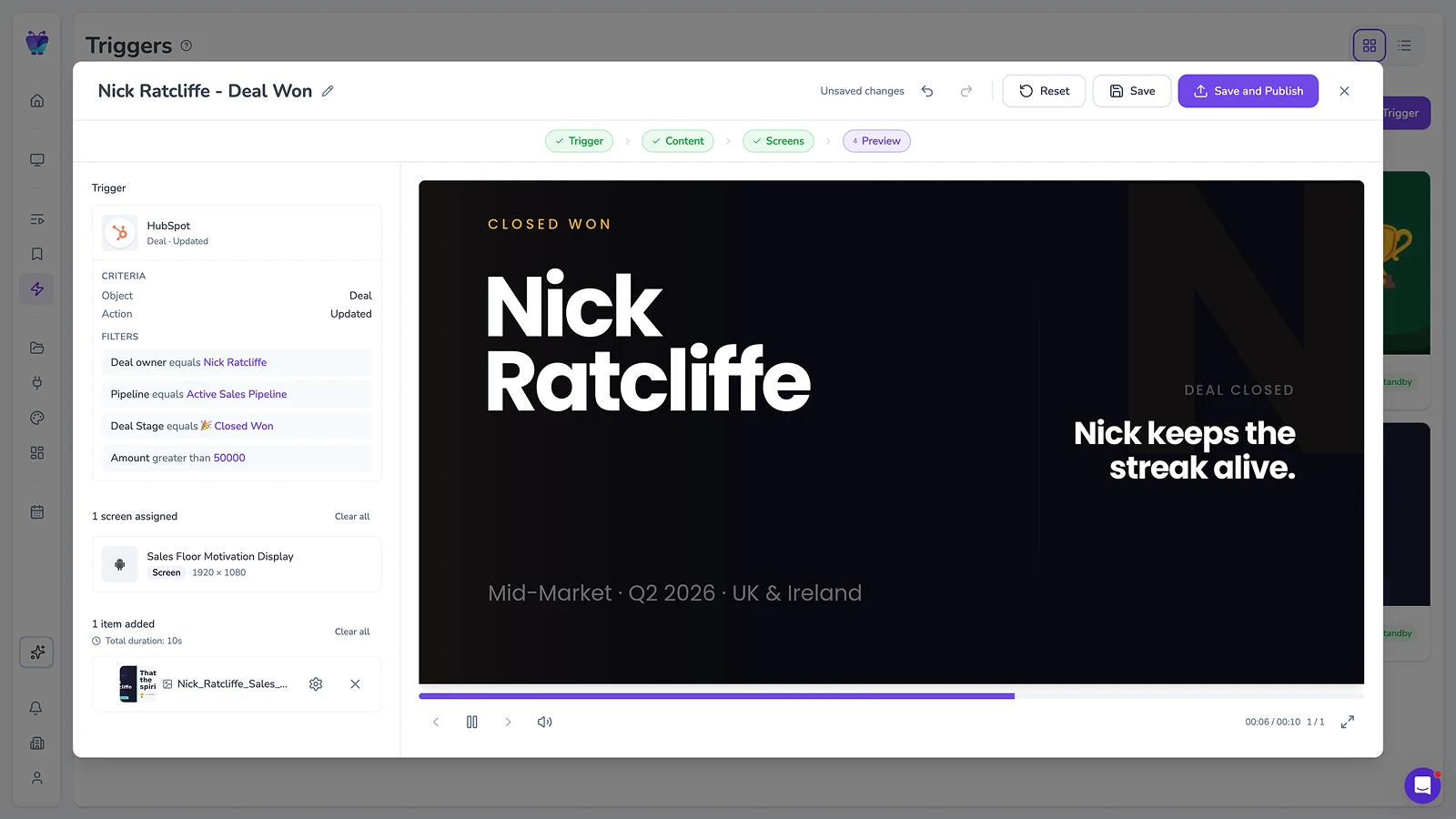
Event-driven content triggering
Let events in your connected systems decide when screens should update. Surface timely takeovers for alerts, milestones, or moments that need attention.
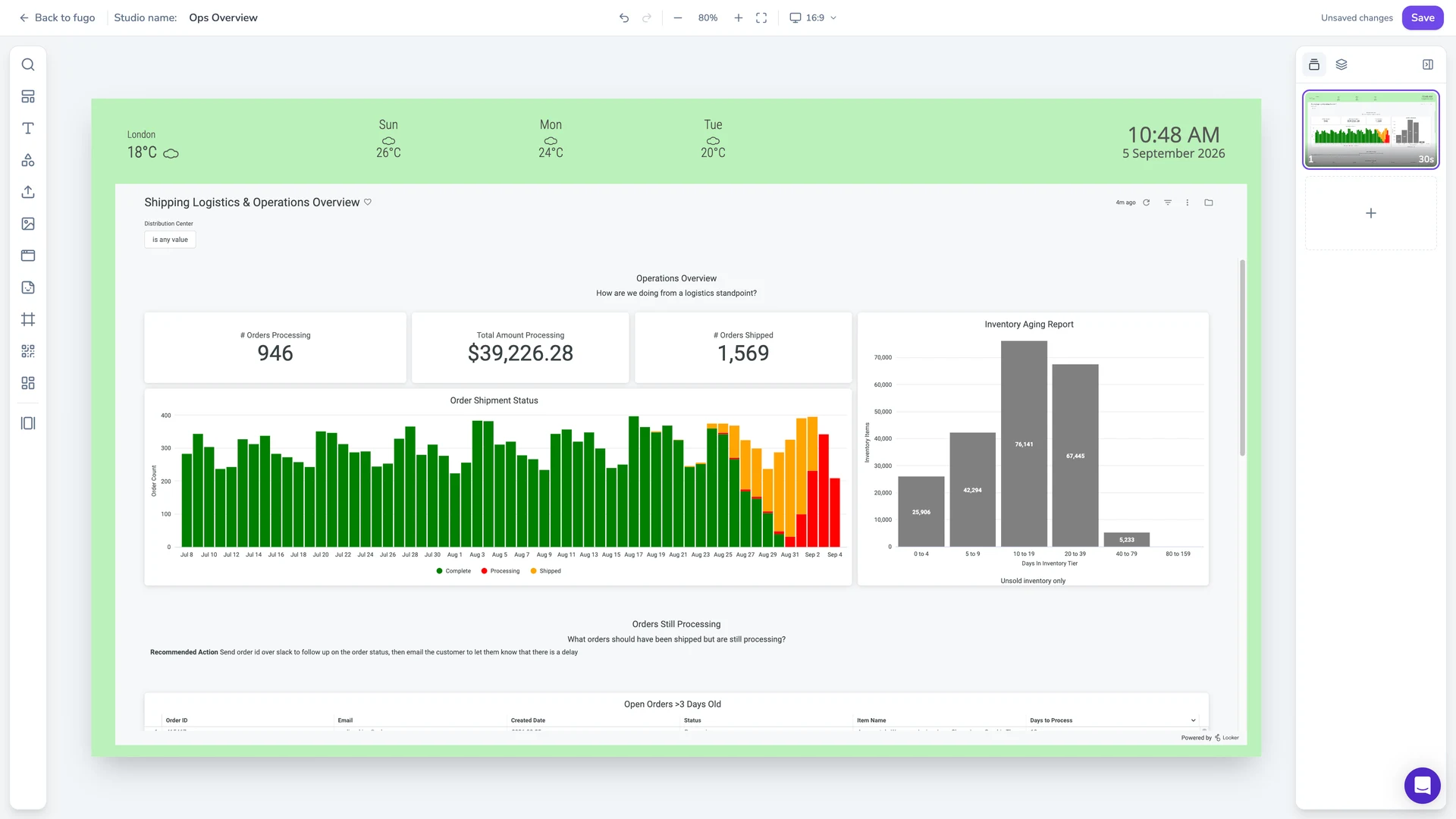
Full-featured content design
Combine your own media, live data, and connected apps into polished multi-zone layouts using an editor that feels as easy as Canva.
Centralized screen management
Organize and control your entire screen network from one place, without losing the flexibility to manage each screen according to its setup.
Live business data on screen
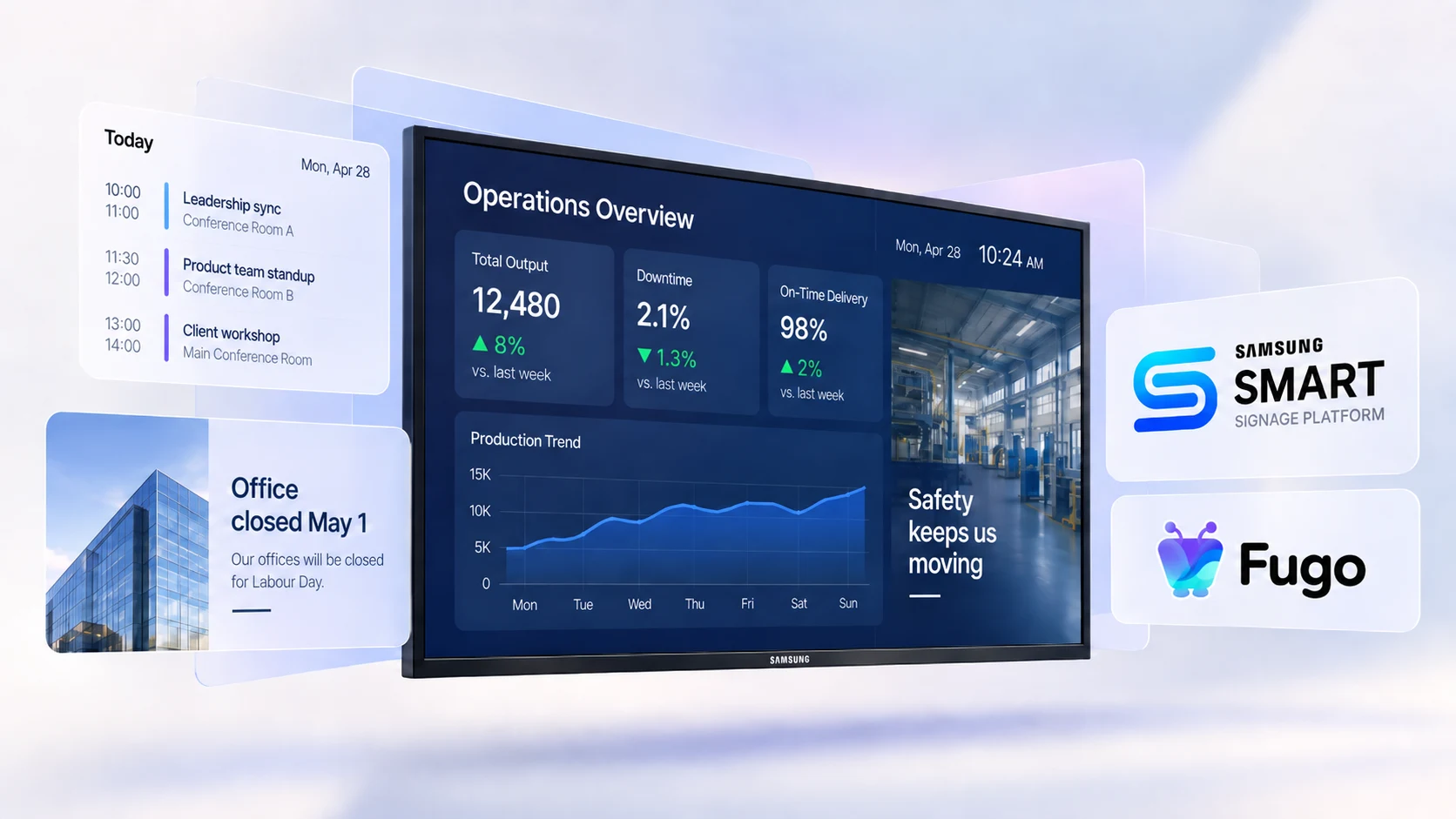
Put BI dashboards, KPIs, and web content on the panel through Fugo’s dashboard integrations — kept current without signing in on site.
Built-in remote monitoring
See what’s happening on remote screens from Fugo. Verify playback and investigate problems without sending someone on site.
Granular user management
Give teams access to the screens and content they own without opening the rest of the network.
Build your video wall with Fugo & Samsung
Run Fugo on supported Samsung video wall displays with a dedicated player driving the wall. Design the full installation as one seamless canvas to create an immersive visual experience people can’t ignore.
Recommended Samsung displays
Fugo runs on Samsung Smart Signage (SSSP) displays. These are our go-to picks.
View all supported Samsung hardware
Samsung QBC Series
A practical 16/7 option for offices, meeting spaces, and other everyday signage that doesn’t need 24/7 operation.
16/7 operation
Built-in Tizen SoC
4K UHD
Landscape or portrait
Multiple screen sizes
Samsung QMC Series
A strong all-rounder for screens that run around the clock, with a broad size range to choose from.
24/7 operation
Built-in Tizen SoC
4K UHD
Anti-glare display
Multiple screen sizes
Samsung QHC Series
A higher-brightness 24/7 option for prominent displays & spaces where ambient light makes standard commercial panels harder to read.
24/7 operation
700-nit brightness
Built-in Tizen SoC
4K UHD
Landscape or portrait
More on building better screen networks
Practical reading on the decisions that make digital signage work in the real world.