


Most teams start with a playlist of slides on a loop. A few months later, someone is still logging in every Monday to swap the lunch menu by hand.
If you want to know how to use digital signage beyond that loop, the answer is usually already in your account. Fugo has triggers, dashboards, property targeting, and fallback playlists, and each one removes a manual job from someone's week.
All seven workflows use features in the Fugo CMS today, and each links to the help guide that covers it in full.
How do teams use digital signage day to day?
Teams use digital signage to share news, show live numbers, and keep screens current without a designer on call. In Fugo, that usually comes down to seven workflows:
- One-click announcements with a manual trigger
- Screen updates sent by email
- Live dashboards without a logged-in laptop
- CRM wins that appear on screen automatically
- Timed content and a Planner check for gaps
- Content targeted by location or department
- A fallback for screens with nothing scheduled, plus zones for fixed content
If your main goal is staff news, our page on digital signage for internal communications covers the bigger picture. If you run marketing with a few people, see our guide to digital signage for marketing on a small team.
1. Post an all-hands announcement in one click
The CEO decides at 9:40 that the all-hands starts at 10. You need it on every office screen now, and back to normal afterward.
That's what a manual trigger is for. A trigger is a playlist with a rule attached that decides when it plays. For a manual trigger, the rule is you clicking a button.
You get two ways to fire it. Play Once runs the content a single time, then screens return to their normal rotation. Loop keeps it running until you stop it. You can stop either one early.
- Go to Triggers and click New Trigger.
- Choose Manual, then pick your content (media, a Design Studio slide or a dashboard).
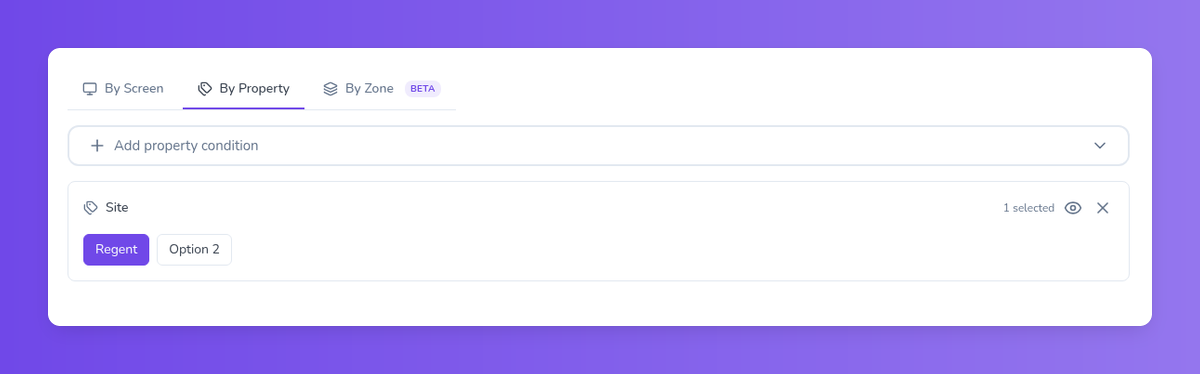
- Choose your screens on the By Screen or By Property tab.
- Click Save and Publish. The trigger shows as On Standby.
- When you need it, open the trigger from the Triggers page and click Play Once or Loop.
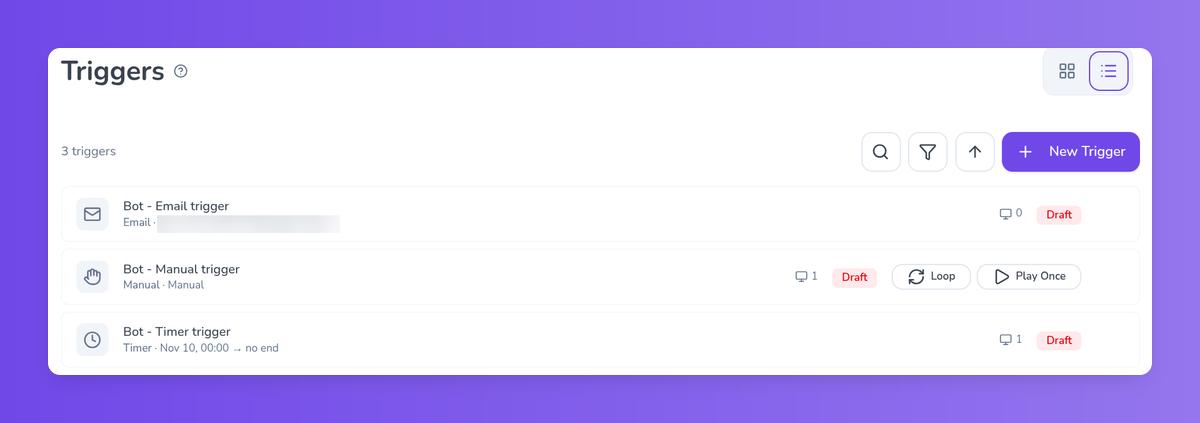
Triggers use the same permissions as playlists, so anyone who can publish a playlist can run one. The manual trigger setup guide has the details, and our content triggers page shows every trigger type.
2. Let anyone update a screen by sending an email
Your facilities lead wants to post a fire drill notice. They don't have a CMS login, and they don't want one.
An email trigger gives them a way in. Fugo creates a dedicated inbound address for each email trigger, starting with fgt_. When a matching email arrives, Fugo shows it on the screens you chose.
You control which emails count. Allowed senders can list addresses or a whole domain. Subject contains and Body contains narrow it further, so a keyword like [signage] keeps normal mail off the screen.
- Go to Triggers, click New Trigger, and choose the Email card.
- Add your filters, for example your company domain and a subject keyword.
- On the Content step, keep Inbound email on. Add a transform prompt if you want Fugo to use AI to reformat each email into a cleaner layout.
- Choose your screens, then Save and Publish.
- Copy the fgt_ address from the dialog and share it with the people who should post.
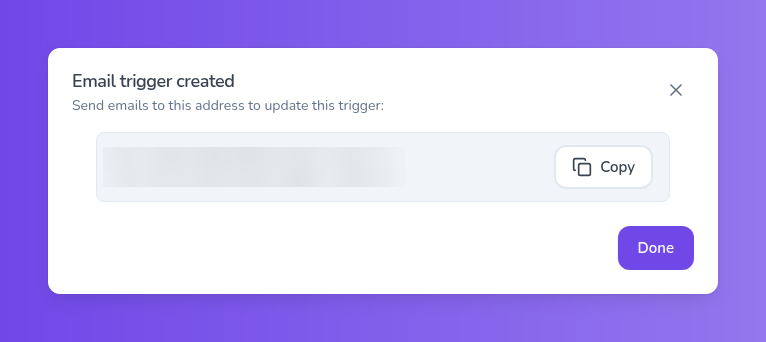
Each email shows for 20 seconds by default, and you can change that. See the email trigger setup guide or our page on email triggers for digital signage.
3. Show live dashboards without leaving a laptop logged in
The sales floor wants its pipeline report on the wall TV. Right now that means a laptop under the screen, signed in all day, until the session expires.
Fugo Dashboards (also called TV Dashboards) work differently. You give Fugo the URL and login steps once. Fugo logs in on a schedule, captures a fresh screenshot, and plays that image like any other content.
So there's no open browser session sitting by the screen. Dashboards behind a password or 2FA are supported too. Rendering happens in the cloud by default, with on-premise and local player options if your IT team needs them.
- Book a demo call. The team walks through your setup and enables Dashboards on your account or trial afterward.
- Go to Dashboards and add a connection with your URL and login steps.
- Set a refresh interval for how often Fugo captures a new screenshot.
- Optionally, crop or frame the dashboard in the Design Studio.
- Add the dashboard to a playlist and publish it.
A dashboard only refreshes while it's published to an active screen. The how to create a TV dashboard guide walks through each step, and our TV dashboards page covers the tools you can connect.
4. Celebrate a closed deal the moment it happens
A rep closes a big deal on a Friday afternoon. By the time anyone thinks to make a slide, half the team has gone home.
Service triggers react to events in a connected CRM. Fugo supports HubSpot and Salesforce today. In HubSpot you pick an object (Deal, Contact, Company, or Ticket) and an action (Created, Updated, Deleted, or Any). Salesforce triggers listen for records being created, edited, deleted, or restored on the object you pick.
Filters narrow it down, such as a deal reaching Closed Won in one pipeline, above a set amount. You can also describe the rule in plain language and let Fugo suggest the filters for you to review.
- Connect HubSpot or Salesforce once, in Settings on the Connections tab. HubSpot asks you to approve Fugo's access, and Salesforce needs an admin to install the Fugo package.
- Choose the object, the action, and your filters.
- Pick content. The Message option fills in details from the event, such as the deal name and amount.
- Choose screens, then Save and Publish.
See the HubSpot trigger setup guide and the Salesforce trigger setup guide.
5. Put the daily rhythm on a timer
Every morning someone posts the stand-up slide. At noon someone else posts the lunch notice. On launch day, someone remembers the promo at 10:15.
Timer triggers fire content at a date and time you set, with no one at a desk. Add an end time and the screens return to their regular content on their own. Timer triggers suit fixed moments like a stand-up reminder, a lunchtime notice, or a promotion with set dates.
Then check the week in the Planner (Beta). It shows every playlist on a calendar or timeline, so you can spot gaps where a screen has nothing scheduled.
- Go to Triggers, click New Trigger, and choose Timer.
- Set a start date and time, and add an end time so the content comes down when you expect.
- Pick your content and screens, then Save and Publish.
- In the sidebar, under Playlists, click Planner and look for empty stretches across the week.
For regular playlists, our page on digital signage scheduling covers the options. The timer trigger setup guide and Planner overview have the rest.
6. Send the right content to each office or team
London wants its own event slides. Sales wants its numbers on the sales floor only. And new screens keep arriving.
Publishing by property handles this. You create a screen property like Location or Department, give each screen a value, and publish to "Location = London". Screens you add later with that value are included automatically. You can combine conditions, such as Location = London and Department = Sales.
For brand consistency, company templates turn a Design Studio slide into a reusable template across every space. They're available on the Core and Enterprise plans. Spaces keep each team's screens and content separate, and roles decide who can do what.
- Go to Screens, open the Properties dropdown, and select Add Property.
- Set each screen's value in its settings or in the Screens table.
- In a playlist's Screens step, choose By Property and pick the values.
- Save your best slides as company templates for other teams to reuse.
The publish by property guide and users, roles, and spaces overview go further.
7. Set a fallback for empty schedules, and add zones
A playlist ends on a Sunday night and nobody schedules the next one. On Monday, reception has a blank screen.
A fallback playlist prevents that. If a screen has no active playlist and no trigger firing, it plays the fallback instead. Only admins can manage fallbacks, and one can be active per space. New screens in the space are included automatically.
Layouts (Beta) split a screen into zones, each with its own playlist. Keep a QR code in a corner while slides rotate, or run a ticker along the bottom. Triggers can also target one zone of a Layout with By Zone, which is in Beta too.
- Go to Fallback and click Create Fallback Playlist.
- Add content, preview it, then click Save and Set Active.
- For zones, go to Screens, then Layouts, and try the Dynamic slot example, a main zone with a ticker strip.
- Assign the Layout to screens and publish a playlist to each zone.
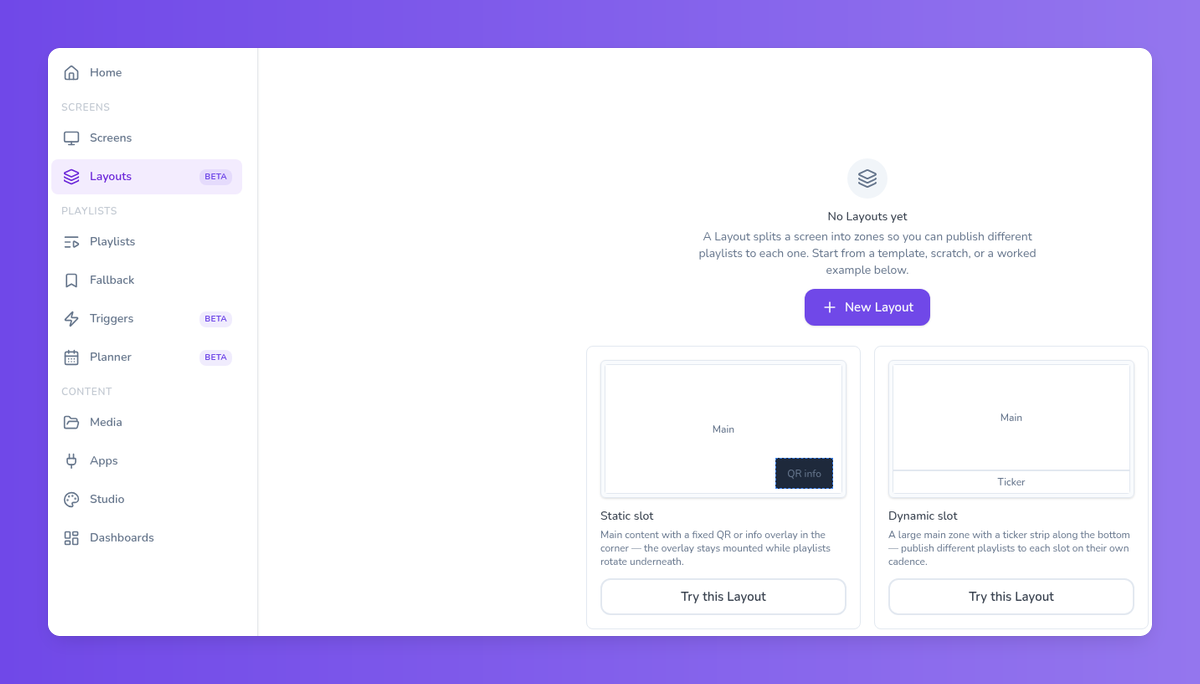
See the fallback playlists guide and the Layouts overview.
Frequently asked questions
What is the best way to use digital signage for internal communications?
Start with one workflow that removes a weekly manual task, such as a manual trigger for announcements or an email trigger for teams without CMS access. Add a fallback playlist so a screen with nothing scheduled still has content to play, then target content by location or department as you grow.
Can non-designers update digital signage?
Yes. Email triggers let anyone send content to a screen without a CMS login. Company templates in the Design Studio give other users an approved slide format to edit instead of starting from a blank canvas.
How do email triggers work in Fugo?
Each email trigger gets its own inbound address. When an email matches your sender, subject, and body filters, Fugo shows it on the chosen screens, either as received or reformatted by AI using your prompt.
Is it safe to show password-protected dashboards on a TV?
Fugo Dashboards avoid leaving a browser signed in near the screen. Fugo logs in on a schedule with the credentials you provide, captures a screenshot, and shows that image. Password and 2FA dashboards are supported, and you can render on your own infrastructure.
What happens when nothing is scheduled on a screen?
If you've set an active fallback playlist, the screen plays it whenever no playlist or trigger is active. Without one, the screen has nothing to show. Fallbacks are admin-only, and each space has one active fallback at a time.
How do I target screens by location or department?
Create a screen property such as Location or Department, give each screen a value, and publish by property. Any screen with a matching value is included, even screens you pair later. Screen groups are a legacy feature, and properties replace them.
Can I split one screen into zones?
Yes, with Layouts, which are in Beta. A Layout splits a screen into zones, and each zone plays its own playlist. Common setups include a main area with a ticker strip or a fixed QR code overlay in one corner.
Which Fugo plan includes company templates?
Company templates are available on the Core and Enterprise plans. If you're on another plan, you can upgrade from your account's Billing page.
Where to start
Pick the workflow that takes the most of your week, and set up just that one. For most teams that's the manual trigger, since it takes a few minutes and you'll use it the next time plans change.
Already a customer? Open Triggers in your Fugo CMS and build one now. New to Fugo? Start a 14-day free trial and try it on your first screen.


