

Fugo

Email triggers for digital signage

Email is the one integration every system already has. Point a monitoring alert, a CRM notification, or a one-line script at your trigger’s address — Fugo turns the message into screen-ready content and plays it. Nobody has to log in, design a slide, or publish anything.
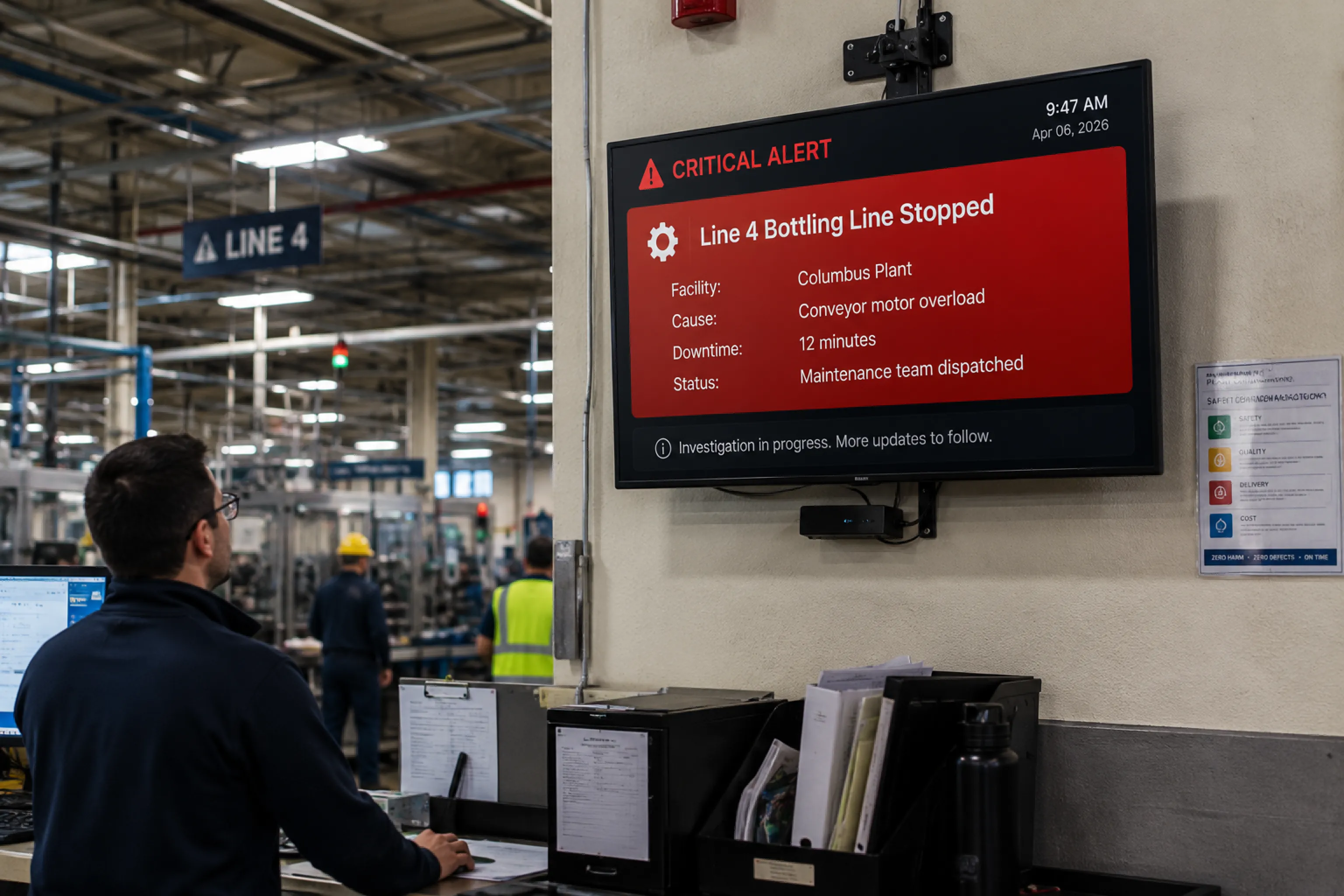

Plant floor screen showing a critical alert about a stopped bottling line, generated by a system rather than written by a person
Designer at a desktop editing a poster layout in a design tool — the manual step between a system event and a screen

Right now there’s a person in the middle

Your systems already know when something happens. Getting that onto a screen still means a human does the work — every single time.

  • Someone screenshots the alert

  • Someone logs into the CMS

  • Someone designs and publishes a slide

  • By the time it’s up, the moment has passed

Give the trigger its own inbox

Think of email as the connector between your systems and your signage. Create an email trigger and Fugo mints a dedicated inbound address for it — anything sent to that address drives the trigger. There is no API to build, no SDK to install, and nothing to authorize.
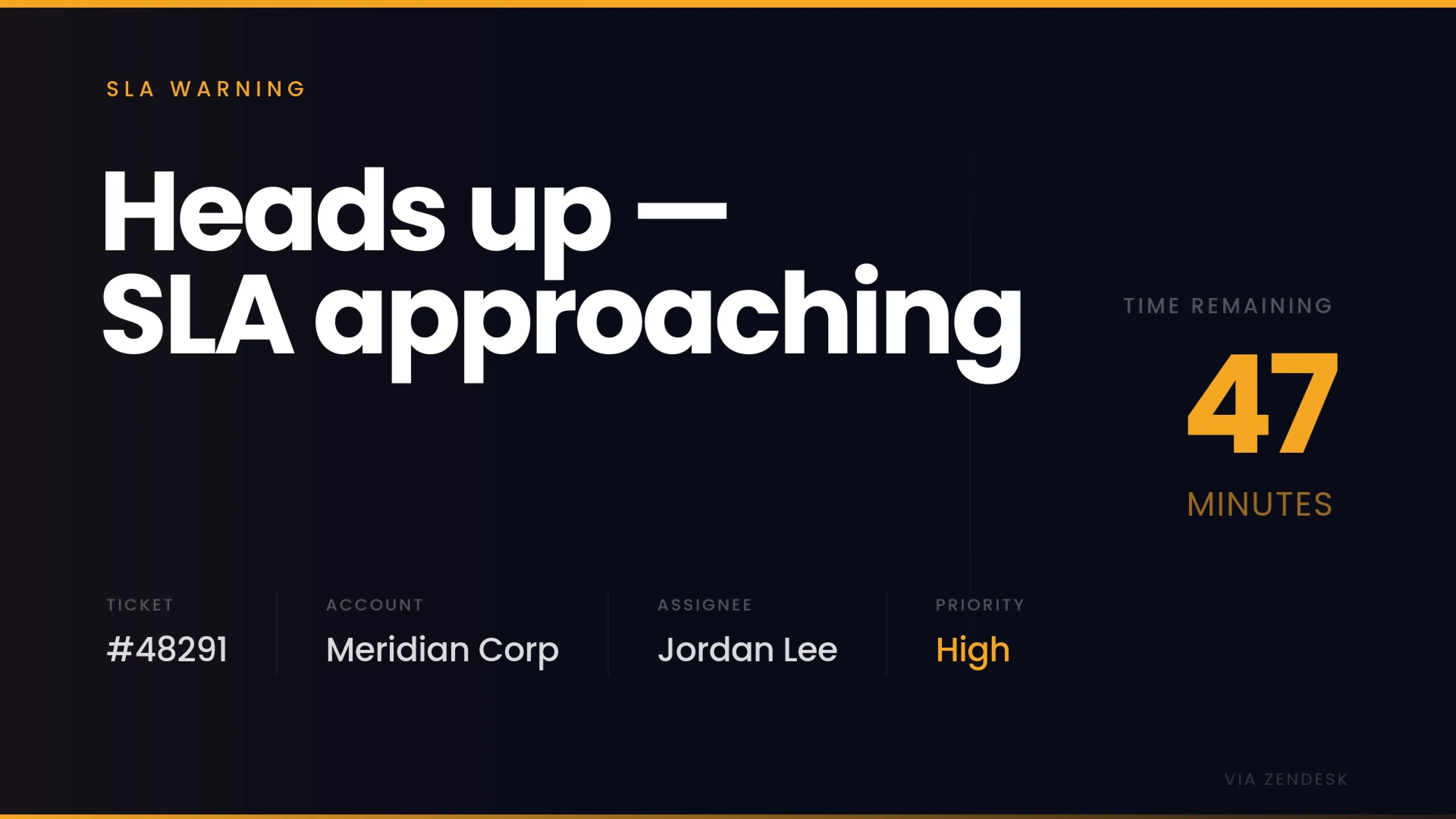
SLA-warning slide on screen showing ticket, account, assignee and time remaining — rendered from an inbound helpdesk email

One address per trigger

Fugo creates the inbound address when you save. Share it with a system or a colleague.

Only the right mail gets through

Restrict by sender, subject text, or body text so the screen stays signal, not noise.

Reformatted for the screen

Display the email as it arrives, or let AI rewrite it into a clean signage layout.

How an email becomes screen content

Email triggers use the same builder as every other Fugo trigger — pick the source, decide how the message becomes content, choose screens, publish.
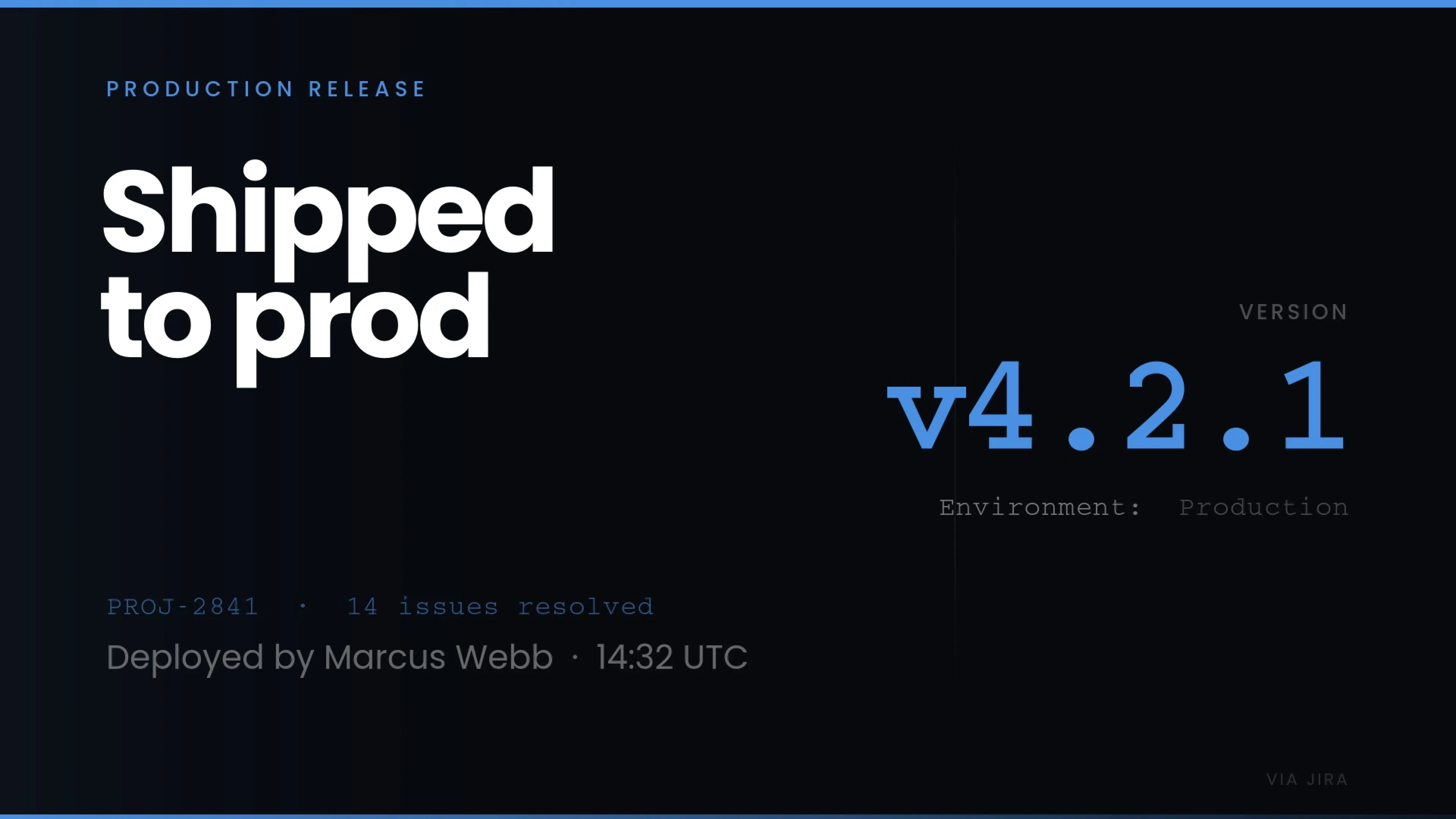
Production release notice on a team screen, generated automatically from an inbound project-tracker email

Every trigger gets an address

Choose Email as the trigger source and Fugo generates a dedicated inbound address. Point your system at it — that is the whole “integration.” Unlike OAuth-based connections there is nothing to authorize, so the address is live the moment you save.

  • No API, SDK, or webhook to build
  • No connection or authorization step
  • Works with any tool that sends notifications
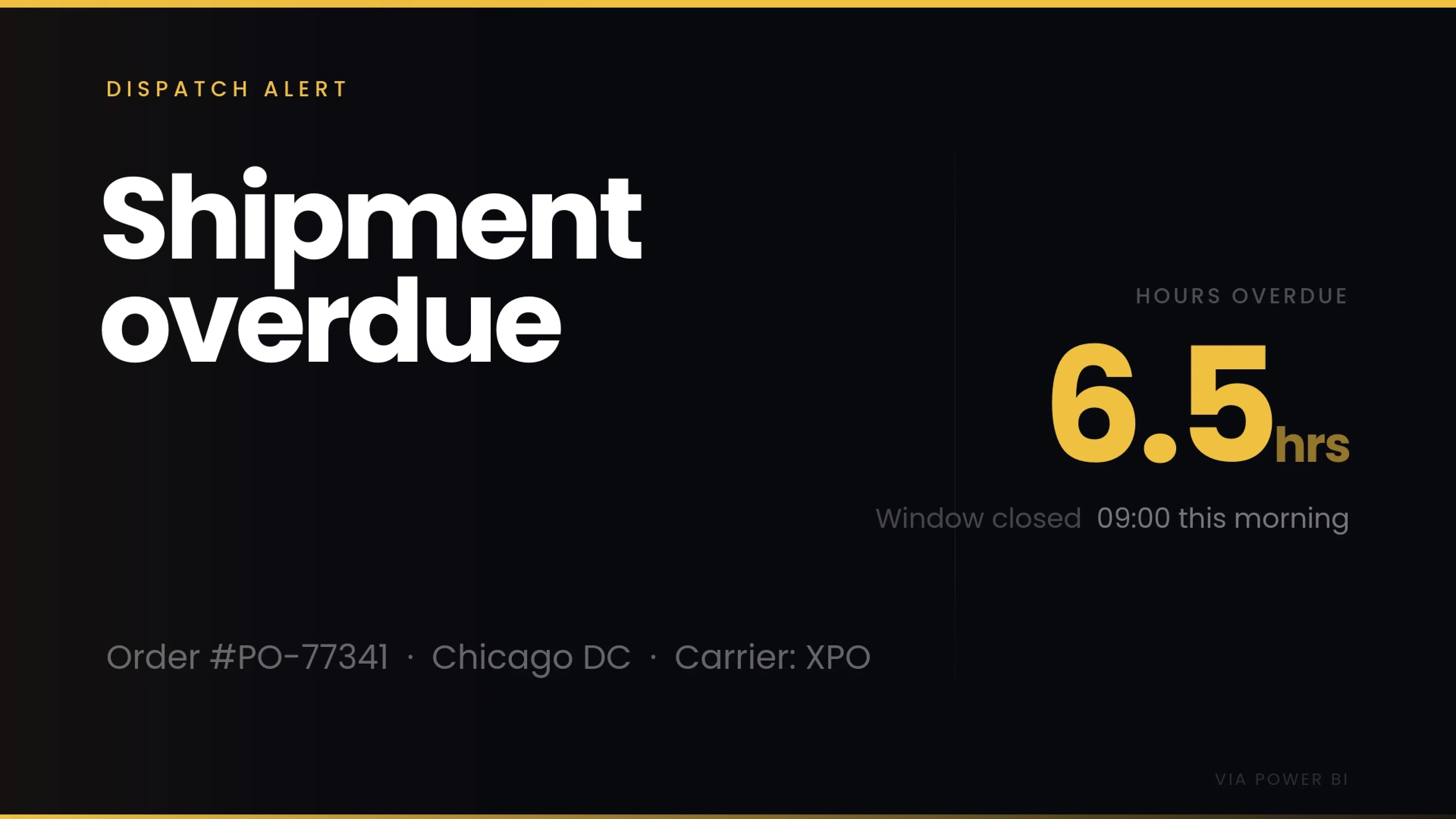
Dispatch alert slide showing an overdue shipment with order, hub and carrier details, filtered through from an inbound alert email

Route with filters

Three optional filters decide which emails count — so one system can drive the right screen and nothing else. Leave them empty and any email fires the trigger; set them and a message has to satisfy all of them.

  • Allowed senders — only your alerting domain, say
  • Subject contains — only mail tagged [critical]
  • Body contains — only messages with the text you specify
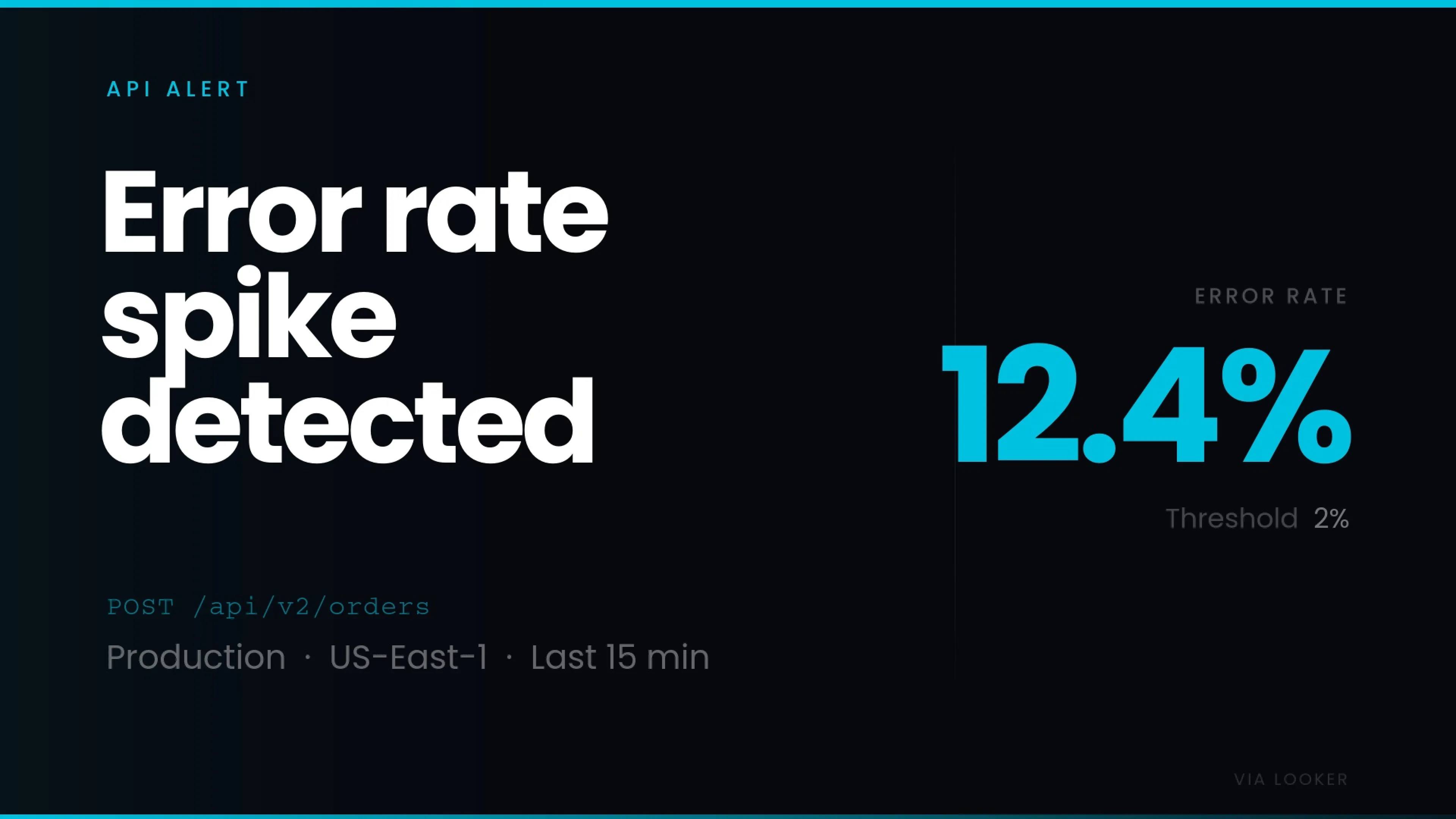
Error-rate spike alert reformatted into a clean full-screen signage layout with a single headline figure

Reformat with AI

System emails are often noisy. Add a transform prompt — “pull the alert name and severity, show as a bold red banner” — and Fugo reshapes each message into signage before it plays.

  • Describe the output in a sentence
  • Set how long it stays on screen
  • Or leave the prompt empty to show the email as received
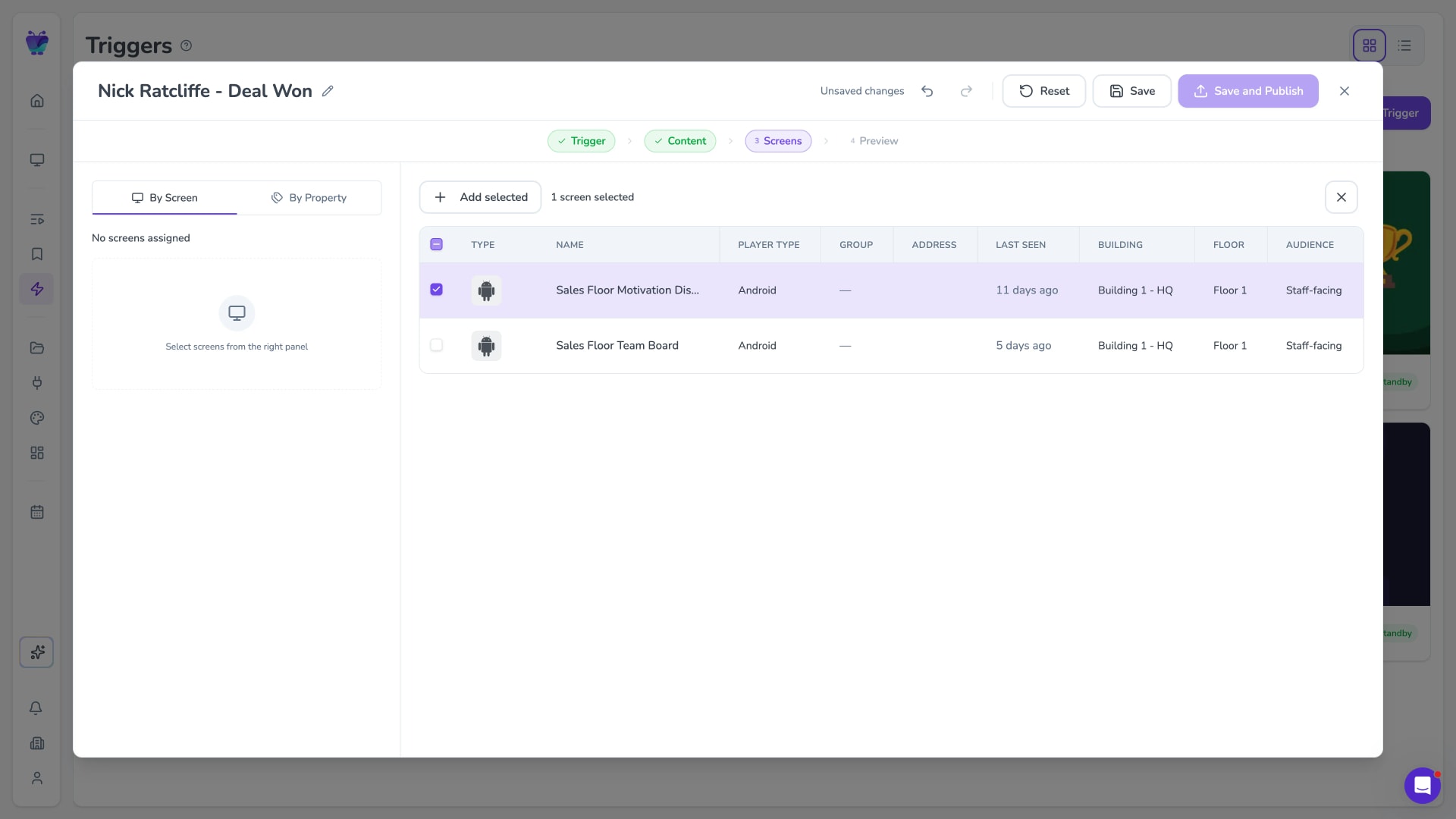
Fugo trigger builder on the Screens step with the By Screen and By Property tabs and a screen selected from the table

Always the latest, on the screens you choose

Each new matching email replaces the previous one in place, so the screen always reflects the current state of the system feeding it. Target individual screens and groups, or set a condition on a screen property so screens you add later are covered automatically.

  • Target by screen or by property
  • Runs on standby until an email arrives
  • Plays for its set duration, then the schedule resumes

The tools you already run can put themselves on screen

Almost every system a business runs offers email notifications. That notification is already-written content — all Fugo does is translate it.

Monitoring & alerting

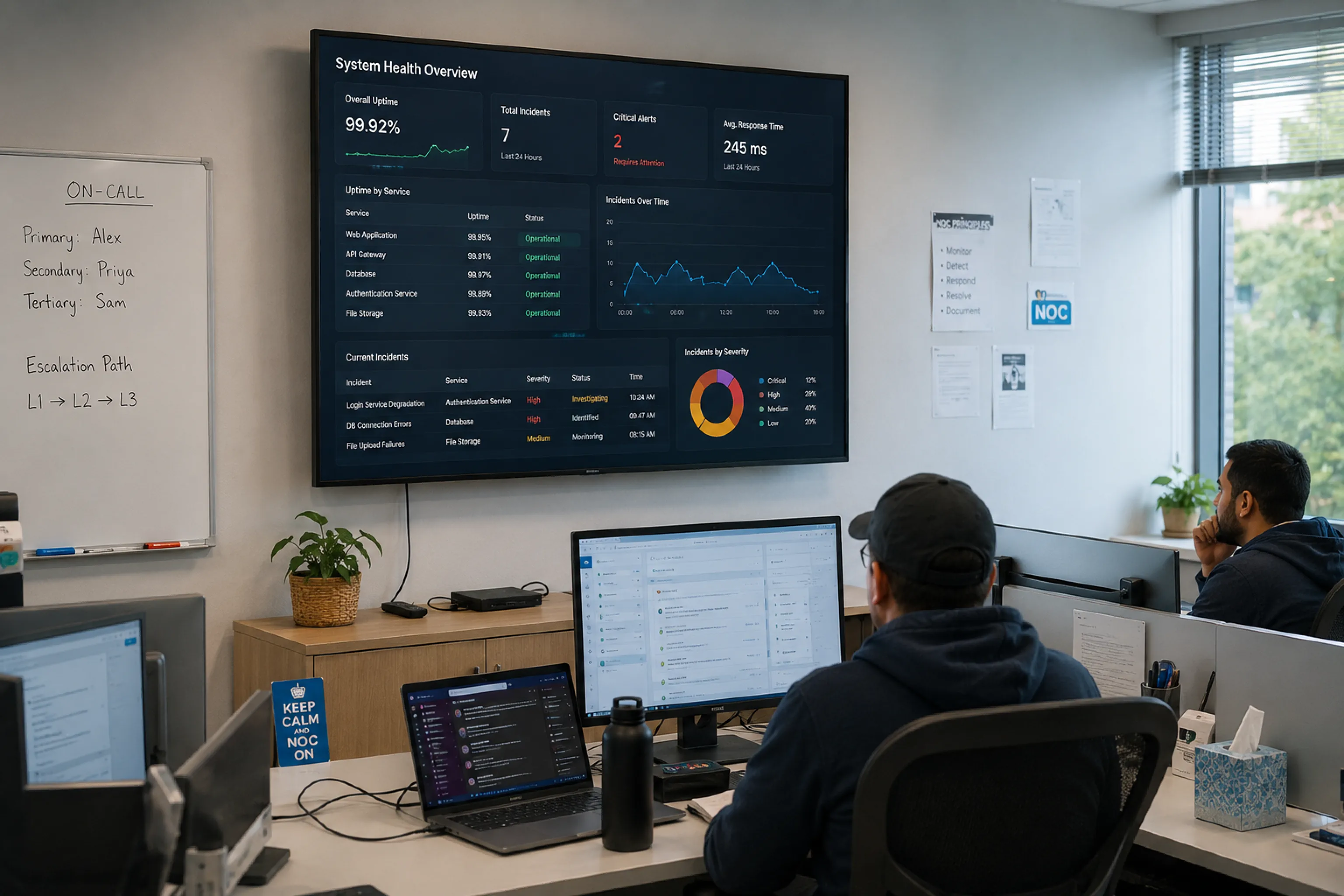
Grafana, Datadog, and PagerDuty all send alert emails already. Forward them to a trigger and incidents land on the NOC wall the moment they fire, without anyone relaying them.
Incident alertsThreshold breachesUptime warningsOn-call handovers
Network operations centre with a wall-mounted system health overview above the on-call desks

Frequently asked questions

How do I display an email on a TV screen?

Create an email trigger in Fugo.

When you save it, Fugo generates a unique inbound address for that trigger (in the form trig-xxxx@in.fugo.ai). Any email sent to that address is turned into content and played on the screens you assigned.

There is nothing to install on the sending side — you just send an email.

Do I need to build an integration or use an API?

No.

Unlike CRM triggers, email triggers need no connection or OAuth step. Fugo mints the inbound address automatically, so the only requirement on the sending side is an email account allowed to send to it.

If a system can send an email, it can drive a screen.

Does someone have to log into Fugo to update the screen?

No, and that is the point.

You set the trigger up once. After that, anyone (or any system) you allow can put content on screen just by sending an email — no CMS login, no design step, no waiting on the signage team.

Can I control which emails are allowed to change the screen?

Yes.

Three optional filters narrow what counts: Allowed senders (specific addresses or whole domains), Subject contains, and Body contains.

Leave them all empty and any email to the address fires the trigger. Set any of them and an email has to satisfy all of them. Requiring a subject keyword like [signage] is the usual way to let a shared mailbox handle both normal mail and signage.

Will the email look presentable on a screen?

You choose.

Leave the transform prompt empty and Fugo displays the email as received. Add a prompt — for example “extract the headline and key dates, format as a bold announcement for a lobby screen” — and Fugo uses AI to reformat each incoming email into a clean signage layout before it plays.

How long does the emailed content stay on screen?

For the duration you set on the trigger, which defaults to 20 seconds.

After that the screen returns to its normal playlist automatically. Triggered content overrides the schedule temporarily rather than replacing it.

Which screens does the content appear on?

The ones you assign.

You can target individual screens and groups directly, or set a condition on a screen property so any matching screen — including ones you add later — is included automatically.

What happens when a second email arrives?

It replaces the previous one.

An email trigger holds a single content placeholder that Fugo overwrites in place each time a matching email arrives. That is why one trigger keeps showing the latest message without anyone editing it.

Can I turn an existing trigger into an email trigger?

No.

A trigger’s inbound address is created once, when the trigger is created, so the Email source only appears while you are making a new trigger. Create a new email trigger instead — you can keep the old one alongside it.

Do I need special permissions to set this up?

No separate trigger permission is needed.

Triggers use the same create, edit, and publish permissions as playlists. If you can already build and publish a playlist in Fugo, you can build and run email triggers.