

Omnisend
3 min read · Updated November 12, 2026
Monitor and optimize your email marketing campaigns with Omnisend's intuitive dashboard, offering real-time analytics and actionable insights.
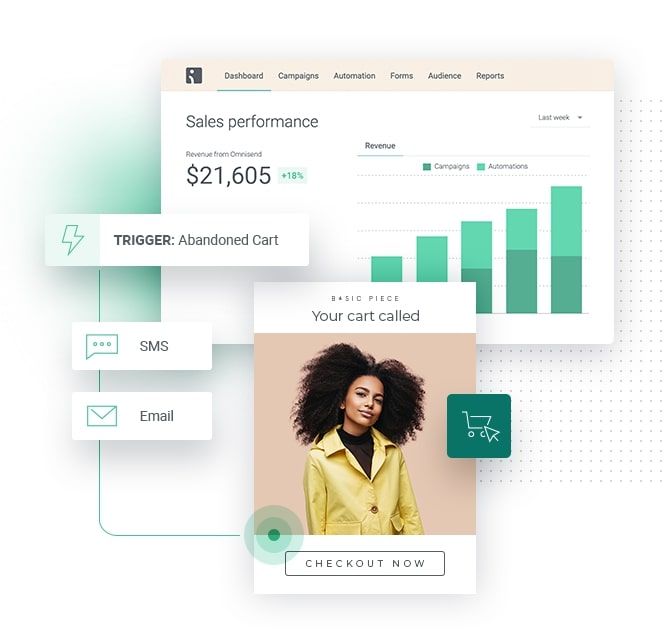
Omnisend is an email and multichannel marketing platform with a dashboard for campaign and subscriber results. Putting its key numbers on a screen helps a marketing team notice a campaign that is working, or one that is not, without opening the tool.
Key takeaways
The dashboard centers on campaign tracking, segmentation and subscriber insights.
Widgets can be arranged, so build a view of the few numbers the team acts on.
Fugo can sign in for you and refresh the view on a schedule.
Share reports by export if people need detail beyond what the screen shows.
What the Omnisend dashboard tracks
These are the key areas, with a note on why each belongs on a wall.
Campaign performance
Automated campaign tracking shows which sends are bringing results, in one place.
Subscriber insights
Detailed subscriber data shows how the list is growing and who engages.
Segmentation and targeting
Segment results show whether the right audiences are responding.
Multi-channel campaigns
Results across channels sit together, so a team sees the full picture of a launch.
A/B tests
Test outcomes are worth displaying while a decision is still open.
Who watches the screen
| Role | What to put on the screen |
|---|---|
| Digital marketers | Open and click performance for the campaigns running today. |
| E-commerce teams | Campaign-driven orders, next to the shop’s own sales view. |
| Agency teams | One focused view per client, rotated through a playlist. |
| Marketing leads | The few results that show whether the strategy is working. |
Put Omnisend on a screen with Fugo
- 1
Arrange the dashboard widgets
Use Omnisend’s customizable widgets to keep only the metrics the team reviews daily, and remove everything else.
- 2
Connect it to Fugo
Add the Omnisend page in Fugo and enter the sign-in details. Fugo stores the credentials encrypted and signs in on your behalf, and it can generate the one-time codes if the account uses two-factor authentication.
- 3
Crop and position the view
In Design Studio, crop the page to the charts that matter and set the scroll position, so the screen shows data rather than menus and toolbars.
- 4
Set the refresh interval
Choose how often Fugo loads a fresh view, from every few minutes to a few times a day. The screen shows a regularly refreshed snapshot, not a live video feed.
- 5
Add it to a playlist
Put the dashboard in a playlist, set how long it stays visible, and rotate it with other dashboards if the screen is shared. Then assign the playlist to the screens that need it.
Rotate rather than crowd
If more than one view matters, put them in a playlist and let each stay up for a set time. Two readable screens beat one crowded one. For more layouts, see marketing dashboard displays.
Frequently asked questions
How do I reach the omnisend dashboard?
Can I change the layout?
How do I share reports with my team?
Similar dashboards
Other dashboard tools that work with Fugo

Google Analytics E-commerce
Track and analyze your online store's performance with Google Analytics E-commerce, offering insights into sales, conversion rates, and customer behavior.

Magento Business Intelligence
Gain actionable insights into your eCommerce performance with the Magento Business Intelligence dashboard, designed for data-driven decision-making.

Blackboard Analytics
Gain insights into student performance, course engagement, and institutional effectiveness with the comprehensive Blackboard Analytics dashboard.