





How Fugo works
Here's the whole solution at a glance: what Fugo is, how the platform fits together, and what you'll need to get your screens up and running.

What is Fugo?
Digital signage is simply content shown on TV screens - often updated in real time and used to display announcements, dashboards, menus, and marketing. Behind the scenes, it relies on software to manage the content, schedule it, and control the screens themselves. Fugo is that software layer, letting you do it all from your browser.
Get a demo
Not sure where to start?
Book a free demo session with our team - we'll talk through your goals, review your setup, and show you how Fugo can support what you're trying to build.
What you'll need
To get started with Fugo you'll need two things:
1. A screen
Either a smart Android TV or a regular TV paired with a media player or mini PC.
Compatible operating systems & devices
Don't have a screen yet? You can still test Fugo using our Chrome Extension player.
2. A laptop or PC
This is where you'll log into Fugo to upload content, manage playlists, and control your screens.
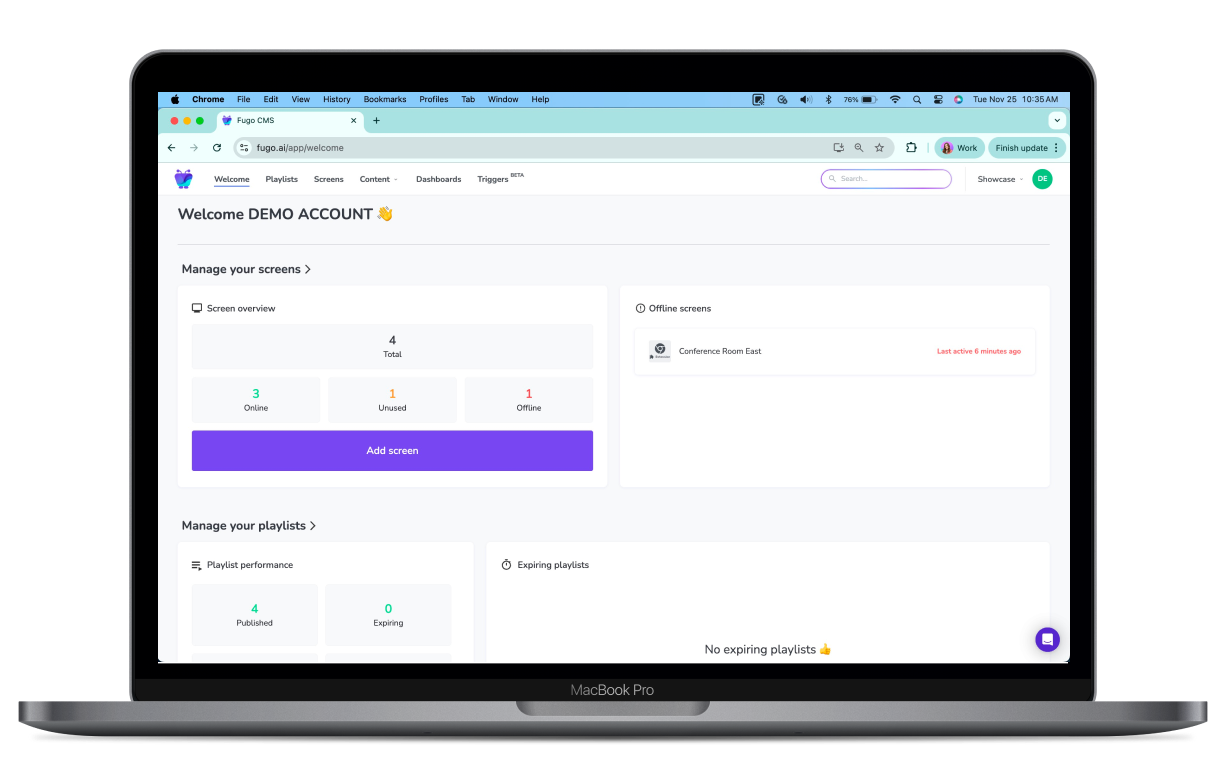
Step 1: Start a trial
Start with a free 14-day trial at fugo.ai/app
No credit card needed. You'll have full access to Fugo's apps and features throughout your trial.
Step 2: Install the Fugo app
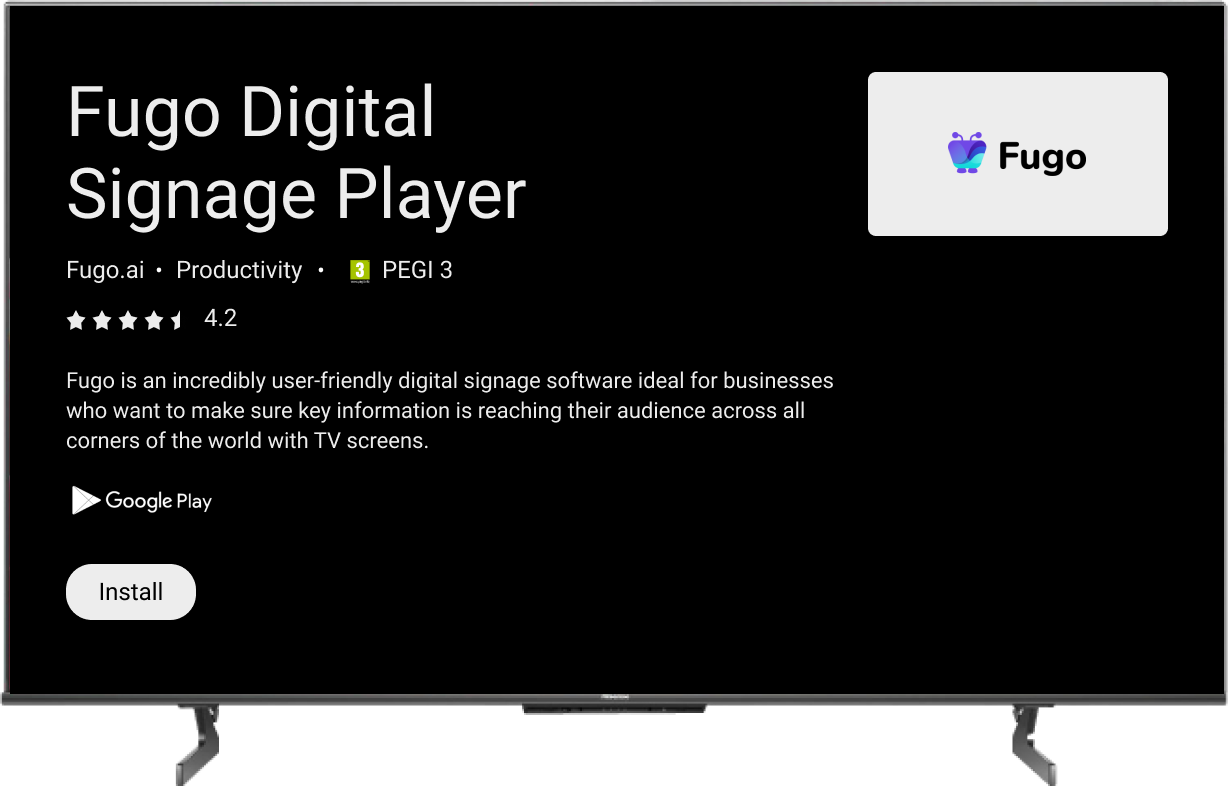
Install the Fugo Player app on your smart TV or the device connected to your screen.
You'll find Fugo in all major app stores, including:





Step 3: Pair your screen
With the Fugo app installed, the next step is to pair your screen with your Fugo account.
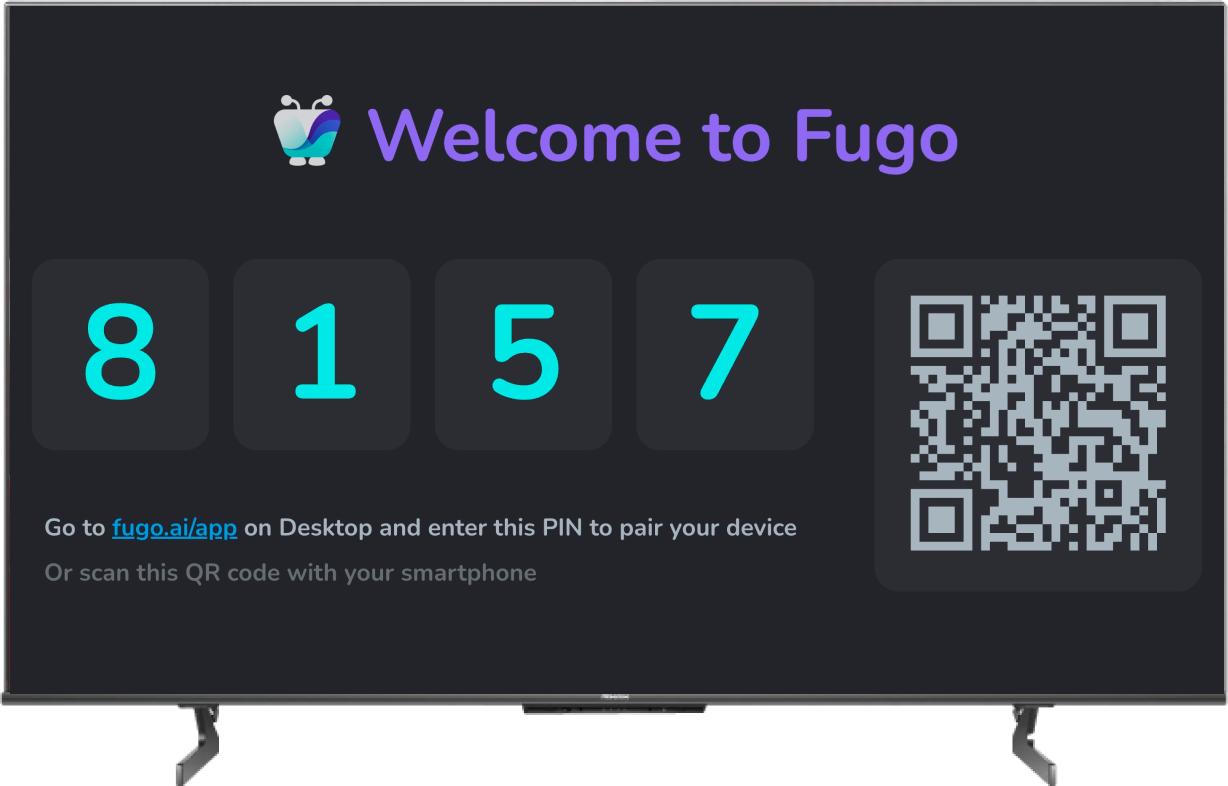
Get the PIN
When the app opens on your device, a pairing PIN will appear on your TV screen. This means your device is ready to connect.
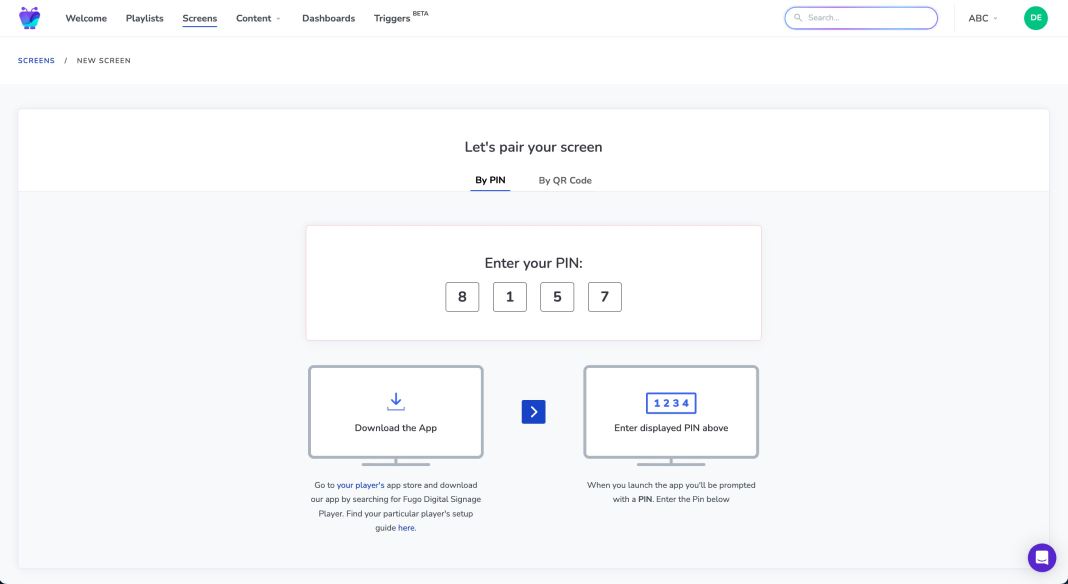
Enter the PIN
On your laptop or desktop, log into Fugo, create a new screen, and enter the pairing PIN.
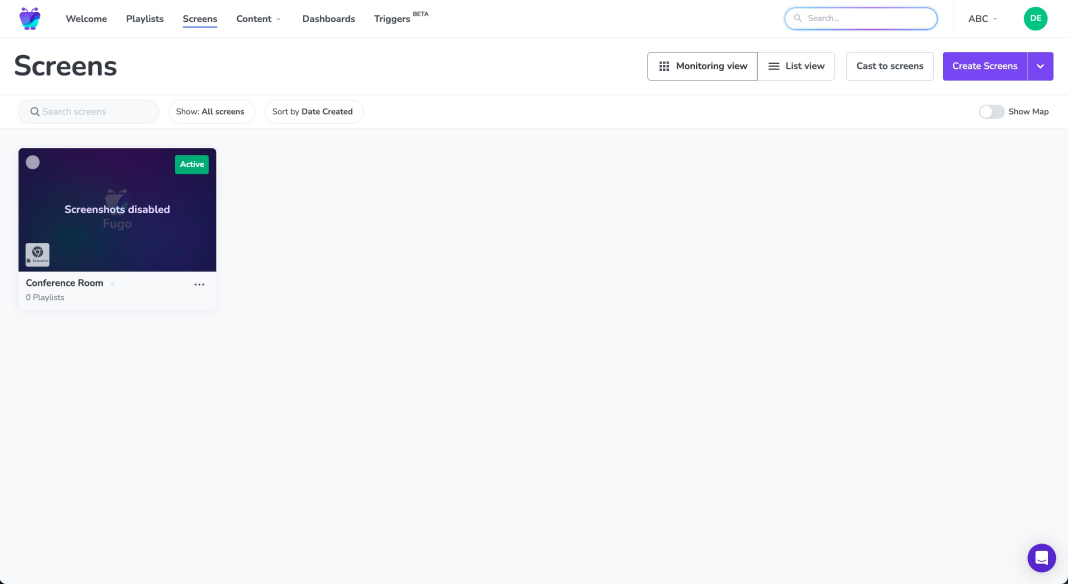
Once paired, the screen will appear in your dashboard and is ready for content.
Step 4: Publish your content
Playlists
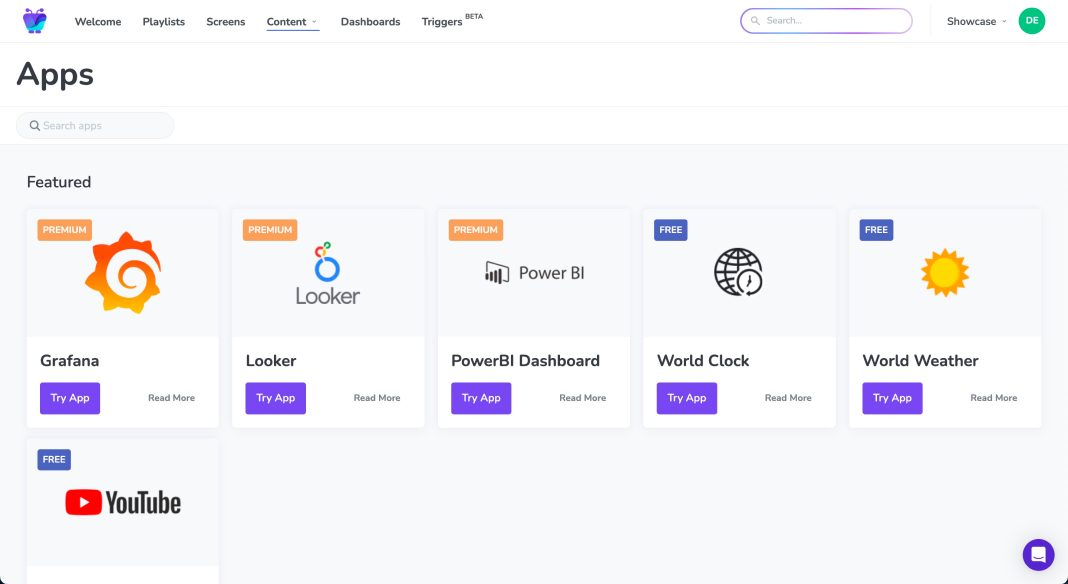
Playlists are your everyday delivery system - ideal for content that runs on a schedule or loops throughout the day. Set one up in three quick steps:
① Select your screens
Choose where this playlist should play - a single screen or an entire group.
② Add your content
Pick what you want to show: media, apps, dashboards, or Design Studio slides.
③ Set your schedule
Publish instantly or choose specific days and times for it to run.
Triggers
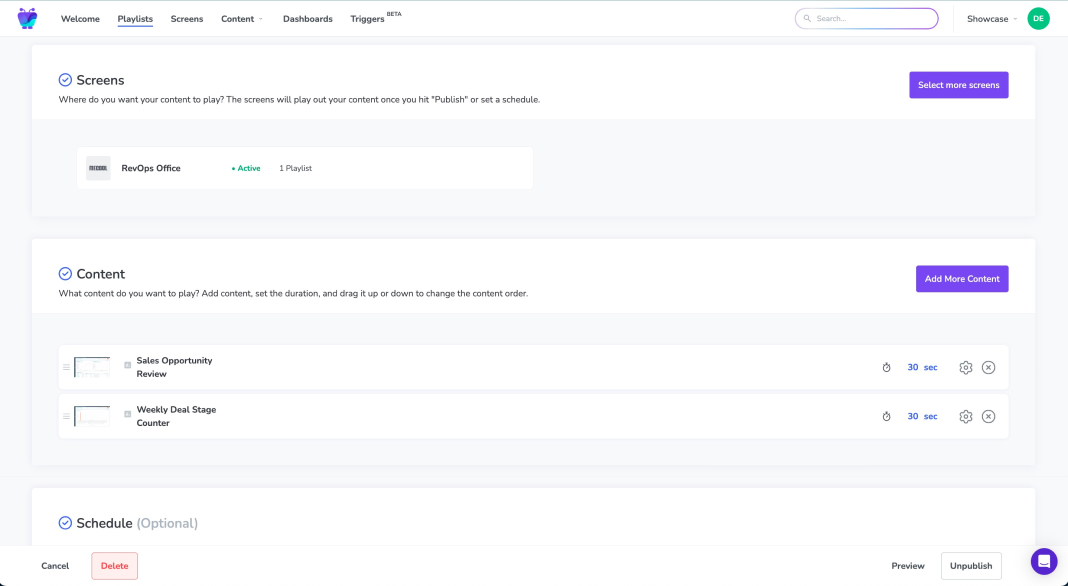
Triggers let your screens break out of the loop and react to real events in your business.
Connect Fugo to tools like HubSpot and set rules like:
"When a deal over $50K closes → play this celebration video."
Instead of waiting for your next scheduled update, content fires in real time, no manual publishing required.
Media
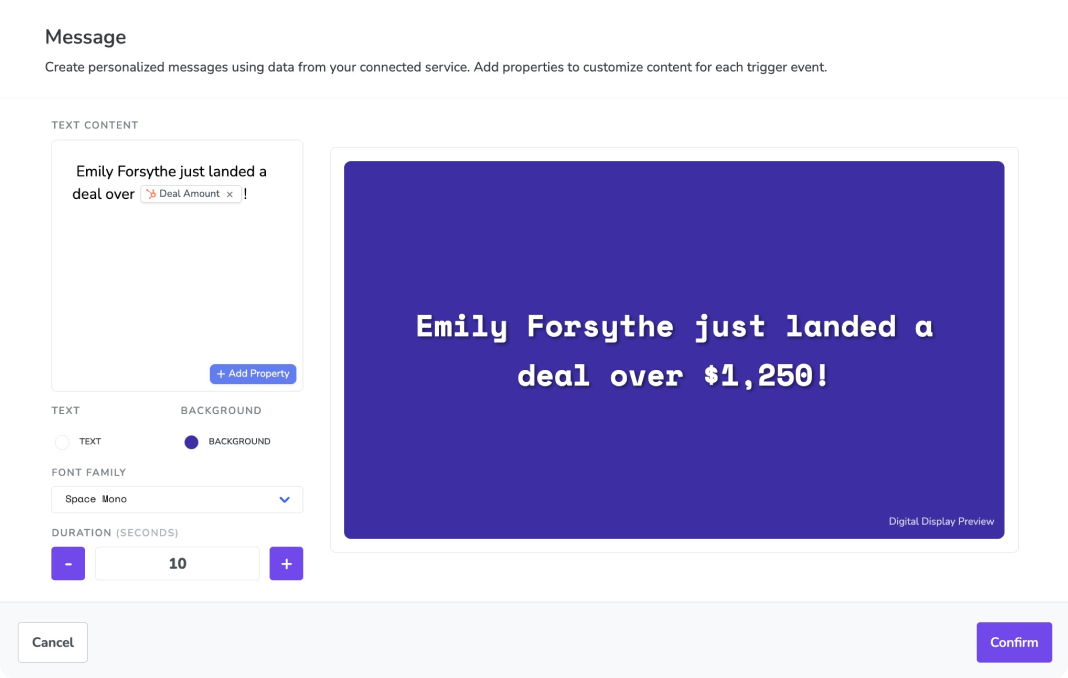
Upload your images, videos, PDFs, and presentations directly to your media library, or connect your existing tools like Canto, Google Drive, or Dropbox.
We'll handle the optimization so everything plays smoothly on your device.
Apps
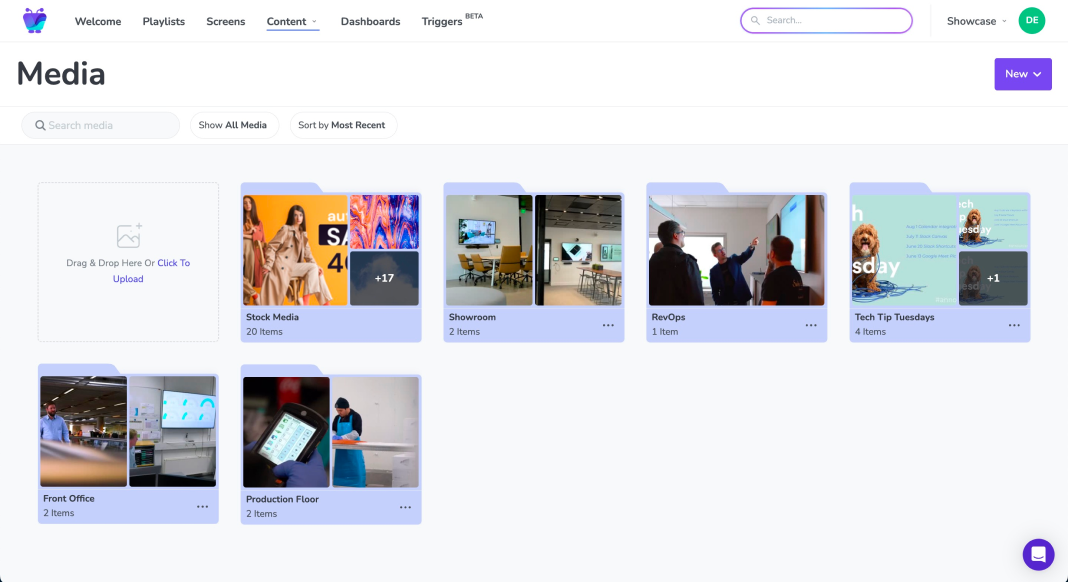
Bring live, always-up-to-date content to your screens using apps built to be TV-screen friendly.
Connect sources like Power BI, Grafana, Looker, Google Workspace apps, live streams, news feeds, or your social feeds to create clean, readable layouts that look great on large displays - all without manual updates.
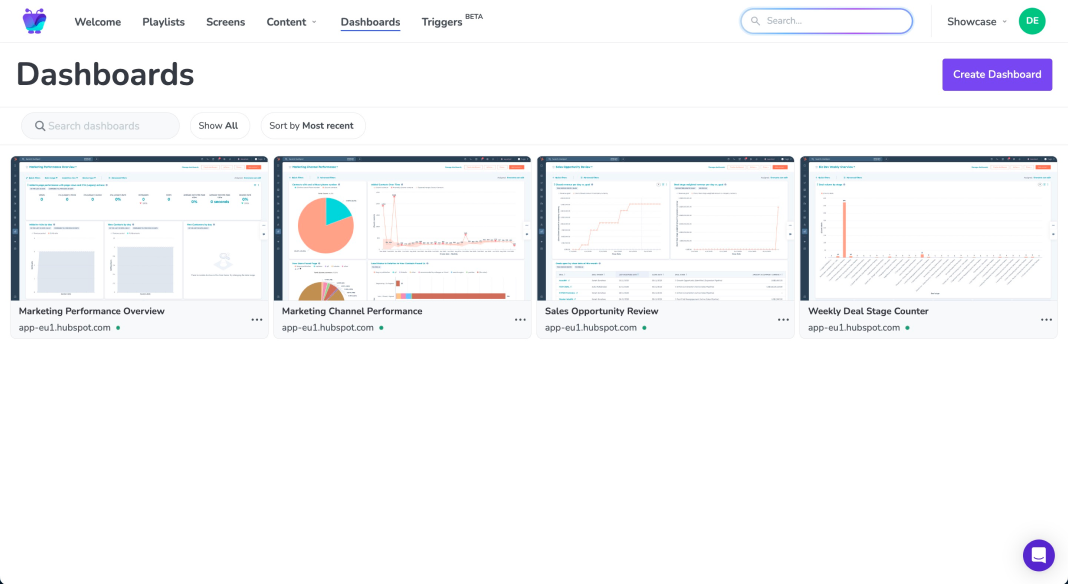
Dashboards & web links
Securely show dashboards, reports, or internal webpages that sit behind authentication.
Fugo supports platforms like Salesforce, Tableau, HubSpot, and many others - so your team can see key insights right on screen.
Design Studio
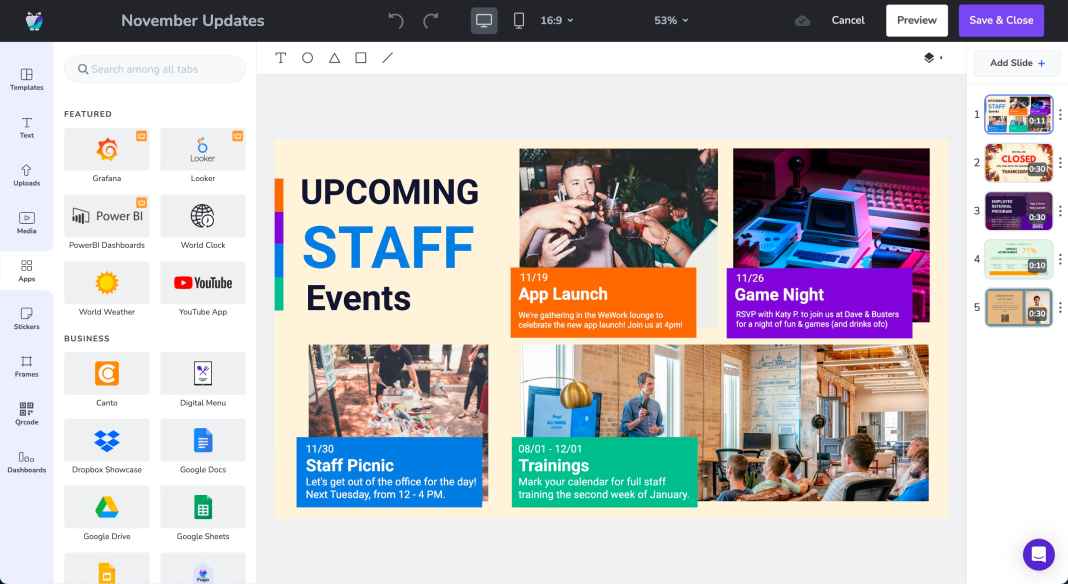
Use Fugo's Design Studio to build custom slides and layouts that combine media, text, apps, dashboards, and animations.
It's a flexible design tool made specifically for TV screens - no extra software required.
Screen control & monitoring
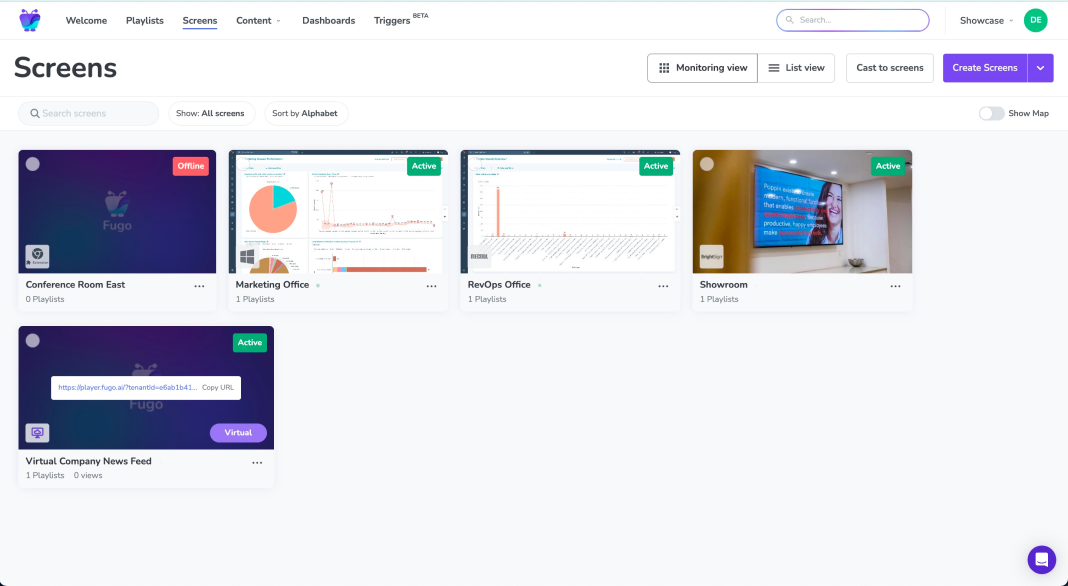
Monitor playback & status
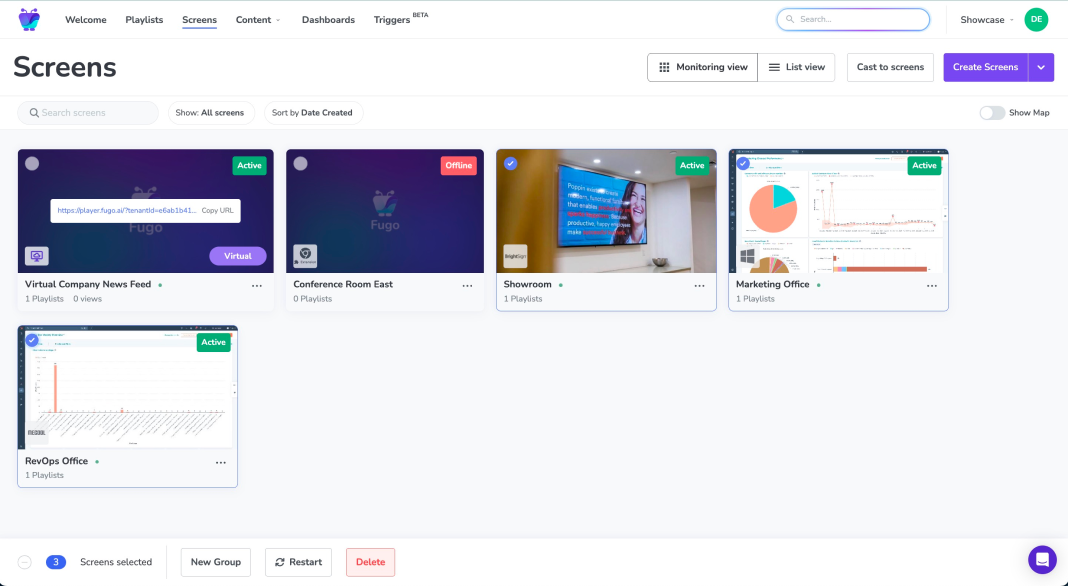
See a live preview of what's playing on each screen and check whether any devices have gone offline. It's an easy way to make sure everything is running smoothly, especially if you're managing screens remotely.
Manage screen settings
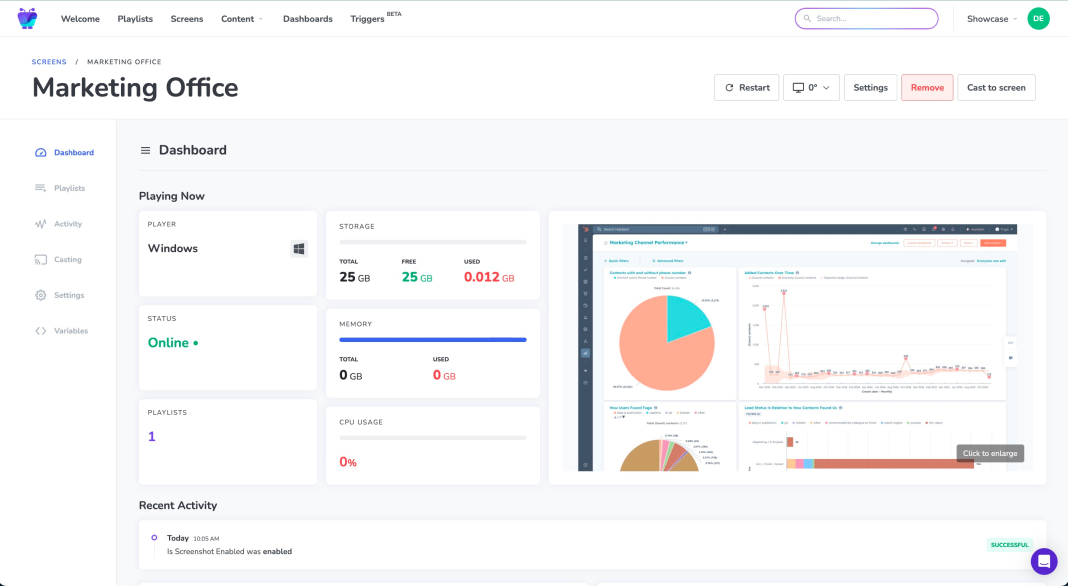
Control how your screens behave day-to-day.
Set the Fugo app to auto-start, adjust audio, enable kiosk mode, check device health, or set power schedules all from a central dashboard.
Take bulk actions
Group, tag, and sort screens to keep your network organized. You can publish content to multiple screens at once or remove screens you no longer need with a single bulk action.
User & workspace management
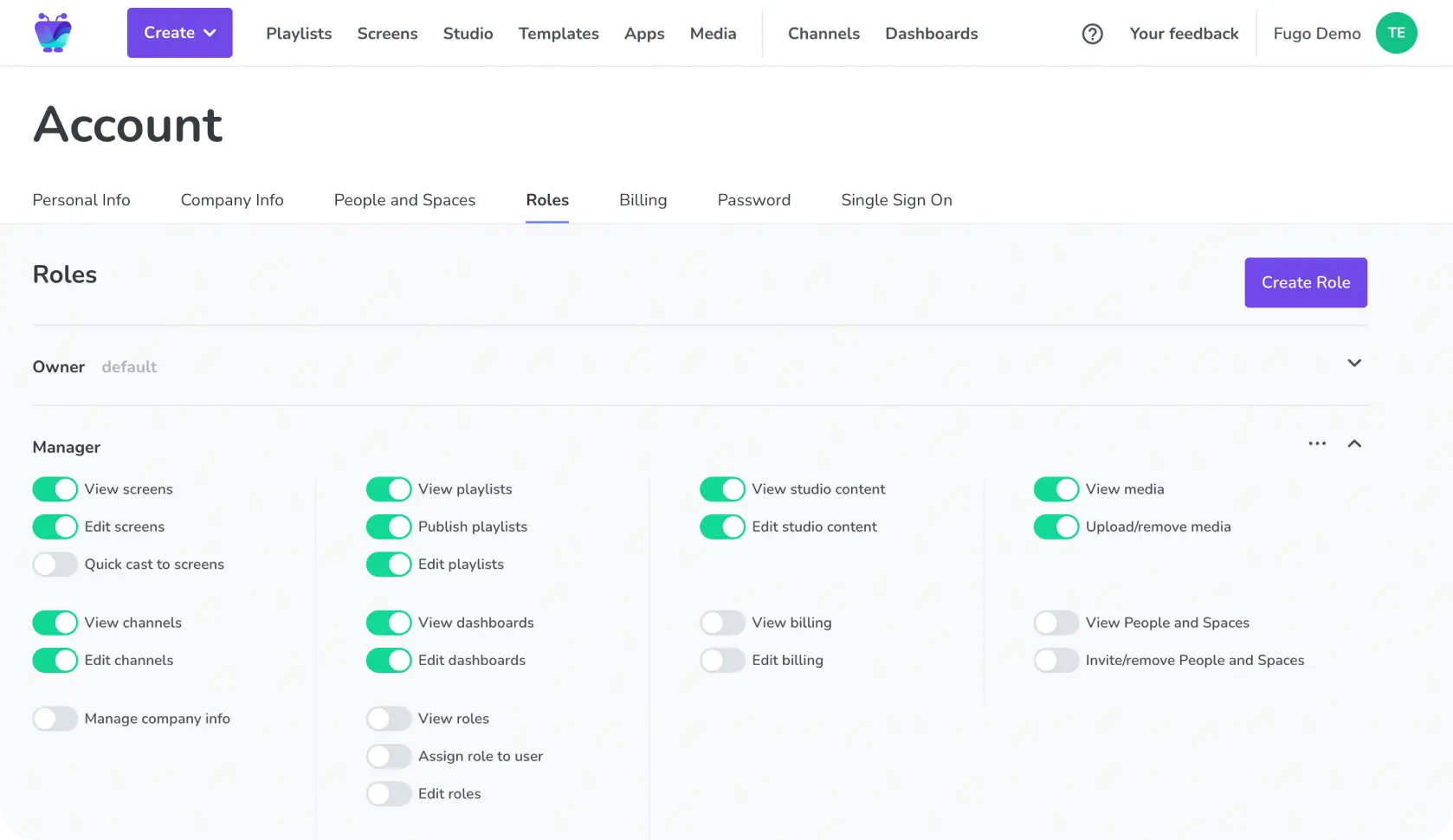
Invite colleagues or clients to work with you in Fugo. Assign them to the right workspace and choose the permissions they need.
There's no extra fee for adding users, so bring on as many as you like.
Advanced platform features
Screen casting
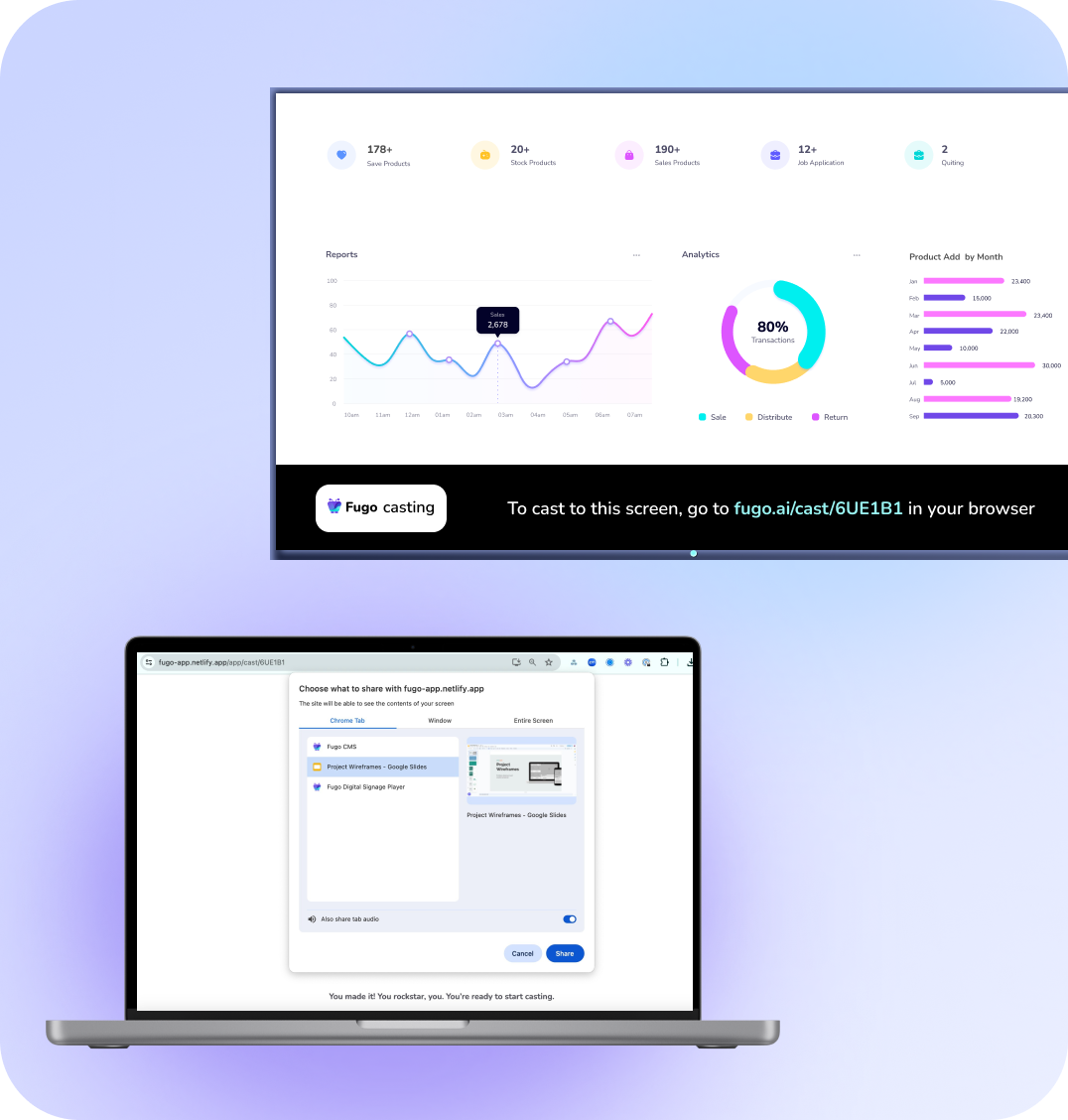
Need to use a screen for a meeting or presentation? Turn on casting to temporarily take over your display. You can cast directly from your device or show a casting link on screen so anyone nearby can connect.
When you're done, Fugo switches back to your scheduled content automatically.
Video walls
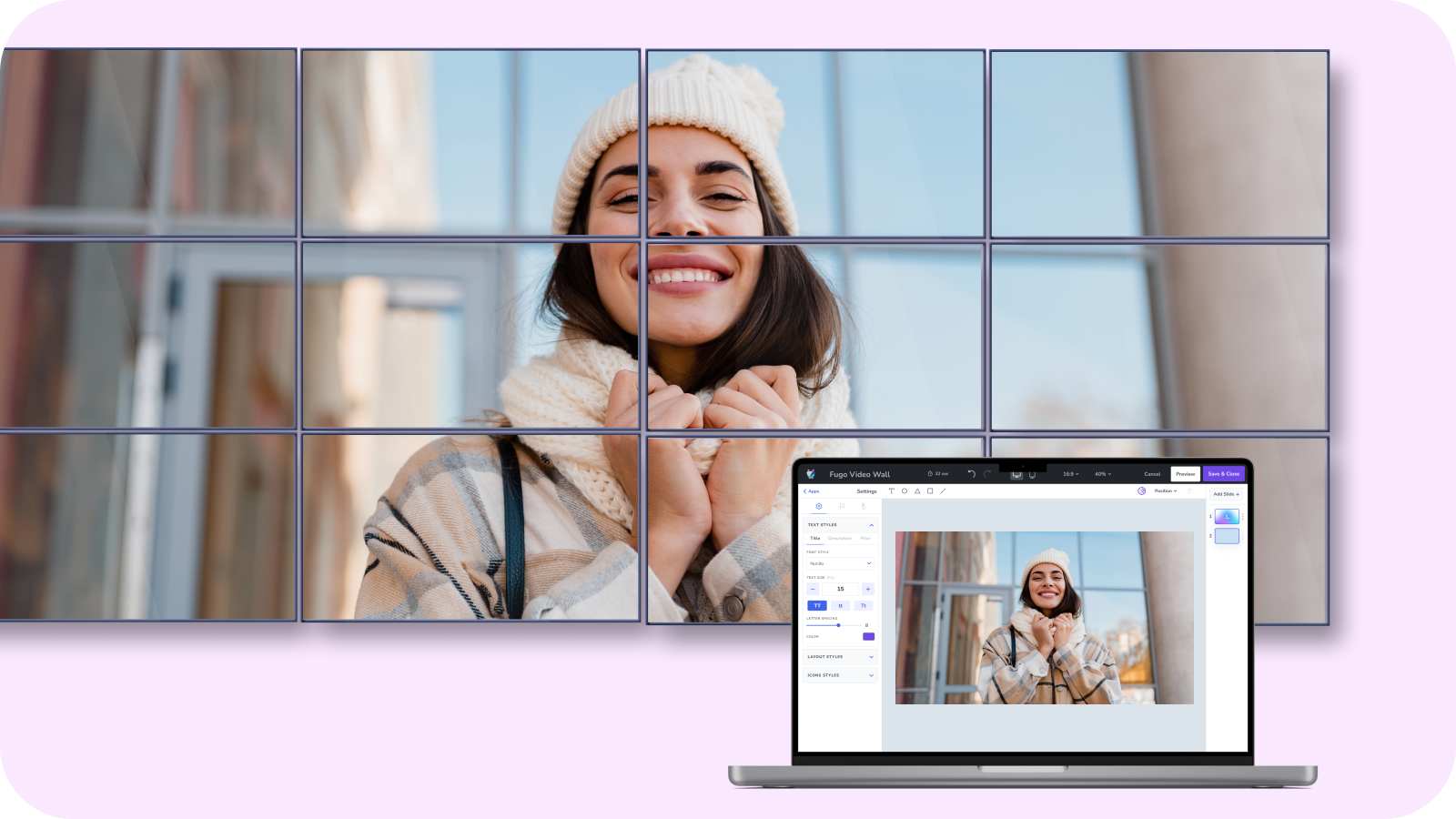
Build a canvas that aligns perfectly with your video wall's total resolution and grid configuration.
Fugo handles the scaling and layout so your content plays as a single, unified image across every screen in the wall.
Touch content
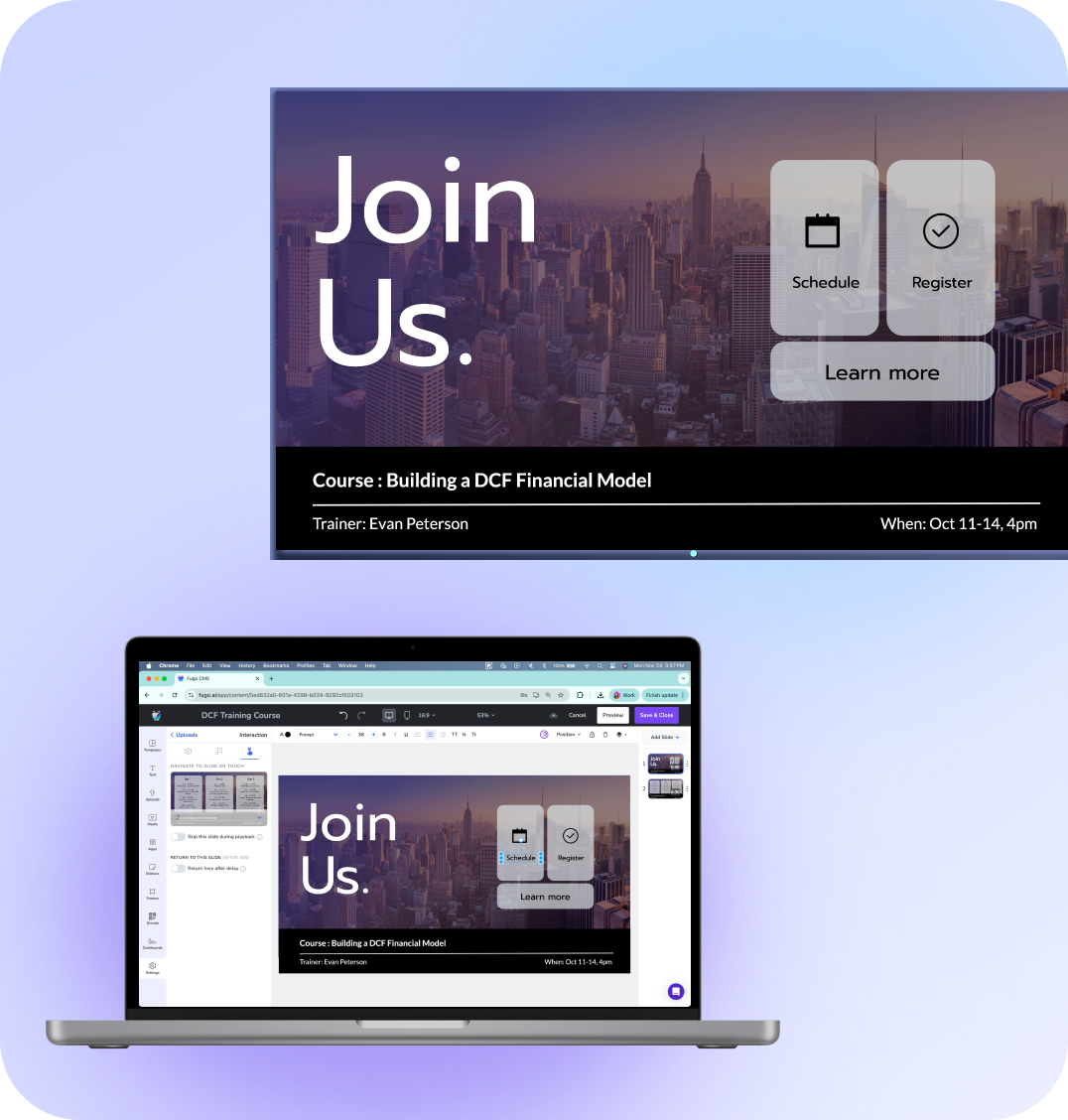
Fugo works on touch-enabled devices, letting people tap, scroll, and navigate your content in real time.
Run interactive websites, web apps, or Design Studio slides with touch actions - ideal for kiosks, visitor check-ins, product explorers, training screens, and other hands-on experiences.
Pricing
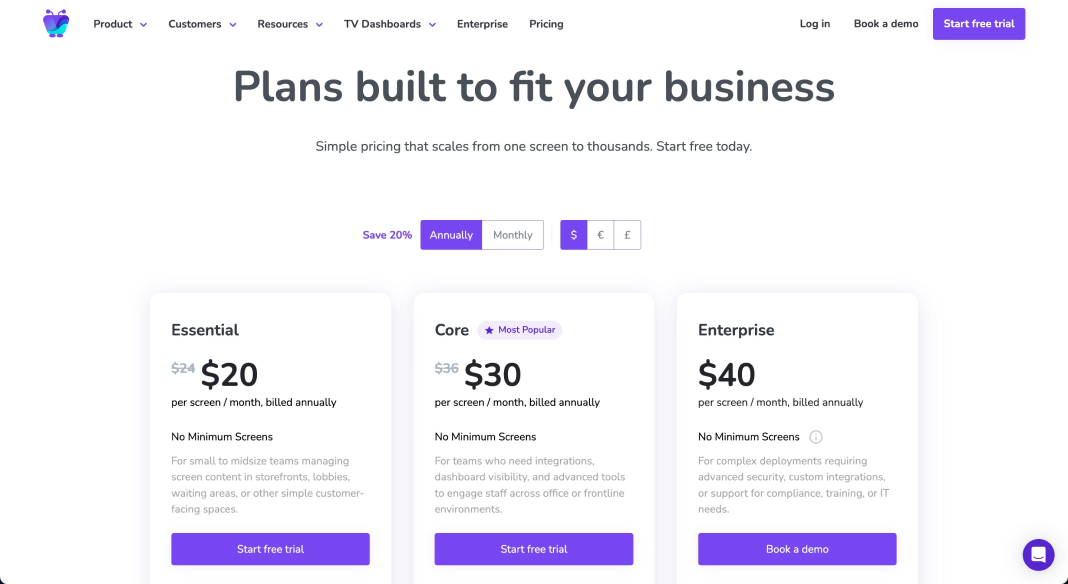
When you're ready to keep using Fugo after your trial, choose one of our three pricing tiers.
You'll pay per screen, billed monthly or annually - with savings if you choose yearly billing.
Get support
① Email us
Reach our team anytime for setup questions, troubleshooting, or general help at support@fugo.ai.
② Live chat
Open the chat box inside your Fugo account to message a real support teammate.
It's the quickest way to get help while you work.
③ Help center
Browse guides, tutorials, and troubleshooting articles for every part of Fugo - from hardware setup to dashboards.
④ YouTube
Watch walkthroughs, hardware reviews, and short setup videos to learn by example.
⑤ Blog
Get ideas for screen content, learn best practices, and see what's new in digital signage.
Contact us
FAQ
Digital signage refers to showing digital content on TV screens or displays - things like announcements, dashboards, menus, schedules, social feeds, and marketing messages.
Behind the scenes, most digital signage systems work the same way:
- You manage your content and playlists from a CMS (content management system).
- A player app installed on each screen or connected device downloads that content.
- The CMS and player stay in sync through the cloud, so screens update automatically.
This setup lets teams update screens remotely, schedule content, and monitor device status without touching the hardware.
Fugo is the cloud software that connects your content, your screens, and your devices into one manageable system.
It works through two parts:
- The Fugo CMS - the online platform where you upload content, build playlists, schedule publishing, add teammates, and monitor your screens.
- The Fugo player app - installed on your smart TV or media player, which receives and displays the content you publish.
The CMS and player stay connected through the cloud, so any changes you make in your browser (or desktop app) flow automatically to your screens, whether you're managing one display or a large network across multiple locations.
Fugo works with most modern smart TVs that run Android or Google TV, because those systems can install the Fugo player app directly.
It also works with certain professional signage displays that use a dedicated operating system built for digital signage - for example:
- Samsung Smart Signage Platform (SSSP)
- LG webOS Signage
These models include an extra software layer that regular retail Samsung or LG TVs don't have. Most consumer TVs (from any brand) lack this layer, which means they can't run digital signage apps natively.
If your screen doesn't have a compatible operating system, you can connect a small external media player or mini PC through HDMI. This player runs the Fugo app and acts as the bridge between your screen and the Fugo cloud CMS, giving any TV signage-ready capabilities.
Not necessarily.
Many smart TVs can run the Fugo app directly.
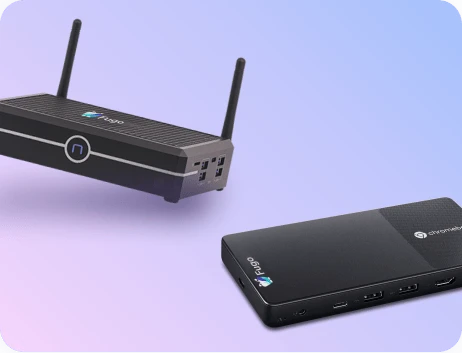
If your screen isn't compatible, adding a media player (like a Fugo NUC, Chromebox, Windows or Linux mini PC, Raspberry Pi, or Chromecast with Google TV) gives it the same capabilities.
Digital signage systems usually rely on a dedicated player so screens can stay in sync, pull down new content reliably, and report status back to the CMS.
No. Fugo players (like the Fugo NUC or Fugo Chromebox) are not required, and they aren't bundled with your software subscription. You can use any compatible smart TV or attach a third-party media player through HDMI.
That said, we do recommend Fugo-branded players when possible.
Our team rigorously tests and vets these devices to make sure they deliver smooth playback, stable uptime, and reliable performance with the Fugo app, especially if you plan to display:
- Data-heavy dashboards
- Query-intensive reporting tools
- High-resolution or graphics-rich content
- Multi-source layouts
- Always-on screens
If you'd prefer plug-and-play reliability and the assurance that your device is tested specifically for our platform, a Fugo player is the safest choice. But they're always optional.
Digital signage platforms typically support media files, live data, and integrations - and Fugo covers all of those.
You can show images, videos, PDFs, dashboards, live metrics, Google Slides, social feeds, HTML embeds, or custom slides you design in Fugo's Design Studio.
All content is optimized automatically for TV-screen playback.
Just log into your Fugo dashboard, edit your playlist or swap out your media, and publish your changes - your screens will update automatically without you needing to touch the device.
If you're using connected apps (like Dropbox, Google Drive, Canto, Google Calendar, social feeds, etc.), those sources update automatically whenever new files or data appear in the linked folder or feed, as long as the screen has an internet connection.
Your screens will keep playing previously-published content even if the device loses internet temporarily.
A connection is needed for new updates or schedule changes.
Yes - and there are two different ways Fugo handles dashboards depending on the platform you use.
1. Native integrations (Power BI, Grafana Cloud, Looker)
These platforms connect directly to Fugo through an API-based integration.
Your dashboards load as live data feeds, optimized for TV screens, without requiring a browser session or screenshot automation. This is the most performant option for users of these tools.
2. All other dashboard platforms (Salesforce, HubSpot, Tableau, Jira, Zendesk, etc.)
These are displayed using Fugo's Dashboards feature suite
Here's how it works, in simple terms:
- You sign in once using your normal login (email/password, SSO, or 2FA).
- Fugo securely authenticates through an encrypted cloud session - your screens never store login details.
- Fugo loads the page in a private cloud browser, takes a secure screenshot, and sends that image to your screen.
- The screenshot refreshes automatically on a schedule (e.g., every hour by default).
This lets you safely display password-protected or SSO-only URLs without exposing credentials on the device.
Both methods let you show real-time business data. The difference is just how the data reaches the screen.
Yes, you can use dashboards during your trial, but they're enabled after a quick demo call with our team.
Because dashboards involve secure authentication (SSO, 2FA, secret keys, and access to internal tools), we walk you through what's required before turning the feature on.
Once dashboards are enabled, you can test:
- Cloud-hosted dashboards, which load and refresh through Fugo's secure cloud environment
- On-premise dashboards, which load and process entirely inside your own network on a local Windows server
- Player-local dashboards, which load and process directly on a Windows player device within your local network
If you want dashboards activated, just request it from inside your account or email sales@fugo.ai - we'll get you set up quickly.
Yes. You can add unlimited teammates, assign permissions, and manage shared workspaces. There's no extra fee for additional users.
Yes. Fugo has no minimum screen requirement. You can use it for a single display, a small office setup, or an entire multi-location network.
Every account also comes with one free test screen you can use for the duration of your subscription. It runs with a small Fugo watermark, but it's fully functional and great for experimenting, training teammates, or testing new content before publishing it to your production screens.
Fugo is billed per screen per month (or per year at a discount).
We offer three plans with different features depending on what you need:
- Essential: $24/month
- Core: $36/month
- Enterprise: $40/month (billed annually)
Yes, if you're rolling out a larger network of screens or have specific operational requirements, our team can offer volume-based pricing. Reach out to sales@fugo.ai to discuss your deployment and get a tailored quote.
Yes. Every customer can access Fugo's standard set of security documents - including our SOC 2 report, DPA, BCP, and InfoSec policies - to support typical vendor evaluations.
For Enterprise customers, we can also assist with deeper procurement and compliance workflows. This includes completing custom security questionnaires, supporting technical due-diligence calls, and helping your internal teams assess Fugo for complex environments.
If your organization requires this level of review, contact sales@fugo.ai to share your requirements & see how we can help.
Yes, for customers who need integrations or workflows not available out of the box, we can scope custom development or deployment support. These are handled case-by-case, so email sales@fugo.ai to tell us what you need.
Of course. You can book a discovery call and product demo with our team to talk through your goals, tech setup, and pricing options before you start a trial or upgrade.
Yes! Our team is here to help. We provide support during UK business hours (8:00 am–6:00 pm London time), with distributed team members who may be able to pick up conversations outside those hours.
We aim to respond to all inquiries within 24 hours, with faster response times for Enterprise customers who have priority support.
You can reach us via email or in-app chat, or explore our self-serve resources anytime:
- Help Center - step-by-step guides for every feature
- YouTube - walkthroughs, tutorials, and hardware reviews
- Blog - ideas, tips, and inspiration for using your screens
- What's New — real-time feature releases, fixes, and product updates