






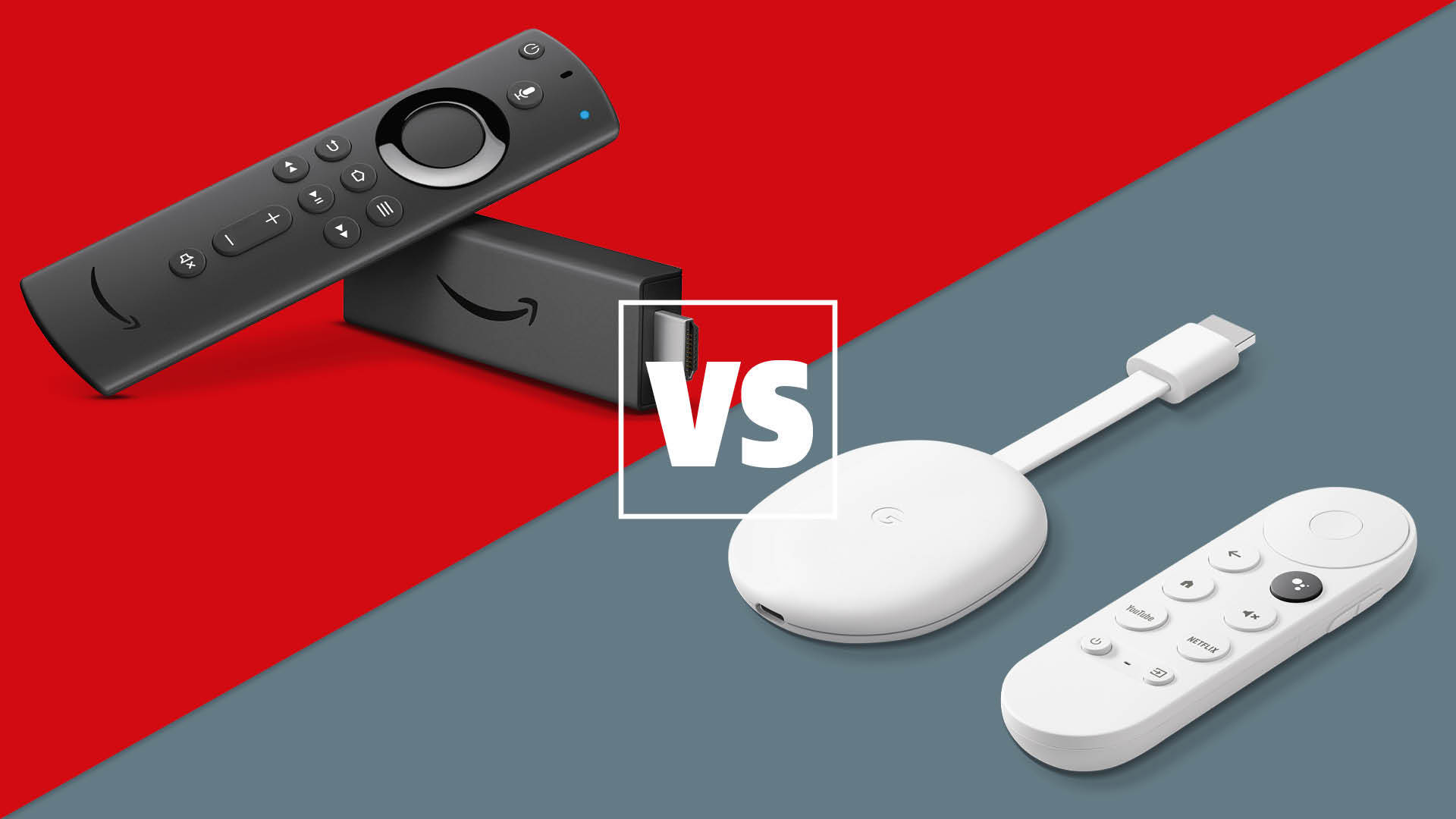
If you want to set up a digital signage program, you’re going to need a media player. You’ve likely considered both Amazon Fire Stick and Google Chromecast, which are two of the most popular streaming devices for consumer use.
But media streaming devices weren’t originally designed for professional signage. Once you move beyond a handful of TVs, you’ll need to start worrying about device management, reliability, remote updates, and other details.
You’re busy, so to save you time, this guide compares Chromecast vs Fire Stick models in a digital signage context. You’ll learn how each device matches up, where the limitations are, and how to think about trade-offs if you’re planning to scale beyond a few screens.
First: why consider Chromecast and Fire Stick for digital signage in the first place?
I won’t lie to you: these definitely aren’t what you’d call ‘preferred’ devices. But they still show up in many digital signage conversations where time, scale, and budget is on the line.
For one thing, both Chromecast and the Fire Stick are cheap, widely available hardware. They’re easy to plug into almost any TV. Plus, there’s a very good chance you already have one of these at home, so it will only take a few minutes to get up and running.
You can use Chromecast and Fire Stick devices to set up low-cost signage pilots, as well as very small deployments. But again: streaming devices are generally designed for content consumption, not screen fleet management.
So, proceed at your own risk.
Amazon Fire TV Stick and Google Chromecast: models, prices, and tiers
Before we jump into specifics, let’s define what we’re comparing.
There are dozens of Fire Stick and Chromecast models on the market, and comparing each and every one simply isn’t feasible (both in terms of time or your sanity).
So we used the following process to narrow down this comparison’s selection:
- First, we looked at the highest-selling and most popular streaming device from each provider. The highest-selling Fire Stick model is the Amazon Fire TV Stick 4K PLUS. The highest-selling Chromecast model is the Google Chromecast with Google TV.
- Next, we’re investigating these streaming devices with corporate signage in mind. So we’re also going to include the ‘beefiest’ Fire TV stick currently available: the Fire TV Stick 4K Max. You can learn more about Fire Stick models here.
- We should also note that Google Chromecast is getting discontinued as of August 2024. With this in mind, we should also focus on the next generation of streaming media devices: the Google TV Streamer.
So in this article, we’re looking at the following models:
- Amazon Fire TV Stick 4K
- Amazon Fire TV Stick 4K Plus
- Google Chromecast with Google TV
- Google TV Streamer
Here’s a quick breakdown of all four so you get a better idea of how they match up:
Chromecast for digital signage
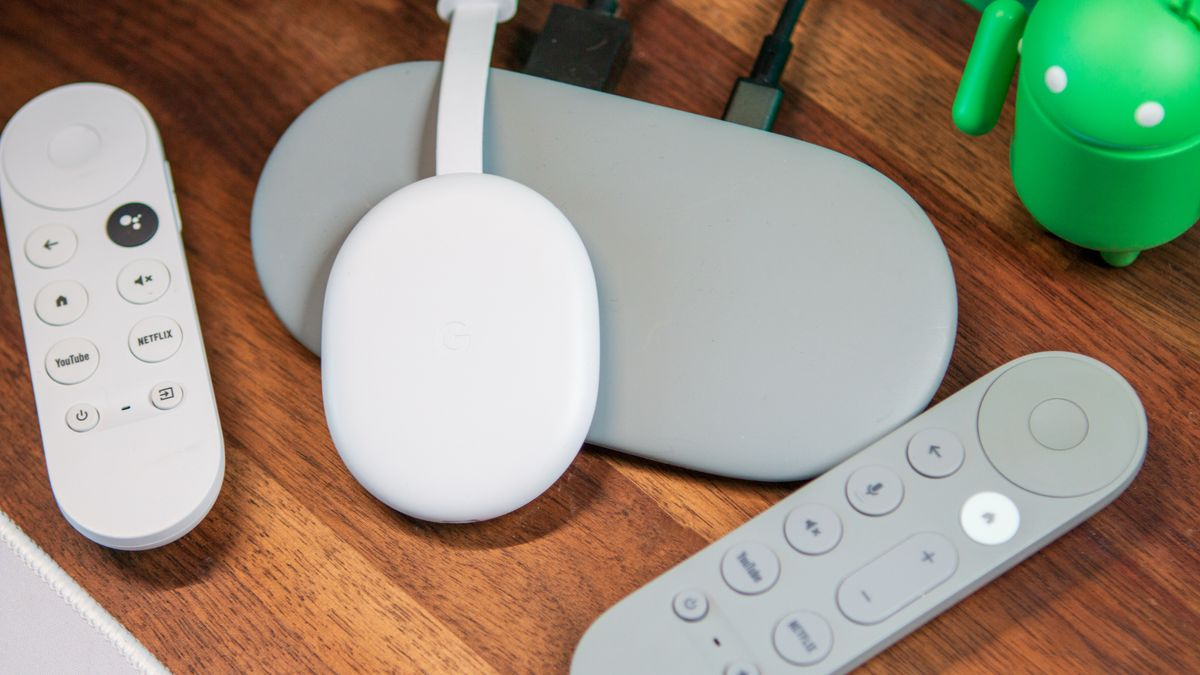
Chromecast easily connects to almost any display with an HDMI port. This offers a simple, no-fuss way to turn a standard start TV into a network-connected display.
How Chromecast for digital signage works
Both the Google TV Streamer and Chromecast with Google TV run on Android, which means you can install and run signage player apps directly on the device. Then, you connect with platforms like Fugo with a dedicated player app that connects the screen to a cloud dashboard. This allows teams to schedule and update content remotely.
Instead of casting content from another device, the Chromecast acts as a small media player that pulls playlists and updates over the network. You can also run individual screens independently while still centrally managing them from an app in your Chrome browser. All you need is an internet connection to make updates, playlists, and layouts.
Pros and cons of Chromecast for digital sigange
Pros
- Simple deployments and easy app installation. The average Chromecast or Google TV Streamer takes just 30 minutes to install and get going. All you nede is a smart TV, a physical remote, and a Fugo subscription to get started. It also likely means your startup costs are lower than the average professional signage setup.
- Stable OS environment. Both Chromecast for Google TV and the Google TV Streamer rely on Android TV OS, which is well known for being both customizable and stable. It’s extremely well tested and rarely crashes unexpectedly. This means you can rest easy knowing your signage is getting seen.
- Ethernet support. The Google TV Streamer relies on both WiFi and Ethernet to power what you see on screen. That way, you can get a much stronger, more reliable digital signage TV experience compared to the average Chromecast device. Note that your older model Chromecast relies on WiFi only. Ethernet is only a possibility with the new Google TV Streamer.
- High local storage. The Google TV Streamer, for example, has 32 GB of storage space. Chromecast offers another 8 GB, even on older models. This lets you store a significant amount of local signage on these two streaming sticks.
Cons
- Not designed for enterprise fleet management. You can’t use your Google TV remote to magically power on and off dozens of devices. They’re also not designed to scale up quite as much as professional systems. Proceed at your own risk: or at least, with a very good digital signage CMS platform by your side.
- Some models rely heavily on network stability. You’re going to need a good internet connection to run Chromecast and Google TV Streamer devices. WiFi isn’t always enough for the highest quality playback. This might be something you can live with, but it’s still a consideration for your team.
- More expensive than Amazon Fire TV Sticks. Once in a blue moon, you’ll find Google TV deals you just can’t pass up. But more often than not, it’s the more expensive provider compared to Amazon. Older, used versions of the Chromecast are often less expensive, but there’s no way to predict the shelf life of such a device.
- Sunsetting Chromecast with Google TV. As mentioned earlier, Chromecast with Google TV has already entered its twilight years of support. It will still be available for purchase via secondary sites like eBay, but direct sales were discontinued on February 21, 2025. This means it won’t be receiving regular OS updates, and it may not be compatible with newer signage software. Keep in mind this could also pose a security risk. Keep in mind that Amazon has a much better track record of supporting its projects for long periods of time.
When to choose Chromecast for a digital signage operation
A Chromecast or Google TV Streamer for digital signage makes the most sense when you want to roll out basic signage across multiple screens. You’ll have fewer compatibility issues with signage apps. Plus, it works seamlessly with other elements of the Google ecosystem (which is excellent for teams already working with Chrome OS).
Fire Stick for digital signage
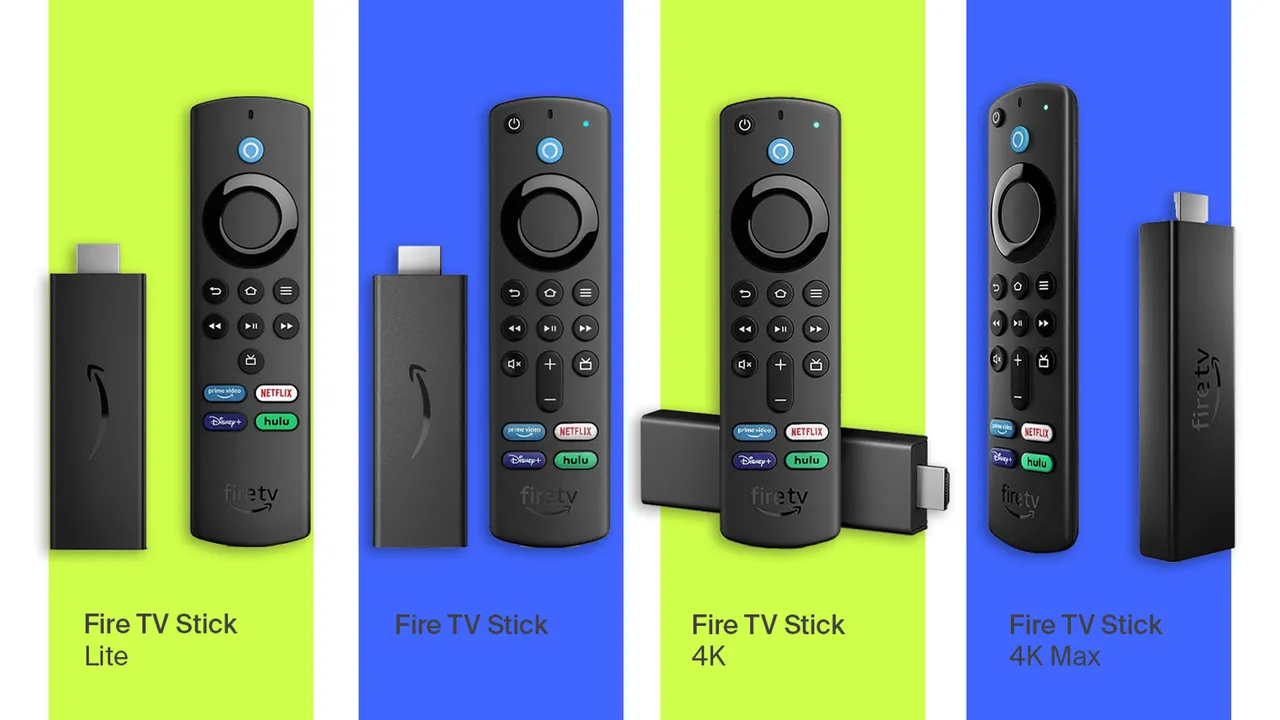
Similar to Chromecast, the Amazon Fire TV Stick plugs directly into your TV’s HDMI port. This turns any standard display into a connected screen. These devices are relatively inexpensive, widely available, and quick to set up. It’s a good option for early digital signage pilots or small deployments where cost and convenience matter more than buying quality.
How the Fire Stick works for digital signage
The Fire Stick 4K MAX runs Fire OS, which is Amazon’s version of Android. This allows your device to install and run certain apps directly on the hardware, including digital signage CMS platforms like Fugo. Now, your screen is connected to a cloud-based management platform that lets you cast content from supported apps.
With a platform like Fugo, for example, you just install the app on your Fire Stick and pair the device with your account. Once connected, the screen pulls playlists, media, and updates over the internet. Your team can now schedule and manage content remotely from any browser.
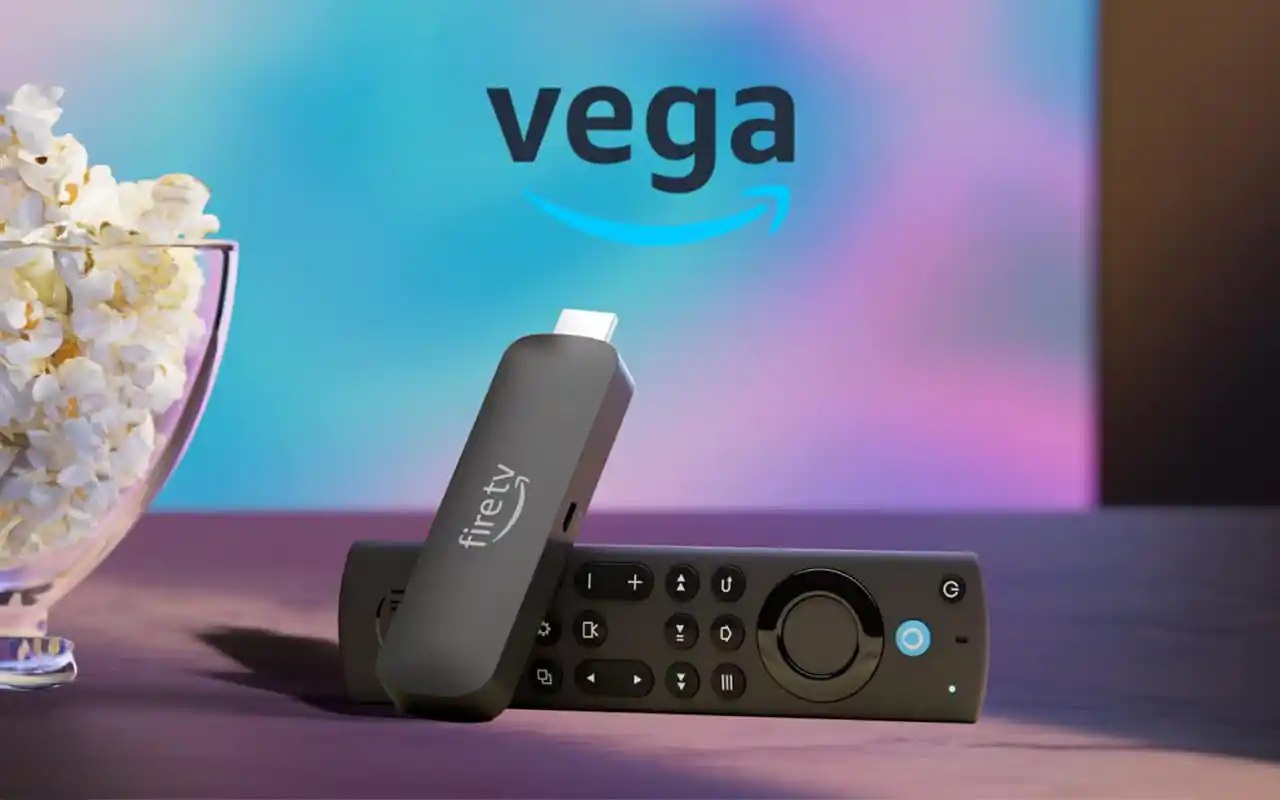
But you should know Amazon is moving away from Fire OS and migrating to Vega OS — which is not based on Android. This system was designed to be a fully Amazon-controlled platform with its own app ecosystem and developer framework.
This change doesn’t matter quite as much to home users of the Fire Stick. But for digital signage deployments, it can throw a pretty hefty wrench into your plans.
That’s because Fire OS is Android-based, so it can support Android apps like signage players with very little modification. But as Amazon moves more devices to Vega OS, existing Android signage apps may not run on those devices well (or even at all) unless they’re rebuilt for Vega specifically.
Any future devices built on Vega OS may require different app support or new integrations. This creates quite a bit of uncertainty for businesses planning long-term signage deployments. It also isn’t ideal if you’re looking to expand on Fire hardware — or want to get any return on your investment.
Pros and cons of the Fire Stick for signage
Pros
- Inexpensive hardware. Fire Sticks cost less than $50 to acquire, which is nearly 50% less compared to the Google TV Streamer. It also costs substantially less during sale days. You can check out our list of Black Friday deals to get ahead of the game.
- Easy to purchase in bulk. You can purchase up to seven units at once directly from Amazon. If you need more than that, you can create an Amazon Business account.
- Simple to set up for single screens. Fire Sticks are a truly plug-and-play option compared to other types of media players. So long as your TV and media player share the same WiFi, you should be able to get up and running in 15 minutes or less.
- Simple user interface. The Fire TV interface is extremely easy to navigate. That’s why it only takes minutes to set up your Fire Stick device with Fugo.
Cons
- Restrictions on your app ecosystem. Your Fire TV Stick lets you connect with dozens of platforms, from streaming apps like Amazon Prime Video to video aggregates like YouTube. But Fire Stick won’t let you download all the apps — Amazon blocks and restricts many tools that it deems unsafe for its system. This could dramatically limit your options for creating seamless integrations with digital signage apps. It also means your connectivity isn’t guaranteed. If Amazon decides it doesn’t like the apps you’re currently using, it might decide to block them (and thus, render them unusable).
- OS updates might break signage workflows. Vega OS, for example, isn’t supported by Fugo. That means you can’t use newer Fire TV Sticks to run signage, but Fire OS 8 and up is still compatible.
- High failure rate. Compared to other media players, the Fire TV Stick offers much worse performance. They typically don’t age as well and require lots of maintenance, which means they’re not recommended for deployments of 50+ screens.
- Less support for dynamic content. For example, our selected Fire Stick models currently don’t support HTML 5 video playback. That means you can’t create signage that has video and text overlay on the same screen.
- Single screens only. You can use Amazon Fire Sticks to create signage for one screen, but they’re not powerful enough to create setups like, say, video walls.
When to choose a Fire Stick for digital signage
The Amazon Fire Stick makes sense for single-screen signage operations. It can also be handy in a pinch when you need to set up temporary signage, like if you’re moving locations or creating a pop-up display. They’re technically more cost-effective than the Google TV Streamer, and easy to purchase in bulk via Amazon Prime.
Head-to-head summary: Fire Stick vs Chromecast
How do we summarize everything we’ve learned so far? With another handy chart!
Here’s how the Fire Stick vs Chromecast compare in terms of digital sigange deployments:
4 Questions to ask when choosing between Chromecast vs Fire Streaming Stick
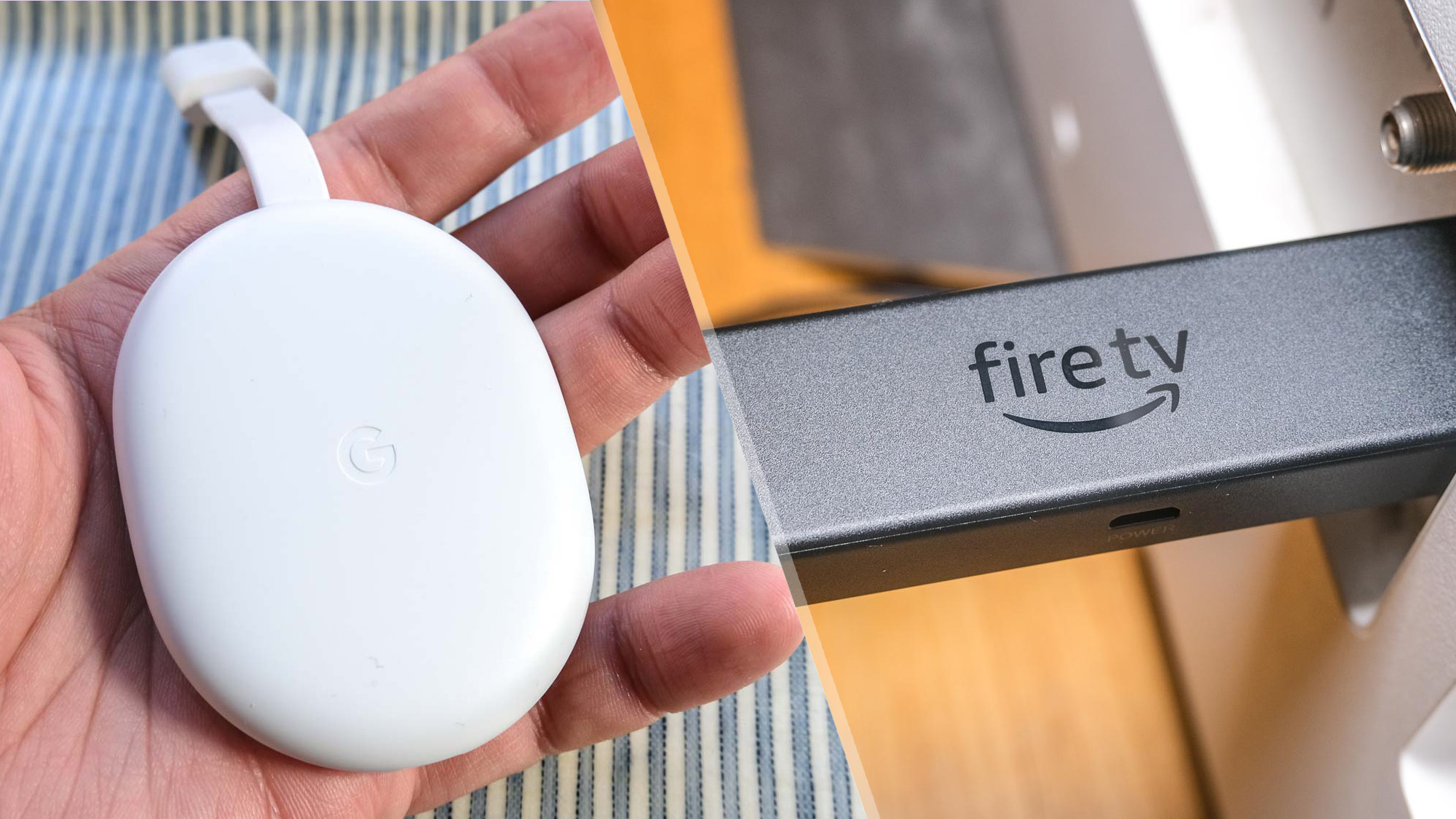
Before landing on the Chromecast or Fire Stick for your digital signage program, you should make sure it checks all your boxes.
The following criteria will help you identify what your signage needs from a player device:
1. What are my operational requirements?
Most streaming devices were designed for home entertainment, so their default behavior assumes you’re sitting on the couch with a remote control (or issuing voice commands via voice search). This can get frustrating fast if and when you can’t respond quickly. Suddenly, your device returns to the Google Home app, enters sleep mode, or puts ads up on your big screen.
You need media player devices that behave predictably. When your display powers on, it should launch your signage app automatically, then return to the correct playlist without someone navigating menus or reopening apps using a remote control.
2. Do I need remote device management?
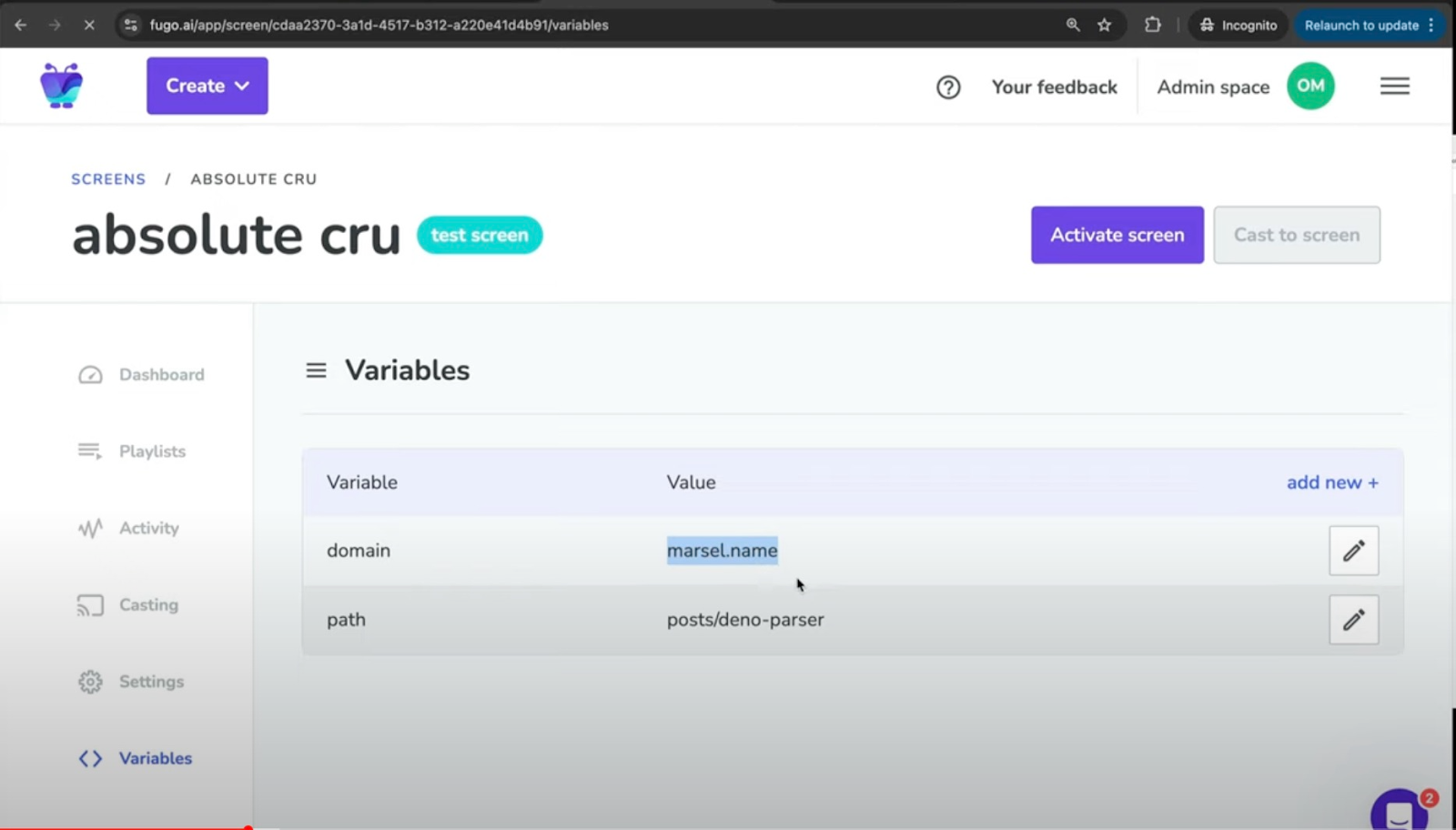
Got a single screen in an office? Plugging in a player and manually adjusting settings may be perfectly feasible. But once you get screens in tight or awkward places, or spread across multiple locations, this will be impractical at the very best.
Remote device management makes this more doable by helping you:
- Connect the device to your signage platform remotely
- Monitor whether screens are online
- Update playlists and layouts without touching the device
- Troubleshoot issues without visiting the location
Platforms like Fugo handle the content side of this through a cloud dashboard. You just need a player that’s compatible with our software (i.e., Android operating systems).
3. Security and permissions
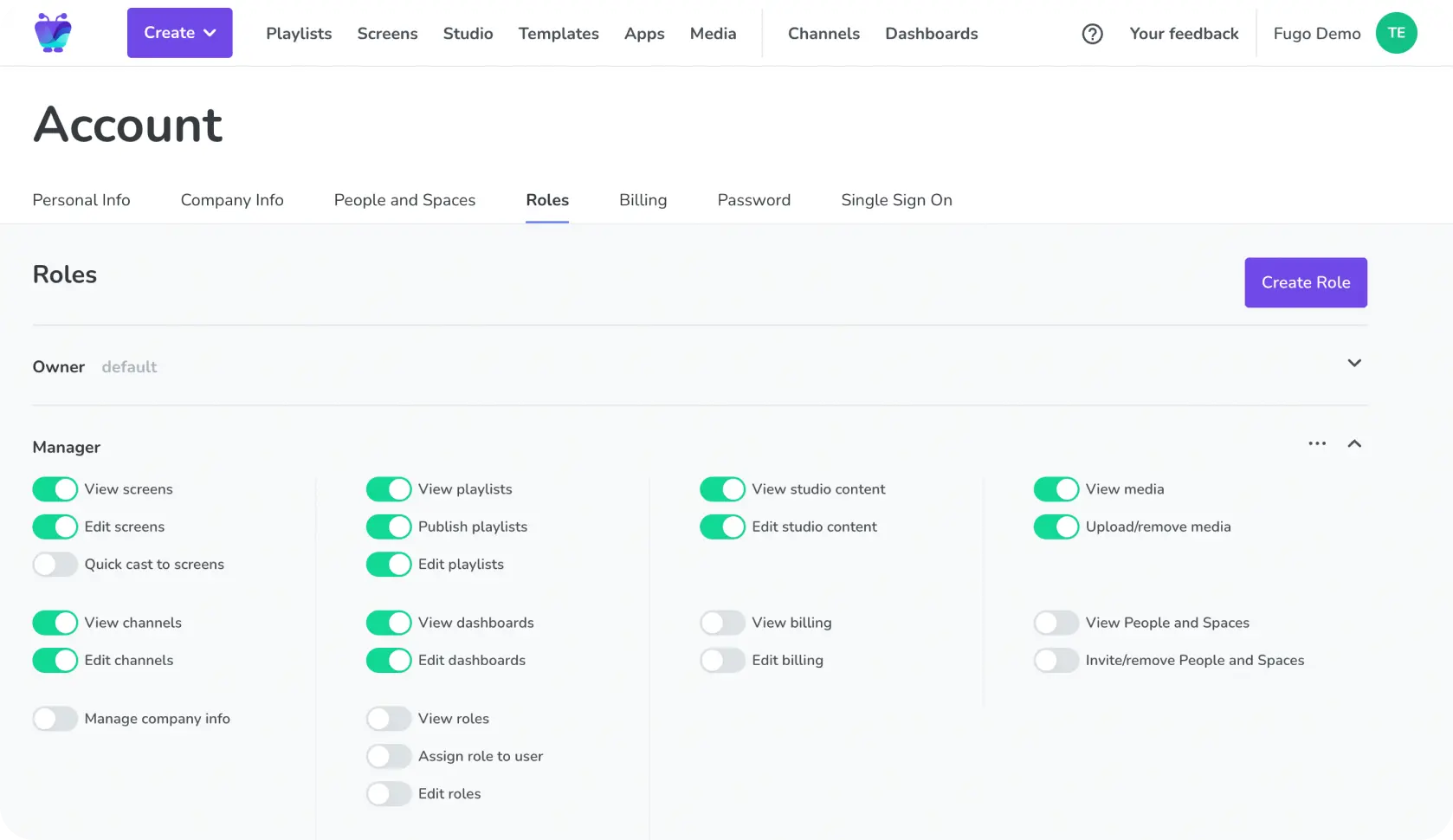
How secure is the device in question? Does it receive regular updates? And perhaps most importantly, what kind of apps can you run?
Some players allow you to access almost anything, while others come with limits and may not allow you to set up seamless integrations without jailbreaking the device first. Most Chromecast devices allow you to set up any kind of Android app. Others, like your Fire streaming stick, might not let you install apps it deems ‘unnecessary,’ including thighs you could readily download from Google Play.
4. Scalability
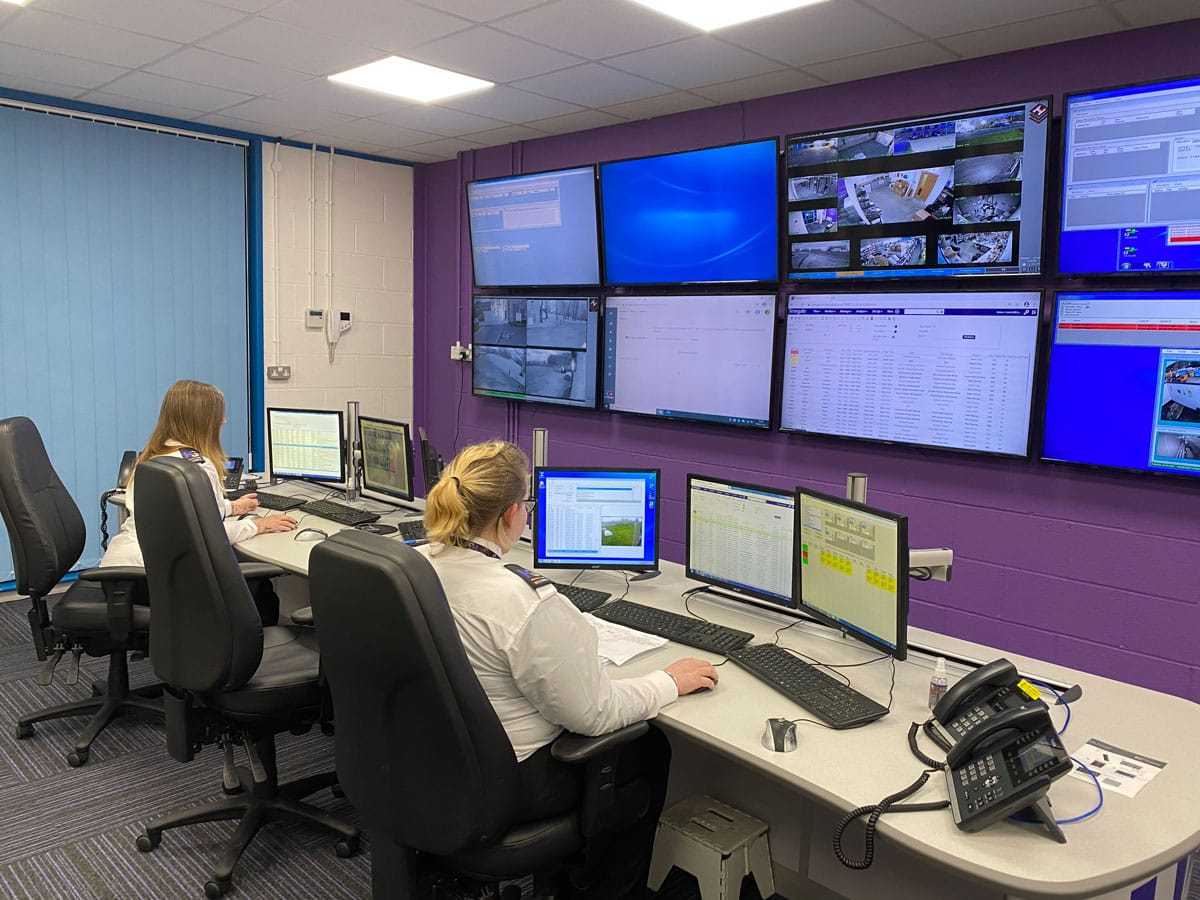
Finally, consider what happens when your signage setup grows. Because a media player that works perfectly for three or four screens may start to feel limiting once you deploy across multiple displays, rooms, or locations.
As you grow, you’ll want digital signage software and hardware that allows you to:
- Add new screens quickly
- Organize displays by location or department
- Keep devices consistently configured
- Monitor uptime across the network
Again, you’ll need to combine your streaming stick of choice with a cloud-based signage platform that lets you manage 10+ screens at a time.
The real scalability comes from how well your signage stick integrates with the system you’re using to manage your screens.
So: is Chromecast or Fire Stick better for digital signage?
Both of these devices can run digital signage. So a large piece of this discussion boils down to your own personal preferences. That said, an objective look at the specs table reveals that one of these media players heavily outperforms the other.
Chromecast and the Google TV Streamer offer a more stable and compatible option as you grow. This is the case whether you’re using a CMS like Fugo, or relying on other providers to support your signage efforts.
And while Amazon Fire TV Sticks can and are compatible with signage, they’re not recommended if you want the best possible experience. They’re more difficult to scale and may have much faster failure rates than their Chrome OS counterparts.
Don’t just take our word for it, though. Why not put both devices to the test? Fugo is compatible with Google Chromecast, Google TV Streamer, and the Amazon Fire TV Stick so you can pilot a signage program with any option you see fit.
The best part is, setup should take you less than 15 minutes per device.
Learn more about the devices and hardware compatible with Fugo.
Frequently asked questions about Chromecast vs Fire Stick
Q: Which one is better, Chromecast or Fire Stick?
That depends on what you’re trying to do with the device.
For home streaming, both the Amazon Firestick and Google Chromecast will meet most of your streaming needs. They both:
- Support major streaming services for home entertainment, like YouTube, Amazon Music, HBO Max, Apple TV, and Prime Video
- Stream content directly to your smart TV screen so long as you have good WiFi connection
- Support Dolby Atmos for a high-quality streaming experience
- Open apps from the Amazon Appstore or Google Play, like Google Photos or
- Compatible with Google Assistant or an Alexa integration (i.e., Alexa Voice Remotes)
- Plug directly into a TV’s HDMI port
- Costs roughly the same
In the context of digital signage, Chromecast with Google TV tends to be more reliable. The platform supports a wider range of Android apps and is natively compatible with signage software like Fugo.
An Amazon Fire TV Stick can still work for small or single-screen setups. But keep in mind that issues with compatibility and OS restrictions can make things less predictable as you add more screens.
In either case, you should start with one or both devices for a pilot run. For less than $100 and about 60 minutes of work, you can test both of these yourself and come to your own conclusion.
Q: What are the disadvantages of Chromecast?
Chromecast works well as a lightweight signage player, but it still comes with the limitations of a consumer streaming device.
Common drawbacks include:
- Limited device management tools, so it’s not compatible with fleets of business screens.
- Requires an extremely stable network connection (typically Ethernet) to stream content
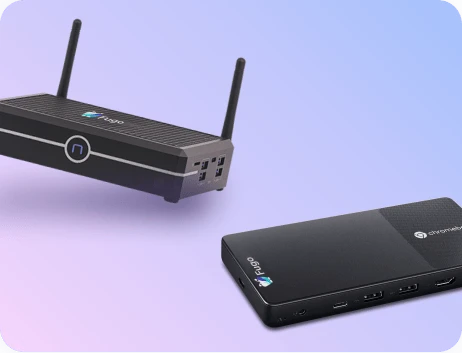
- Limited local storage compared to professional media players, like the Fugo Flash
- Consumer hardware lifecycle means that models change frequently, and long-term enterprise support isn’t guaranteed
Q: What is the best streaming device to add to a TV?
Again, the best consumer streaming device for digital signage depends on your unique needs. If you already rely on Android devices, Chromecast with Google TV or the Google TV Streamer is an obvious choice. But if you’re looking to save money and only need one or two screens for your business, the Fire Stick TV offers an easier entry point.
Q: What are the disadvantages of Fire Stick?
The Amazon Fire TV Stick is inexpensive and widely available, but can’t always keep up with business environments.
Be advised of drawbacks such as:
- App ecosystem restrictions, since Vera OS can limit compatibility with some apps
- Automatic system updates designed for consumer users can occasionally disrupt signage apps or require reconfiguration
- Advertising and consumer UI elements, since the Fire Stick interface was designed for media consumption, not business displays

