
ChromeOS digital signage software
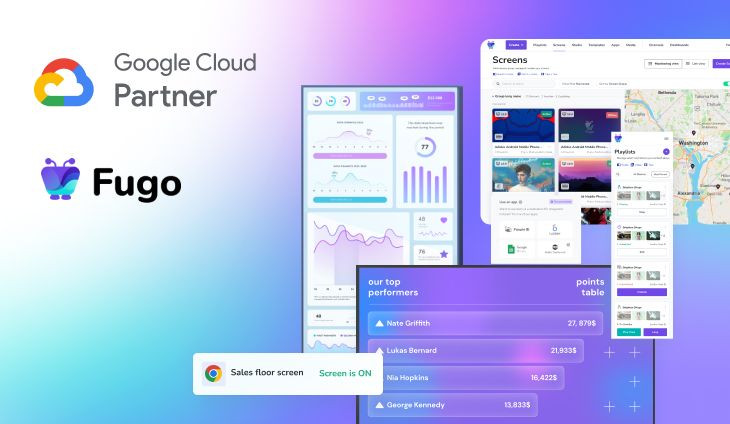
Run secure, high-performance signage on ChromeOS, with Fugo making powerful content and screen management easy to scale.
Fugo is a certified Google Cloud partner
ChromeOS gives signage a stronger foundation
Easy for IT to manage, with the full power of Chrome on every screen.
Reliable by design
ChromeOS is built to stay current and recover cleanly, helping signage run with less hands-on maintenance.
Remote device management
When a player needs attention, IT can reach it through Google Admin instead of dispatching someone to the screen.
Security built in
Verified boot, sandboxing, and automatic updates give ChromeOS a security model that starts at the operating system.
Powerful rendering engine
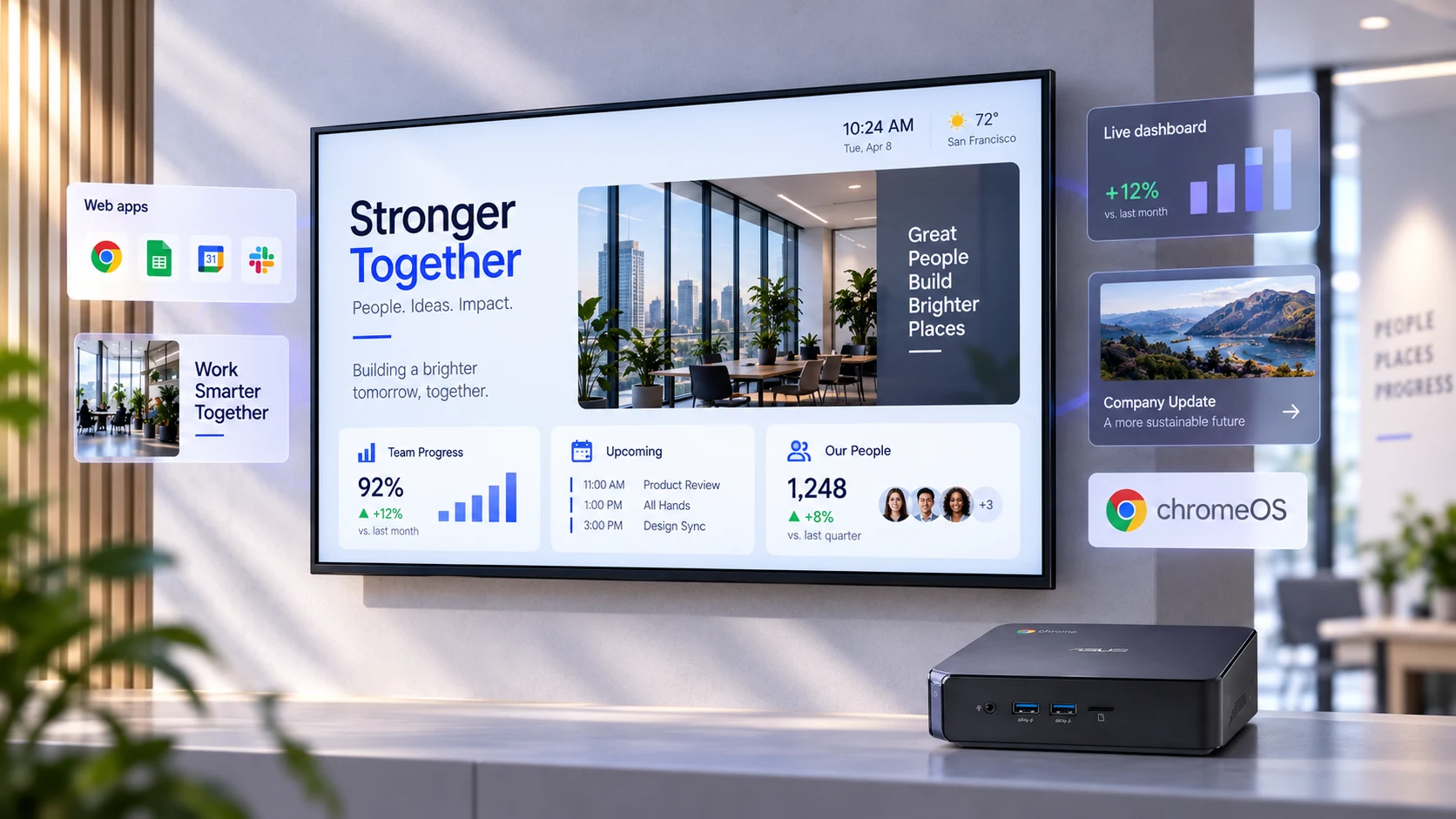
Run dashboards, web apps, or HTML5 content in Chrome itself rather than relying on a cut-down embedded browser.
Flexible hardware
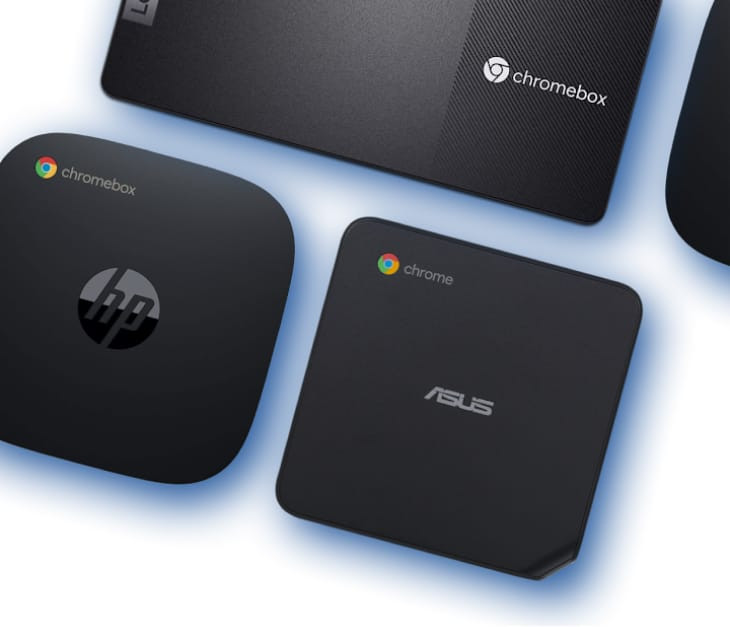
From standard Chromeboxes to fanless and OPS options, there’s room to choose the player around the install.
Clear device lifecycles
Every ChromeOS model has a published support window, so refresh planning doesn’t have to be guesswork.
Provision Fugo through Google Admin
Add Fugo as a kiosk app by URL, set it to auto-launch for the organizational unit your screens belong to, and enroll the devices. They install Fugo themselves - on site you only need the pairing PIN to connect your device to Fugo.
Set up Fugo on ChromeOS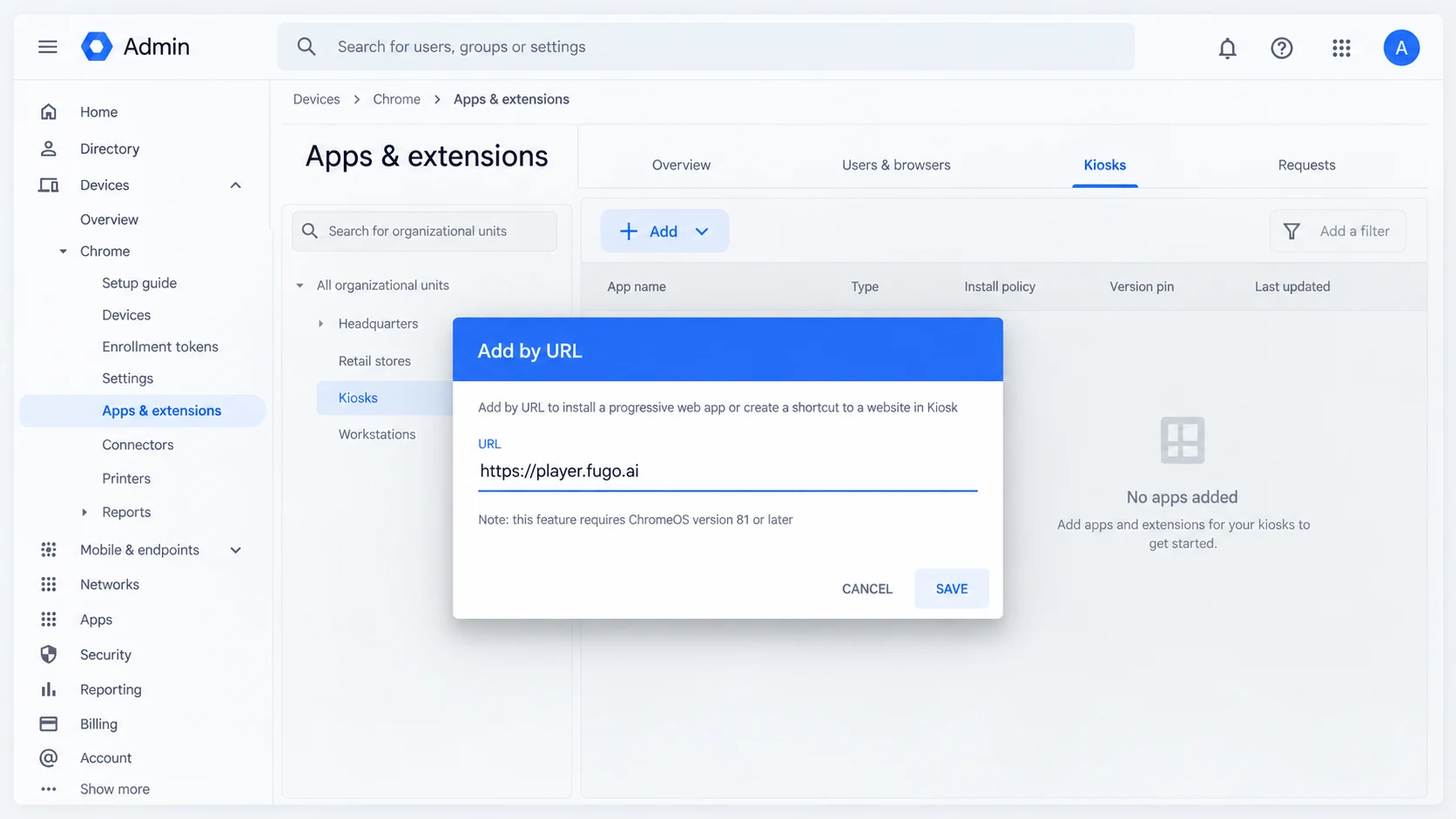
Give existing hardware a second life with ChromeOS flex
Repurpose compatible PCs & Macs as managed Fugo signage players, so you can expand the network without replacing hardware that still has plenty of life left.
Learn how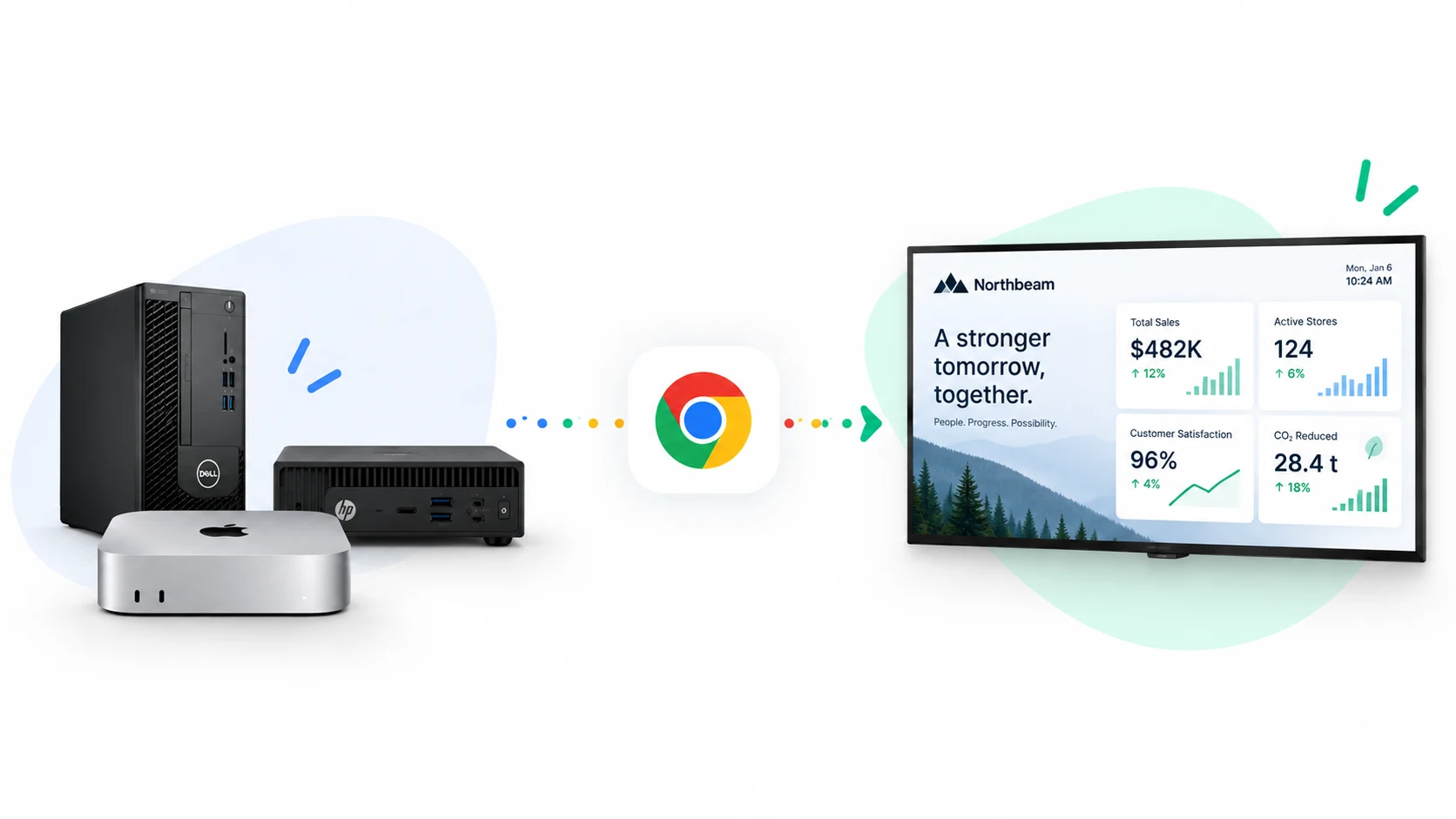
Digital signage software with serious range
Fugo gives teams the tools to create better content and manage it properly as the network grows.
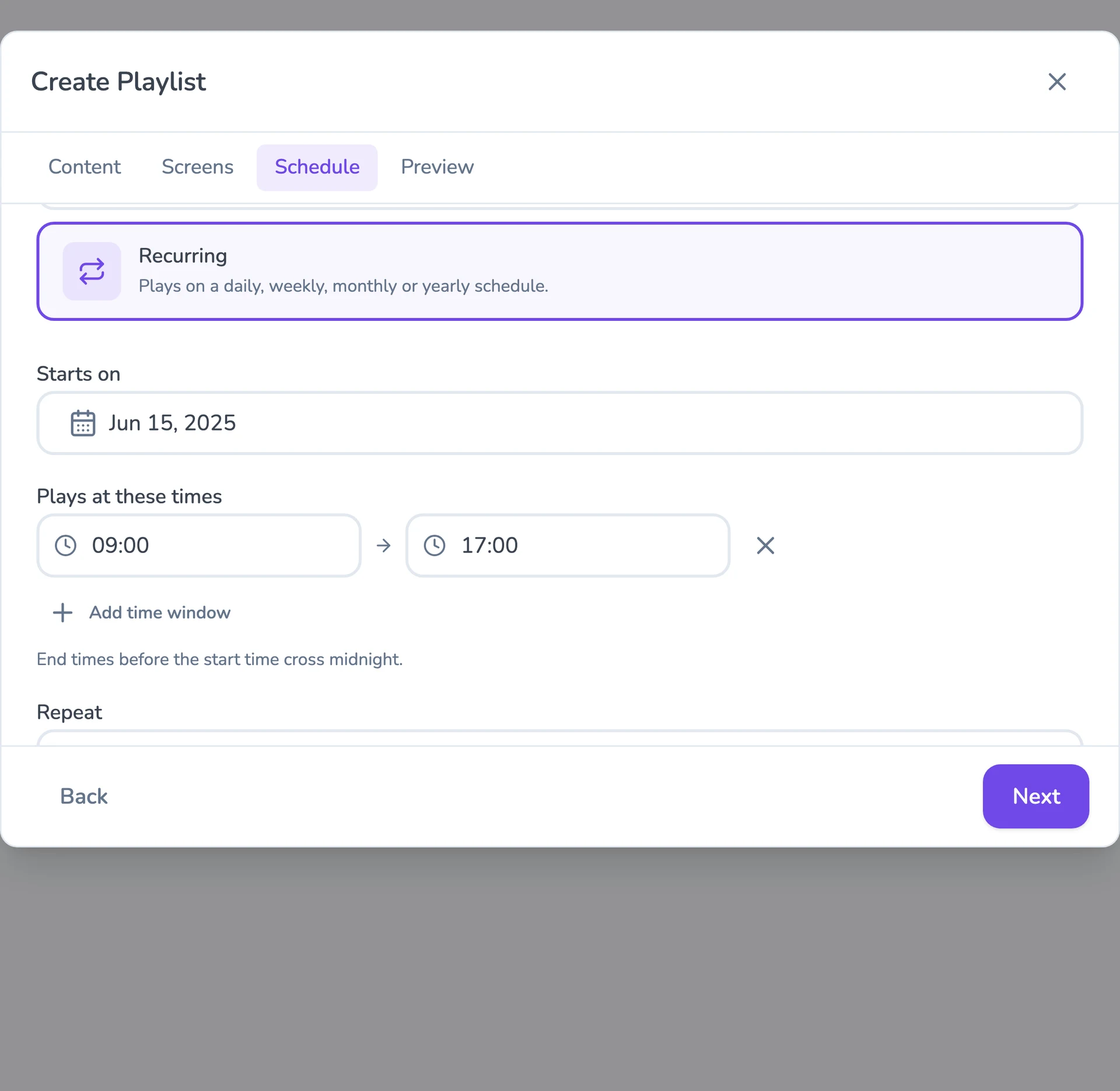
Flexible content scheduling
Keep even complex content calendars easy to manage. Schedule & target content to the right screens with flexible timing and automatic expiry.
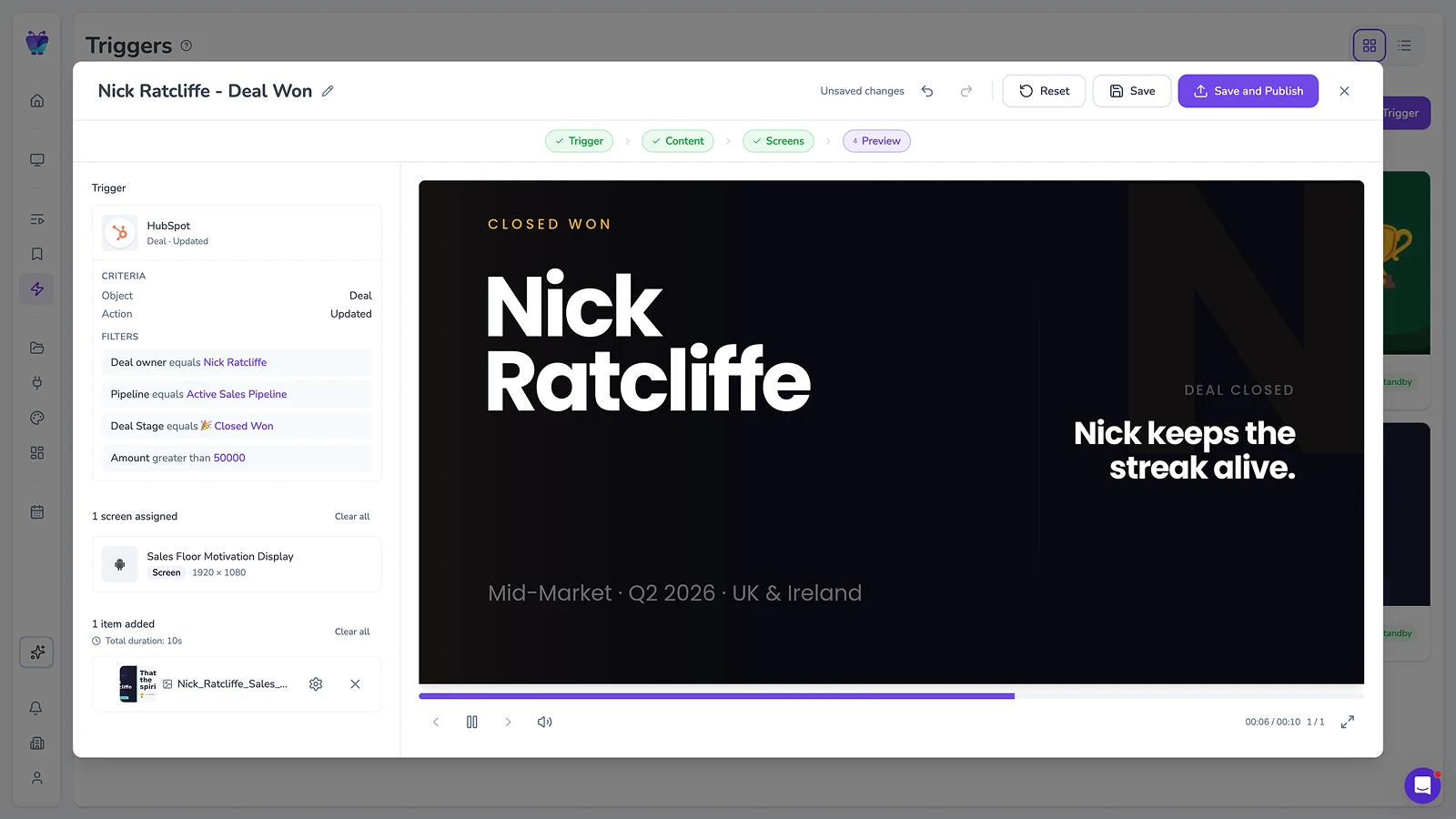
Event-driven content triggering
Let events in your connected systems decide when screens should update. Surface timely takeovers for alerts, milestones, or moments that need attention.
Full-featured content design
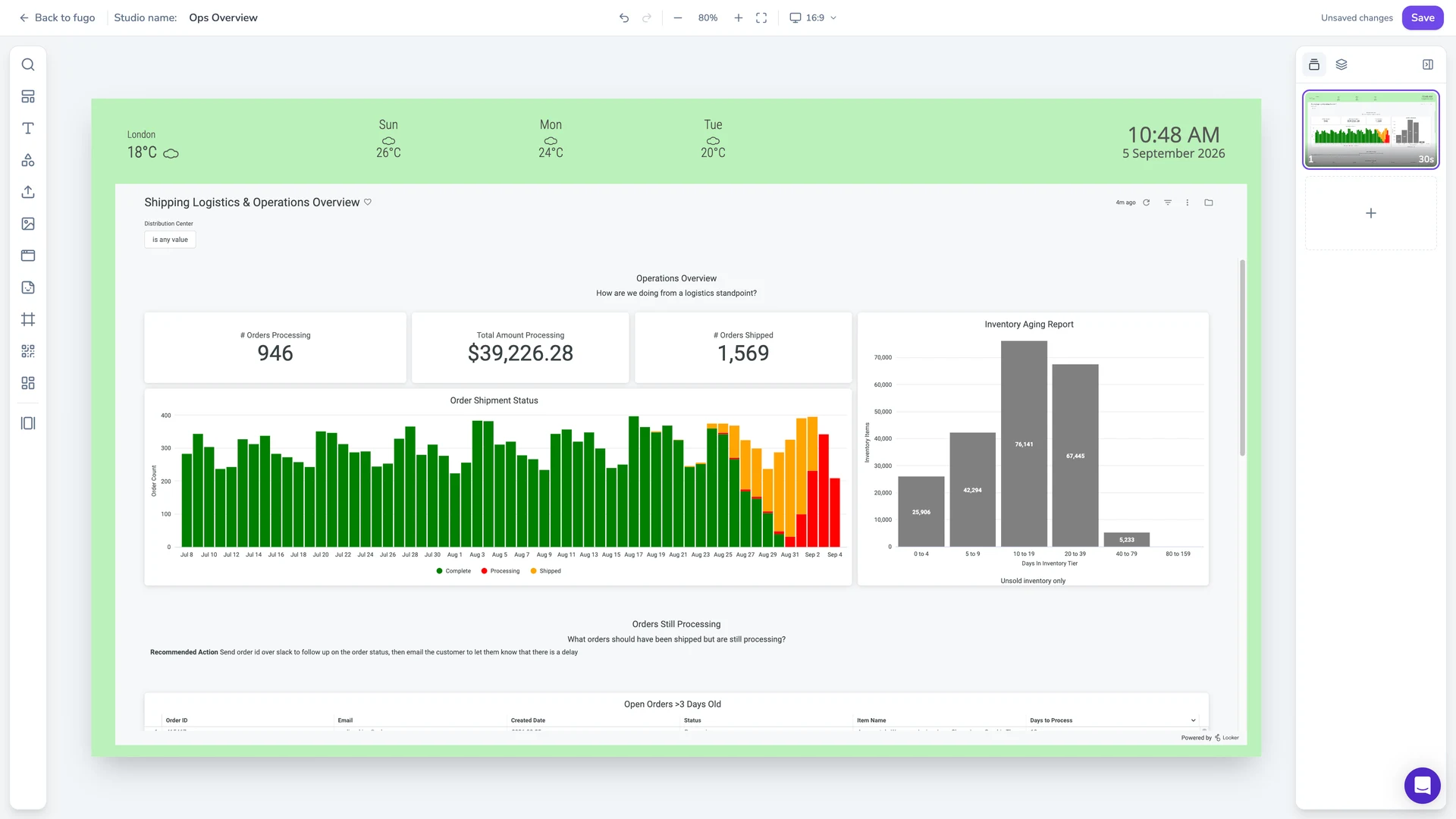
Combine your own media, live data, and connected apps into polished multi-zone layouts using an editor that feels as easy as Canva.
Centralized screen management
Organize and control your entire screen network from one place, without losing the flexibility to manage each screen according to its setup.
Policies that travel with the device
Kiosk launch, power schedules, and Chrome Enterprise policies stay with the OU — Fugo sits on top for content and playback.
Built-in remote monitoring
See what’s happening on remote screens from Fugo. Verify playback and investigate problems without sending someone on site.
Granular user management
Give teams access to the screens and content they own without opening the rest of the network.
Fugo + ChromeOS for enterprise digital signage at scale
Standardize one hardware across the business, then give every site more ways to put its screens to work.
Explore Fugo for enterpriseStandardize every rollout
Set one ChromeOS + Fugo model for the business, then repeat it across sites without rebuilding the stack with each rollout.
Put screens to better use
Connect them to the systems running the business & give every screen a real operational role in how information moves.
Local freedom with central control
Give teams ownership of their screens while company-wide branding and messaging standards stay intact.
Nordward drives company-wide data adoption with Fugo & Chrome Enterprise
Recommended ChromeOS devices
Our top ChromeOS picks for reliable Fugo deployments across a range of signage setups.
View all supported ChromeOS hardware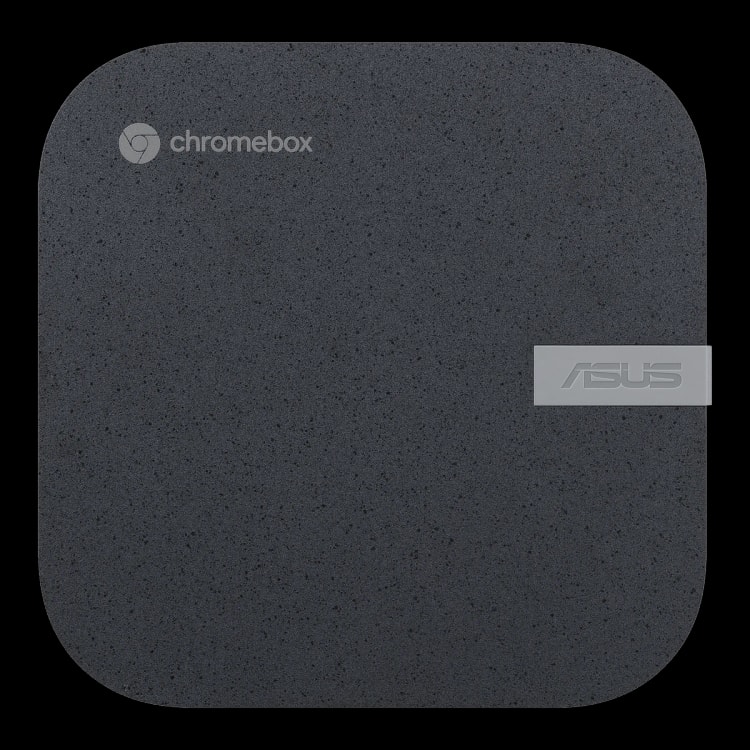
ASUS Chromebox 5
A versatile all-rounder for everyday signage, dashboard displays, and repeatable deployments across multiple sites.
Intel Core processor options
Wi-Fi 6E
2.5Gb Ethernet
Thunderbolt 4
VESA mounting
ASUS fanless Chromebox CF40
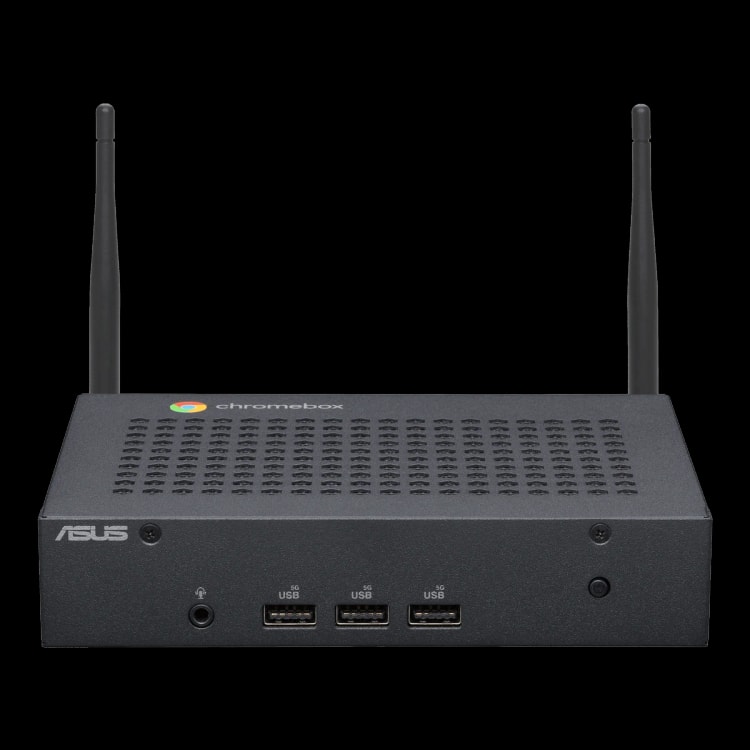
A quiet, low-maintenance player for meeting rooms, kiosks, and installs where moving parts are best avoided.
Fanless design
Dual 4K display support
Wi-Fi 6
Dual HDMI with CEC
Lockable VESA mount
Acer Chromebox mini CXM2
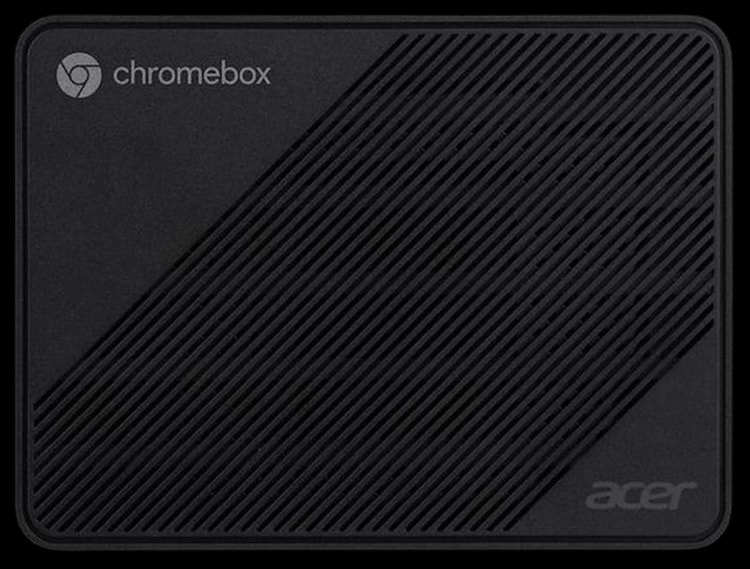
A small-footprint ChromeOS player for clean installs behind displays without giving up useful I/O.
Dual HDMI
USB-C
Up to 16 GB memory
Compact form factor
Intel N-series processors
Dive deeper on ChromeOS & enterprise signage
Guidance on hardware, software, and the bigger decisions behind running signage at scale.