
Signage between casting sessions
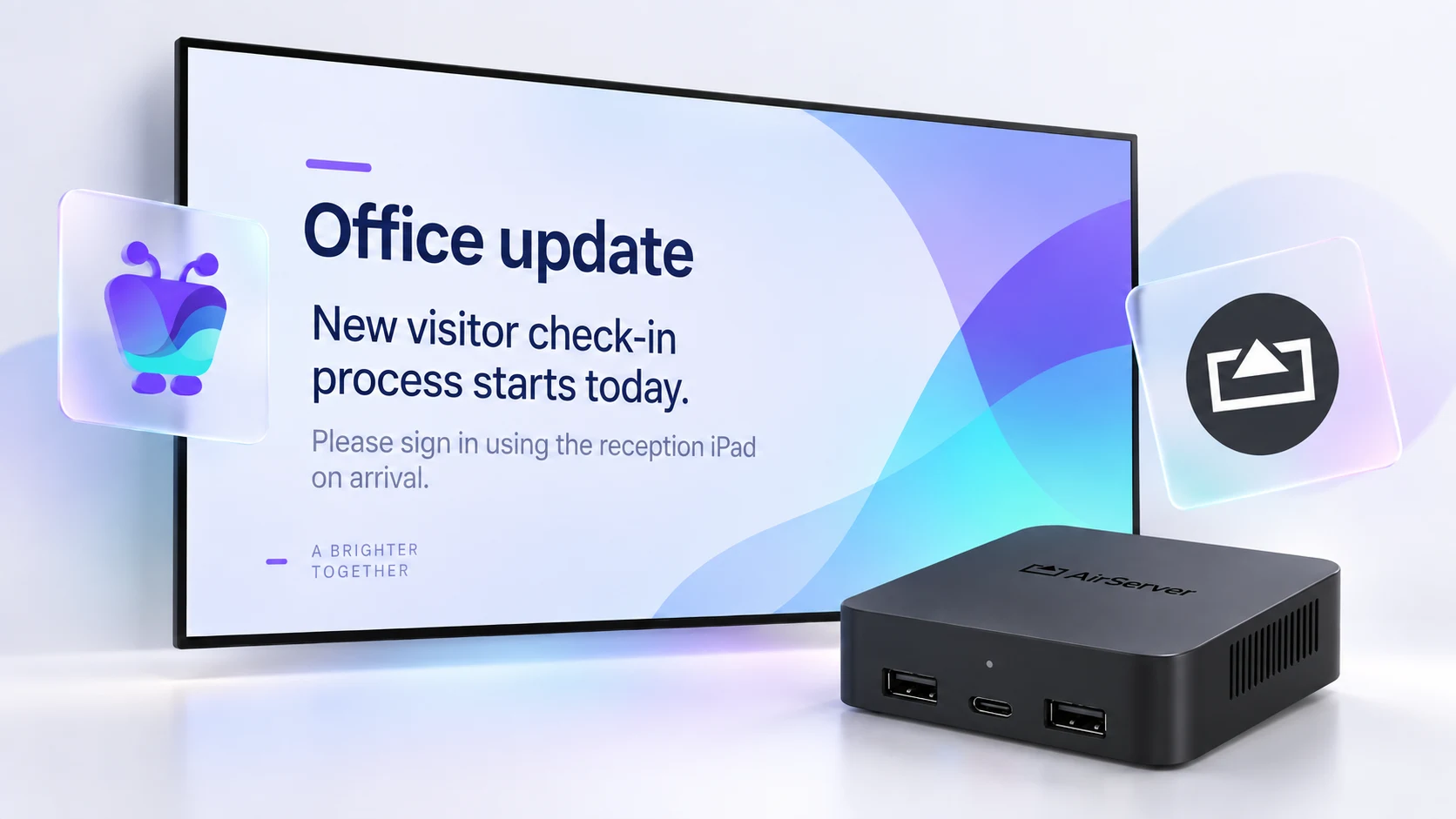
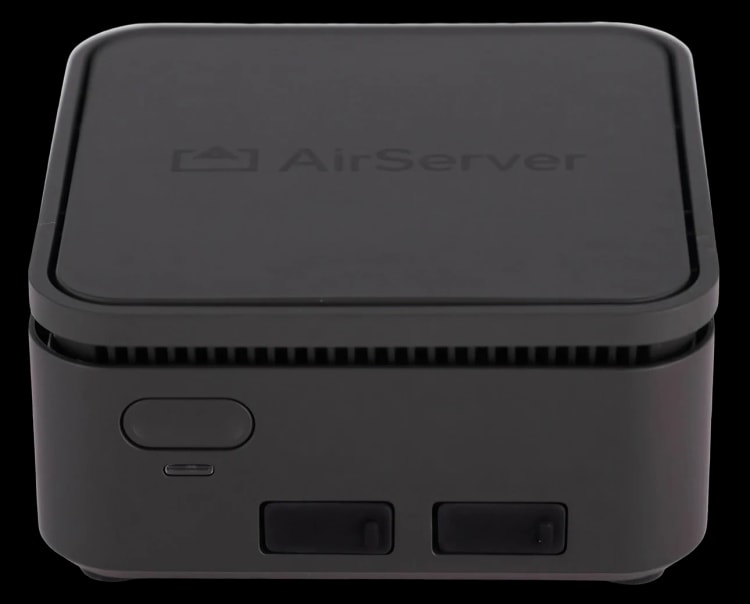
AirServer Connect turns meeting rooms and lecture halls into wireless screen-mirroring receivers. Fugo fills the idle time in between — no second player needed.
Fill the idle screen
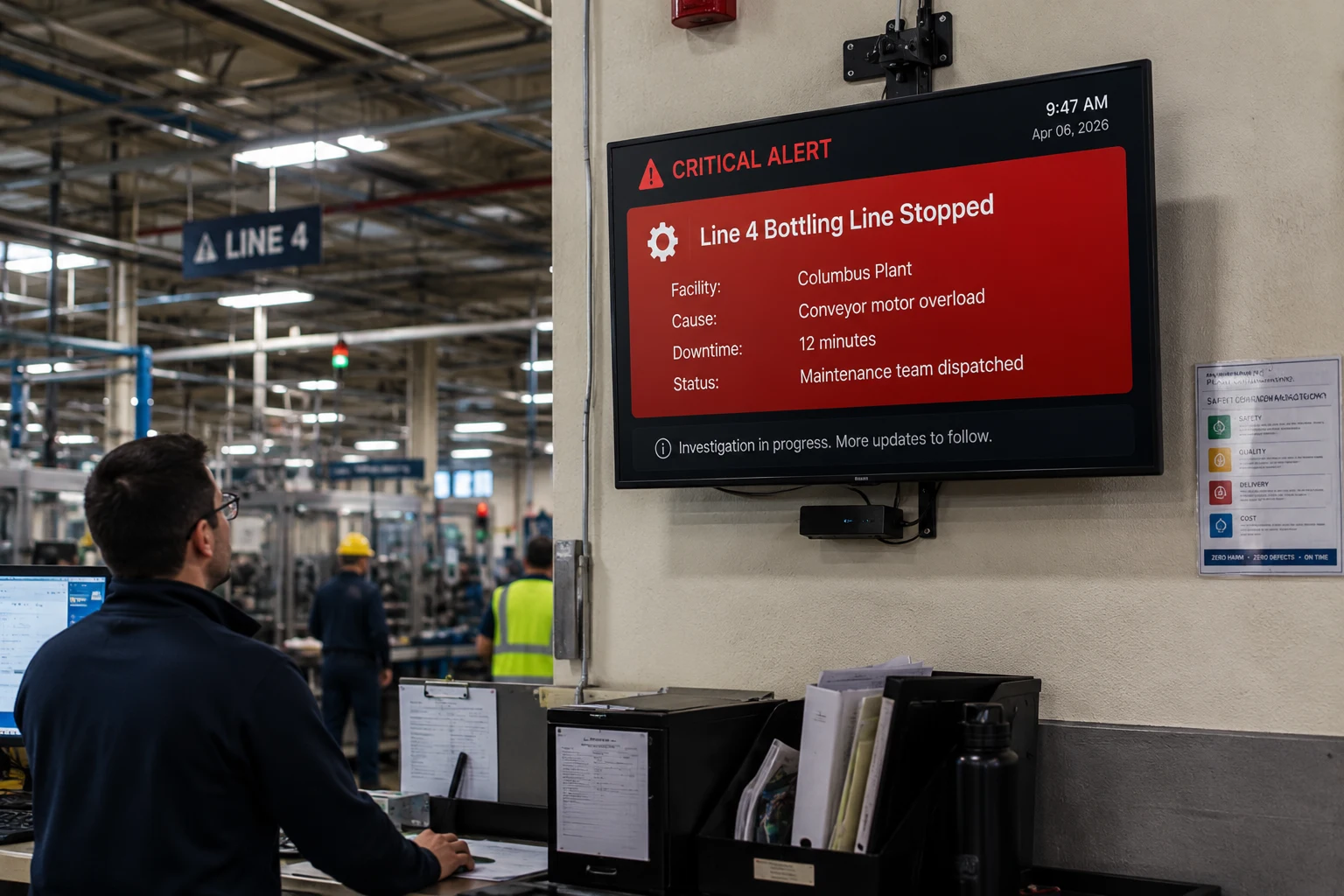
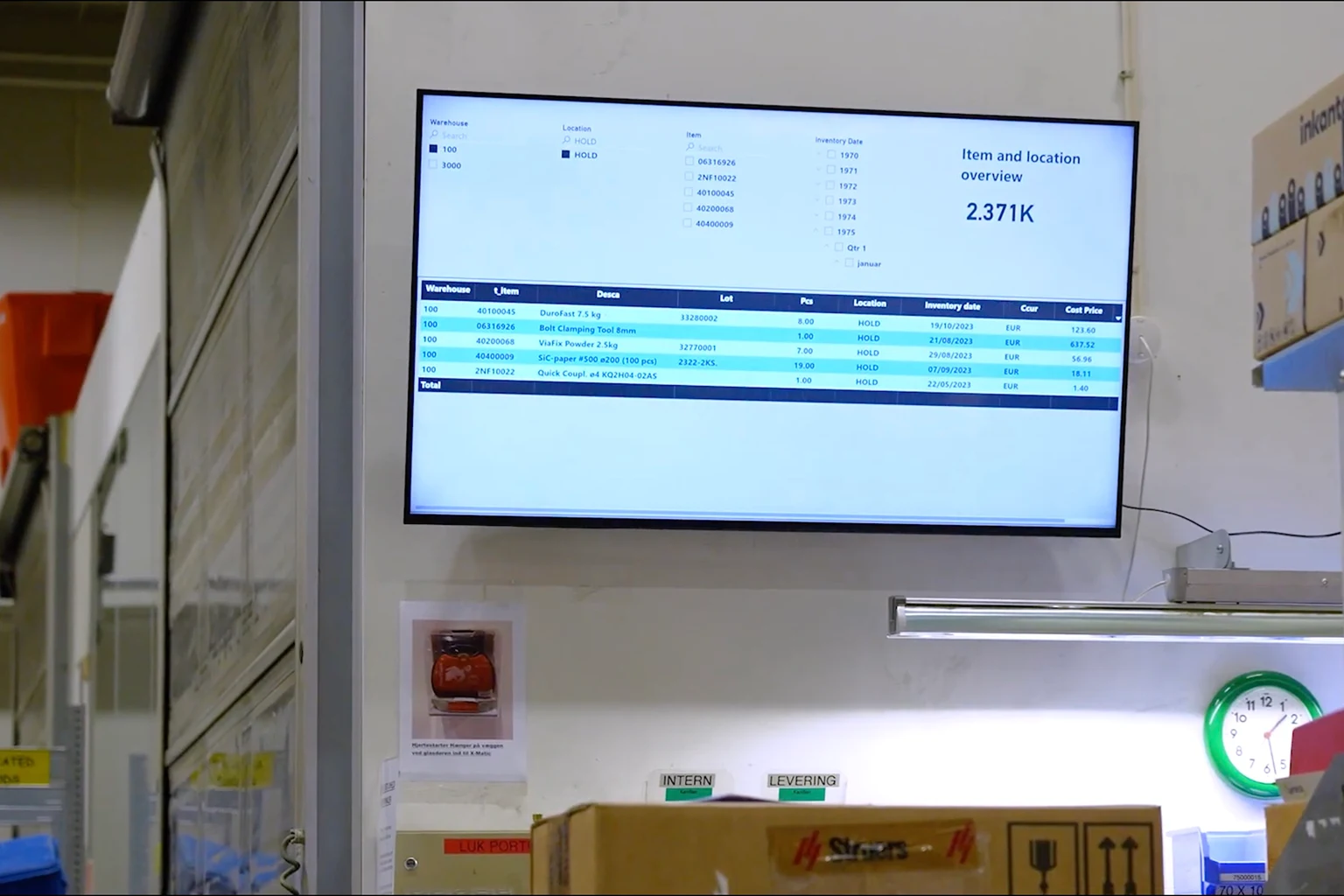
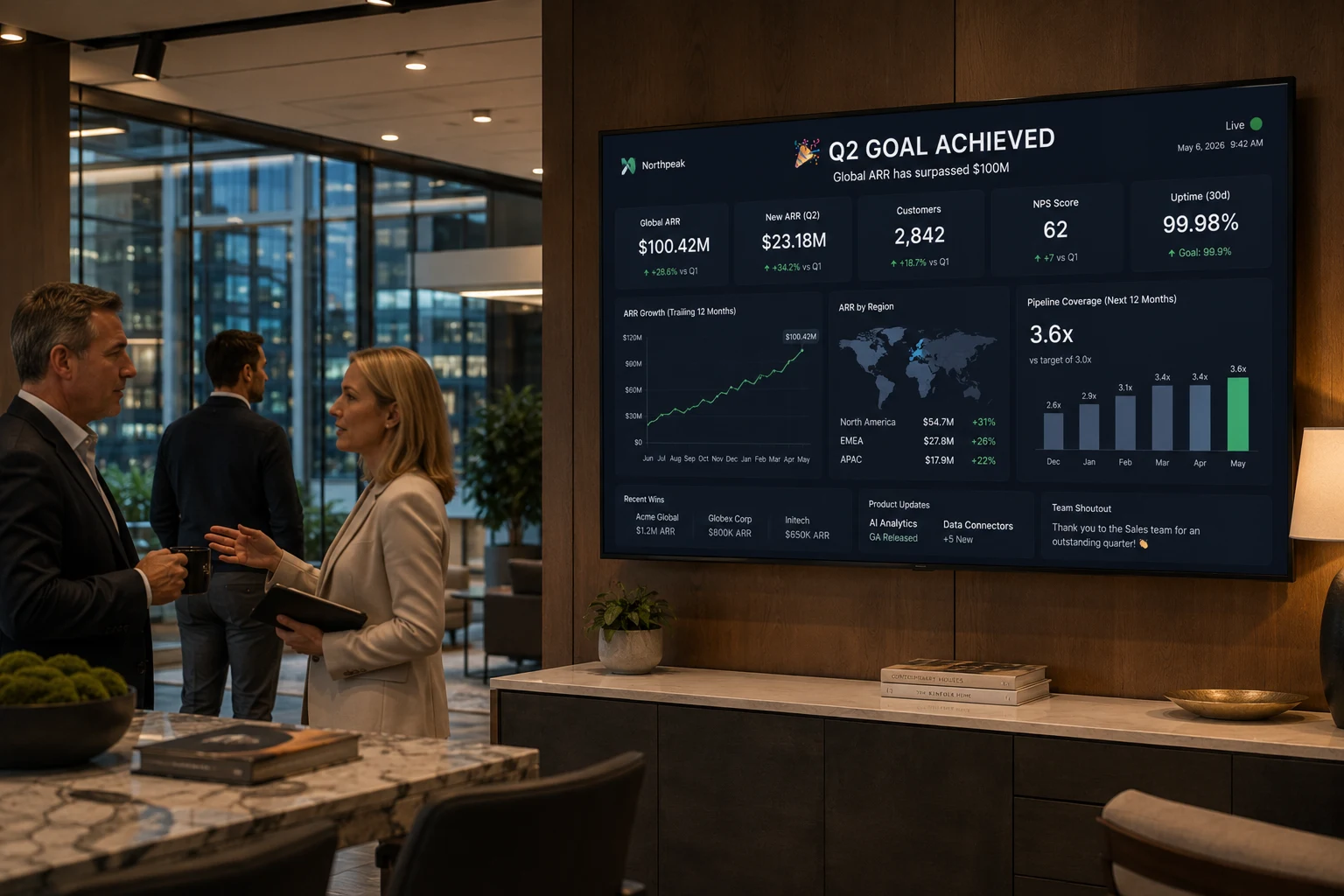
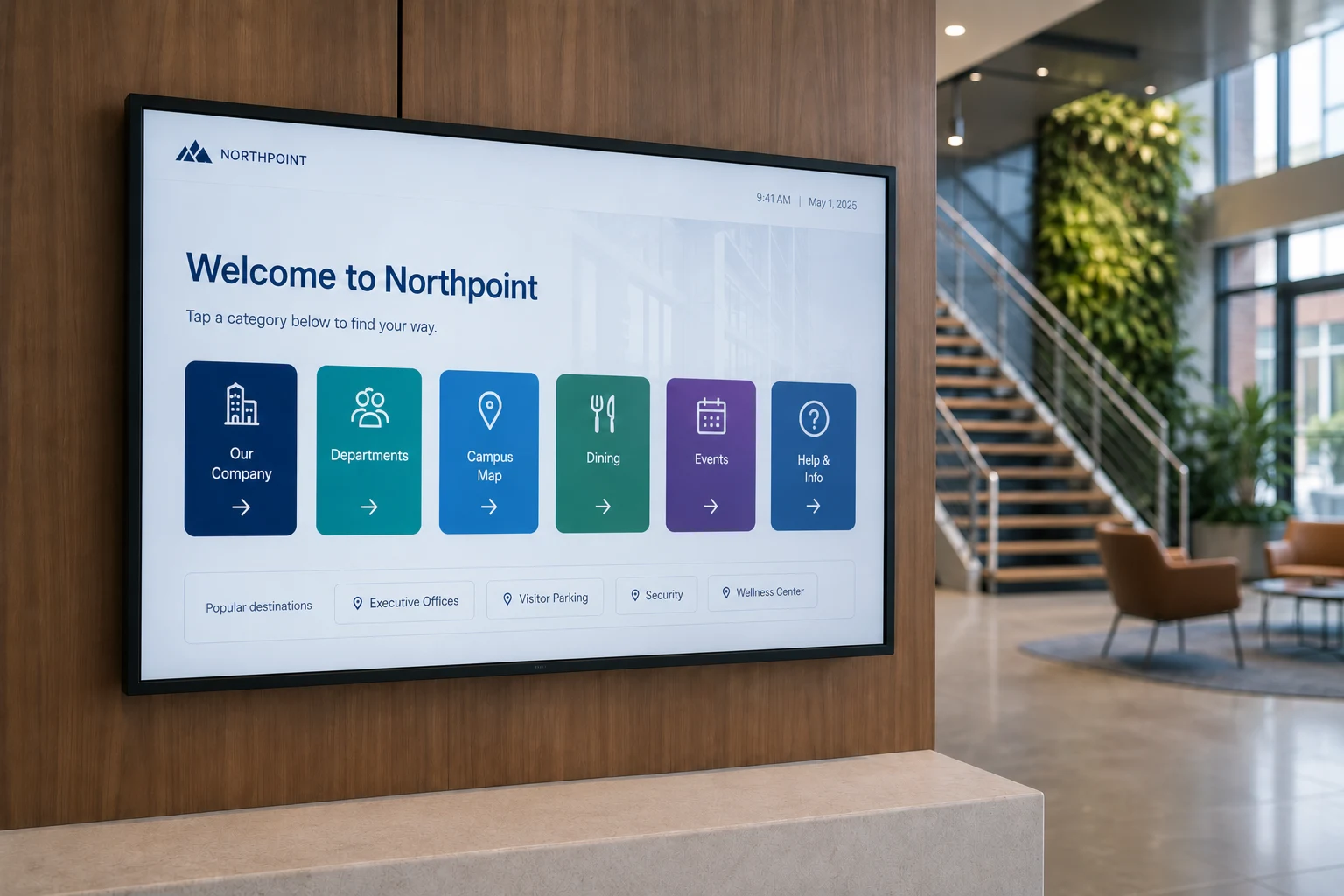
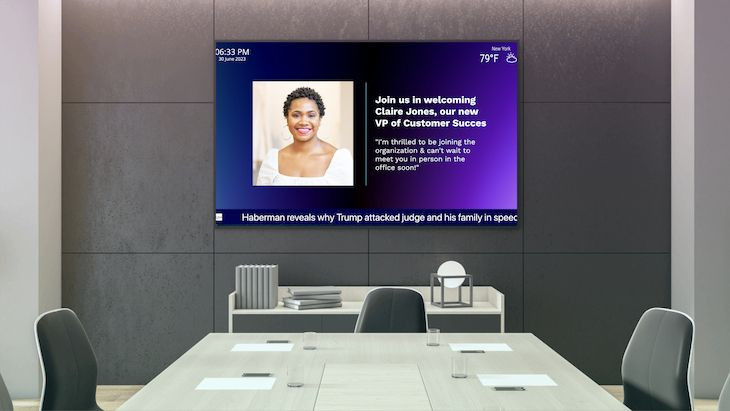
When no one is sharing, an AirServer display normally shows a blank background. Point that background at Fugo and it plays your scheduled content instead — announcements, dashboards, welcome slides, and more. The screen stays useful every hour it is powered on.
Resumes on cast
The moment someone mirrors from a phone, tablet, or laptop, screen sharing takes over the display. When the session ends, AirServer returns to its background and Fugo signage picks up where it left off — no button to press and nothing to switch.
No install, just a URL
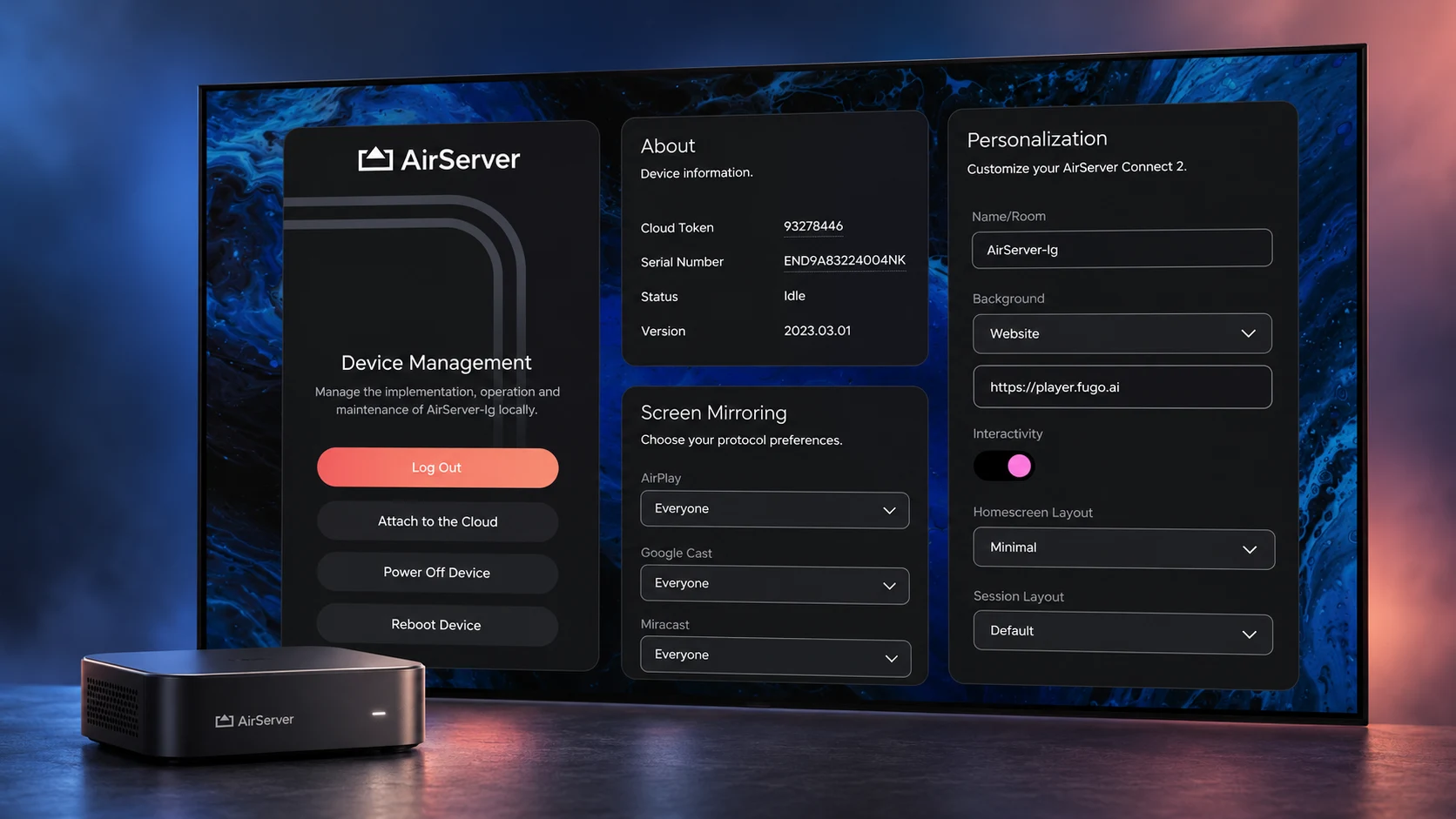
Fugo runs as a browser-based player, so there is nothing to download onto the AirServer device. You set https://player.fugo.ai as the background from the Device Management portal, and the player boots straight from the web the next time the screen wakes.
One screen, more value
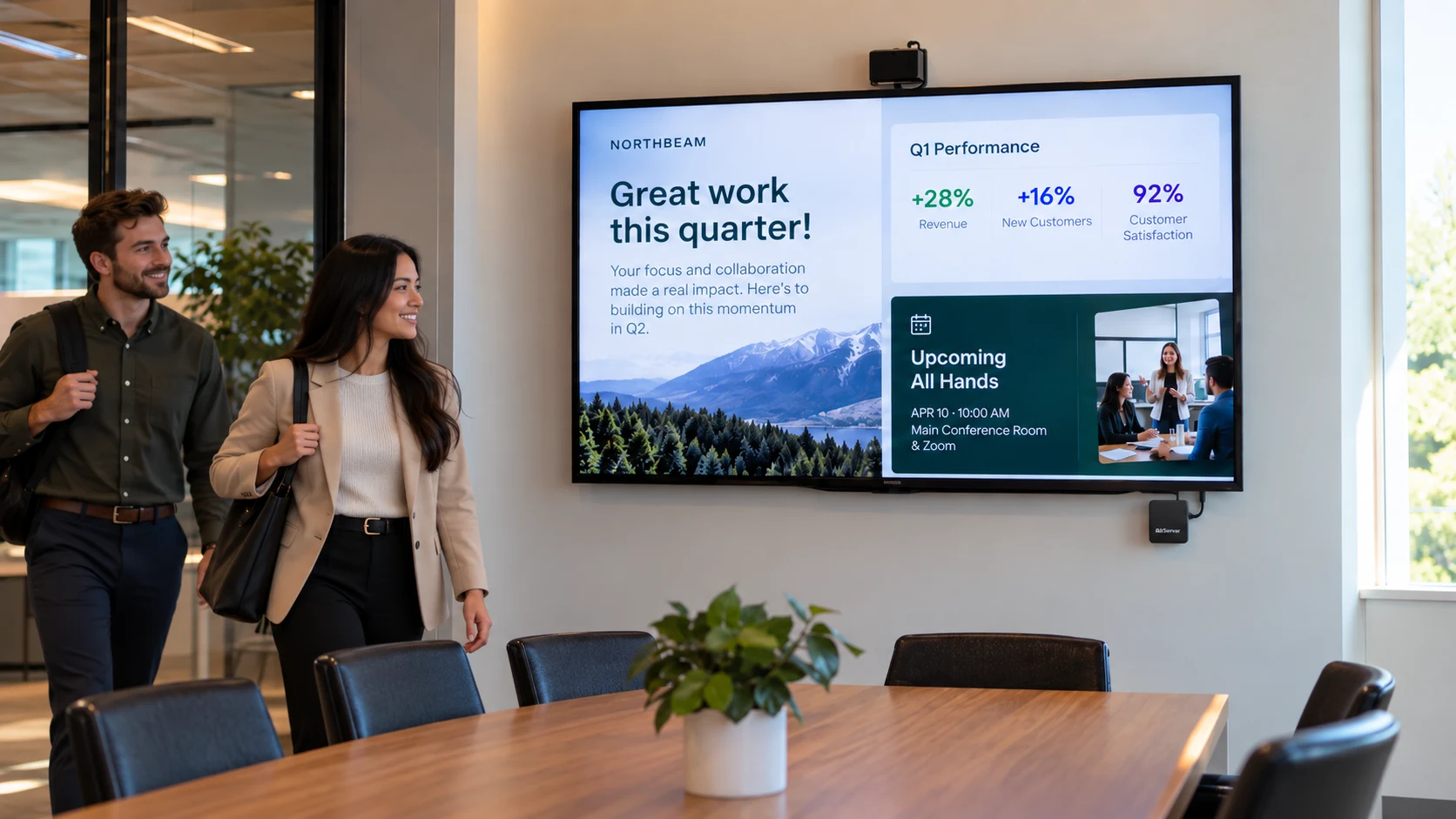
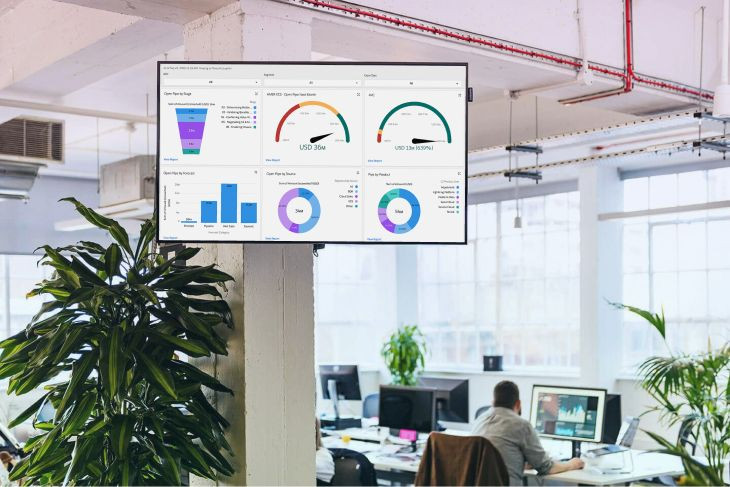
A screen-mirroring receiver you already own becomes a signage display for free. Room-availability notes, team KPIs, and internal comms play across the working day, so the investment earns its keep between meetings.
What you need to get started
AirServer is a tested Fugo Web-player device (firmware 4.5.2). Set the AirServer device up first following AirServer’s own guide, then point its background at Fugo.
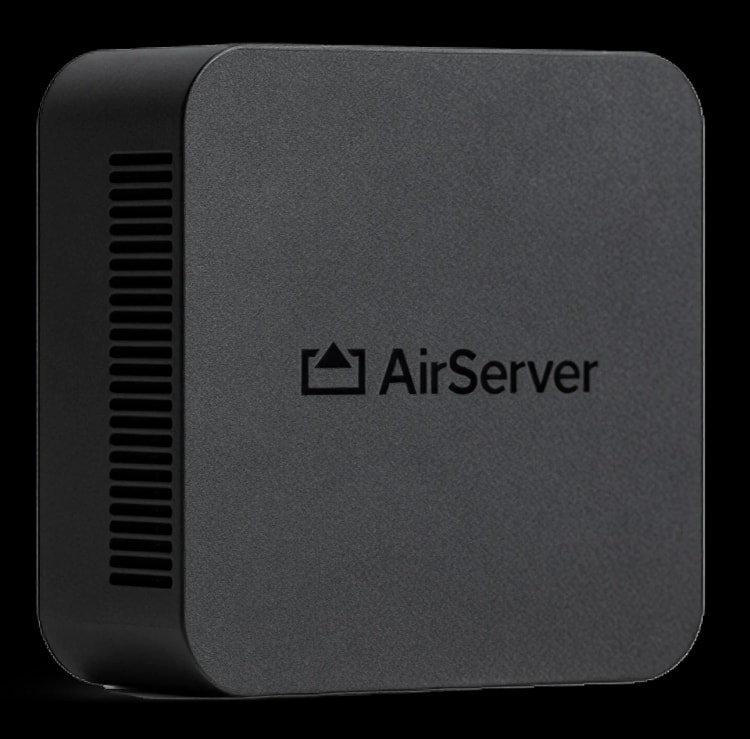
AirServer connect device
- An AirServer Connect receiver, set up per AirServer’s guide
- Access to the Device Management portal
- A display connected over HDMI
A network connection
- A WiFi or wired internet connection
- Outbound access to player.fugo.ai
- Casting devices on the same network
A Fugo account
- A free trial or paid Fugo plan
- One screen licence per paired display
- Access to Fugo CMS to pair and publish
Turn AirServer into a Fugo screen
Set up your AirServer Connect device first, following AirServer’s own guide. You’ll need the device, a WiFi or wired connection, and a Fugo account.

Open device management
In the AirServer Device Management portal, open the Personalization panel and choose the Website option under the Background selector. This is where AirServer lets you replace the idle background with a live web page.
Set the background URL
Enter https://player.fugo.ai as the background. The Fugo player boots on your screen and shows a 4-digit pairing PIN — keep it visible for the next step.

Pair in Fugo CMS
In Fugo, go to Screens, click Create Screen, and enter the 4-digit PIN. Name the screen after its room or location, then start publishing playlists to it from the cloud.
A full signage CMS behind your idle screen
AirServer handles the casting; Fugo CMS gives you everything you need to schedule, design, and manage what plays between sessions — across one screen or a whole estate.

Content sources
Upload images and video, embed live web pages, or pull data from the tools you already use through the Fugo app store. Add live video streams, social walls, and TV dashboards so idle screens show something current, not a static loop.

Design studio
Build screen-ready posters, welcome slides, and dashboard carousels inside Fugo without a third-party tool. Start from a free industry template or your own brand assets, then publish straight to the paired AirServer screen.

Flexible scheduling
Set start and end dates, day-parting, and recurring schedules so the right content plays at the right time. Because signage only shows between casts, scheduling keeps meeting-room screens relevant to whoever is in the room that day.

Central screen management
Group, tag, and monitor every paired display from one cloud dashboard. Roll the same idle-screen playlist out to a bank of meeting rooms, or tailor content per location, without visiting a single screen.

How idle-screen signage works
AirServer Connect is a screen-mirroring receiver, not a signage player — so this is a method, not a second device. AirServer lets you set a custom background for the times when nobody is casting, and Fugo plugs into that slot as a live web page. Between sessions the display shows your scheduled Fugo content; the instant someone starts mirroring, screen sharing takes priority and covers the whole screen. When they disconnect, the AirServer background reappears and Fugo resumes automatically.
- Casting always wins — screen sharing takes over whenever a session is active
- Signage resumes on its own the moment the cast ends, with nothing to switch
- One method, no extra box: it reuses the receiver you already have
- Every paired display connects to Fugo like any other player and uses one screen licence