Run digital signage in your browser
Open player.fugo.ai in any Chromium browser, enter a 4-digit PIN, and the tab becomes a live Fugo screen. No install, no hardware — the fastest way to try Fugo.
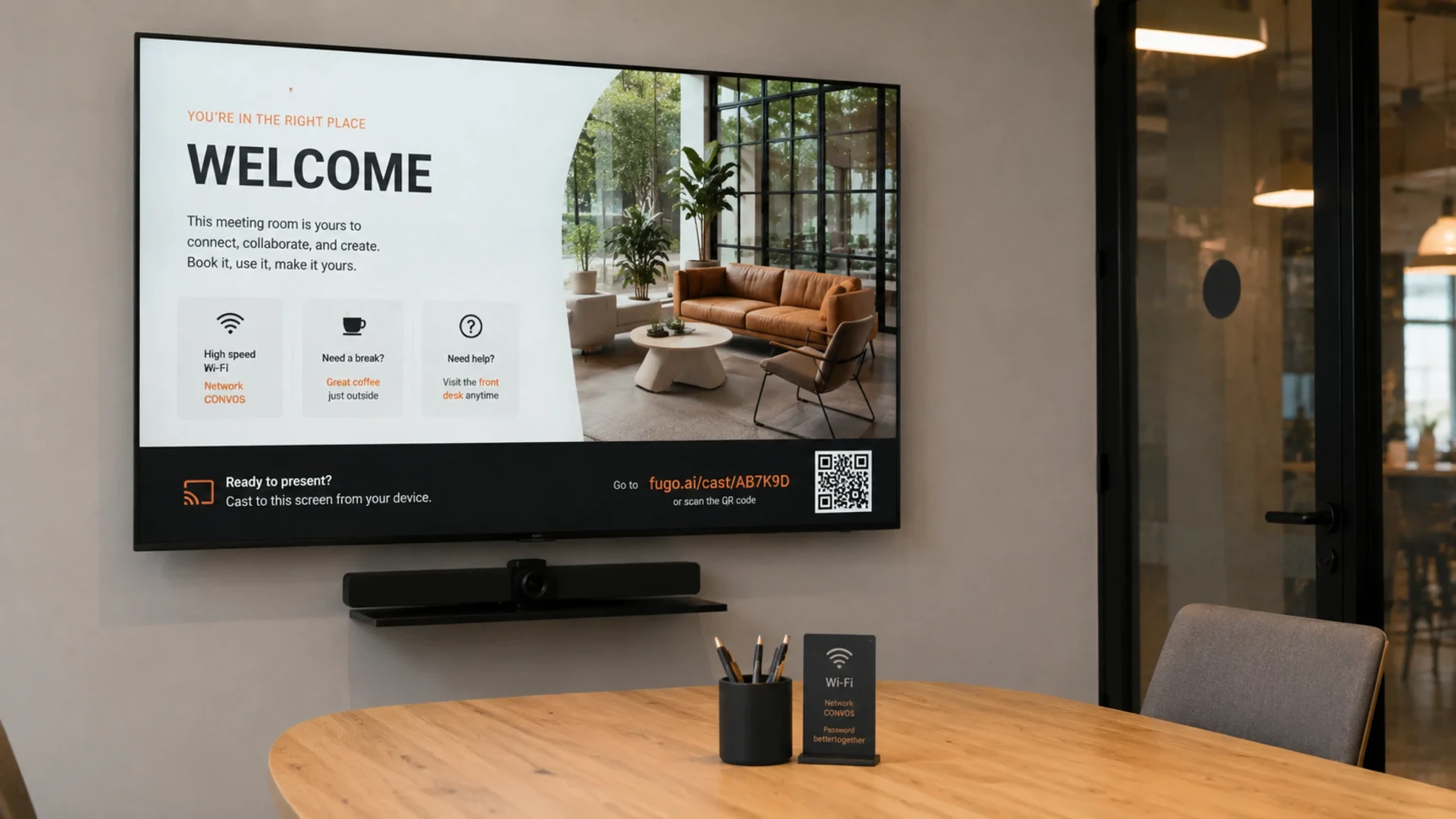
Turn any chromium browser into a Fugo screen
The lowest-friction way to get content on screen — no app to install and no player to buy. Ideal for trials, temporary screens, and pointing a browser-based device at Fugo.
Zero install
Open player.fugo.ai in Chrome, Edge, or Brave and the tab becomes a working Fugo screen. There is nothing to download, sideload, or configure on the device — the same Fugo Player used on Windows and Android simply runs inside a browser tab.
The fastest way to trial Fugo
Spin up a real, paired screen on your laptop in under a minute to see how playlists, scheduling, and content look before you commit to hardware. It is the quickest path from a free trial to something playing on a display.
Great for temporary screens
Perfect for one-off events, pop-ups, launches, and short-term displays where installing and redeploying a dedicated player is not worth it. Open the tab when you need the screen, close it when you are done.
Point any browser device at Fugo
Because the player is just a URL, laptops, desktops, mini-PCs, kiosk browsers, and browser-based receivers can all load it and pair with your account. It is the same technique behind pointing conference-room and casting systems at Fugo content.
Three steps to a live browser screen
From an empty tab to managed digital signage — no download required.
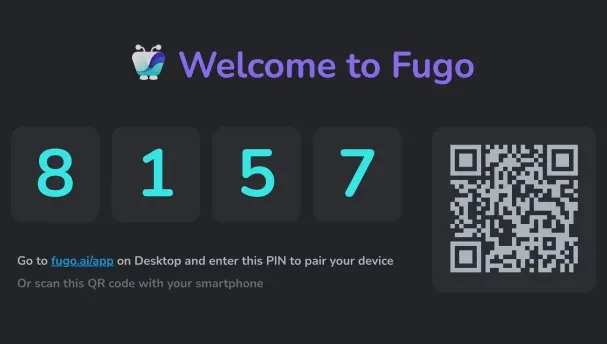
Open player.fugo.ai
Point an up-to-date Chromium browser (Chrome, Edge, or Brave) at player.fugo.ai. The tab loads a live Fugo Player and shows a 4-digit pairing PIN. Keeping the browser current gives you the smoothest playback — an out-of-date browser drops into a more conservative mode.
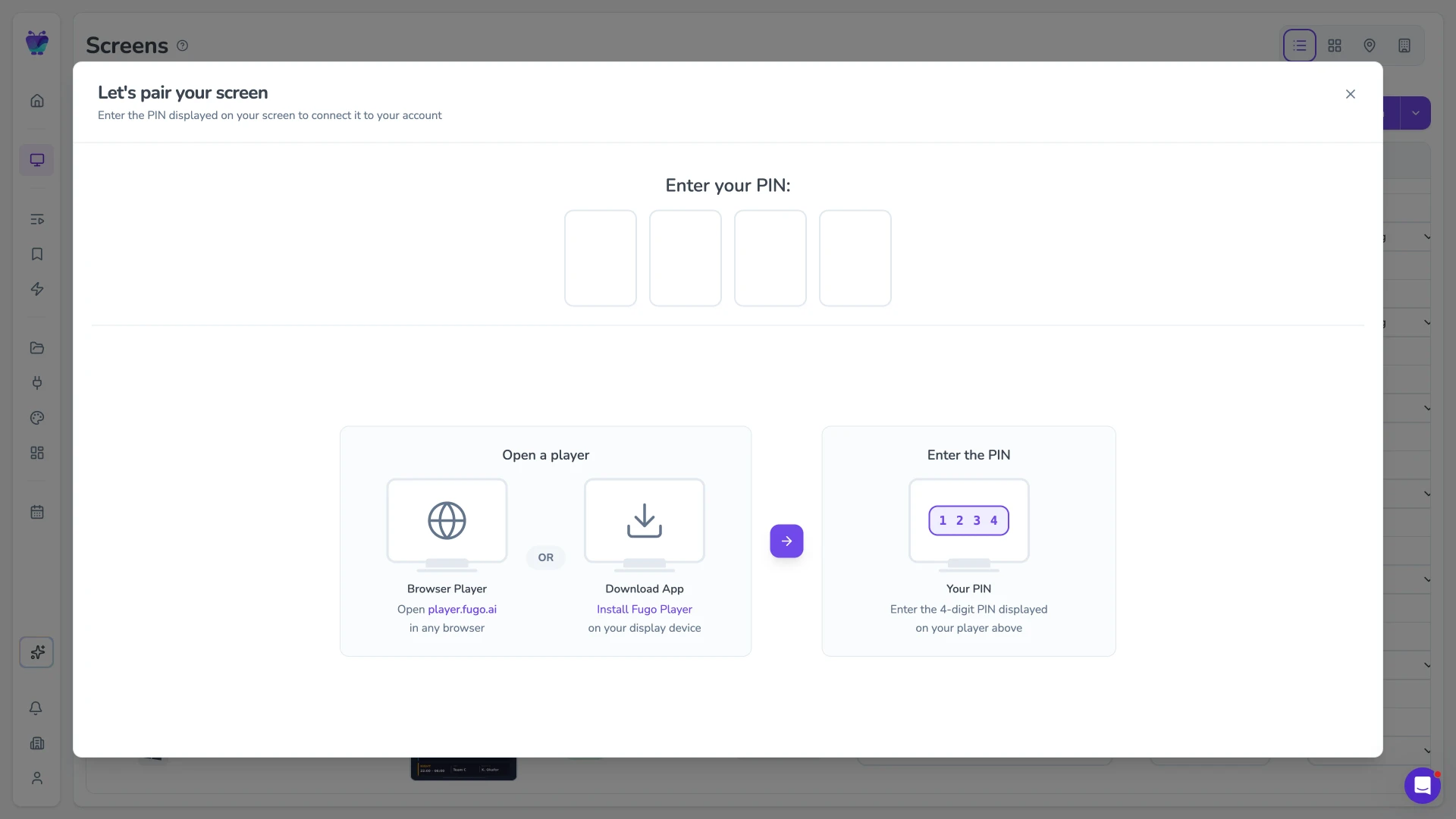
Enter the PIN in Fugo CMS
In Fugo, go to Screens → Add screen → Physical screen and enter the PIN shown in the tab to pair it with your account. This is a real, paired screen — not a shareable Virtual Screen link — so it behaves like any other Fugo player once connected.
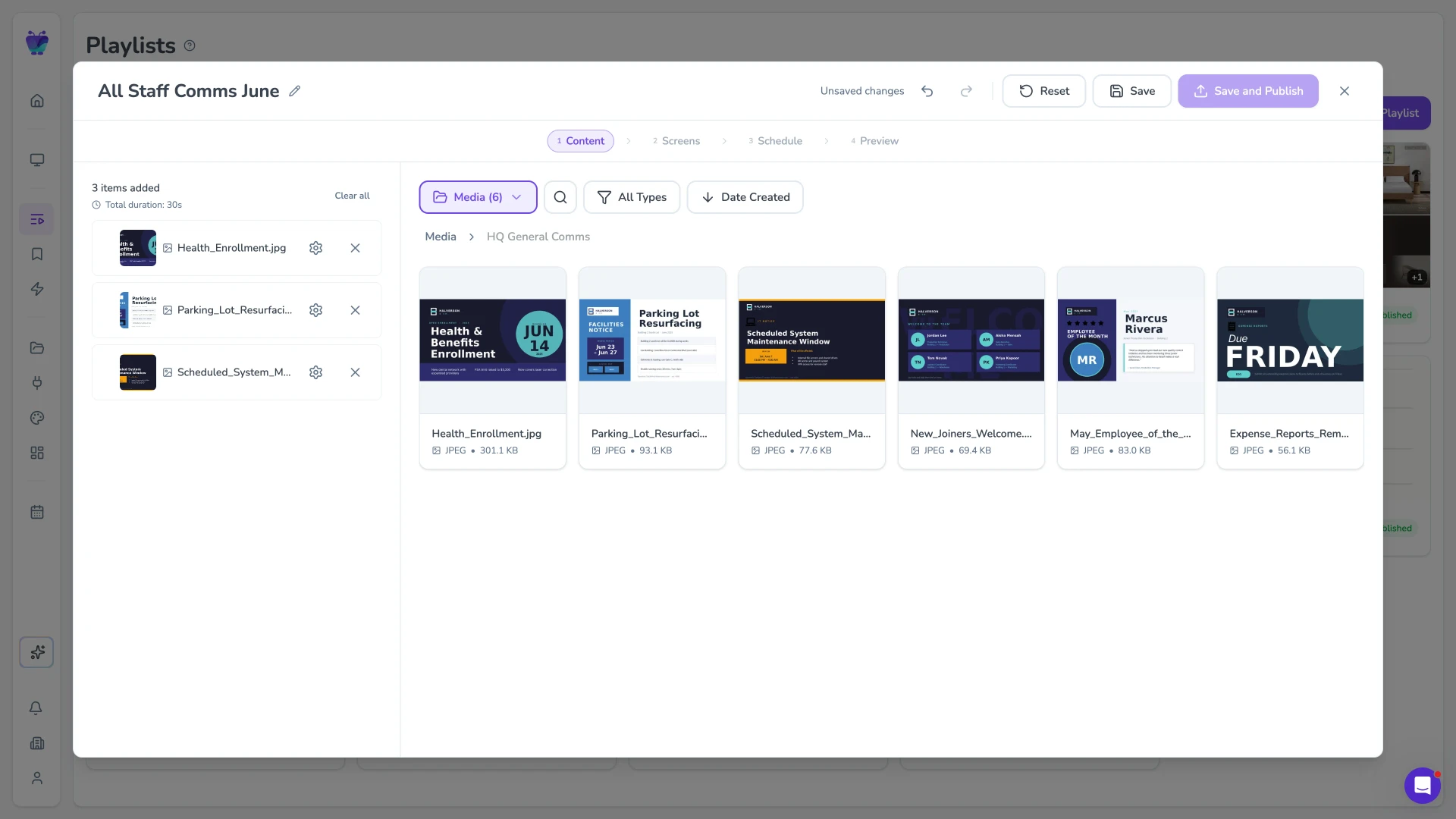
Publish your content
Build a playlist, schedule what plays and when, and publish it to the paired screen. The tab plays your content live — keep it open, awake, and in the foreground so playback keeps running.
A full digital signage platform behind every browser screen
The browser player is just the display. Everything you publish to it is created, scheduled, and managed in Fugo CMS — the same platform that runs across all your screens.
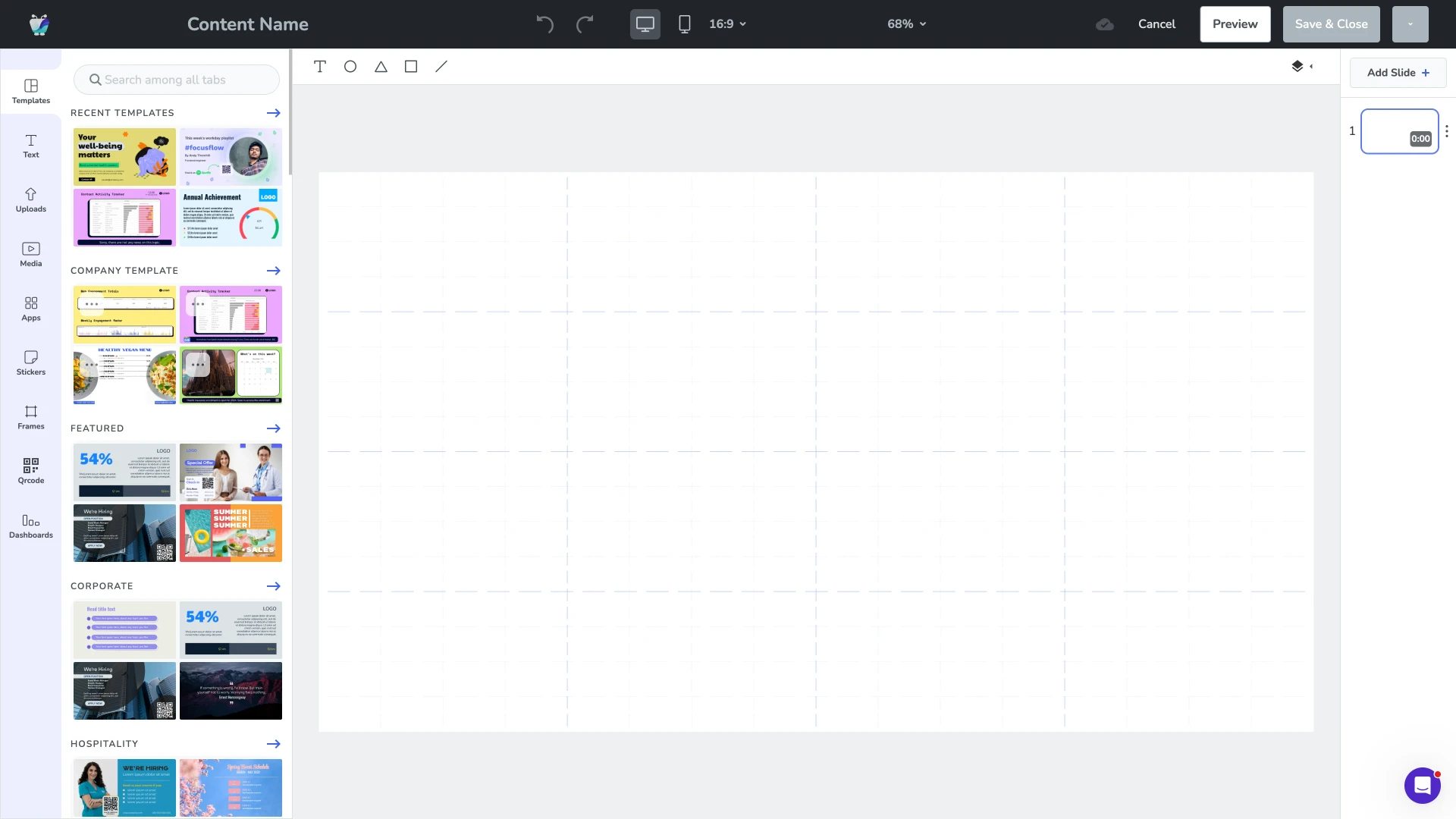
Design and content sources
Create slides in Fugo Design Studio, upload media, or pull in content from the systems where it already lives through our app integrations. Everything you build plays on the browser screen just like any other Fugo player.
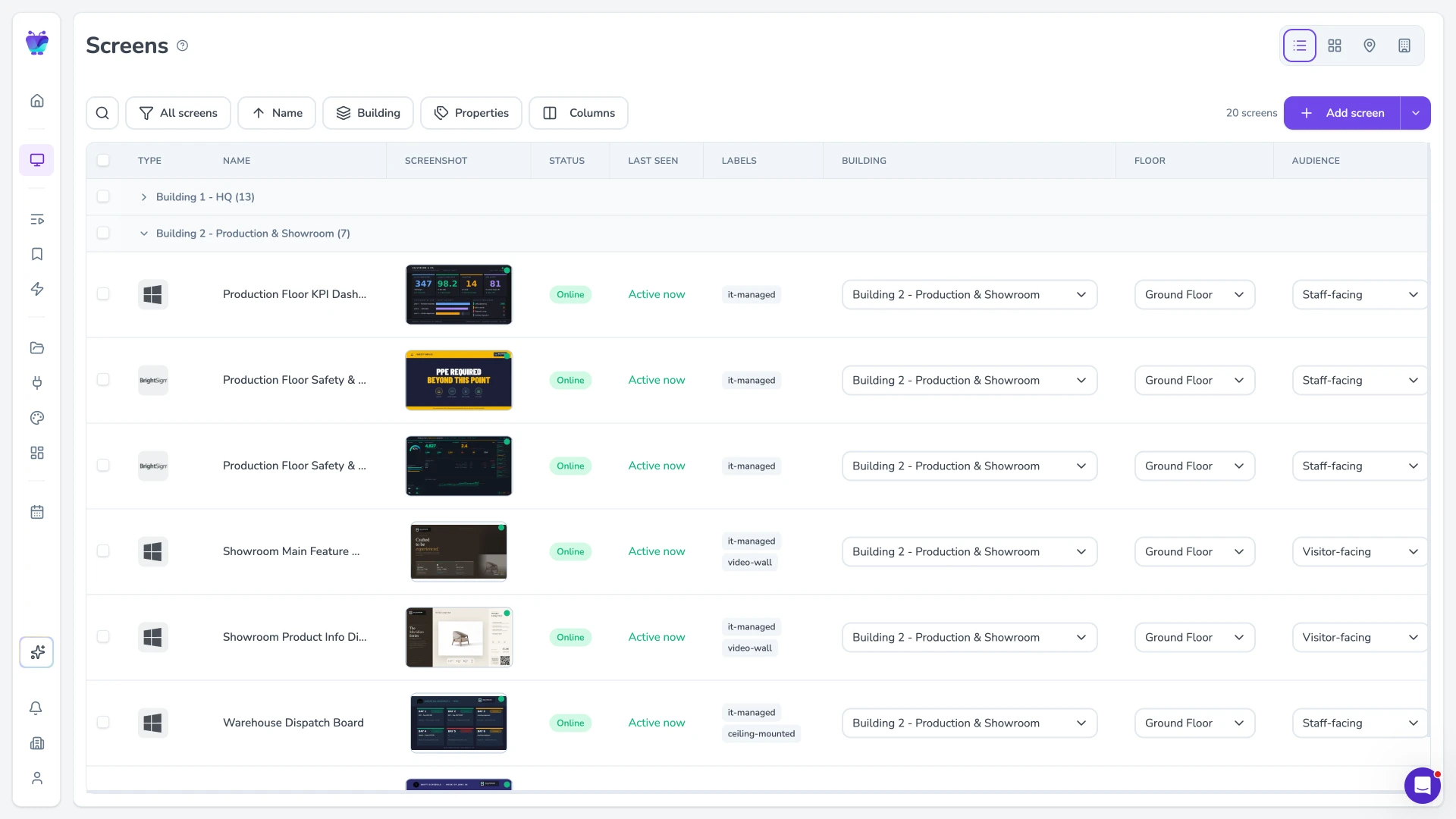
Central screen management
Group, tag, and view every screen — browser tabs and dedicated players alike — from one cloud platform. Monitor status and manage a growing network without touching each device.
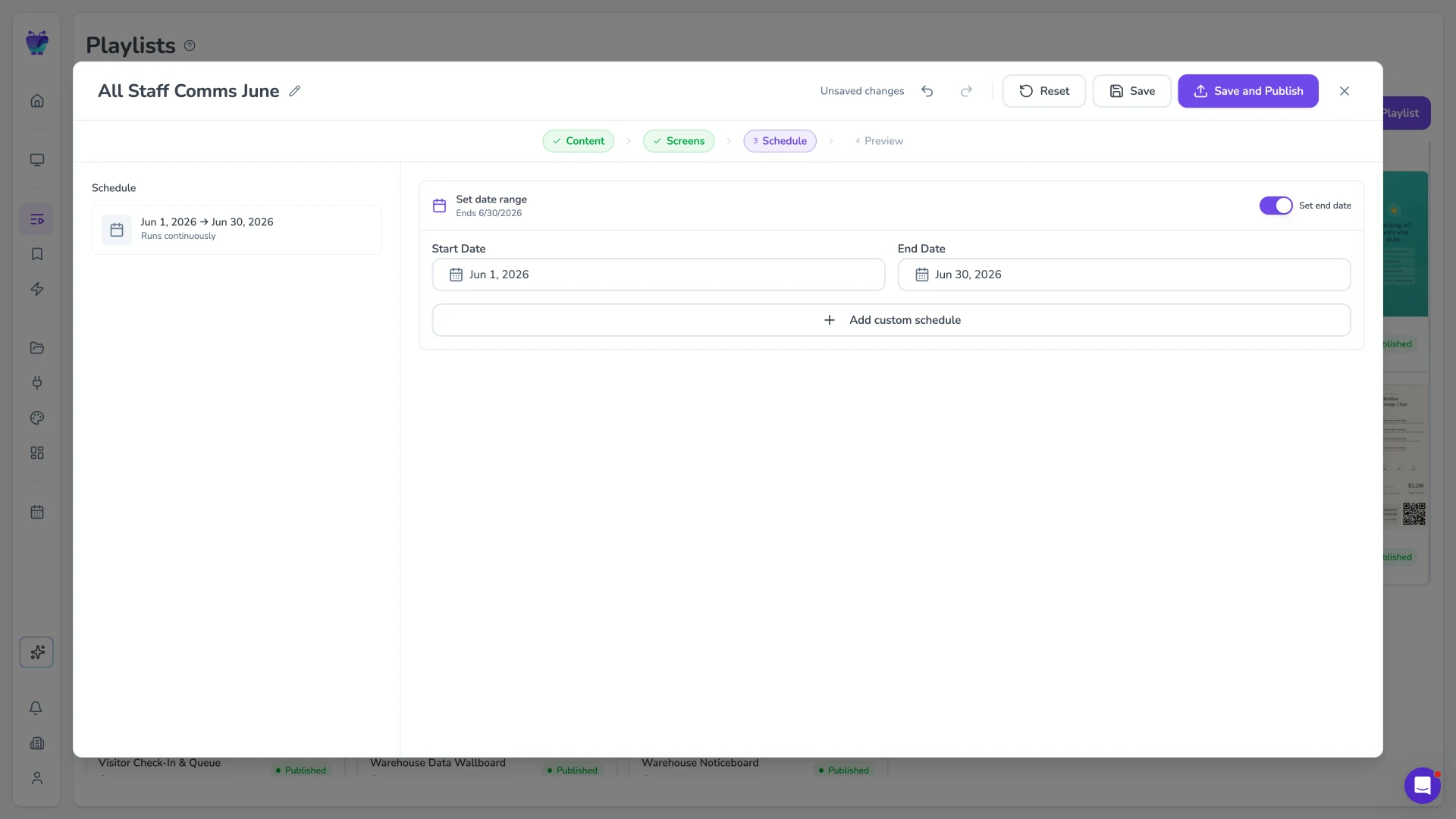
Flexible scheduling
Set start and end dates, recurring schedules, and dayparting so the right content plays at the right time. Ideal for the temporary and event screens the browser player is built for.
Media and app integrations
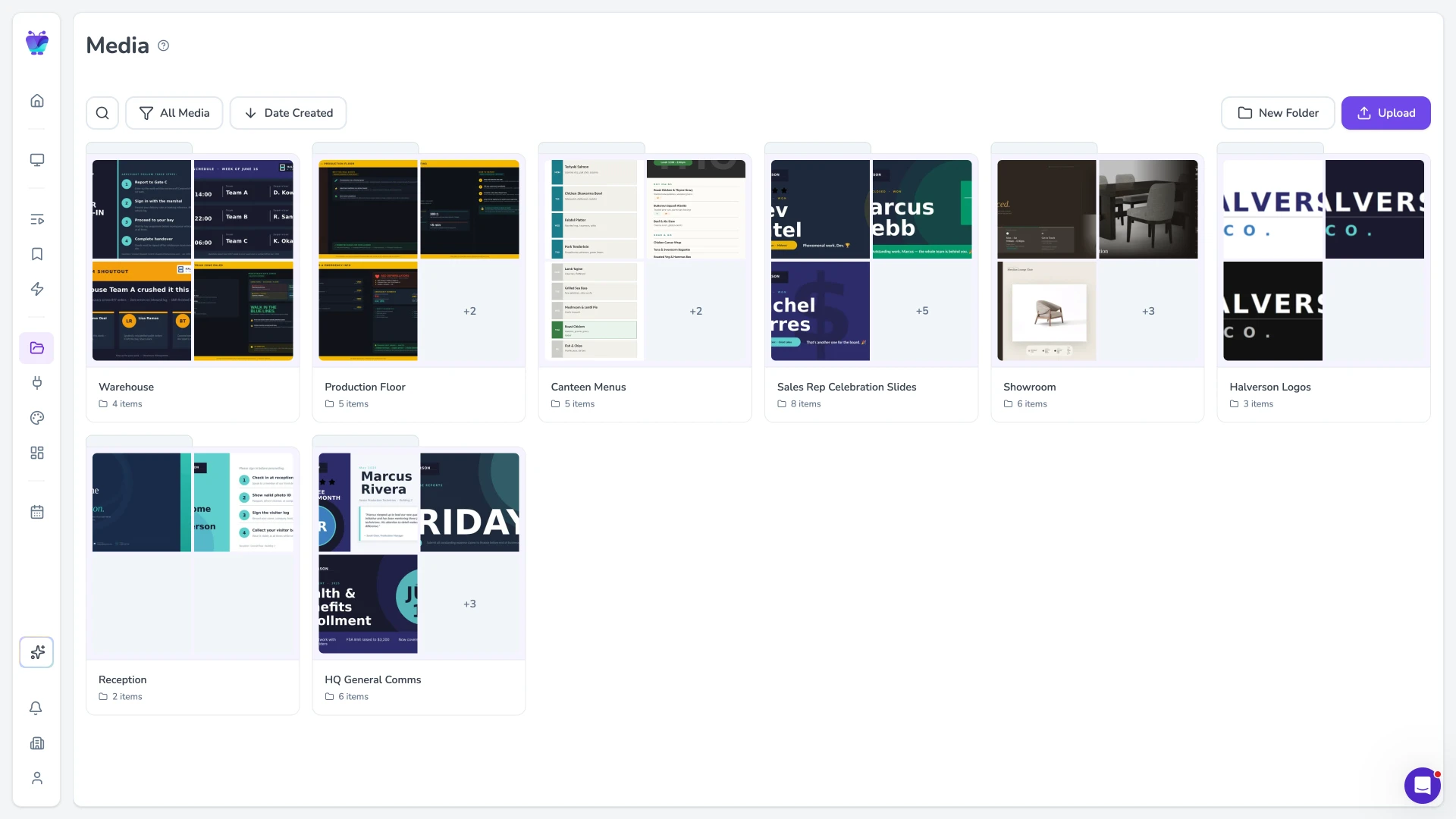
Organise your media library and connect apps for social walls, dashboards, calendars, news, and weather. The browser screen shows the same rich content as any dedicated Fugo player.
Best for trials, temporary screens, and browser-based devices
The browser player shines when you want content on screen fast, without buying or installing anything.
Trialling Fugo
Run a real screen on your own laptop to evaluate playlists, scheduling, and content before you invest in hardware. It is the fastest way to see Fugo working on an actual display during an evaluation.
Temporary and one-off screens
Stand up a display for an event, launch, or pop-up, then close the tab when you are done — no hardware to provision, install, or redeploy afterwards.
Browser-based devices
Point meeting-room systems, casting receivers like AirServer, and kiosk browsers that accept a URL at player.fugo.ai and pair them with a PIN. If you are wiring it into something unusual, our team can help.
When to choose a dedicated player instead
The browser player is built for flexibility, not permanence — for always-on screens a dedicated device is more reliable.
The tab has to stay open and awake
Playback runs inside a browser tab, so it must stay open, awake, and in the foreground. Closing the tab, letting the device sleep, or switching to another tab stops playback until you reopen it.
Not built for permanent installs
For an always-on, unattended screen we recommend a dedicated mini-PC or media player, which is more reliable than a browser tab. Built-in smart-TV browsers in particular are usually not reliable enough to run the player continuously.