
Fugo

Philips Wave digital signage

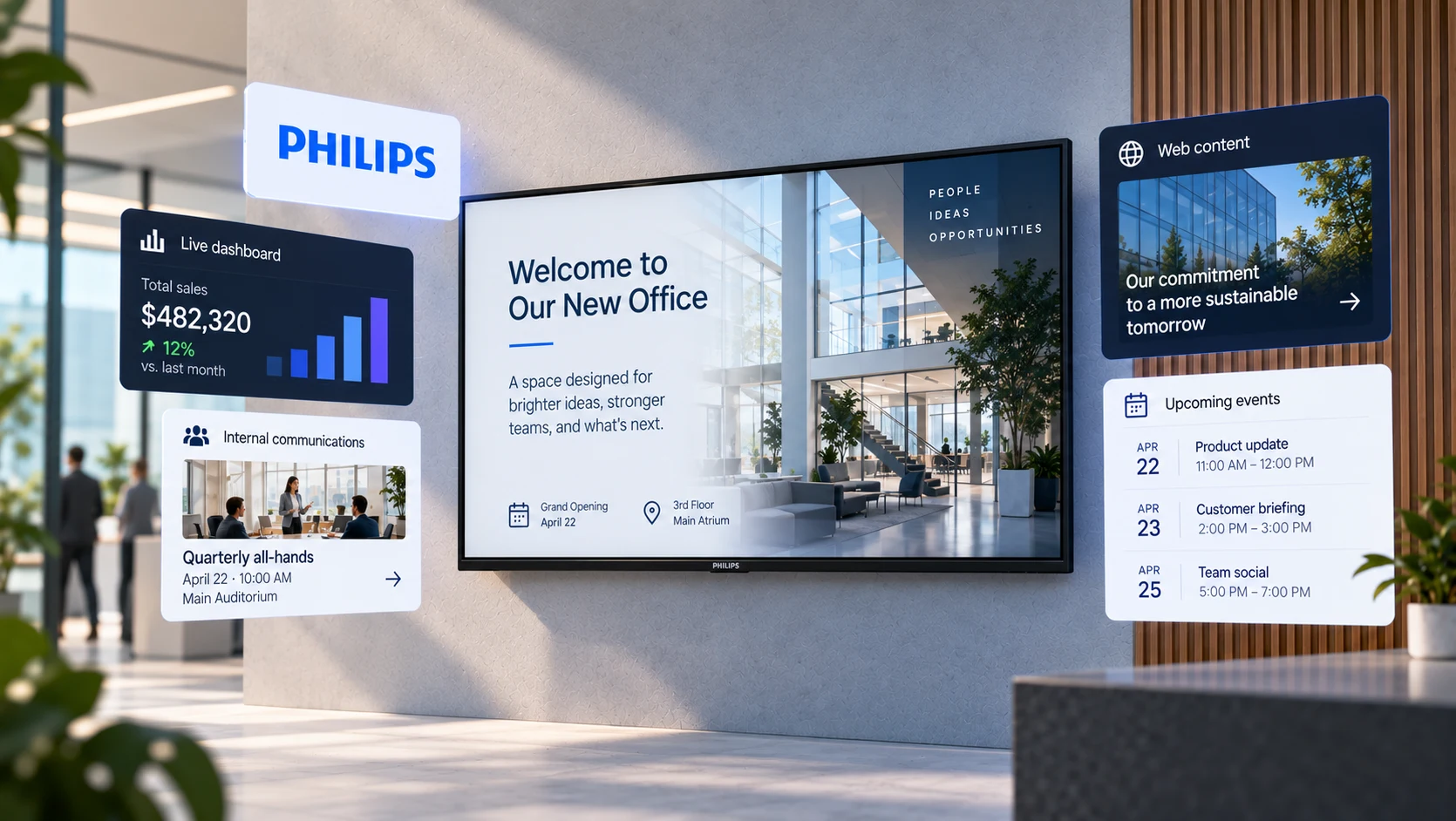
Run Fugo on Philips professional Android displays through the PPDS Wave platform. Install from the Philips ProStore, claim your displays in Wave, and manage every screen remotely — no external player required.

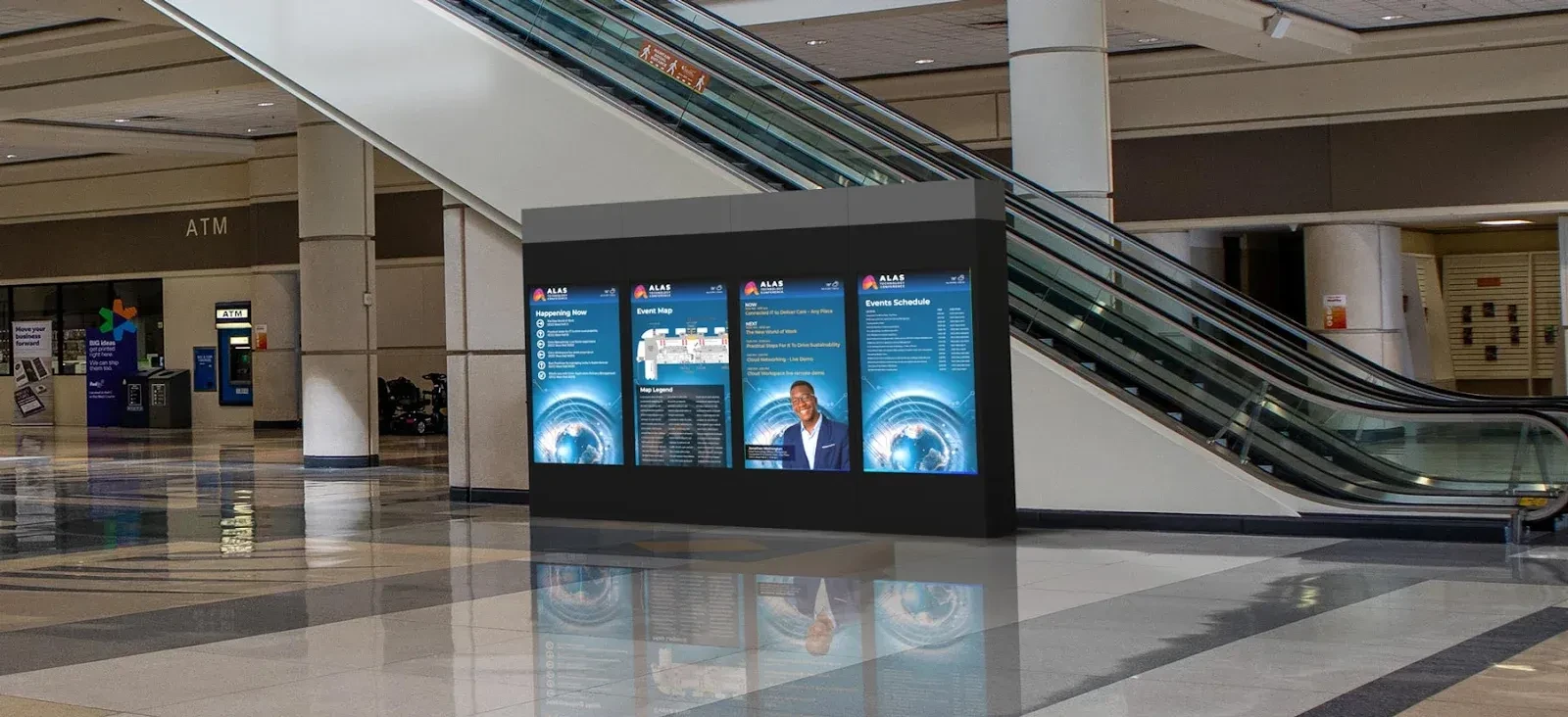
Freestanding Philips professional display running wayfinding signage in an exhibition centre concourse
Why Philips Wave

Commercial-grade signage on a built-in SOC

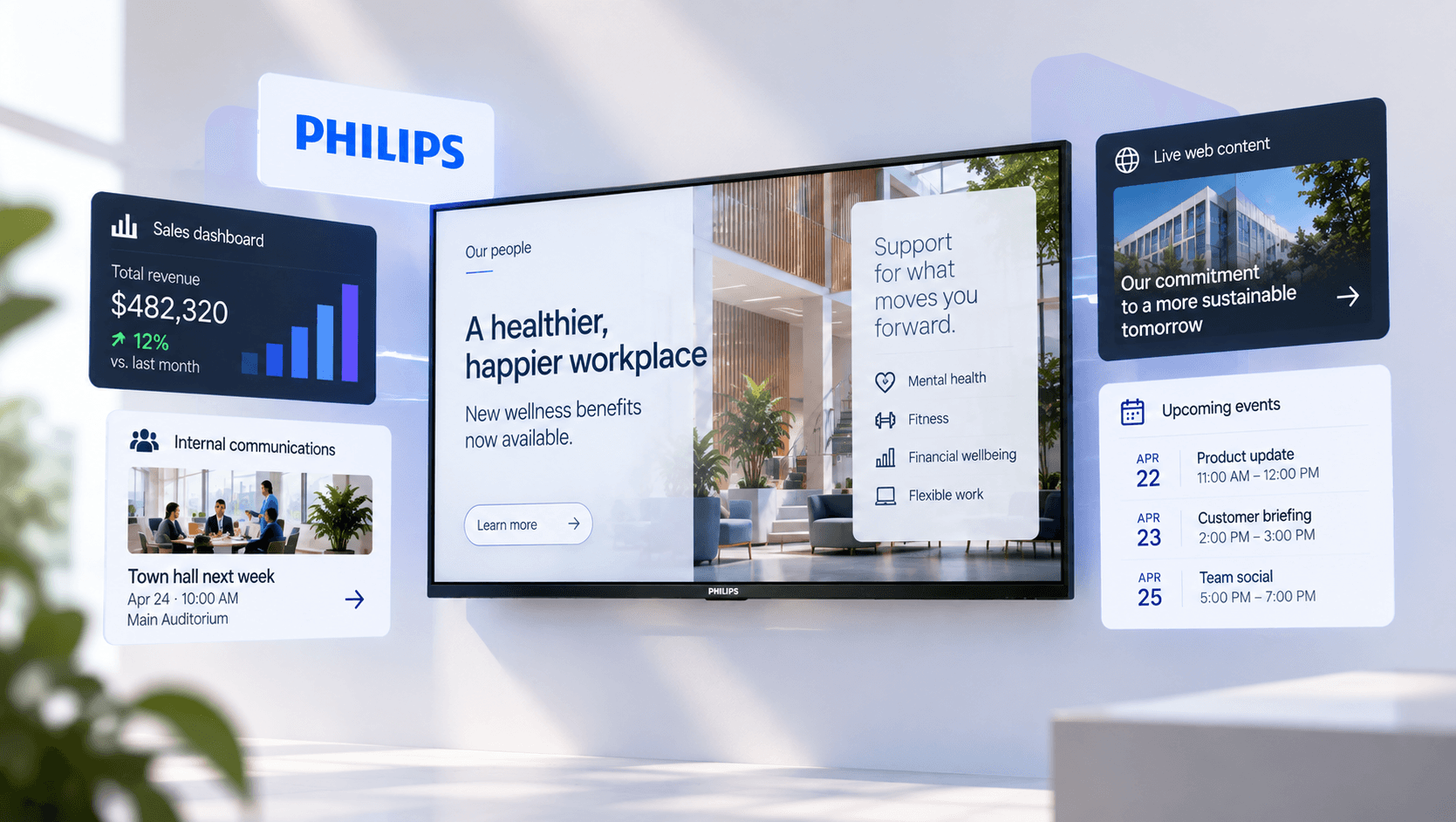
Philips professional displays run Fugo on their built-in system-on-chip, deployed and monitored through the PPDS Wave platform.

No external player

Fugo runs on the display’s built-in Android system-on-chip, so there’s no separate media player to buy, mount, cable, or maintain. Every screen becomes a self-contained signage endpoint, which cuts hardware cost and clears the clutter behind the panel.

One-click proStore install

Install Fugo straight from the Philips ProStore onto any display claimed in your Wave account — no sideloading, USB sticks, or on-site file transfers. Wave handles the install remotely, so a screen can be provisioned from your desk before it ever ships to site.

PPDS wave fleet management

Claim displays, push app updates, and monitor status remotely across every location from the PPDS Wave platform. Because Wave manages the display itself, you keep hardware-level control alongside the content control you get inside Fugo CMS.

Built for continuous operation

Philips professional panels are engineered for always-on commercial use, so screens keep running Fugo day and night without the interruptions consumer TVs introduce. That reliability is why they’re a common choice for retail, hospitality, and corporate estates.

Supported displays

Philips professional lines that run Fugo on wave

Wave support depends on both model and firmware — defer to the official Philips Wave supported-display list before buying. D-Line and Q-Line are recommended for new deployments. Outbound ports 80, 443, and 8883 must be open.

Recommended for new deployments

  • D-Line — recommended
  • Q-Line — recommended
  • T-Line professional displays
  • E-Line professional displays

Also supported

  • C-Line professional displays
  • S-Line professional displays
  • CRD Series displays
  • Support depends on model + firmware

Requirements & conditions

  • B-Line — extra requirements apply
  • I-Line — limited support
  • P-Line — firmware-specific
  • Confirm compatibility in the Philips Wave docs
Setup

Get a Philips Wave display live in four steps

From a supported panel to a managed screen paired with Fugo CMS.

Fugo screens page grouping displays by player type and platform
1

Confirm wave support

Check that your Philips model and firmware are on the official Wave supported-display list before you deploy. Compatibility is firmware-gated, so confirming it up front avoids surprises — and lets you group and manage screens by platform once they’re live in Fugo.

Philips display showing a claim code on screen ready to register in Wave
2

Claim in wave

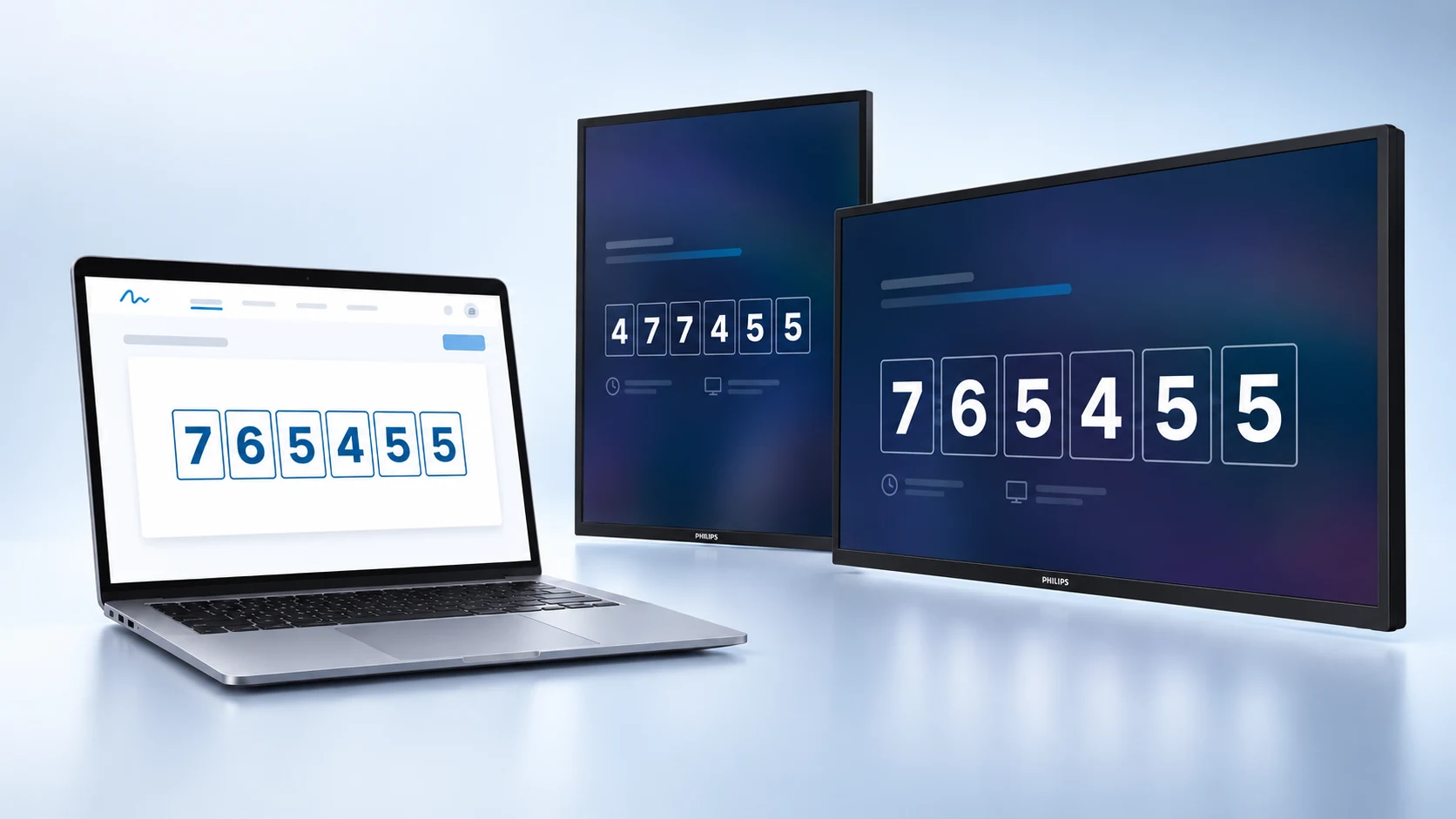
Install and activate the Wave app on the display, open it to reveal a 6-digit claim code, then claim the display into your PPDS Wave account. Wave Lite is enough for single-display claiming; Wave Essential adds bulk claiming for larger rollouts.

App store view for installing the Fugo digital signage app
3

Install Fugo from proStore

From the display detail page in Wave, add the Fugo app from the Philips ProStore and set it as the input source. Wave installs it remotely — there’s no fee for the Fugo ProStore app — so you never have to touch the device.

Fugo CMS screen pairing modal ready to receive a pairing code
4

Pair to Fugo CMS

Once Fugo launches it shows a pairing code. Open the Screens page in Fugo CMS, click Create Screen, enter the code, and name your screen to connect it to your account. From there, content, dashboards, and automation are all managed inside Fugo.

Fugo software

A full digital signage software suite behind every Philips screen

The Philips Wave display delivers reliable playback on the panel, while Fugo CMS gives you everything you need to design, schedule, and manage content across the fleet.

Fugo Design Studio with a blank landscape canvas ready for content

Design studio

Build slides, menus, and dashboards in the browser with the drag-and-drop Design Studio — no design tools required. Start from an industry template or a blank landscape or portrait canvas, then reuse layouts across every Philips screen.

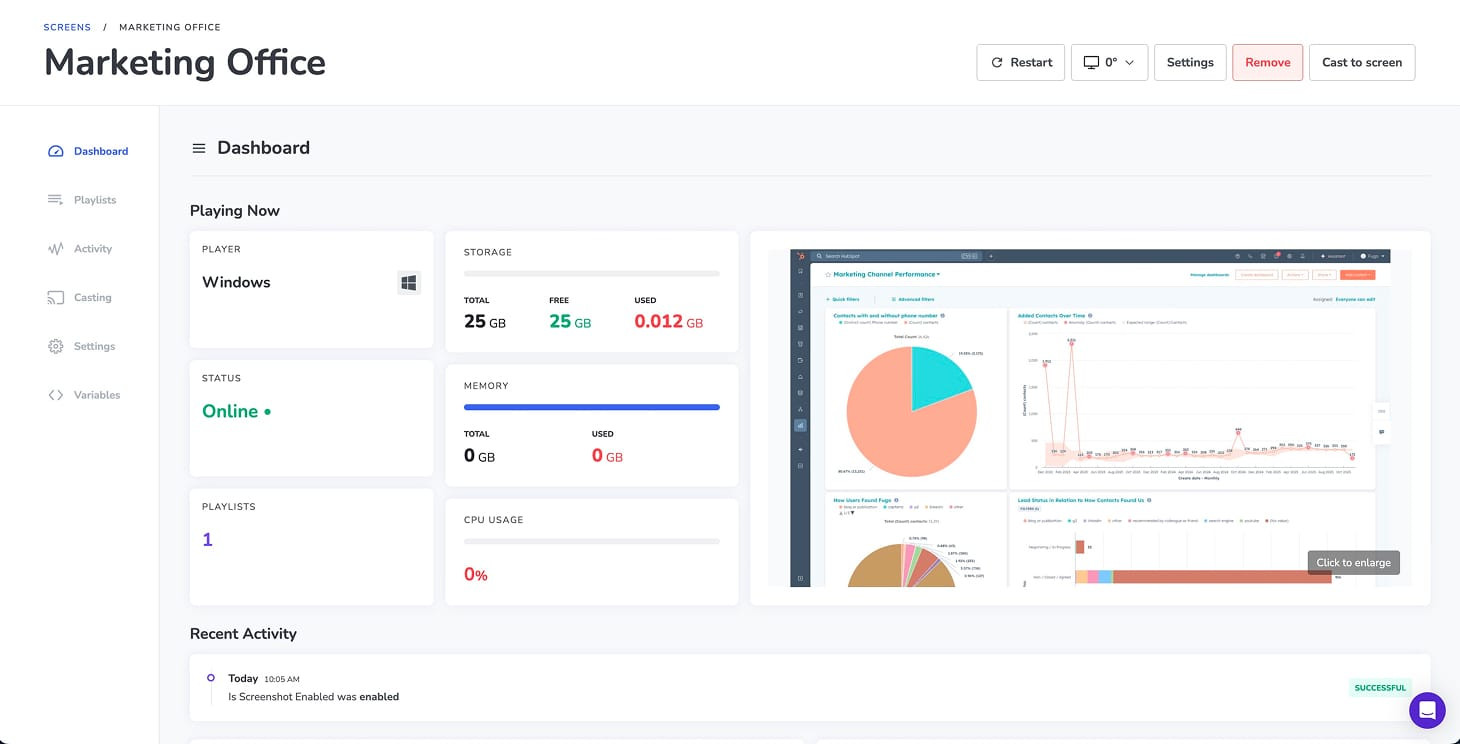
Fugo screens page grouping Philips displays by property for central management

Central screen management

Group, tag, and monitor every Philips Wave display from one cloud dashboard. Organise screens by property, site, or player type to manage a large estate without visiting a single location.

Fugo playlist scheduling with start and end dates for a campaign

Flexible scheduling

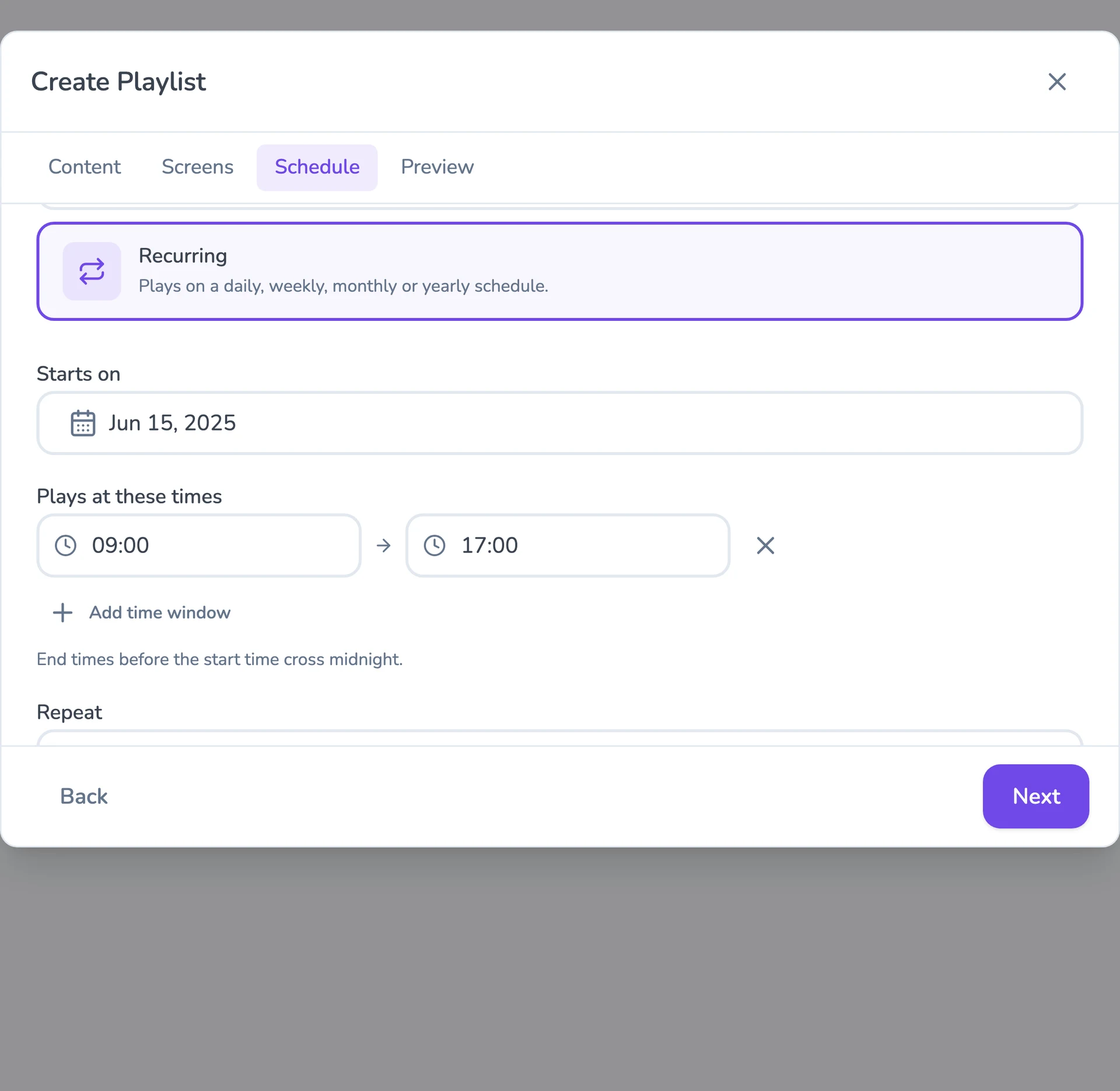
Schedule playlists by date, time, and day of week, set start and end dates for seasonal campaigns, and push priority takeovers when something is urgent. Content updates over the air, so screens stay current without anyone on-site.

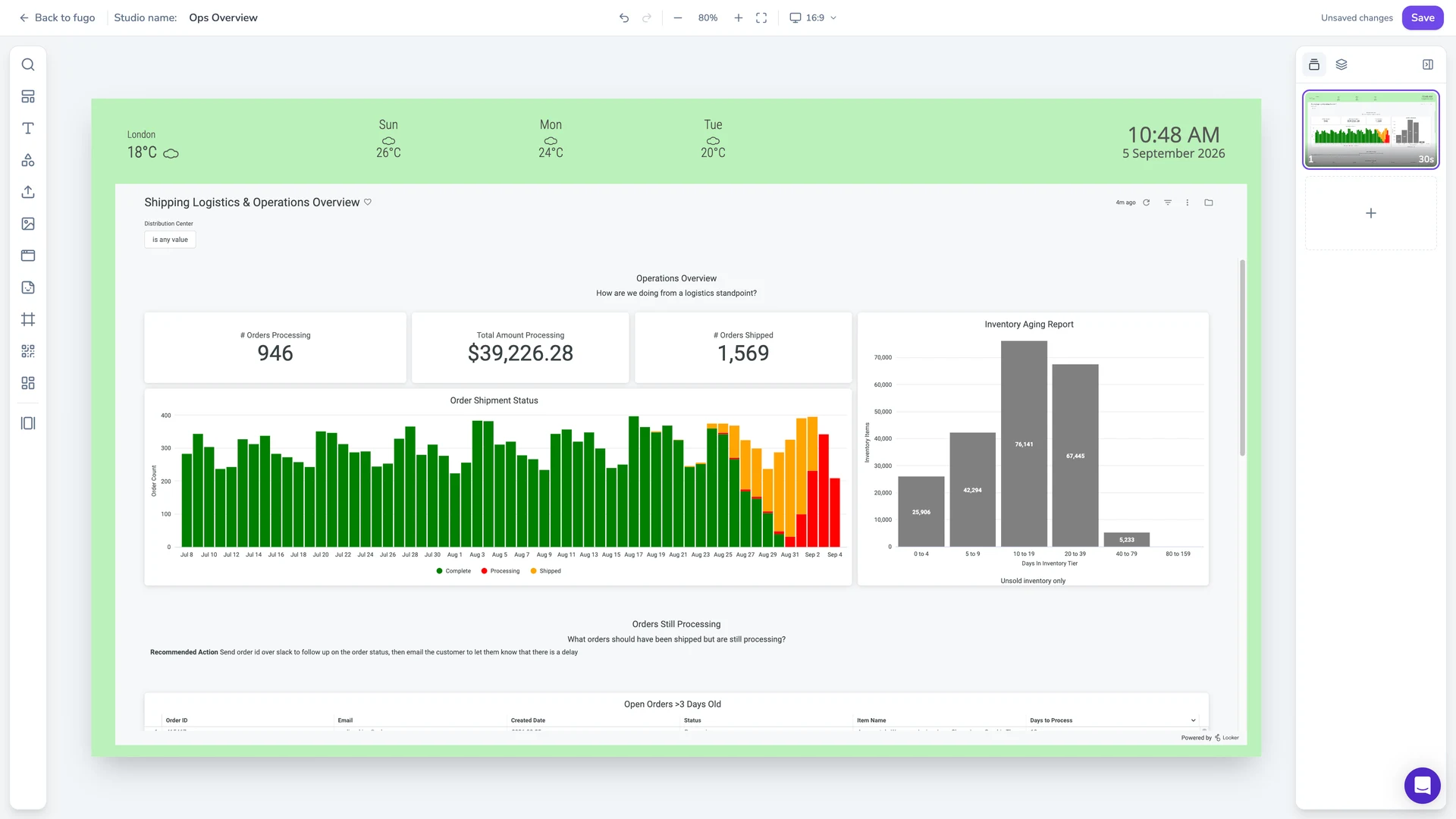
Fugo dashboards page listing connected live-data dashboards

Live data dashboards

Put live BI dashboards, KPIs, and web apps on screen by connecting the tools your data already lives in — Power BI, Tableau, Grafana, Salesforce, and more. Wired connectivity is recommended on Philips displays running heavier dashboards.

PPDS Wave

Deploy via the PPDS wave platform

Wave is the platform that registers, claims, and manages your Philips displays remotely — and it’s how Fugo reaches them. A Wave subscription (minimum Wave Lite) is required to claim displays and install apps from the ProStore. Wave access is invite-only and handled directly by Philips (PPDS).

Wave lite

The entry tier supports single-display claiming, remote management, and installing apps from the Philips ProStore — including Fugo. It’s enough to get individual Philips screens live and running signage end to end.

Wave essential

Adds bulk display claiming and expanded fleet-level management controls for teams rolling out and monitoring displays at scale. Essential is only needed for those advanced features — it isn’t required to run Fugo itself.

On Wave

What Fugo supports on Philips Wave displays

Wave-enabled Philips panels are commercial signage hardware built for extended, professional operation. Compatibility is firmware-gated, so confirm your model in the Fugo ProStore listing and the Philips Wave docs before purchasing.

Landscape & portrait

Run content in either orientation to suit menu boards, wayfinding pillars, wall-mounted displays, and totems.

Scheduled & automated playback

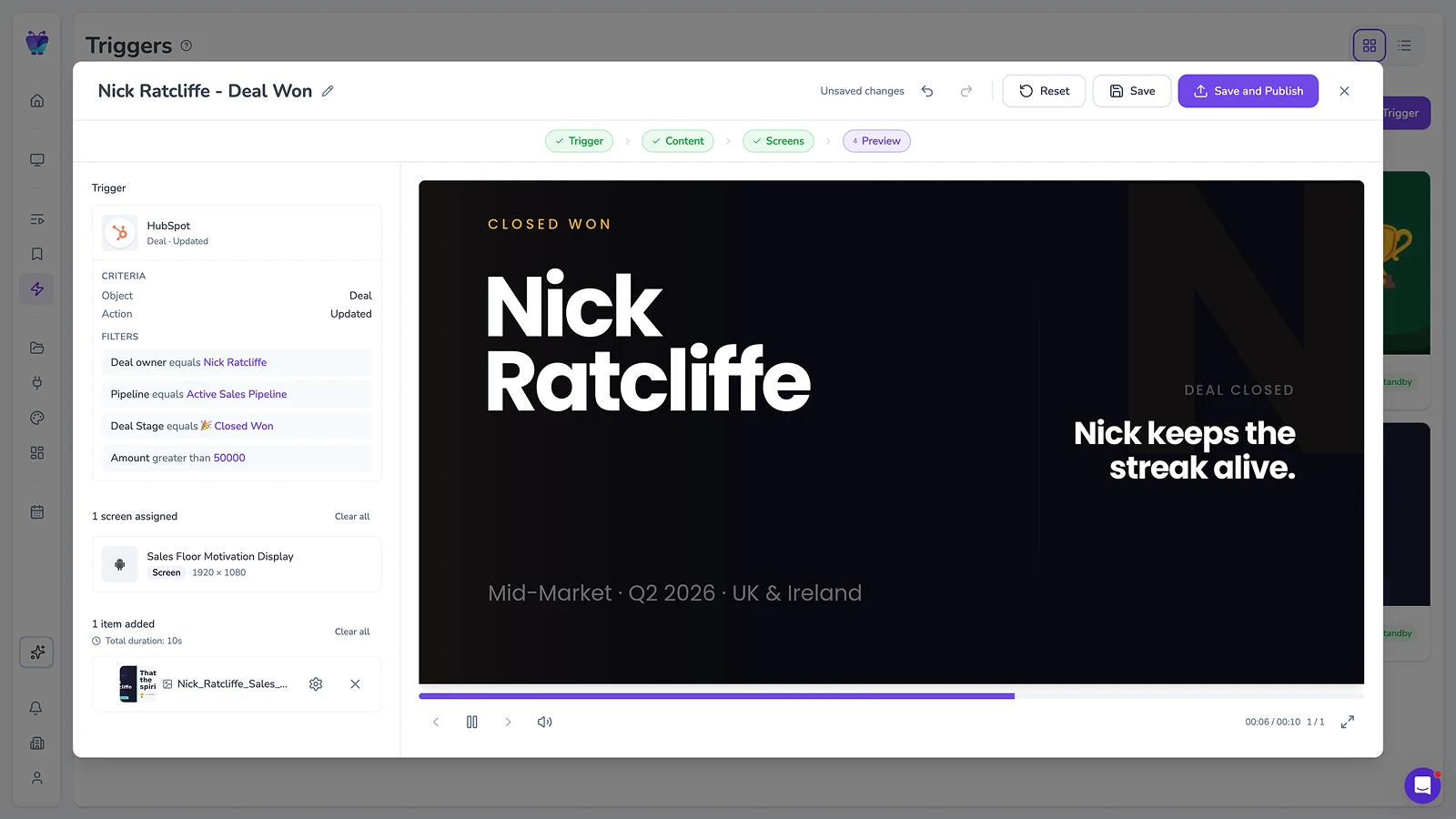
Play the right content at the right time with schedules, day-parting, and data-driven triggers managed from Fugo.

Web dashboards & apps

Show live BI dashboards, KPIs, and web apps directly on screen — performance scales with wired connectivity.

Remote monitoring

Check screen status and health across every site remotely, with hardware-level visibility through Wave.

Remote app updates

Push Fugo app updates to claimed displays over the air through Wave — no on-site visits or manual installs.

Offline playback

Keep showing uploaded media through short network drops so screens don’t go dark if connectivity blips.

Philips Wave digital signage FAQs

Which Philips displays run Fugo?

Fugo runs on Philips professional Android displays supported by the PPDS Wave platform — including the D-Line, Q-Line, T-Line, E-Line, C-Line, S-Line, and CRD Series, with additional conditions for B-Line, I-Line, and P-Line. Support depends on both model and firmware, so check the official Philips Wave supported-display list before purchasing. D-Line and Q-Line are recommended for new deployments. See the Philips hardware directory for the full list.

What are the minimum requirements to run Fugo on Philips Wave?

You need a Philips professional display that supports Wave on compatible firmware, the Wave app installed and active, and the display claimed in your Wave account. The display also needs an active internet connection with outbound ports 80 (HTTP), 443 (HTTPS), and 8883 (MQTT) open. A Wave subscription (minimum Wave Lite) and a Fugo account complete the setup.

Do I need wave essential?

No — Wave Lite is enough to claim a display, install Fugo from the Philips ProStore, and run signage. Wave Essential is only needed for bulk claiming and advanced fleet-management features when you’re rolling out displays at scale.

Should I use wave, or sideload the app?

For Wave-supported displays we recommend deploying through PPDS Wave: install Fugo from the Philips ProStore and manage the fleet remotely. Non-Wave Philips Android displays can alternatively sideload the Fugo APK from fugo.ai/fugo.apk. You can install the app directly from the Fugo listing on the Philips ProStore.

How do I choose a Philips display for a new deployment?

Because Wave support is firmware-gated, we recommend confirming compatibility directly in the Philips Wave documentation before purchasing hardware. For new deployments, choose current-generation Philips professional displays that ship with recent Android firmware, are explicitly listed as Wave-supported, and receive ongoing firmware updates. D-Line and Q-Line displays are commonly deployed in commercial signage environments and are generally well suited to Fugo when running supported firmware.

How does Fugo perform on Philips Wave displays?

Philips Wave-enabled displays are commercial signage hardware designed for extended, always-on operation, and Fugo supports landscape and portrait playback, scheduled and automated content, web-based dashboards and apps, remote monitoring, and offline playback of uploaded media. Performance varies with firmware version, network stability, dashboard complexity, and concurrent content usage — for high-performance dashboard environments, use stable wired connectivity where possible.