
Fugo

Digital signage on your Microsoft meeting-room displays

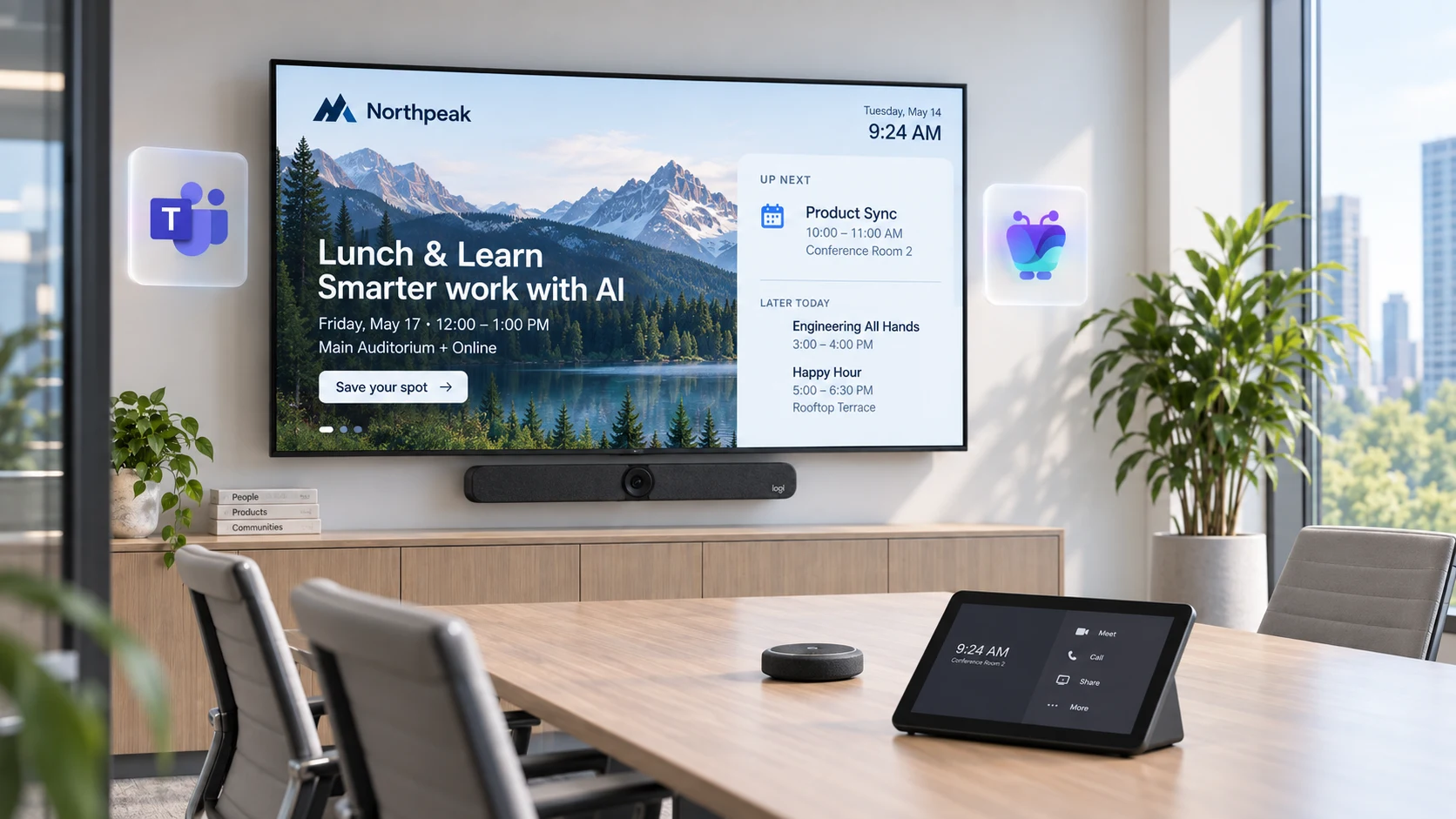
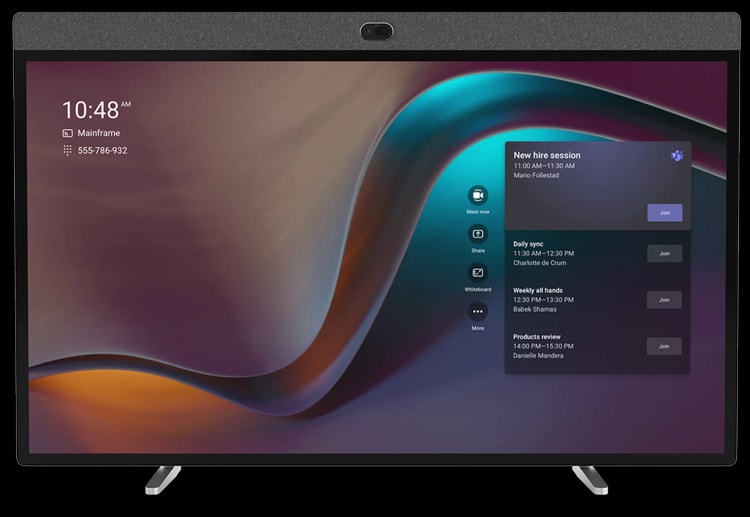
Turn idle Microsoft Teams Rooms displays into digital signage. Pair a Fugo player URL and add it as a custom signage source in the Teams Rooms Pro portal — Fugo plays between meetings and Teams takes over the moment a call starts.

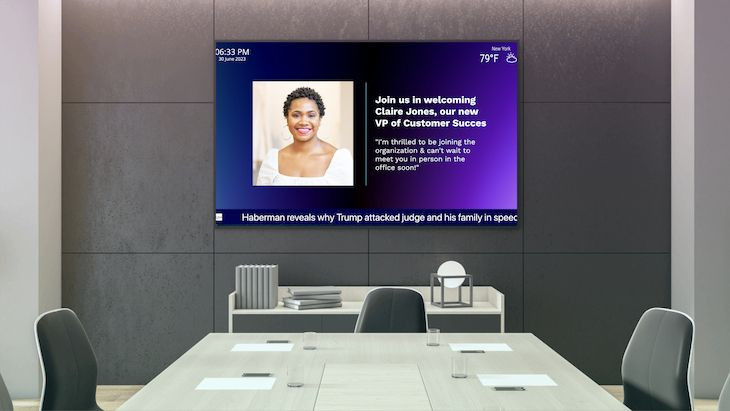
Office breakout area with a bench and a wall-mounted screen showing today’s room schedule
What you can show

Put idle meeting-room screens to work

The display outside and inside every meeting room spends most of the day idle. Fill that time with content your team actually needs — no extra hardware, no separate player.

Room schedules

Show what’s booked next so people know at a glance whether a room is free or busy. Pull the schedule straight from your calendar so it stays accurate without anyone updating a slide. It turns wasted wait-time outside a room into a live availability board.

Company announcements

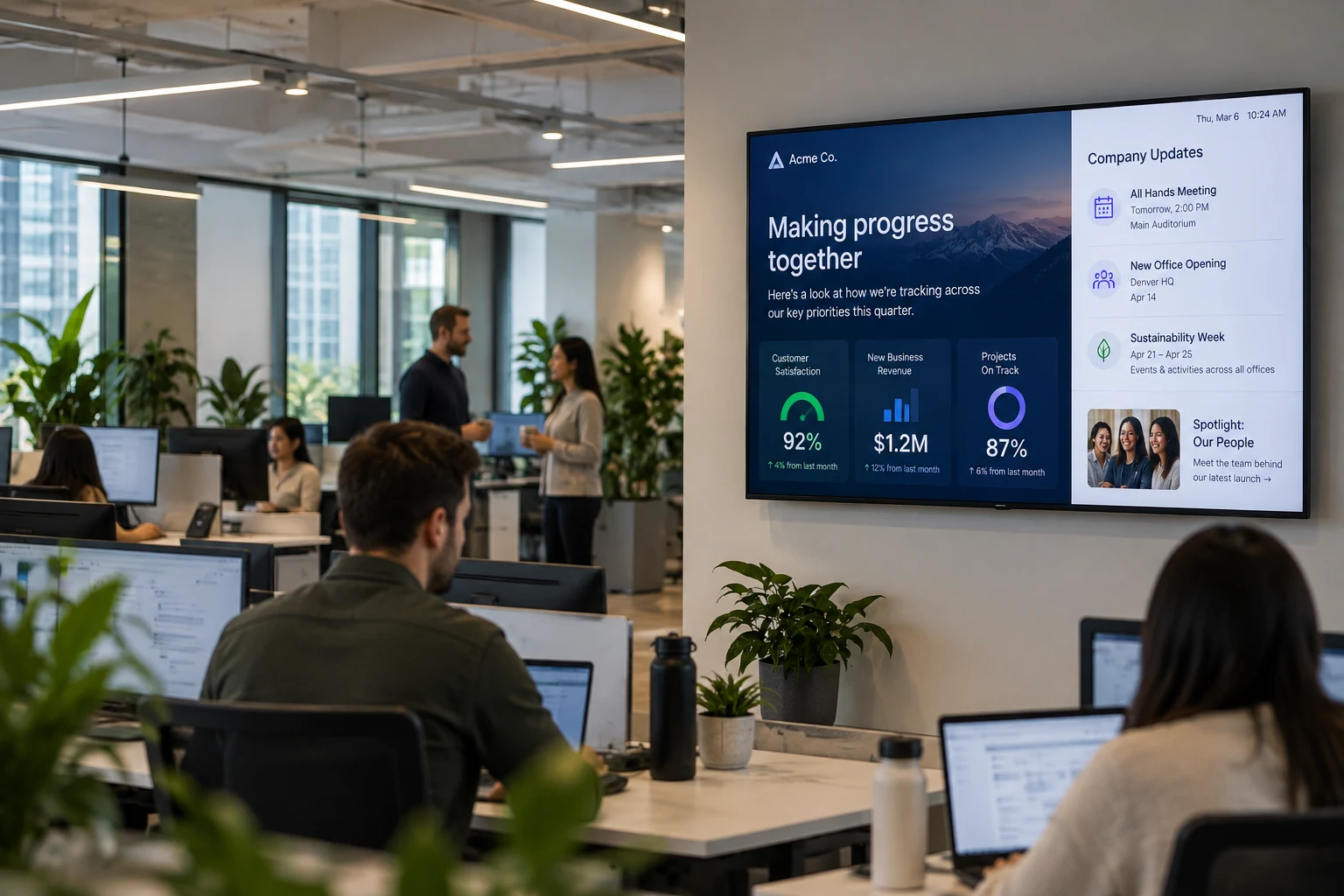
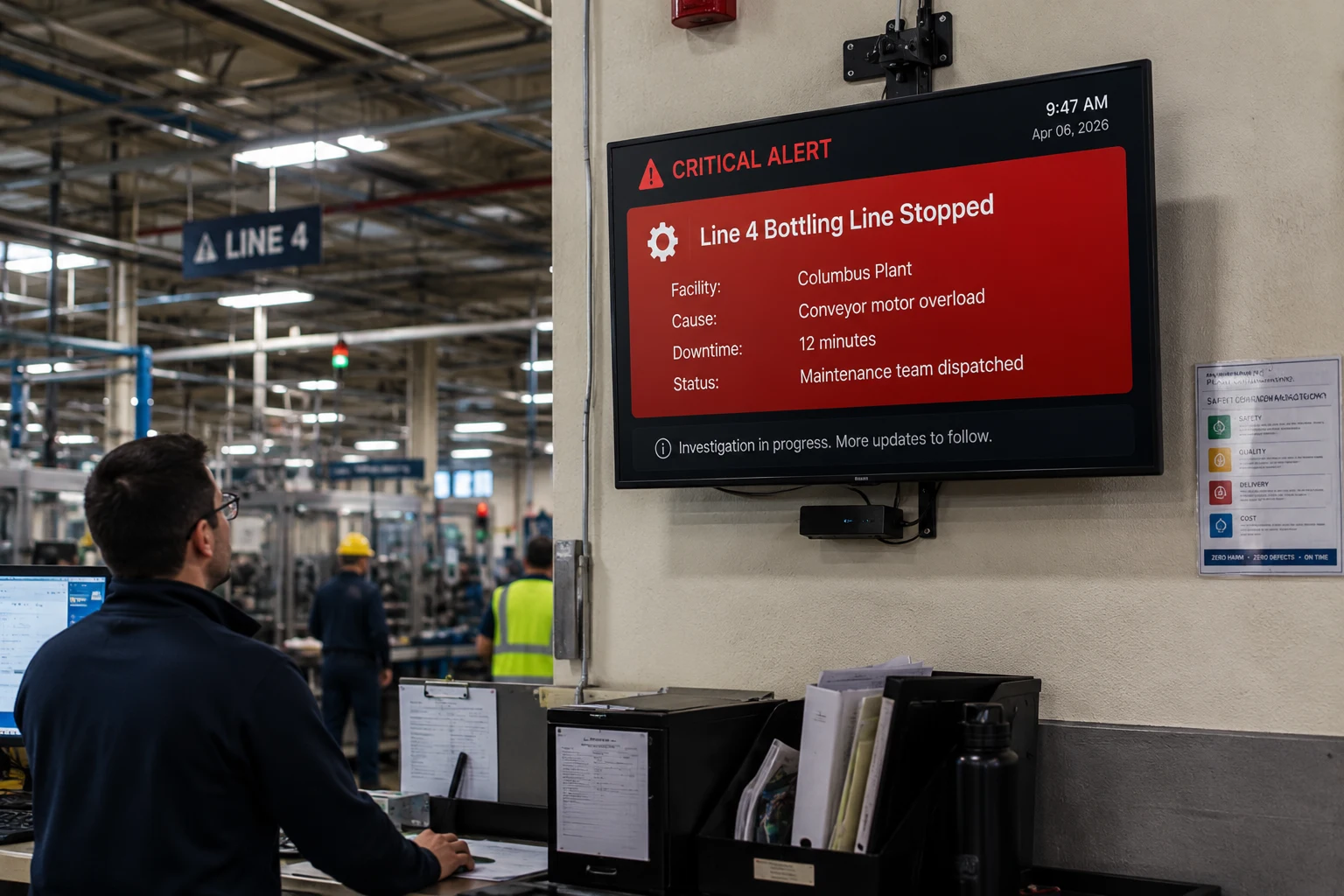
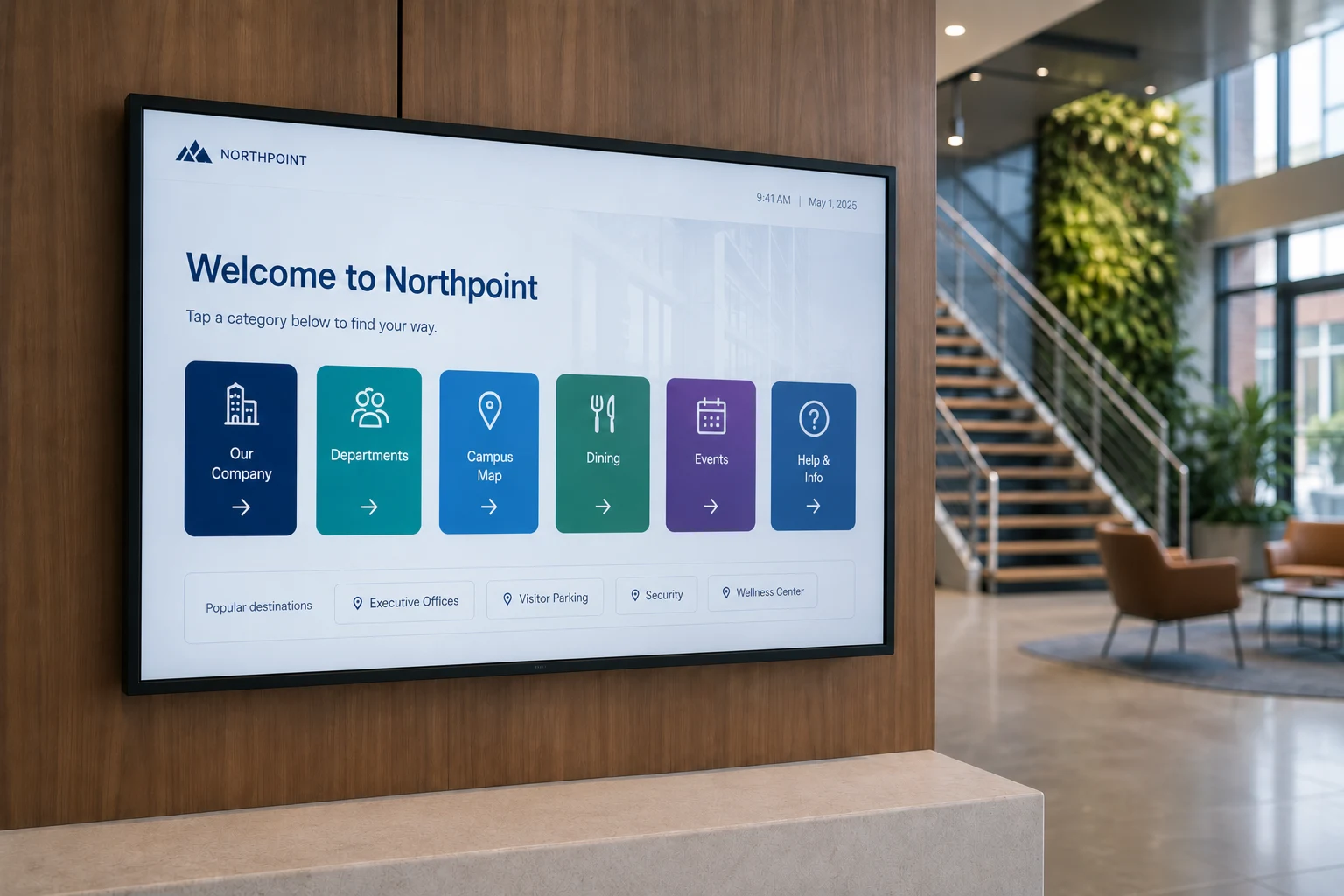
Broadcast workplace updates, events, and news to every room from a single dashboard. Schedule messages in advance or push something urgent to all screens at once. Every meeting room becomes an internal-comms channel your team can’t miss.

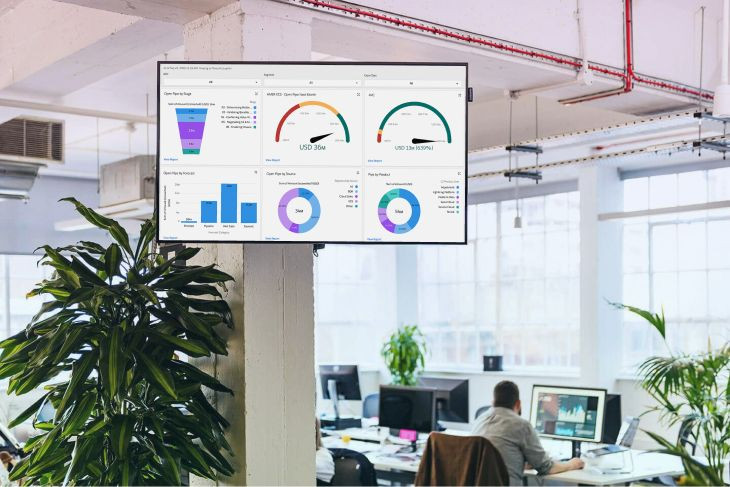
Live dashboards

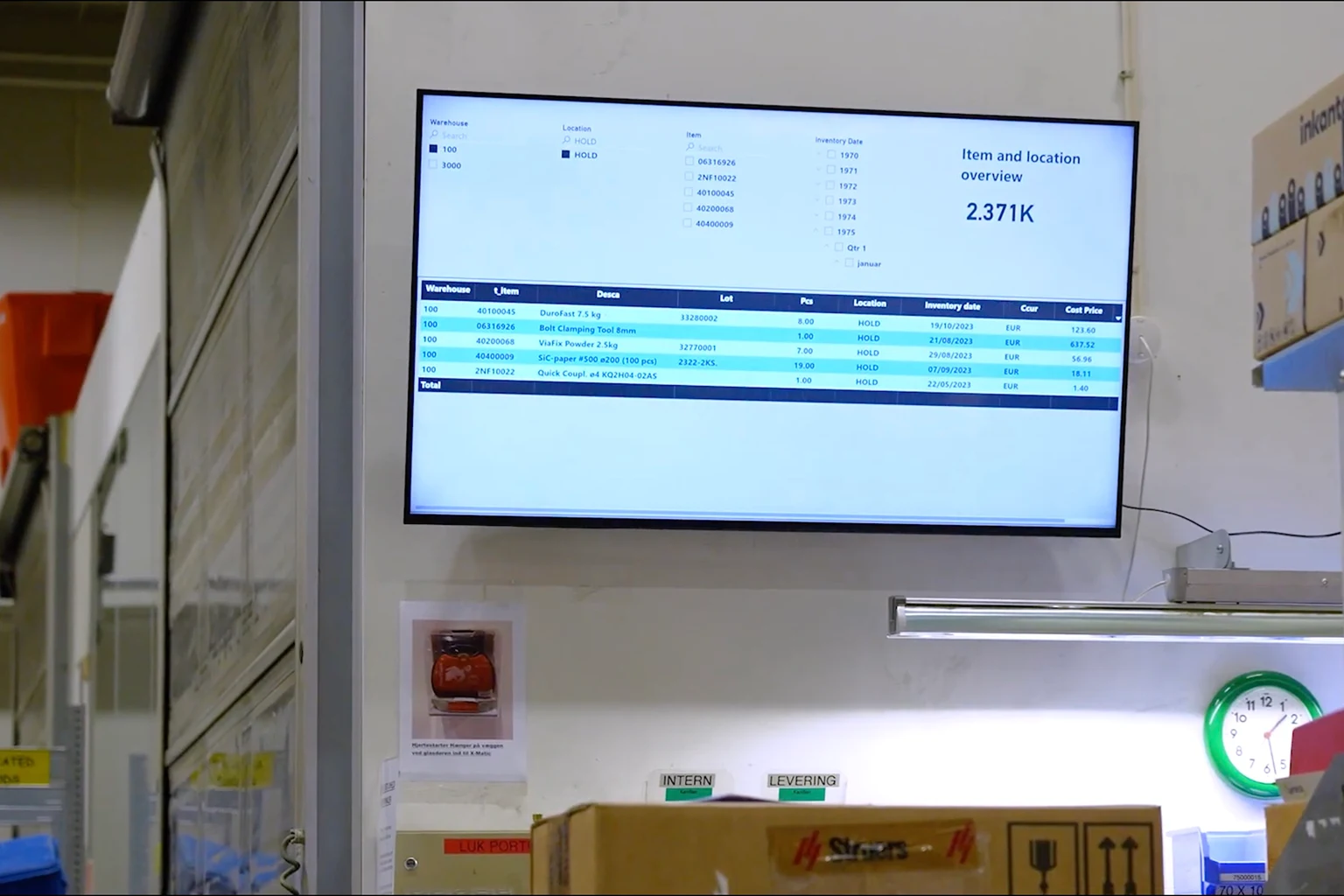
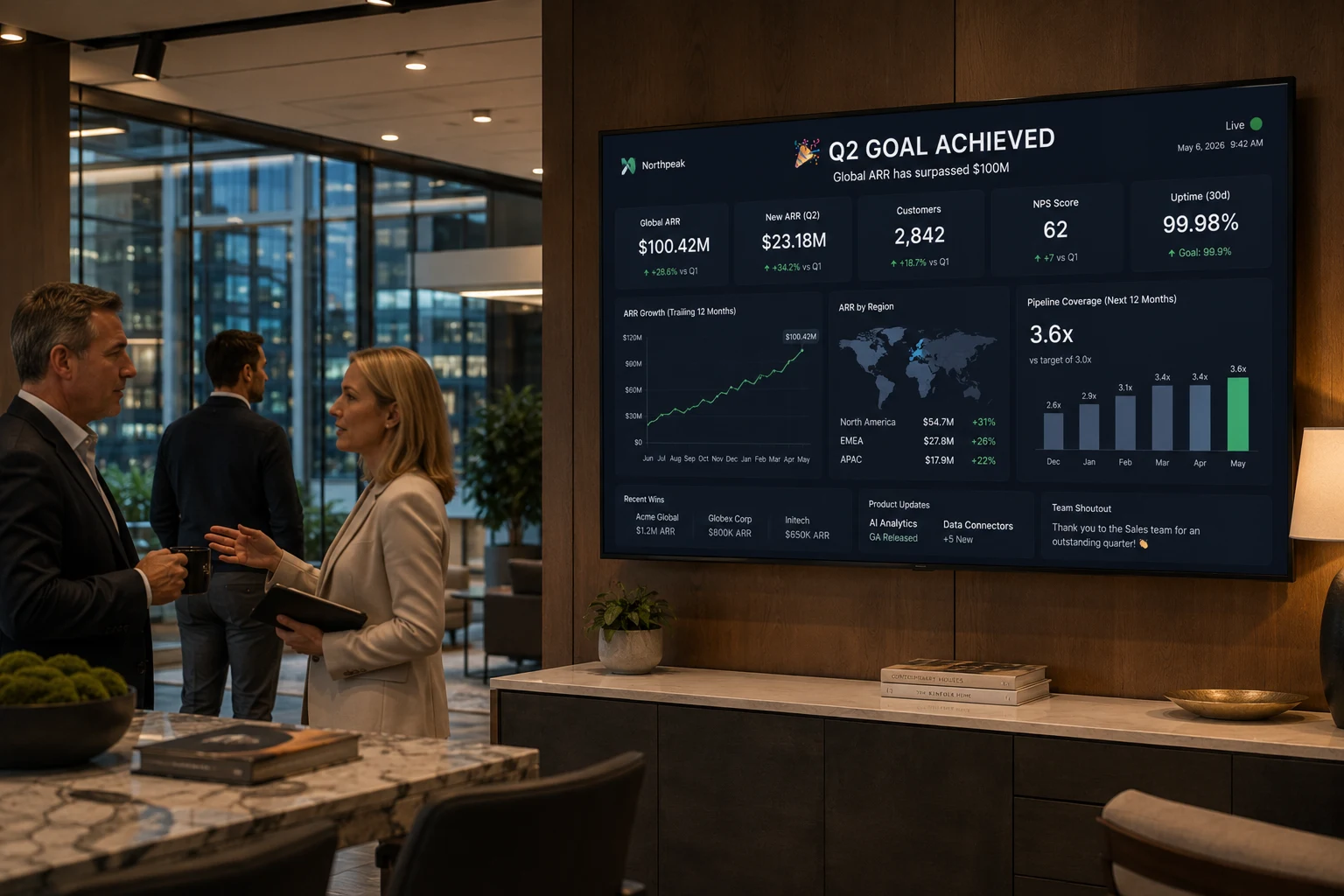
Keep sales, support, or operations metrics visible in the rooms where teams meet. Fugo connects to the BI tools you already run, so the numbers on screen update on their own. Walk into a stand-up and the KPIs are already there, no laptop required.

Resumes after every meeting

Teams takes over the screen the instant a meeting starts, and Fugo signage comes back automatically once it ends. There’s nothing to switch on or off between calls. Rooms stay useful all day instead of sitting on a blank or idle screen.

What you need

What you need to run signage

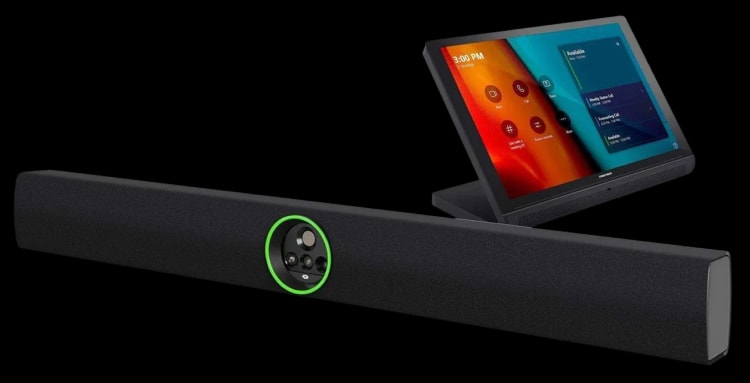
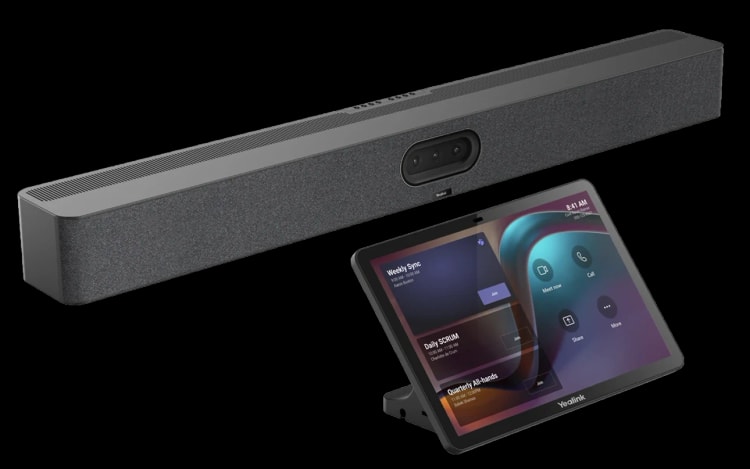
Fugo runs on the existing Microsoft Teams Rooms display — no extra hardware. You’ll need Pro-tier portal access to add a custom signage source.

A configured meeting room

  • A set-up Microsoft Teams Rooms device
  • A display already running Teams Rooms
  • No additional player or hardware required

Pro portal access

  • Microsoft Teams Rooms Pro licensing
  • A Microsoft admin account
  • Access to portal.rooms.microsoft.com

A Fugo screen

  • Consumes one Fugo screen license
  • A playlist assigned to the paired screen
  • Managed from Fugo CMS in the cloud
Setup

Add Fugo as a custom signage source

Pair a player URL in Fugo, then point the Teams Rooms Pro portal at it. Settings can take a few minutes to apply.

Fugo CMS screen-pairing modal confirming a paired test screen
1

Pair a Fugo player URL

Open player.fugo.ai to get a pairing PIN, add the screen in Fugo CMS, assign a playlist, and confirm it plays. Then copy the player URL from the browser address bar — that unique URL is what Teams Rooms will point at.

Fugo screen settings showing the paired player URL for a meeting room
2

Add it as a custom source

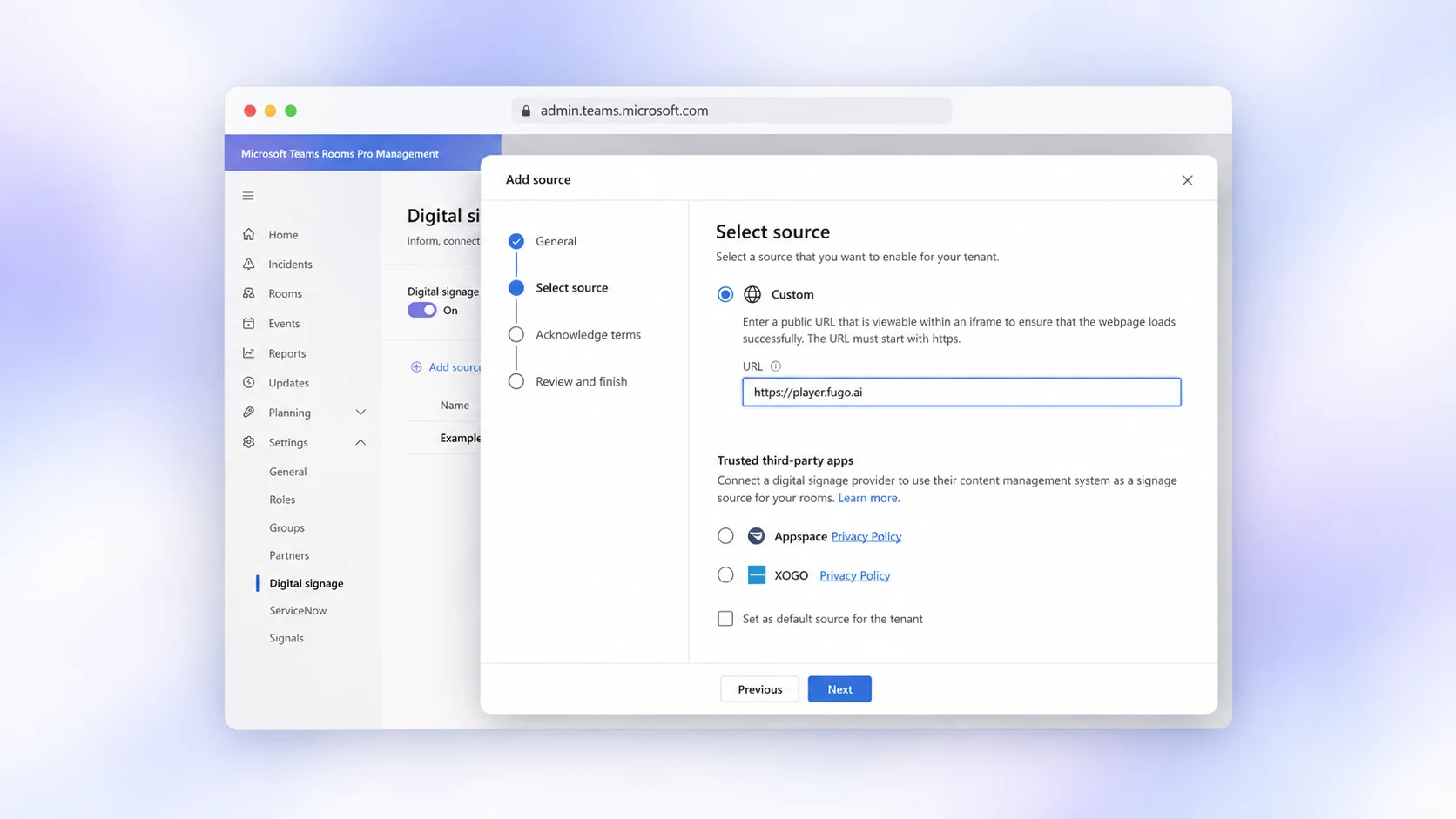
In the Teams Rooms Pro portal, go to Settings → Digital signage → Add source, give it a name, choose Custom, paste your Fugo player URL, acknowledge the terms, and submit. Your Fugo source is now ready to assign to any room.

Fugo CMS screens page showing paired meeting-room displays live and online
3

Turn signage on for the room

Open the room’s Digital signage settings, enable signage, set the idle period (one minute is a good default), turn off screen timeout when idle, select your Fugo source, and apply. Once the room sits idle for the set period, your Fugo content plays.

Software

A full digital signage platform behind every room

Teams Rooms puts Fugo on the display; Fugo CMS gives you everything you need to build, schedule, and manage what plays across every meeting room.

Fugo dashboards page listing connected BI tools and live data sources

Live BI dashboards

Connect Power BI, Tableau, Grafana, Salesforce, and more to show live metrics in the rooms where teams meet. The numbers refresh on their own, so a stand-up screen is always current. See the full library of supported TV dashboards.

Fugo playlist scheduling with start and end dates for an event

Scheduling and playlists

Build playlists and schedule content by day, time, or date range so the right message shows at the right moment. Set start and end dates for events, then let expired content drop off on its own. Recurring schedules keep planning hands-off.

Fugo quick-publish modal broadcasting an announcement to screens

Announcements in seconds

Quick-publish an announcement, an alert, or a workplace update to every idle room in a couple of clicks. Push something company-wide instantly or line it up to appear later. No design tool or IT ticket required.

Fugo screens grouped by property for managing rooms across locations

Central screen management

Group, tag, and monitor every paired room from one cloud dashboard, wherever your offices are. Push content to a floor, a building, or the whole estate at once. Everything stays organised as you add more meeting rooms.

How it works

Signage between meetings, calls when you need them

Fugo shares the Teams Rooms display without ever getting in the way of a meeting. Microsoft handles the switch automatically.

Idle time becomes signage

Once a room has sat idle for the period you set in the Pro portal, Teams Rooms hands the display to your Fugo signage source. One minute is a good default so rooms rarely sit blank.

Teams takes over for meetings

The moment a meeting starts, Microsoft Teams reclaims the screen for the call. Fugo steps aside instantly — signage never interrupts or overlays a live meeting.

Fugo resumes on its own

When the meeting ends and the room goes idle again, Fugo signage comes straight back — no button to press and no one to remember. Your content picks up automatically.

Meeting-room signage FAQs

Do I need Microsoft Teams rooms pro?

Yes. Adding a custom digital-signage source requires Teams Rooms Pro access to the Teams Rooms Pro Management Portal, along with a Microsoft admin account and a configured room device. The signage settings live under Settings → Digital signage in that portal.

Does Fugo interrupt teams meetings?

No. Fugo only plays while the display is idle. When a meeting starts, Teams takes over the screen, and your Fugo signage resumes automatically once the meeting ends — there is nothing to switch on or off between calls.

How is this different from the Google Meet method?

On Teams Rooms you pair a screen via player.fugo.ai and add the resulting PIN-paired player URL as a Custom digital-signage source in the Pro portal. This is not a Virtual Screen — the paired Web Player URL is what the Teams Rooms Pro portal points at.

What can I show on an idle teams room display?

Anything you can build or connect in Fugo: room schedules, company announcements, live BI dashboards, workplace updates, media, and apps. You can find the full set of options on our digital signage software features page, including live TV dashboards from tools like Power BI, Tableau, and Salesforce.

How long does it take for the signage to appear?

The settings apply in the background, so it can take a few minutes for changes to reach the Teams Room device. After that, the room will start displaying your Fugo content once it has been idle for the period you configured (one minute is recommended).

Do I need extra hardware or a separate player?

No. Fugo runs on the existing Microsoft Teams Rooms display through the Custom signage source — there is no additional media player or hardware to buy. Each paired screen consumes one Fugo screen license.

Which devices does this work on?

Any configured Microsoft Teams Rooms device whose display you manage through the Teams Rooms Pro Management Portal. Signage settings apply with a delay of a few minutes, and each paired screen consumes one Fugo screen license.