
LG webOS digital signage software
Bring the full Fugo experience to LG’s professional displays with smart, powerful digital signage that’s easy to run and built to last.
An LG webOS Signage Experienced Partner
“LG really loves Fugo and we enjoy our partnership with their team. They have a phenomenal product that our clients love using.”
webOS Signage is what makes LG displays ready for the job
Purpose-built for LG’s professional display range, it gives Fugo a stable platform to run on day after day. And it comes on best-in-class hardware fit for whatever job you give it.
Ready for 24/7 signage
LG offers commercial displays rated for continuous operation, built for screen networks that rarely get switched off.
Player built in
Fugo runs on the display’s built-in System-on-Chip (SoC), so there’s no separate media player to buy, mount, power, or maintain.
Performance that holds up
LG’s SoC is designed to handle rich layouts, web content, and high-resolution media without struggling under the load.
Made for any space
From high-brightness panels to portrait installations, LG’s commercial range offers a display for every kind of install environment.
Remote hardware oversight
LG ConnectedCare gives teams a remote view into how displays are performing, so many issues can be checked before anyone heads on site.
Commercial coverage included
LG backs its professional displays with commercial warranty coverage, while extended service plans carry that support further into the life of the deployment.
Simple setup, directly on the display
Fugo installs through LG’s built-in display settings. Pair the screen to your Fugo account, and it’s ready to manage alongside the rest of your Fugo screen network.
Set up Fugo on LG webOS Signage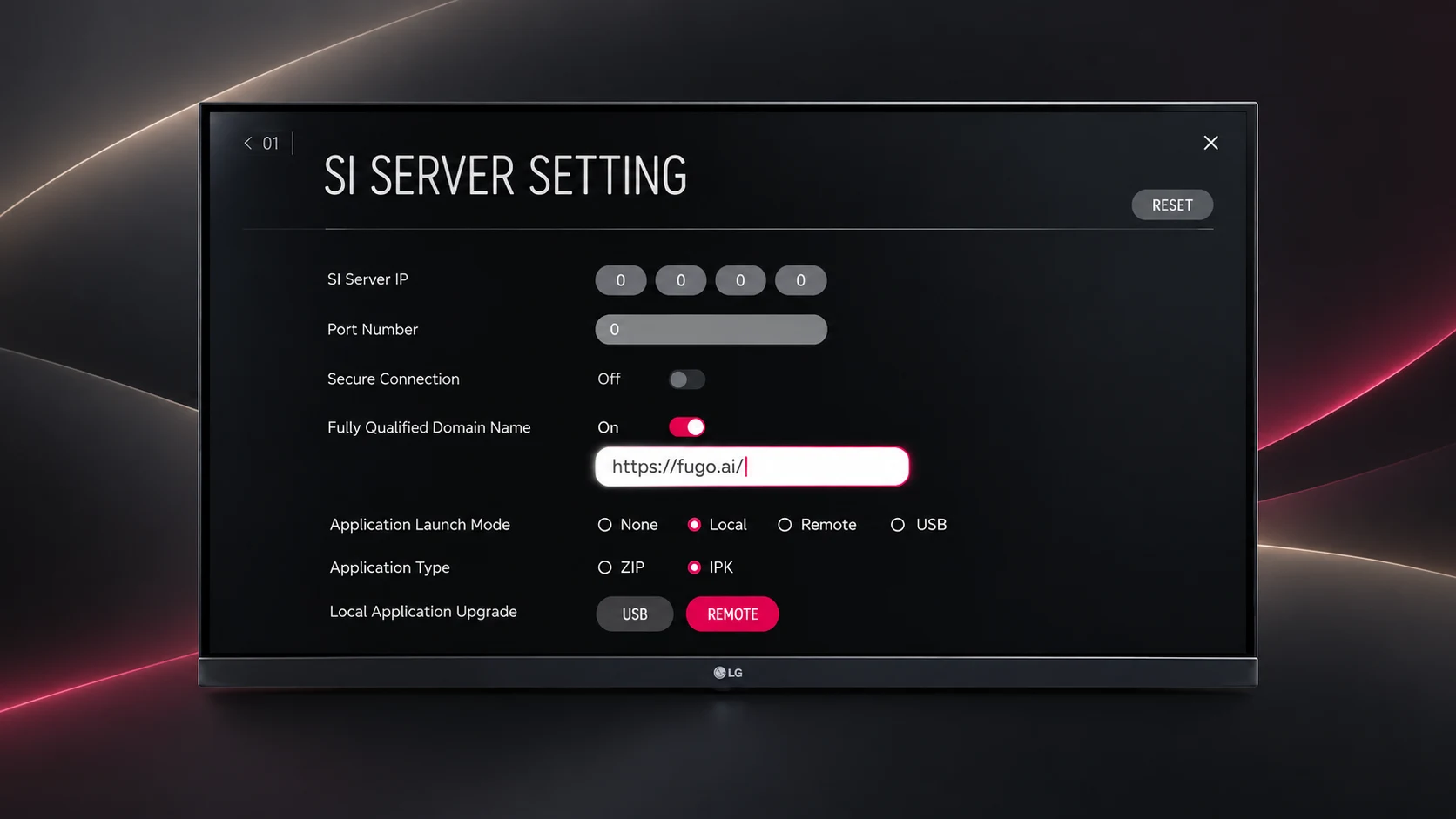
The CMS behind your LG screens
The panel plays content. Fugo designs, schedules, automates, and manages the network.
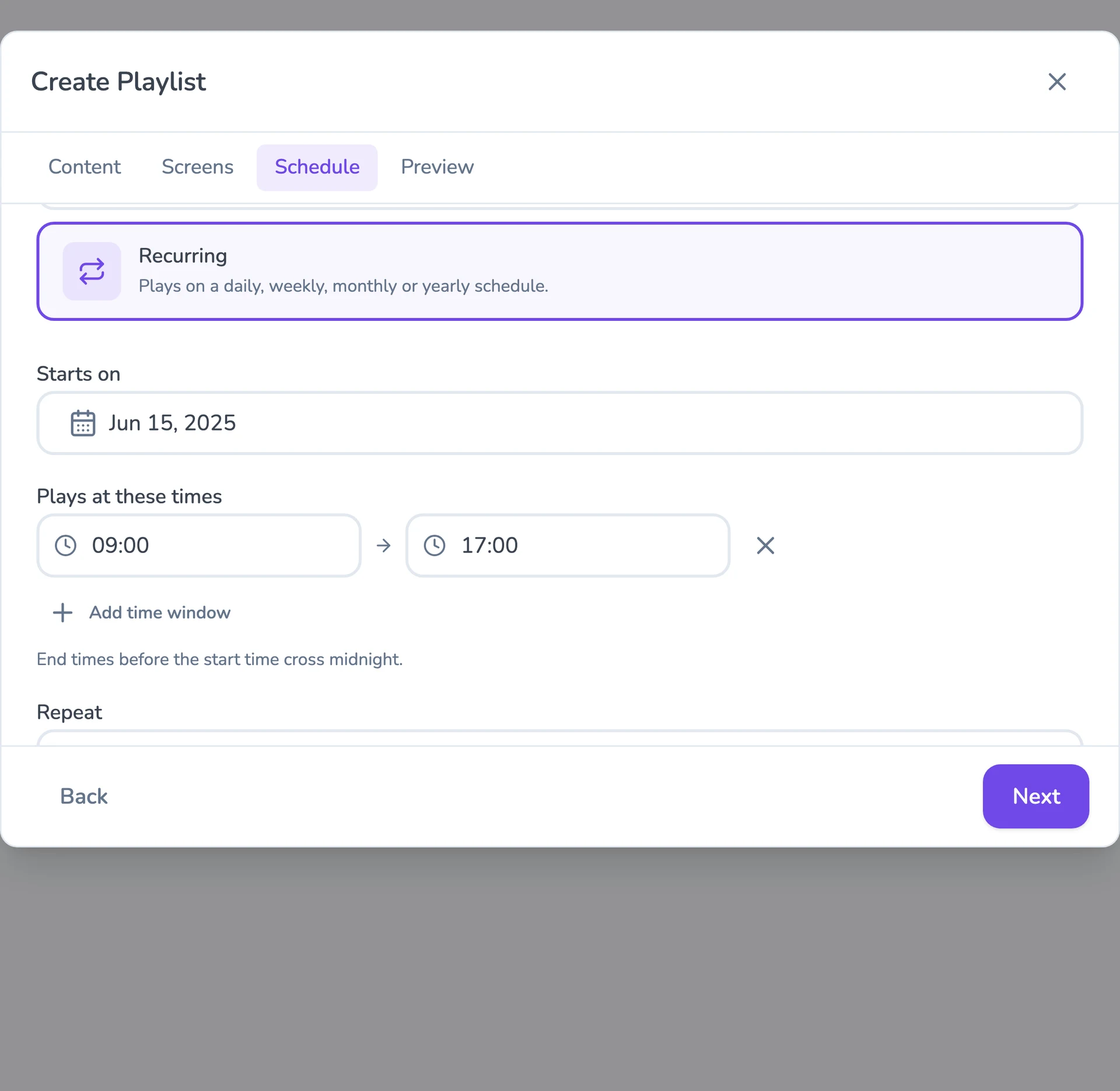
Flexible content scheduling
Keep even complex content calendars easy to manage. Schedule & target content to the right screens with flexible timing and automatic expiry.
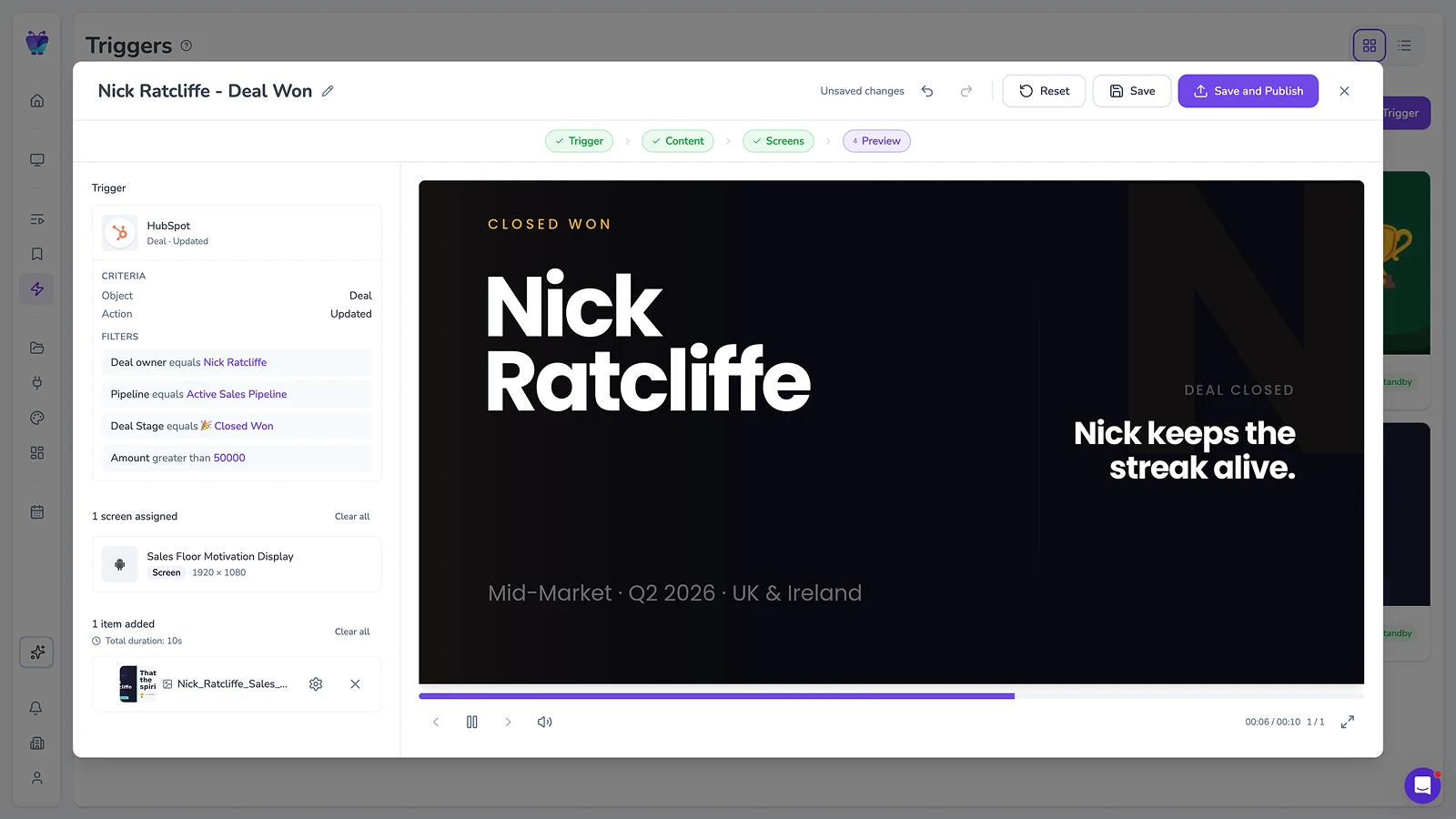
Event-driven content triggering
Let events in your connected systems decide when screens should update. Surface timely takeovers for alerts, milestones, or moments that need attention.
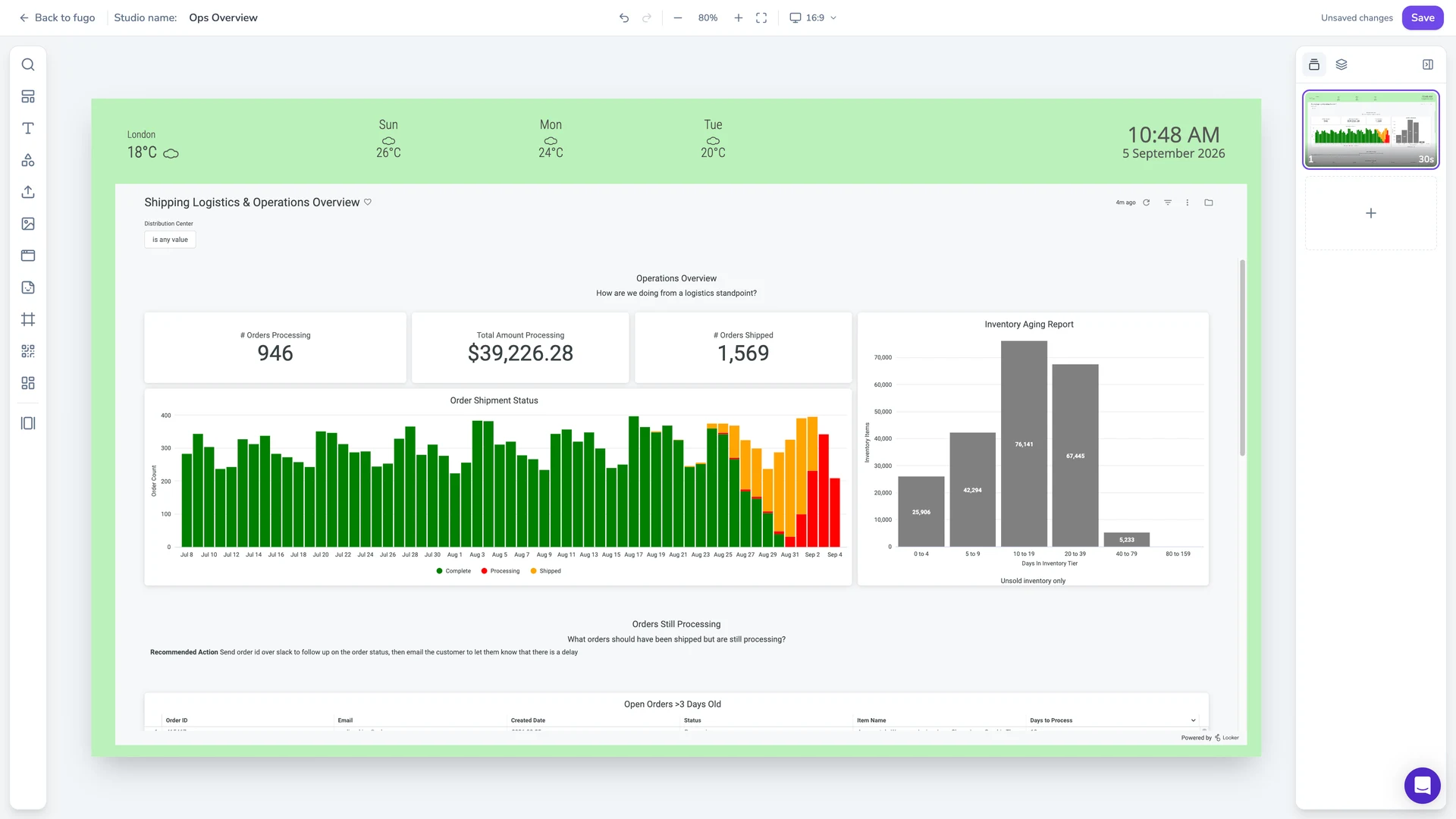
Full-featured content design
Combine your own media, live data, and connected apps into polished multi-zone layouts using an editor that feels as easy as Canva.
Centralized screen management
Organize and control your entire screen network from one place, without losing the flexibility to manage each screen according to its setup.
Works with LG device management
Keep ConnectedCare / SuperSign at the hardware layer while Fugo runs content and fleet control above it.
Built-in remote monitoring
See what’s happening on remote screens from Fugo. Verify playback and investigate problems without sending someone on site.
Granular user management
Give teams access to the screens and content they own without opening the rest of the network.
Build your video wall with Fugo & LG
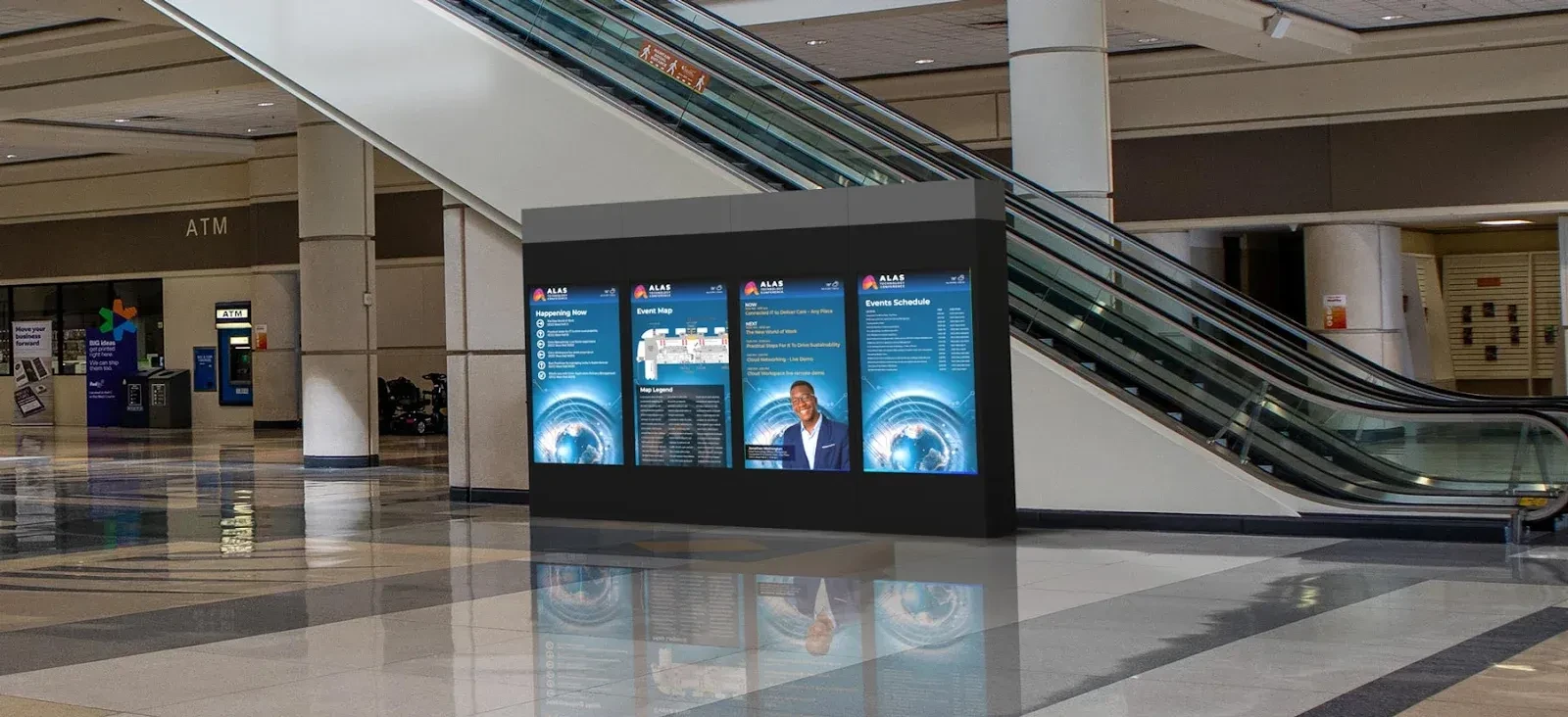
Run Fugo across supported LG video wall displays with a dedicated player driving the wall. Design the full installation as one seamless canvas and create an immersive visual experience that pulls people in.
Recommended LG displays
Fugo is supported on LG’s professional displays running the webOS Signage platform. These are our go-to picks.
View all supported LG hardware
LG 32SM5J
A compact commercial display for counters, corridors, wayfinding, and other spaces where a smaller screen needs to stay on all day.
24/7 operation
32-inch display
400 nits brightness
Full HD resolution
Portrait or landscape
LG UL3J Series
A practical choice for meeting rooms, staff areas, classrooms, and other spaces that follow the working day.
16/7 operation
43 to 86 inches
4K UHD
Up to 400 nits brightness
webOS Signage
LG UH5J Series
Made for busier, brighter environments where the screen needs stronger visibility and around-the-clock operation.
24/7 operation
500 nits brightness
43 to 98 inches
4K UHD
High-haze display
Dive deeper on commercial displays and screen networks
Guides on choosing displays, rolling out a network, and keeping it running.