
Fugo

Digital signage for Google Meet rooms

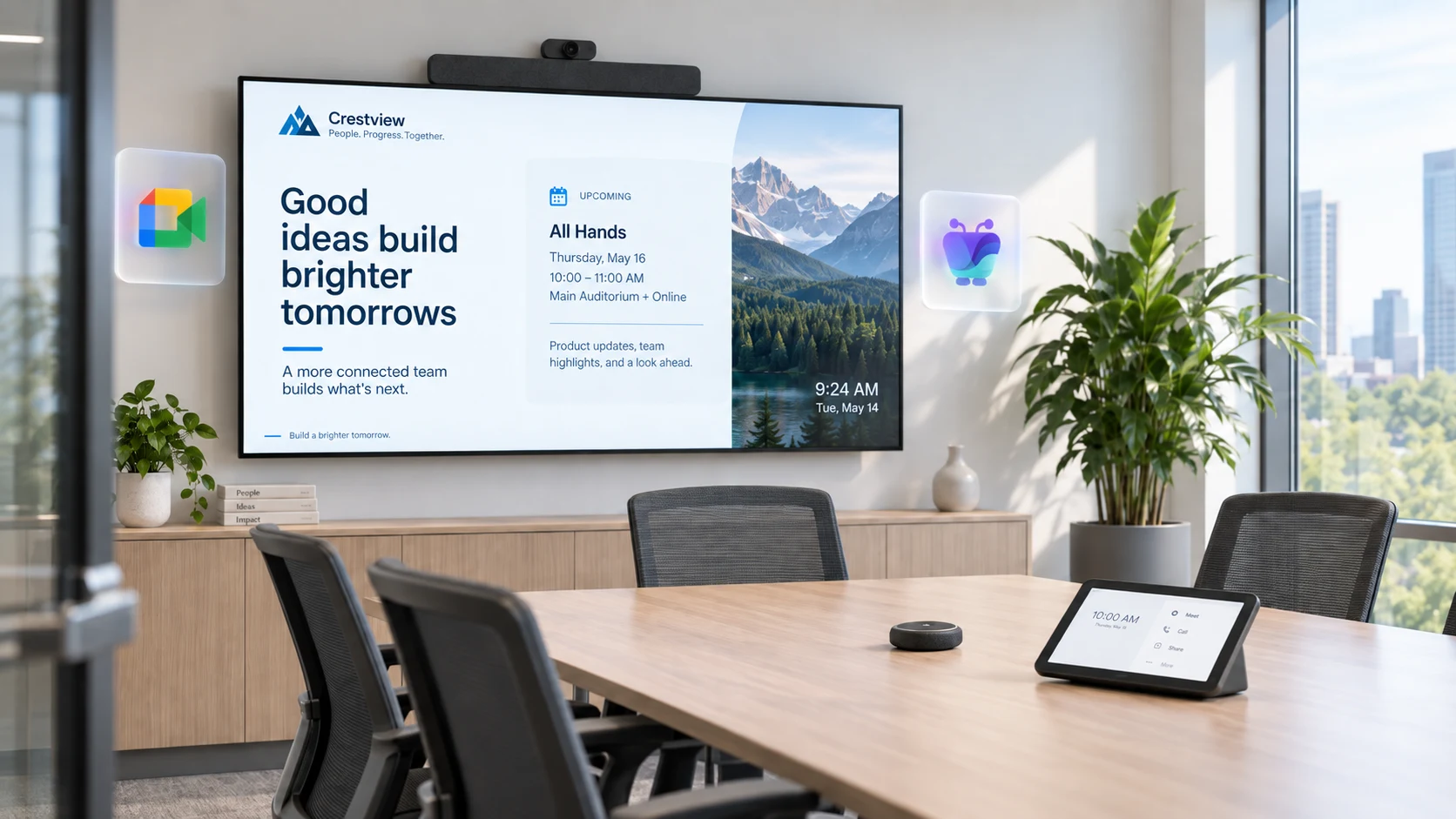
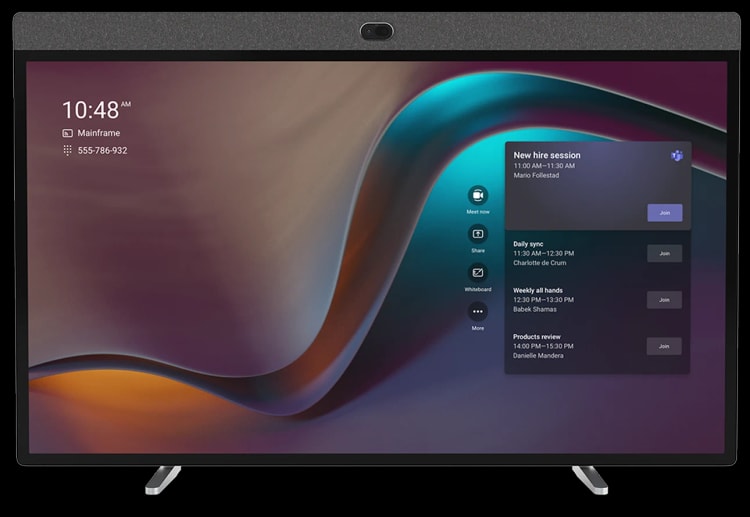
Turn idle Google Meet room screens into digital signage. Set a Fugo virtual-screen URL as the screensaver in Google Admin and show schedules, announcements, and dashboards between meetings — Meet resumes automatically for calls.

Wall-mounted screen at the entrance to an office meeting-room suite listing each room as free or in use
What you can show

Put idle meet screens to work

Every room device sits idle between calls. Fill that time with the information your teams and visitors need.

Room schedules

Show the day’s bookings, the next meeting, and whether the room is free so people can find a space at a glance. Pull the schedule straight from Google Calendar so the display stays accurate without anyone touching it.

Announcements

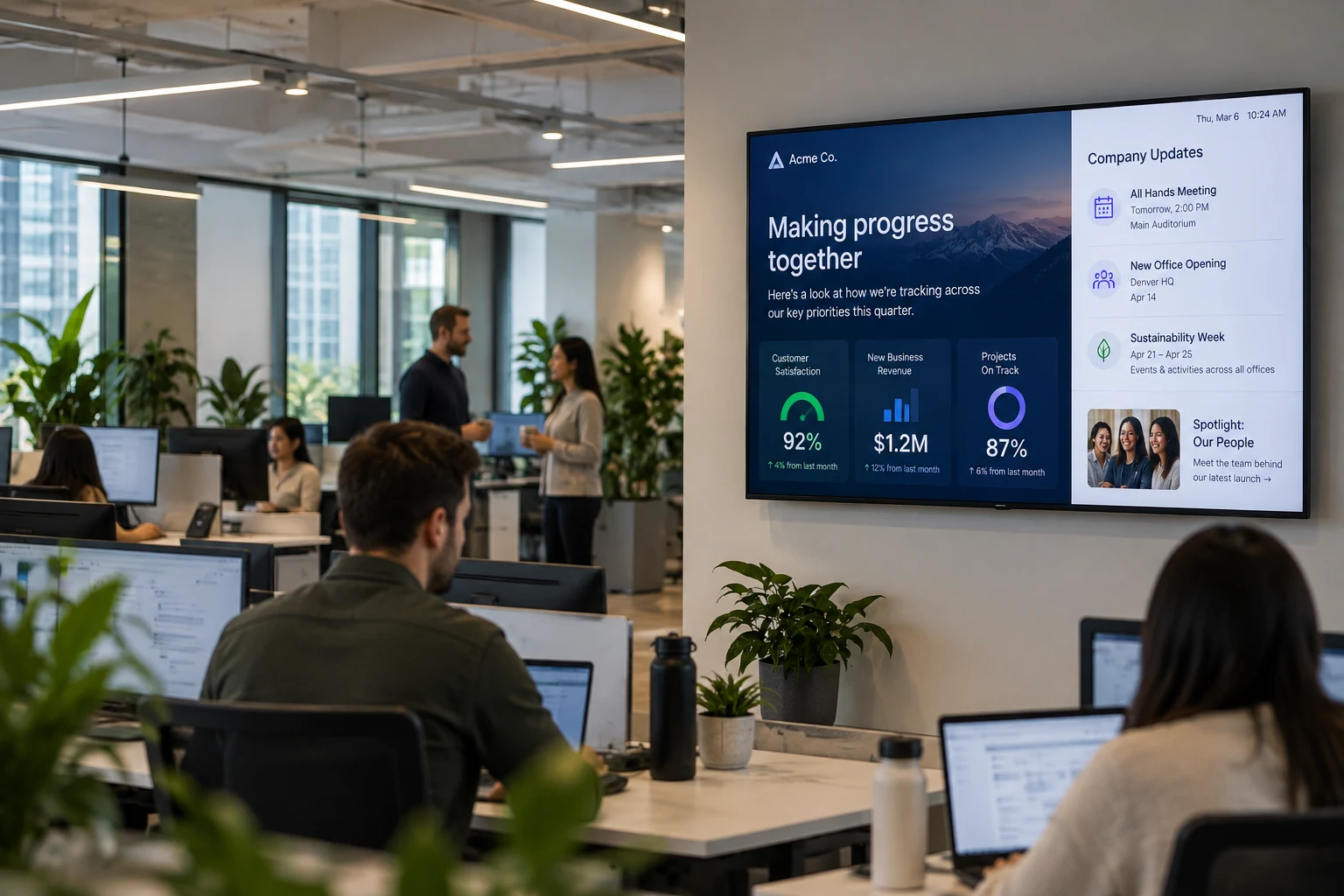
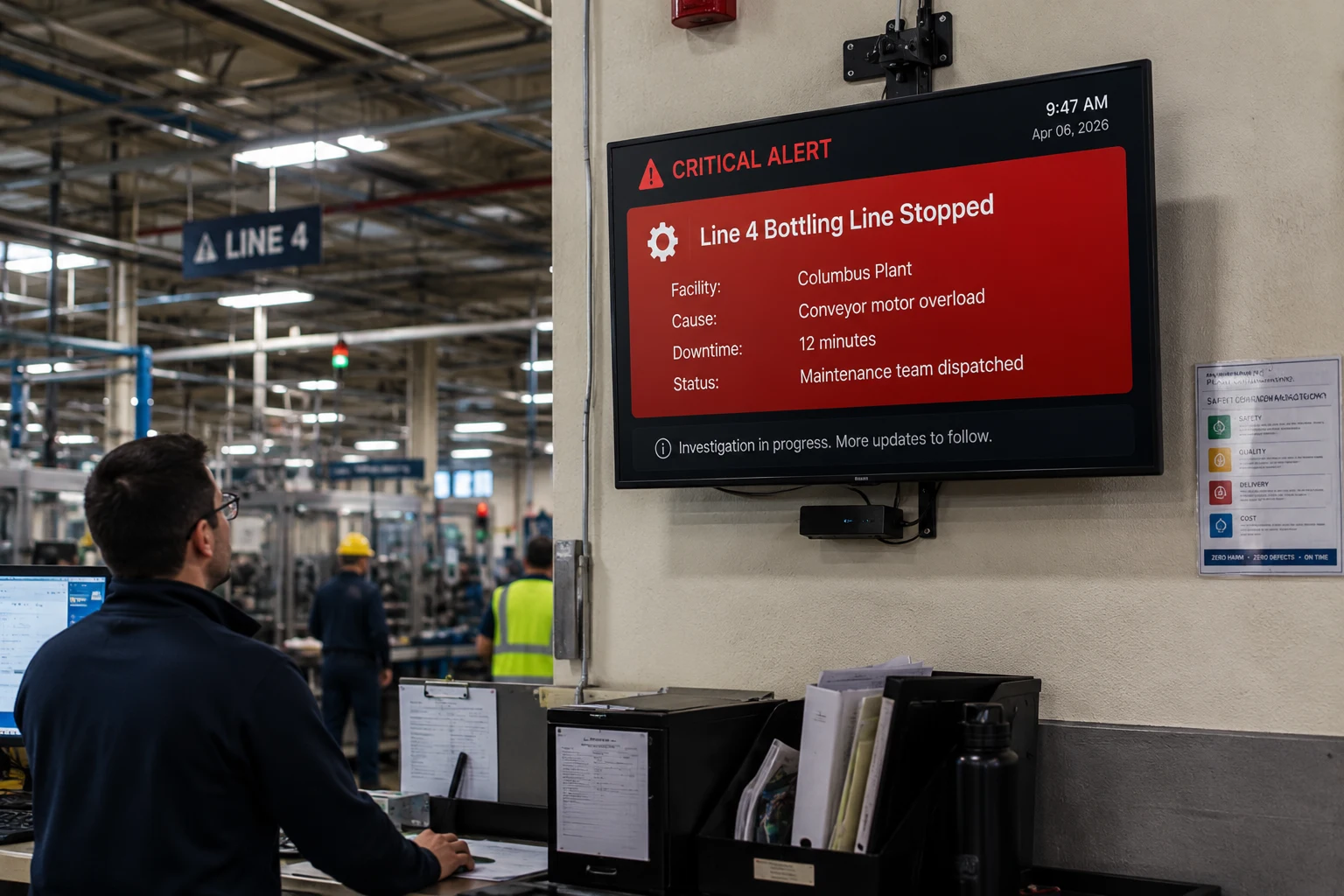
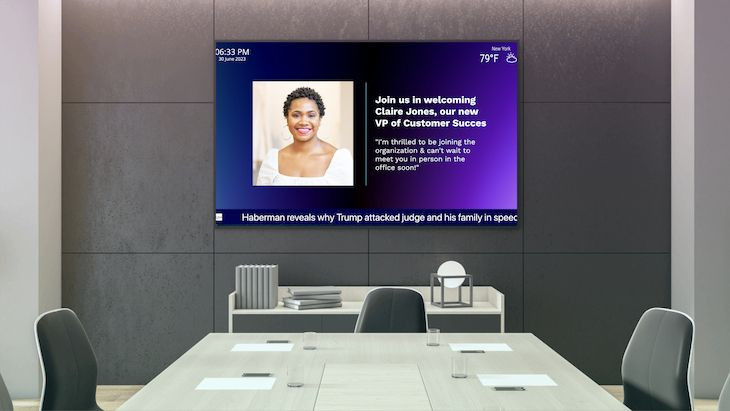
Broadcast company news, event reminders, and workplace notices across every meeting room from one dashboard. Design on-brand slides in Fugo and push them to every idle Meet screen in seconds.

KPIs and dashboards

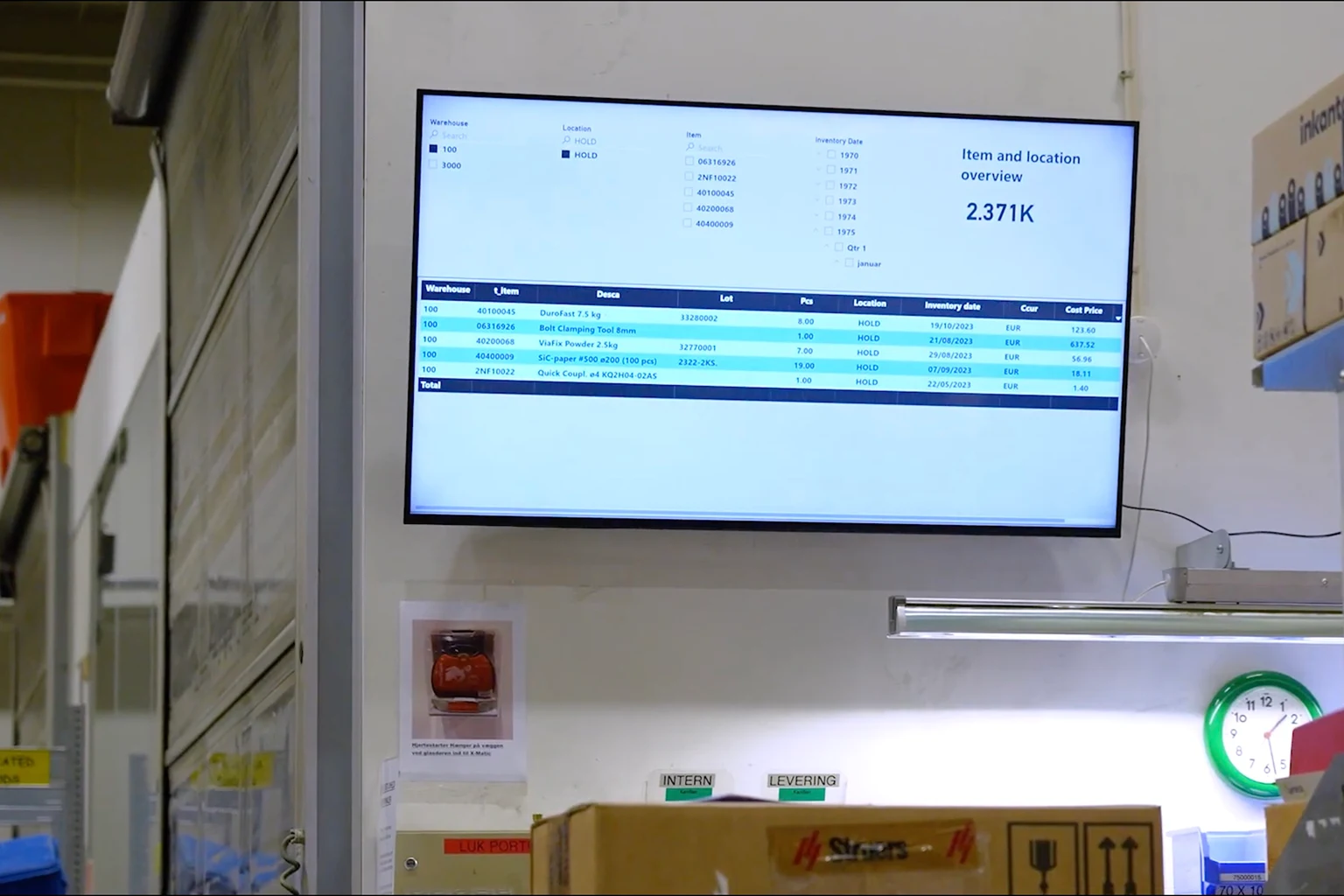
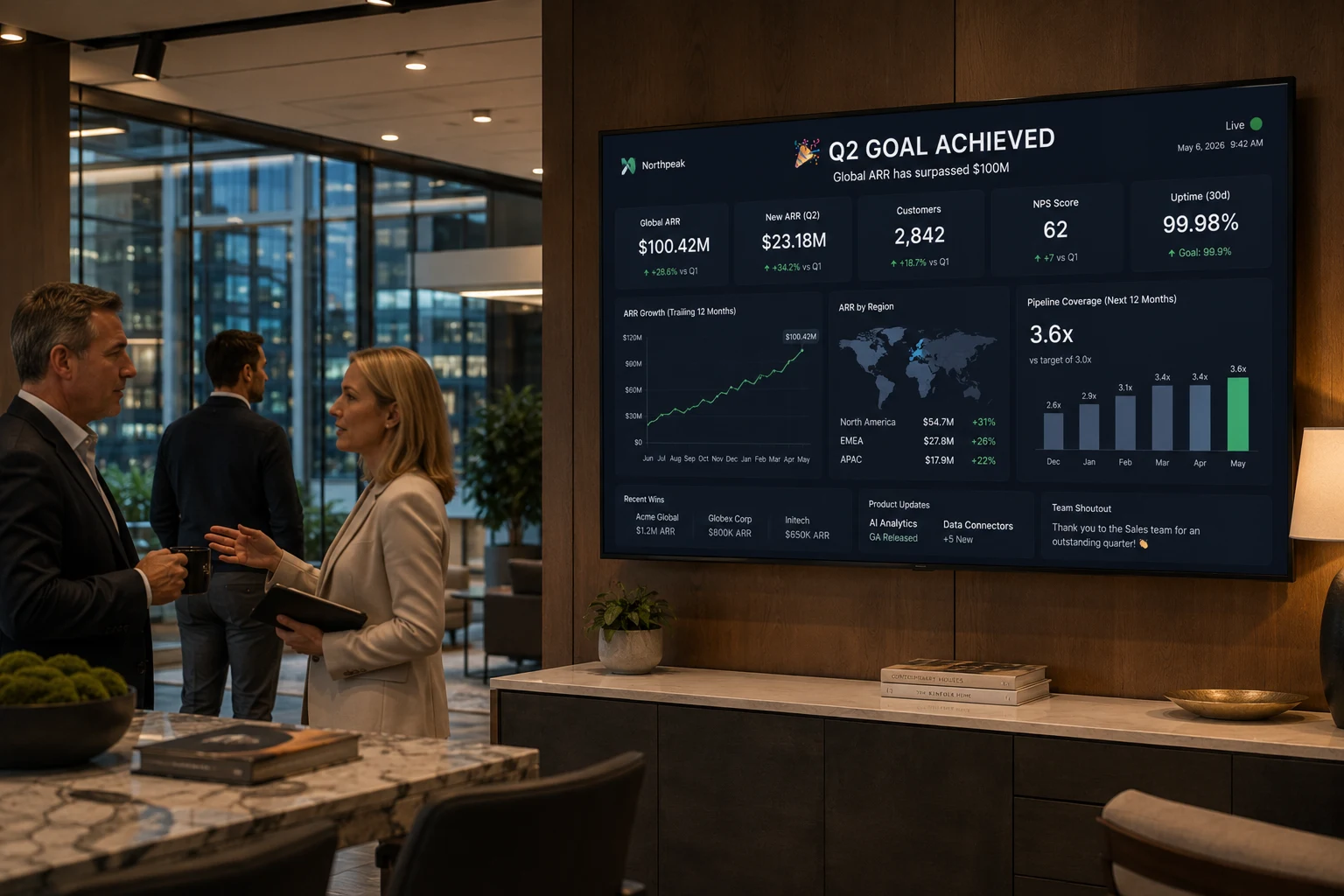
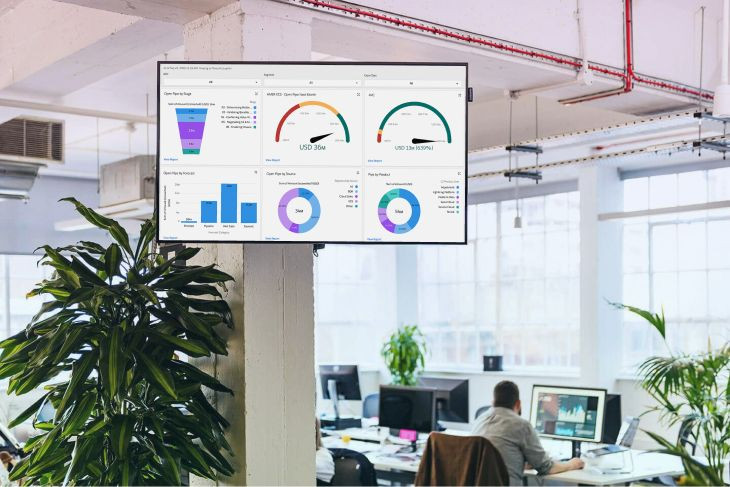
Keep live KPIs, sales figures, and BI dashboards in view between meetings without a second display. Connect Power BI, Tableau, Grafana, and more so the numbers your teams care about stay in front of them.

Meet takes over for calls

Fugo only runs while the screen is idle, so signage never interrupts a meeting. When a call starts, Meet returns automatically, and Fugo resumes your content the moment the room is free again.

Supported devices

Works with your Google Meet room hardware

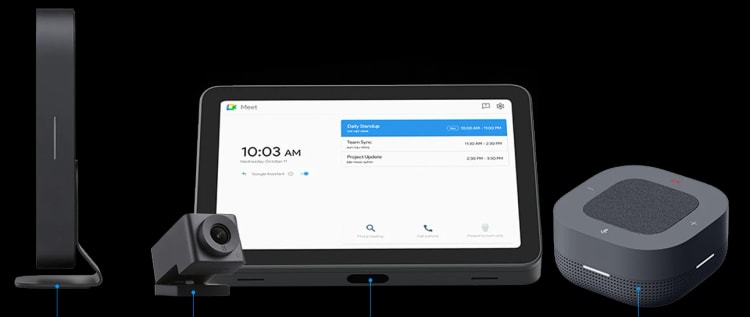
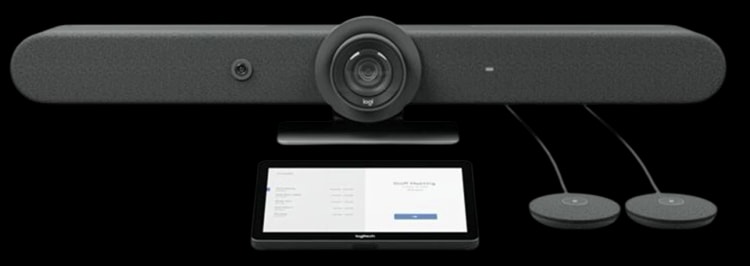
Fugo runs on certified Google Meet Hardware and ChromeOS room devices enrolled in the Google Admin Console. You’ll need a Google Workspace admin account and a stable connection.

Google Meet hardware

  • Certified Meet Hardware room kits
  • Enrolled and licensed in Google Admin
  • Managed centrally from the Admin Console

ChromeOS room devices

  • Chromebox for meetings
  • Chromebase room devices
  • Requires a Google Workspace admin account

What you need

  • A stable internet connection
  • One Fugo screen license per device
  • Single-screen setups (dual-screen not supported)
Setup

Set a virtual-screen URL as the screensaver

Fugo runs through a Virtual Screen URL used as the Meet screensaver source — not a PIN-paired physical screen.

Fugo CMS virtual screen settings modal with content assigned
1

Create a virtual screen

In Fugo CMS, go to Screens → Add Screen and pick Virtual Screen. Name it for the room — for example “Meet Room 1” — create it, and assign the playlist, media, or app you want to show between meetings.

Fugo virtual screen running in a browser tab with its unique player URL
2

Copy the unique URL

Open the virtual screen’s settings and click Copy URL to grab its unique player link. Each URL connects to one device only — reusing it disconnects the first, so create a separate virtual screen for every Meet device.

Google Meet room screen displaying a Fugo room-booking schedule between meetings
3

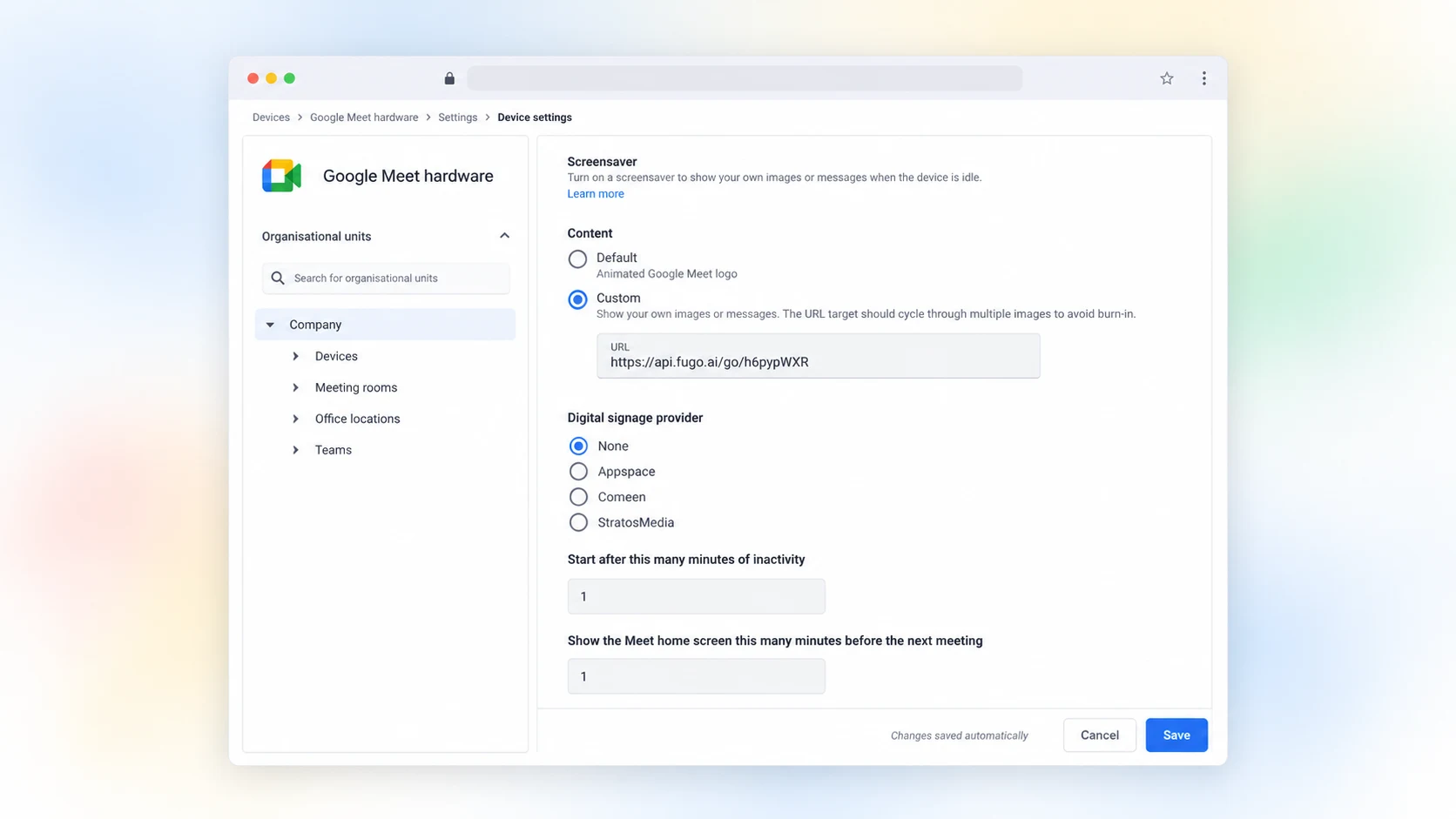
Set it as the screensaver

In the Google Admin Console, go to Devices → Google Meet hardware → Settings → Screensaver, select the device, set content type to Custom with Digital Signage provider None, and paste the Fugo URL. We recommend starting after 1 minute idle and showing the Meet home screen 5 minutes before the next meeting.

Fugo software

Everything you need to run meeting-room signage

The screensaver method puts Fugo on the glass; Fugo CMS gives you the content sources, scheduling, and screen management to keep every idle Meet room useful and on-brand.

Fugo Google Calendar app settings for showing room schedules on screen

Live room schedules

Connect Google Calendar to show each room’s bookings, the next meeting, and free-or-busy status. The schedule updates itself, so the display outside every room is always right.

Fugo Design Studio editing an on-brand corporate announcement slide

On-brand announcements

Design company news, event reminders, and workplace notices in Fugo’s Design Studio, or pick a ready-made template. Publish to one room or every Meet screen in the building from a single dashboard.

Fugo dashboards page listing connected BI tool dashboards

Live kPIs and BI dashboards

Bring Power BI, Tableau, Grafana, Looker, Salesforce, and more onto idle room screens with Fugo’s TV dashboards. Keep the numbers your teams care about in view between meetings without a second display.

See TV dashboards
Fugo screens page grouped by property for managing meeting rooms centrally

Central screen management

Group, tag, and monitor every Meet room from one cloud dashboard. Roll out content across floors and offices at once, and see at a glance which screens are online.

Before you start

A few things to know

The virtual-screen method has a couple of limits worth planning around before you roll it out.

One virtual screen per device

Each virtual-screen URL is single-device only. Reusing a URL disconnects the first device, so create a dedicated virtual screen for every Meet room.

Dual-screen not supported

The screensaver method drives a single display. Dual-screen Meet setups aren’t supported for Fugo signage.

Changes take a few minutes

Admin Console updates take several minutes to reach devices. You may also need to whitelist Fugo domains — contact support if content doesn’t appear.

Uses a screen license

Each Meet device running Fugo consumes one screen license, the same as any other Fugo screen.

Google Meet signage FAQs

Which Google Meet devices does Fugo work with?

Fugo works with certified Google Meet Hardware room kits and ChromeOS Chromebox or Chromebase room devices that are enrolled and licensed in the Google Admin Console. You’ll need a Google Workspace admin account and a stable internet connection.

Can I use one URL across several screens?

No. Each Fugo virtual-screen URL connects to a single device — reusing it disconnects the first device. Create a separate virtual screen for every Meet device you want to run signage on.

Are dual-screen meet setups supported?

No. The screensaver method drives a single display, so dual-screen Google Meet setups aren’t supported for Fugo signage.

Does Fugo interrupt meetings?

No. Fugo only runs while the screen is idle. When a meeting starts, Google Meet takes over automatically and Fugo resumes showing your content once the call ends. You can also set Meet to show its home screen a few minutes before the next scheduled meeting — we recommend 5 minutes.

Does the screensaver method use a screen license?

Yes. Each Google Meet device running Fugo consumes one screen license, the same as any other Fugo screen. Because every device needs its own virtual screen and URL, plan one license per Meet room you want to run signage on.

My Fugo content isn’t showing — what should I check?

Changes made in the Google Admin Console can take several minutes to reach the device, so give it a few minutes after saving. If content still doesn’t appear, make sure your network allows access to Fugo services — contact support@fugo.ai for the list of domains to whitelist.

How do I set it up?

Create a Virtual Screen in Fugo CMS, copy its unique URL, then in the Google Admin Console set the device’s Screensaver content type to Custom and paste the Fugo URL. See the Google Meet setup guide for the full steps.