
Turn any Chrome browser into a digital sign
Install the Fugo Digital Signage Player extension and turn any Chrome browser into an always-on signage screen. It runs the same player as our Web Player, with always-on startup behaviour and more reliable remote screenshots — perfect for trials or running signage on a laptop, desktop, or mini-PC you already own.
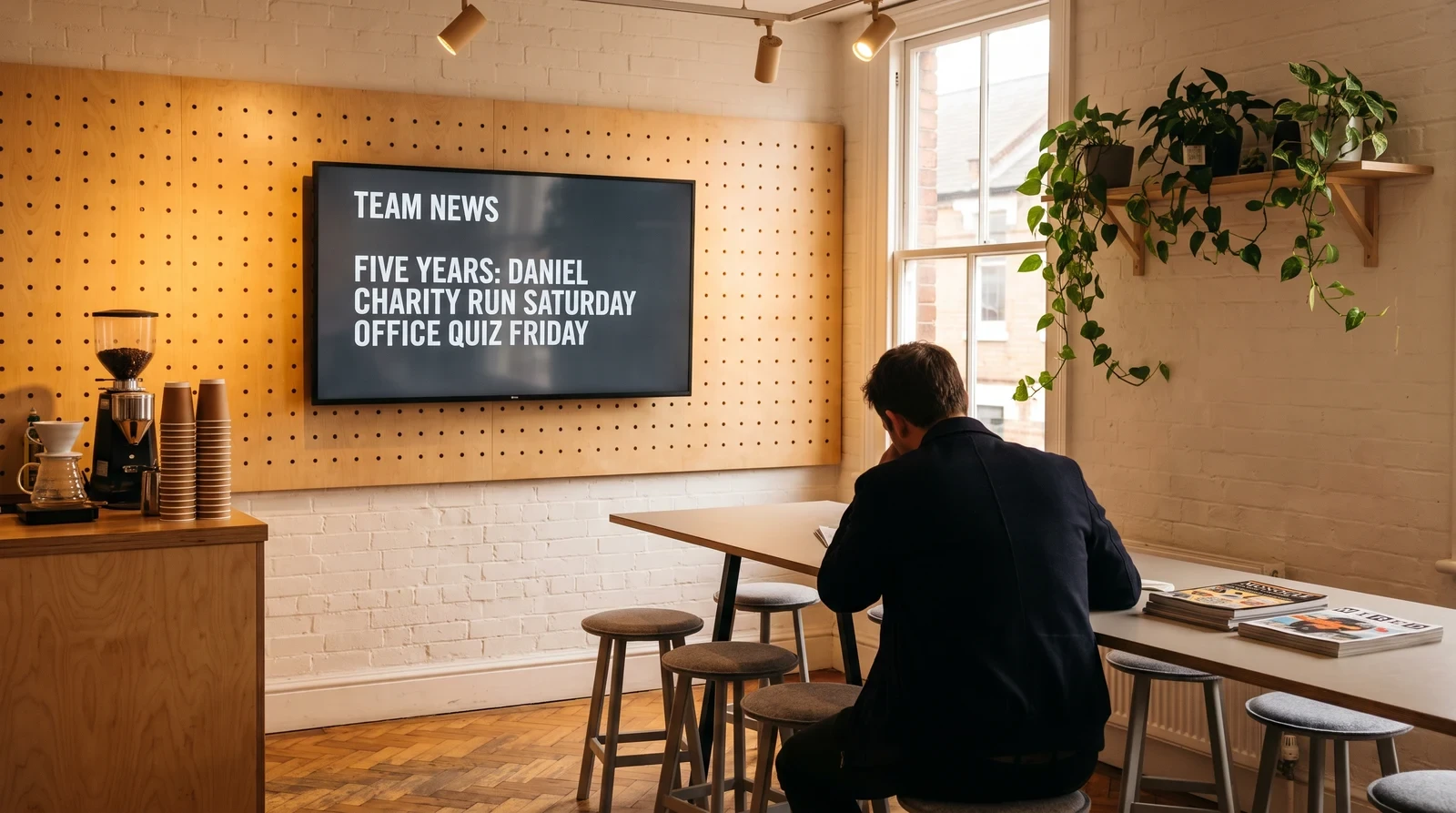
Signage on the hardware you already own
The same browser-based player as the Web Player, packaged as an installable Chrome extension that behaves like a persistent, always-on signage player.
No dedicated hardware
Run signage on a laptop, desktop, or mini-PC you already own — no separate media player to buy, provision, or manage. Click the extension icon, and the device becomes a working Fugo screen. It is a popular way to spin up a screen during a trial before investing in dedicated players.
Always-on startup
The Fugo Player detects when it is running through the extension rather than a plain browser tab, and tunes its startup behaviour to act like a persistent, always-on signage player. That means screens are meant to keep playing and come back on their own, rather than something you open once and check on manually.
Reliable remote screenshots
Fugo periodically captures each screen so you can confirm what is actually playing from the Screens page. Through the extension, that screenshot is captured over Chrome’s own extension messaging — a more reliable path than the in-page rendering the plain Web Player has to fall back on.
One-click install
Add the free Fugo Digital Signage Player from the Chrome Web Store, click the icon, and pair with a 4-digit PIN — live in minutes with no software to sideload. From there, every screen is managed centrally from the cloud, right alongside your other Fugo players.
Get a Chrome screen live in minutes
Three steps from a blank browser to managed digital signage.
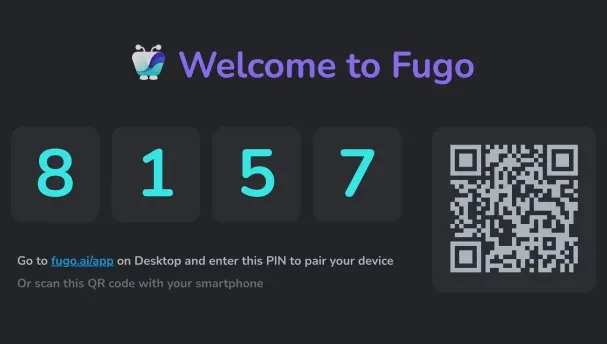
Add the extension and note the PIN
Open the Fugo Digital Signage Player extension (publisher: Fugo Ltd) in the Chrome Web Store, click Add to Chrome, and confirm. The extension launches the player in its own window and displays a 4-digit pairing PIN.
Open the Chrome Web Store listing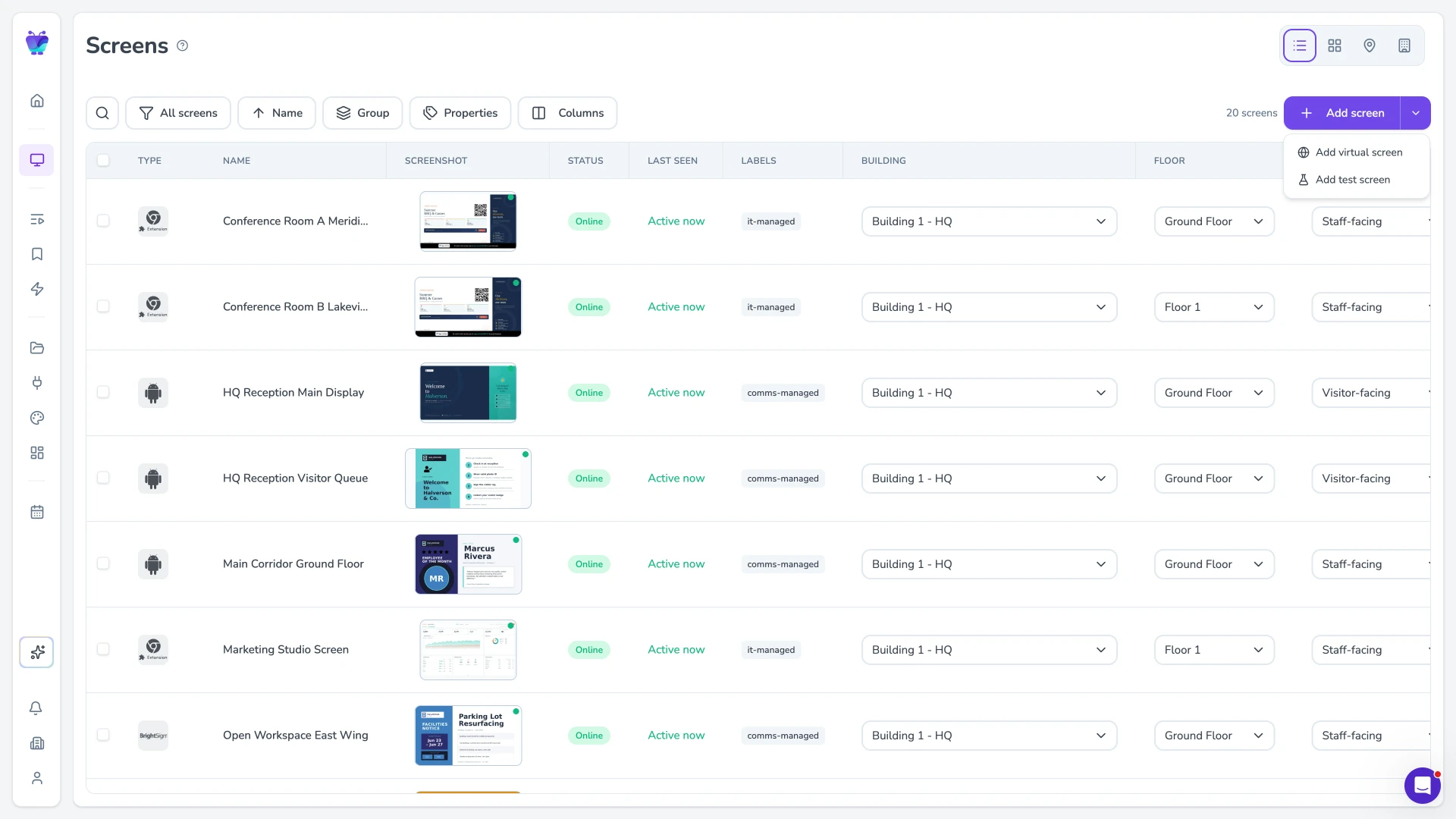
Add a screen in Fugo CMS
Log in or start a free trial at fugo.ai/app, go to the Screens page, and click Add screen. Choose Physical screen — you are pairing a real, active browser window, not creating a shareable link.
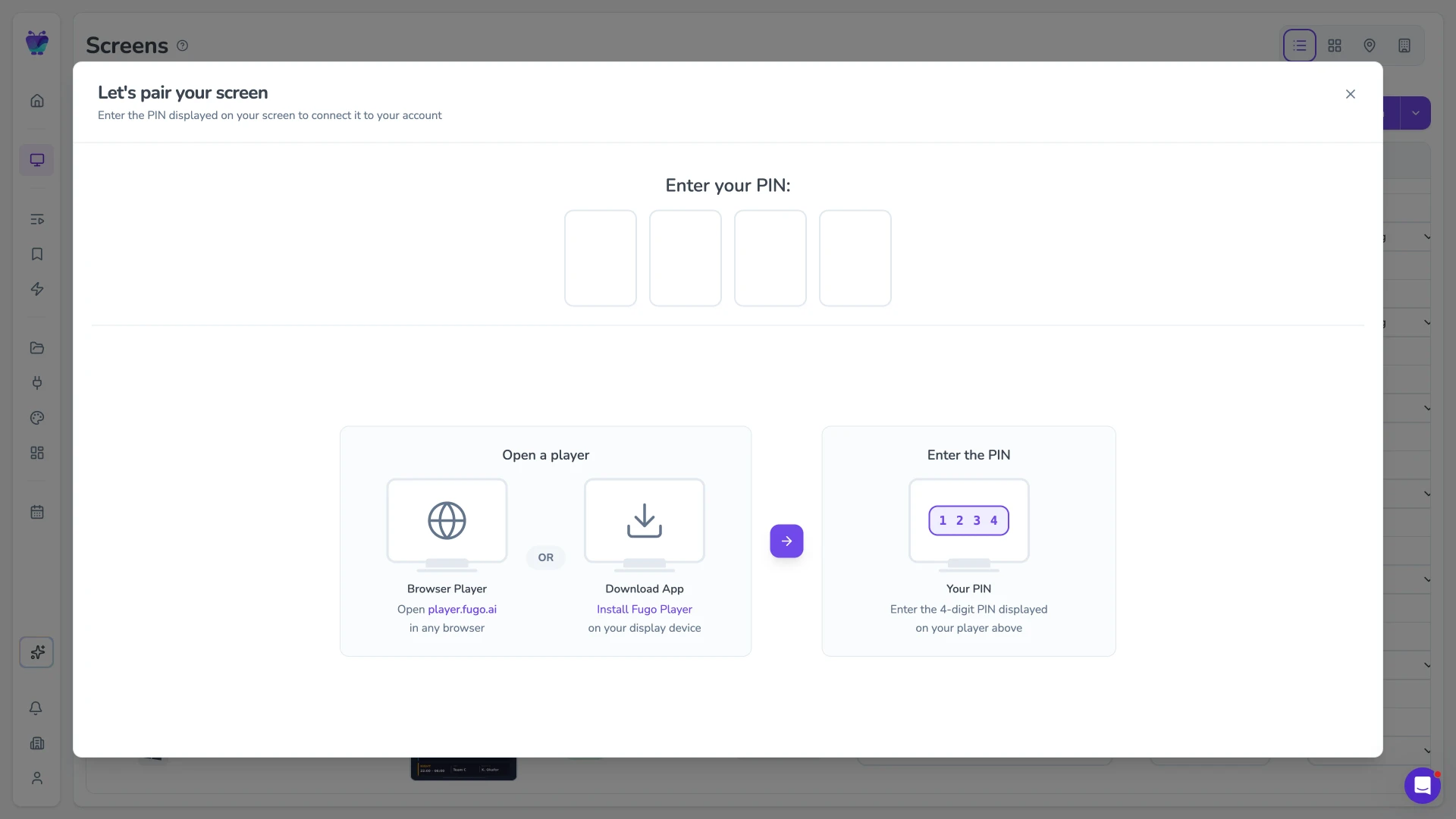
Enter the PIN and pair
Type the PIN from the player window into Fugo CMS, name the screen, and save. Your Chrome screen is now paired and ready — build playlists, schedule content, and monitor every screen from the cloud.
A full signage platform behind every Chrome screen
The extension runs the Fugo Player on screen; Fugo CMS gives you everything you need to design, schedule, and manage content — the same software that powers every Fugo player.
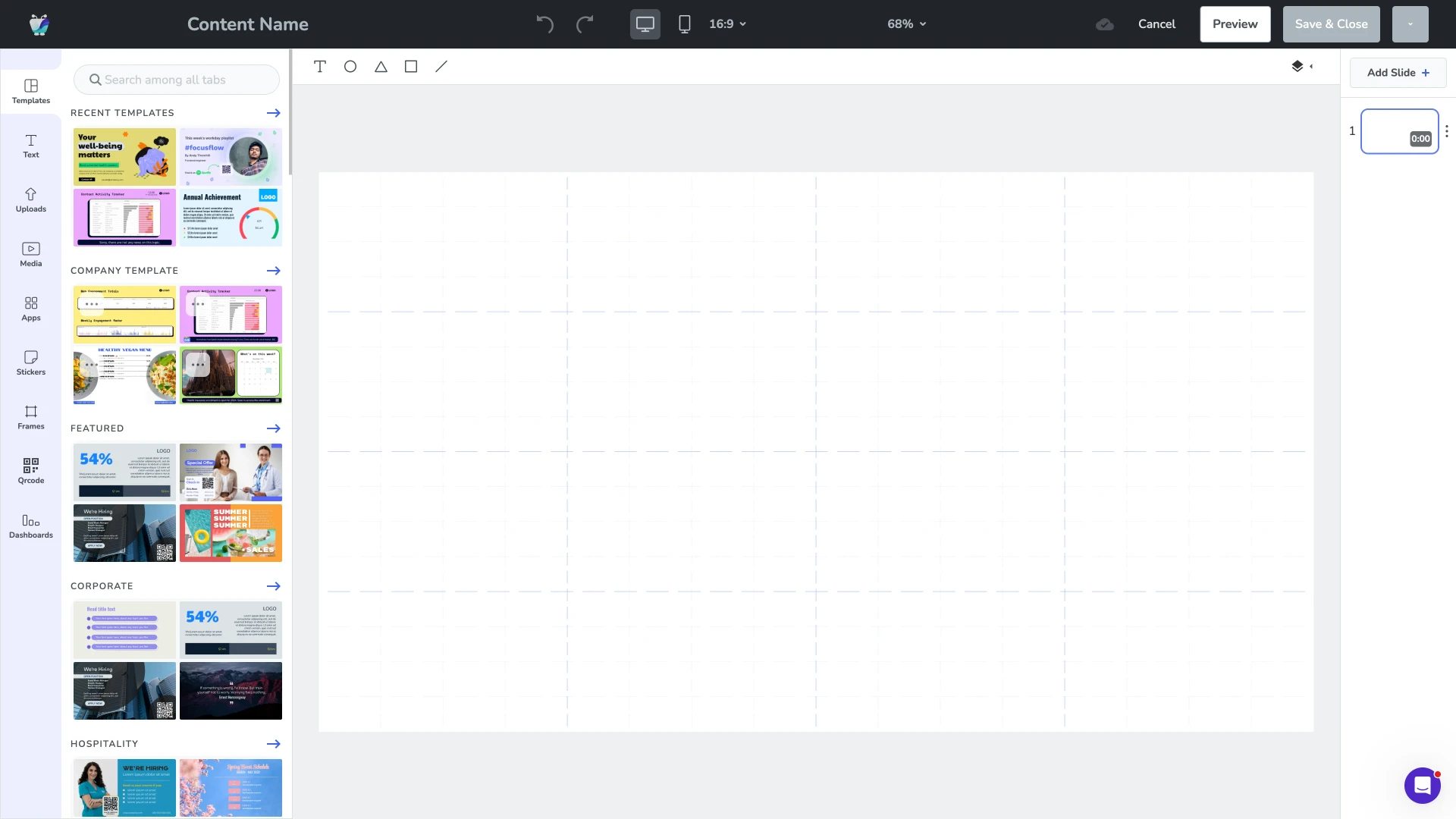
Design content in the browser
Build slides, menus, and templates in Design Studio, or upload media and pull content from tools like Google Slides and Canva. Everything is designed in the browser and published straight to your Chrome screens — no design software to install.
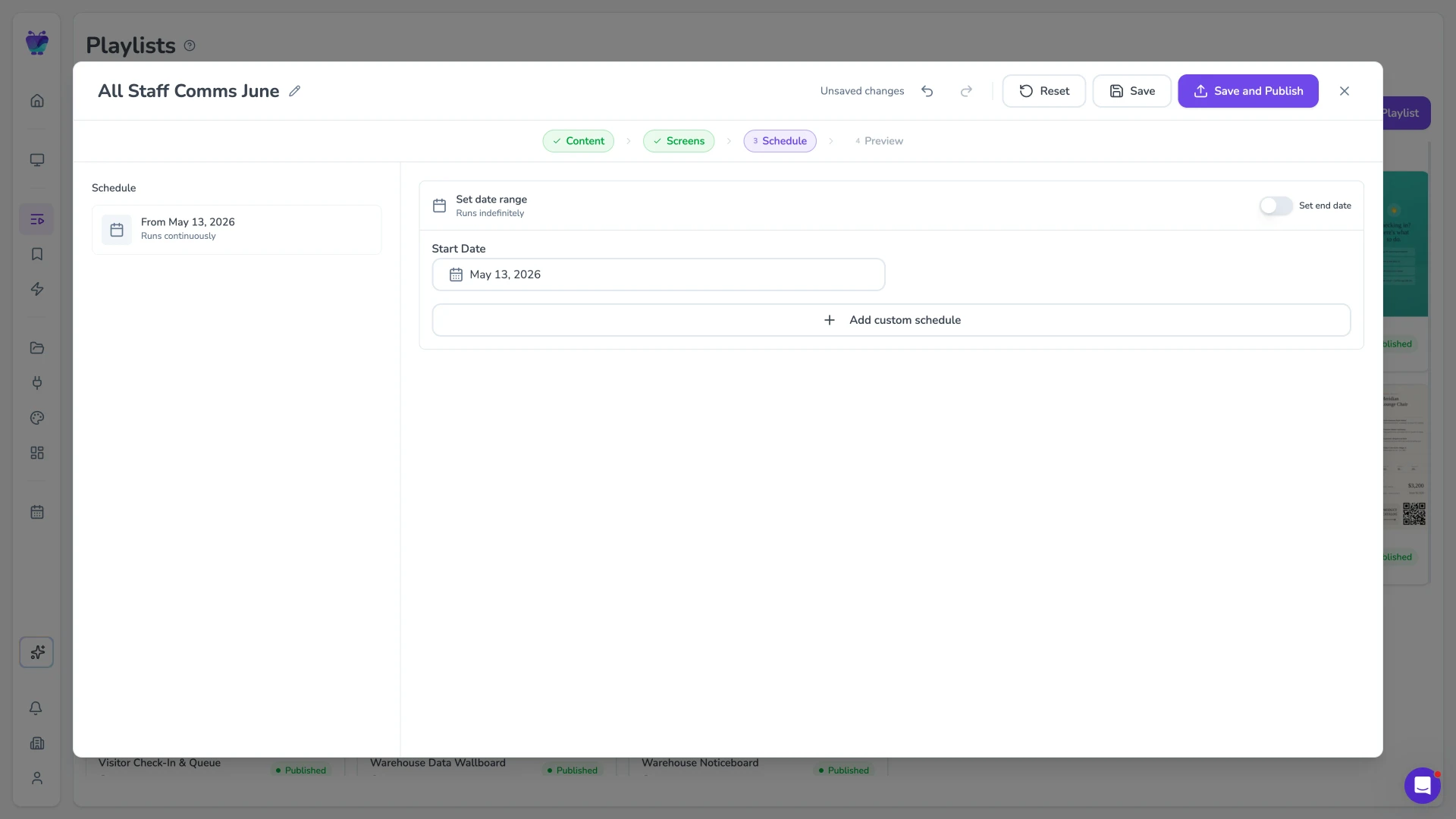
Schedule what plays and when
Build playlists and set exact start and end dates so the right content shows at the right time. Schedule recurring campaigns in advance or push an urgent takeover across every screen at once.
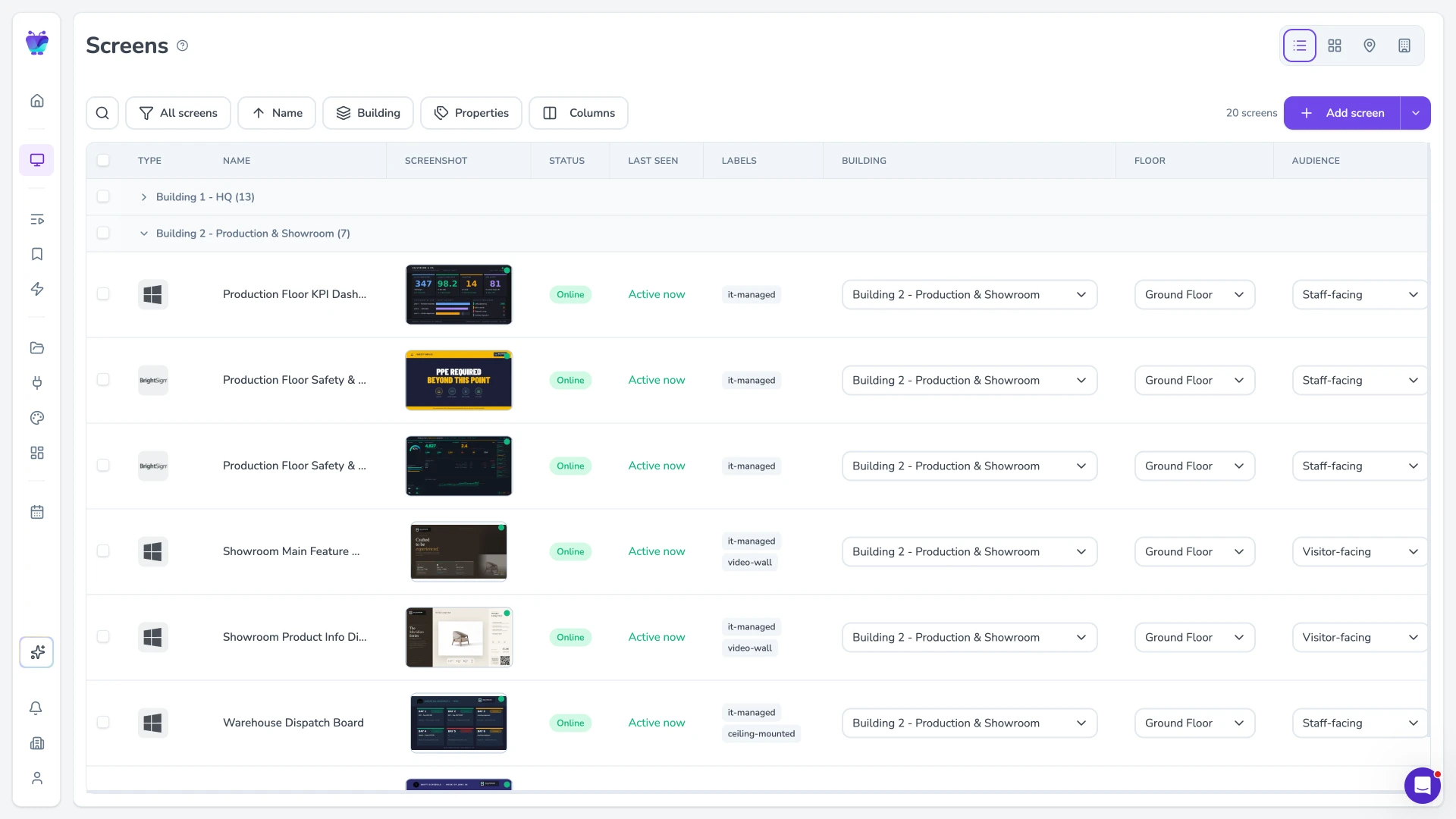
Manage every screen centrally
Group, tag, and filter screens to run a whole network from one cloud dashboard. Group or filter by Player type to tell your Chrome Extension screens apart from other players at a glance.
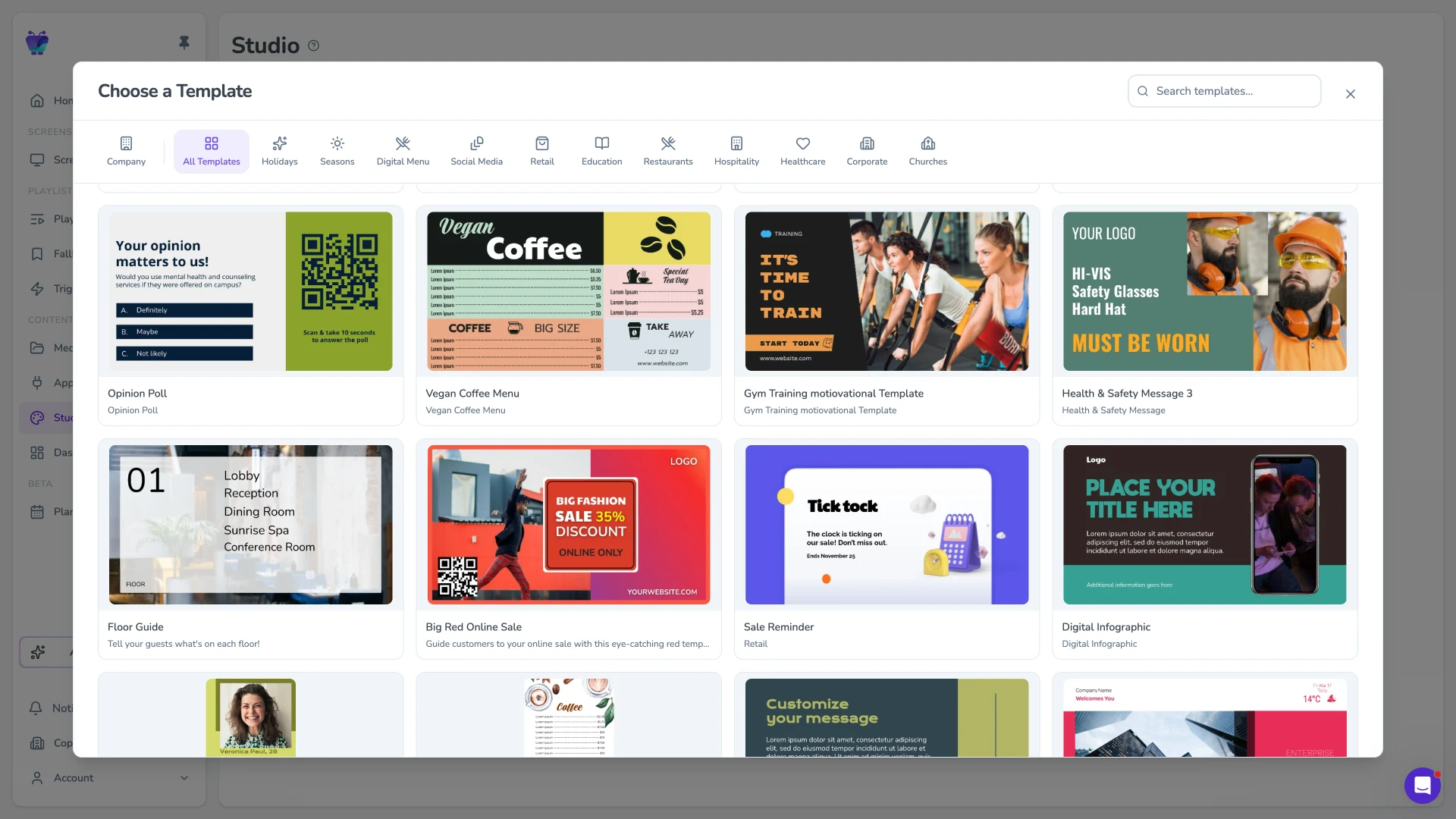
Templates for every use case
Start from a library of ready-made templates organised by industry — retail, hospitality, corporate, healthcare, and more. Customise a template to your brand and reuse it across every Chrome screen in your network.
Two ways to run a browser-based player
Both run the same underlying player as player.fugo.ai. The extension adds persistent, always-on behaviour on top.
Chrome extension
An installable extension that opens the player in its own window with always-on startup behaviour and more reliable remote screenshots. In Fugo CMS it is labelled Chrome Extension. Best for laptops, desktops, and mini-PCs left running as dedicated screens.
Web player
The zero-install player at player.fugo.ai — just open the URL in a browser tab and pair. In Fugo CMS it is labelled Fugo. Best for a quick look or ad-hoc screens where installing an extension is not an option.
A good fit for browser-based signage
The extension turns hardware you already have into a managed Fugo screen — ideal for trials and browser-based deployments before you invest in dedicated players.
Trialling Fugo
It is a popular way to try Fugo during a trial. Add the extension, pair a screen, and explore playlists, Design Studio, and scheduling before committing to dedicated signage hardware.
Hardware you already own
Run signage on a spare laptop, desktop, or mini-PC left on as a dedicated screen. All you need is Google Chrome — the browser Fugo Player is officially built and tested against — kept up to date.
Mixed screen fleets
Extension screens sit alongside your Android, Amazon, and other Fugo players in one dashboard. In Fugo CMS they are labelled Chrome Extension, so browser-based screens are easy to tell apart from the rest of your network.